TABLE OF CONTENTS
- Overview
- Create an External Link
- Configure External Link Template
- Check In Agreement
- Documents & Registers
Overview
This article explains how to use External Links in CirrusFM, including creating QR Codes for Tenants to submit Work Requests, enabling Property check-in functions, and linking Documents and Registers.
Create an External Link
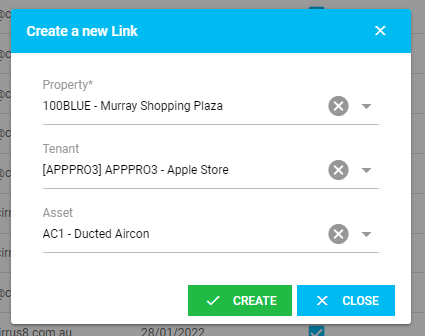
Administrators and Facility Managers can generate a QR Code for an entire Property or for an individual Tenant or Area by creating an External Link.
- Under the Work Request tab, click External Links.

- Click Create Link.

- Select the Property. Tenant and Asset selections are optional and should only be selected when a separate link is required for a specific Tenant or Asset.
- Click Submit.
Configure External Link Template
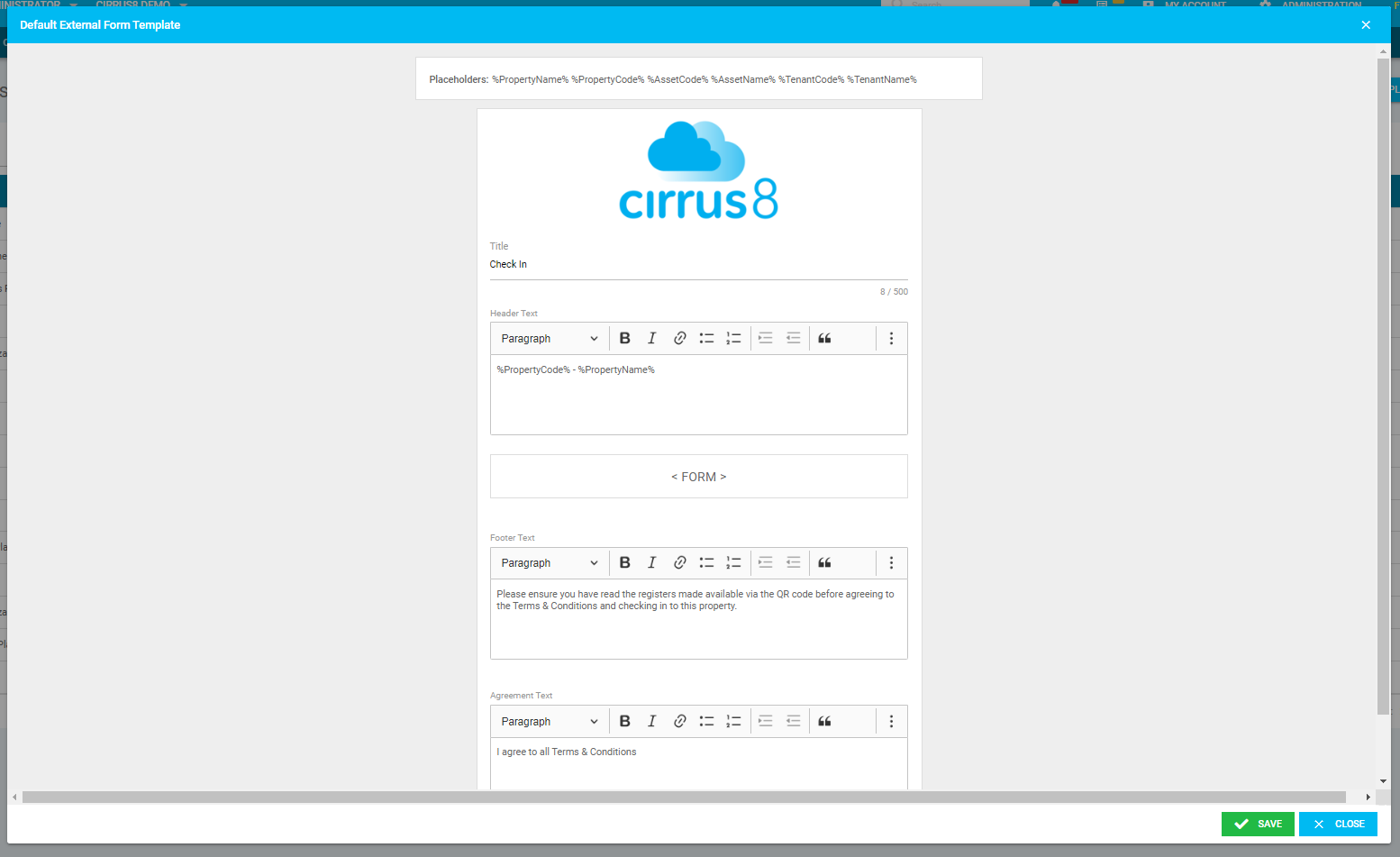
The configured template content will be used as the default for all QR Codes with the corresponding functionality enabled. To customise the template content for an individual QR Code, click the Customise icon for the relevant link.

- Select the template you want to configure: Check In Template, Form Template or Print Template.
- Enter the required Title, Header, Footer and Agreement Text using the available placeholders.
Check In Agreement
This function allows external users to check in onsite by scanning a QR Code, providing a quick and convenient way to record their attendance.

- Locate the relevant External Link and select Check In Enabled and Check In Agreement.
Click the Check In icon to configure the check-in template for that link.
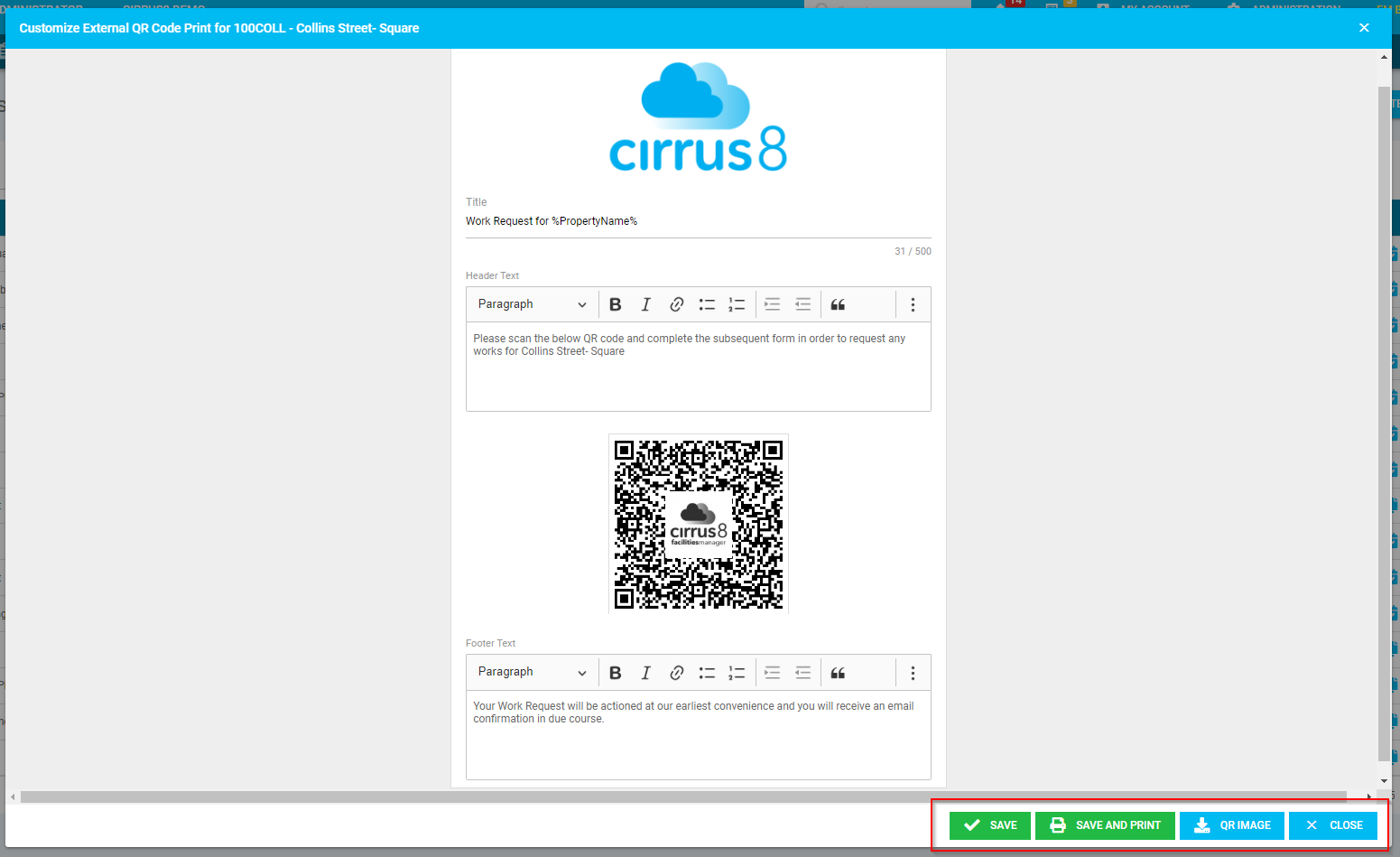
Click the QR icon to configure the QR code and print template.
Customise the Print Template text, then select:
Save to save your changes.
Save and Print to save and print the template.
QR Image to download the QR code for printing.
Close to exit.
Documents & Registers
Contractors can scan a QR Code to access Documents and Registers for site inductions and acknowledgements.

Upload the required documents via Properties.
Select Documents and/or Registers for the relevant External Link.
Click the Form icon to customise the form template.
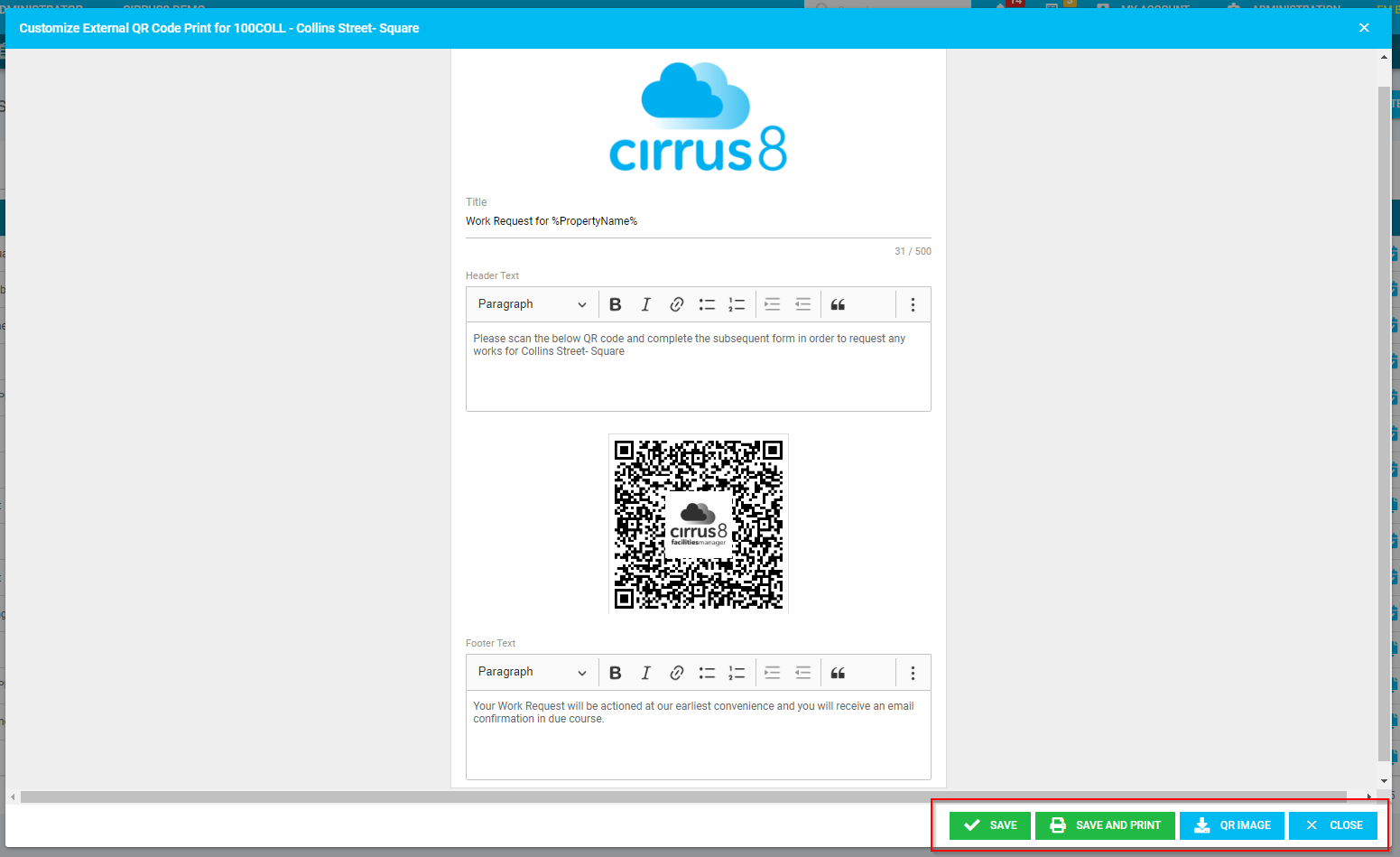
Click the QR icon to customise the Print Template.
Select the required option:
Save → Save the template without printing.
Save and Print → Save the template and print it.
QR Image → Download the QR code for printing separately.
Close → Close the pop-up.
Was this article helpful?
That’s Great!
Thank you for your feedback
Sorry! We couldn't be helpful
Thank you for your feedback
Feedback sent
We appreciate your effort and will try to fix the article