If your database wishes to use the Macquarie TXN downloads for receipting, you must complete the Macquarie Connect setup. Please note that prior to setting this up via RexCirrus8 you will need to have completed the Data Sharing Document via Macqauire directly. Please visit Help - Macquarie Connect
Macquarie Connect is Macquarie Bank’s secure data sharing platform. Once connected, Rex Cirrus8 can securely retrieve your banking data using a digital access token issued by Macquarie.
Key Updates
- A dedicated Macquarie Connect page is now available in Rex Cirrus8
- Authentication is completed via Macquarie’s secure consent process
- Consent is valid for 12 months and must then be renewed
- TXN downloads continue to work as normal
- ABA upload workflows are unchanged
Setup Requirements
Before starting:
Your bank account must already exist in:
Configuration > Manage Bank AccountsBank Name must be:
Macquarie Bank Ltd- The user completing setup must:
- Have their own Macquarie ID
- Have data sharing permissions with Macquarie - This should have been completed prior to completing the steps below
- You must have access to the device registered with the Macquarie Authenticator App
How to Set Up Macquarie Connect
Step 1 – Open the Macquarie Connect Page
Click Here - Macquire Connect Page
Your bank account will display as: ✘ Requires Login - Then Select Login on the relevant Bank Account

Step 2 – Enter Your Macquarie ID
Enter your Macquarie ID and click Next.
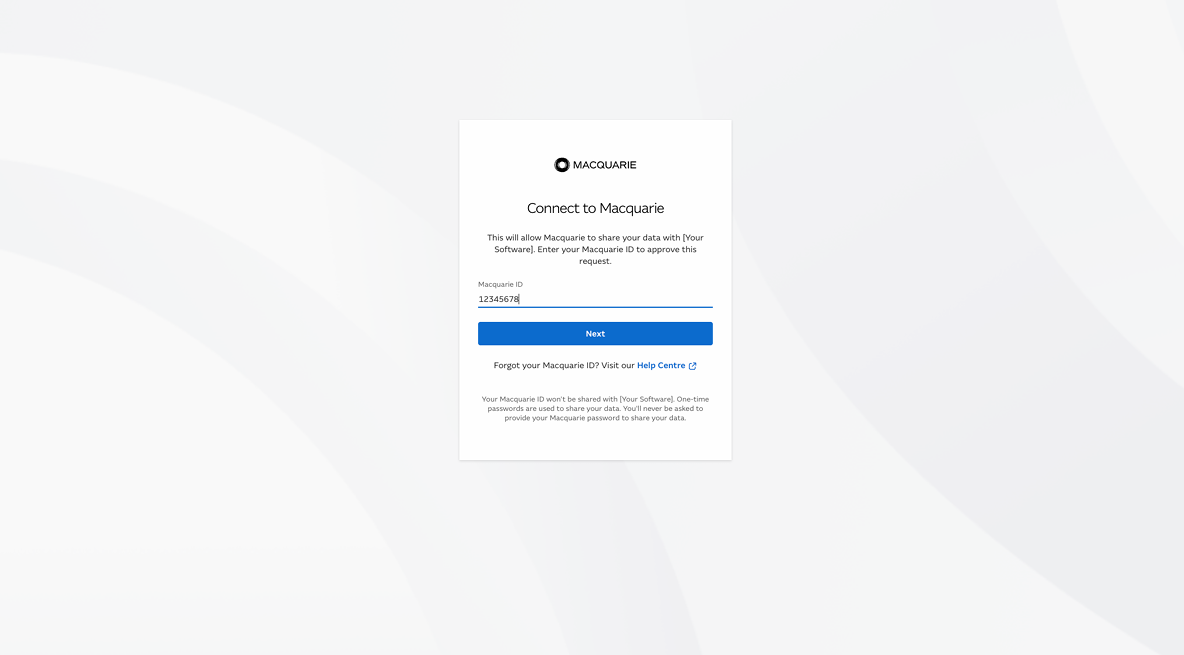
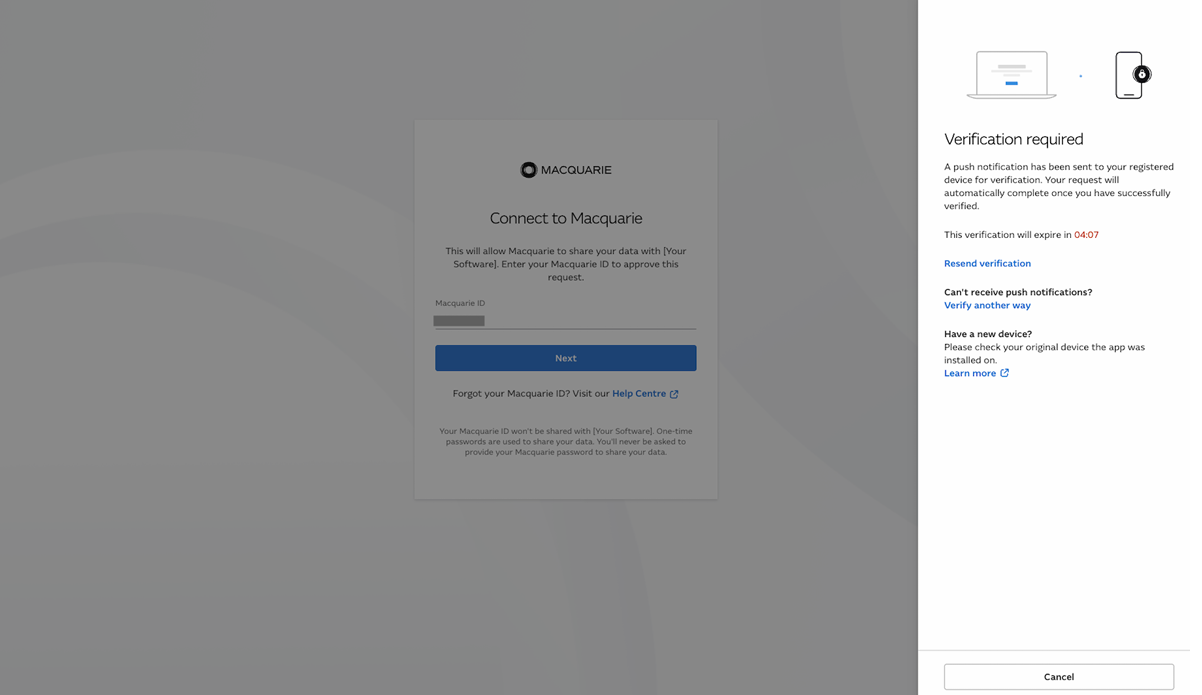
Step 3 – Complete Verification
Approve the login request in the Macquarie Authenticator App.
If no notification appears:
- Open the Authenticator App manually
- Select the pending request
- Or select Verify another way
Note: If the request times out, restart from Step 2.
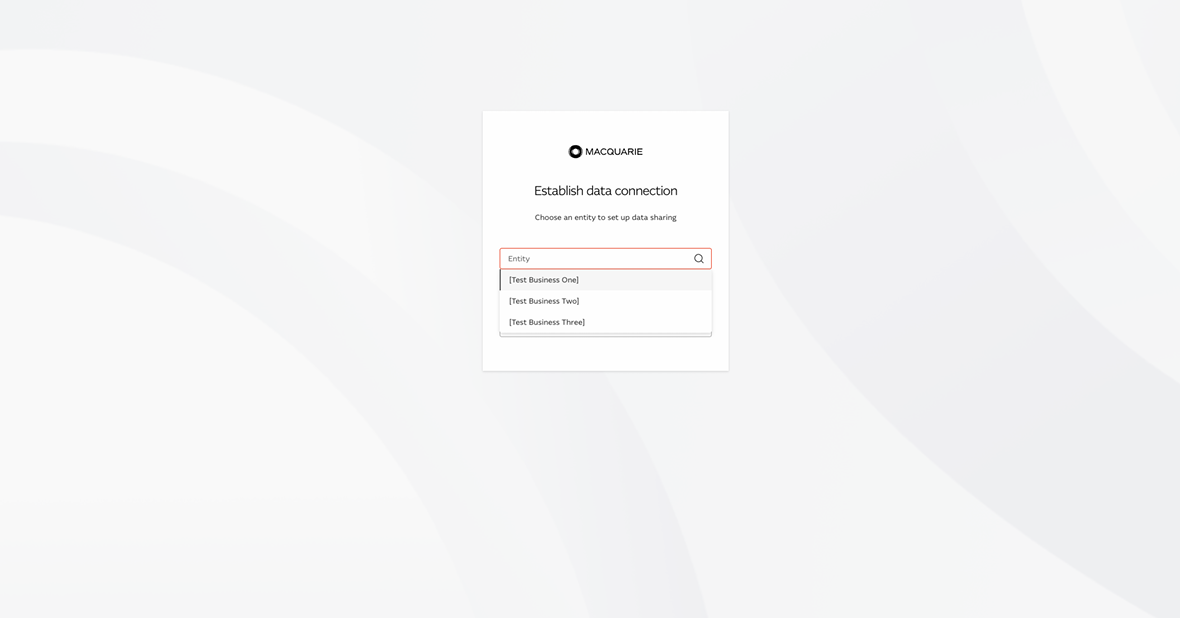
Step 4 – Select the Business Entity
Select the required business entity and click Next.
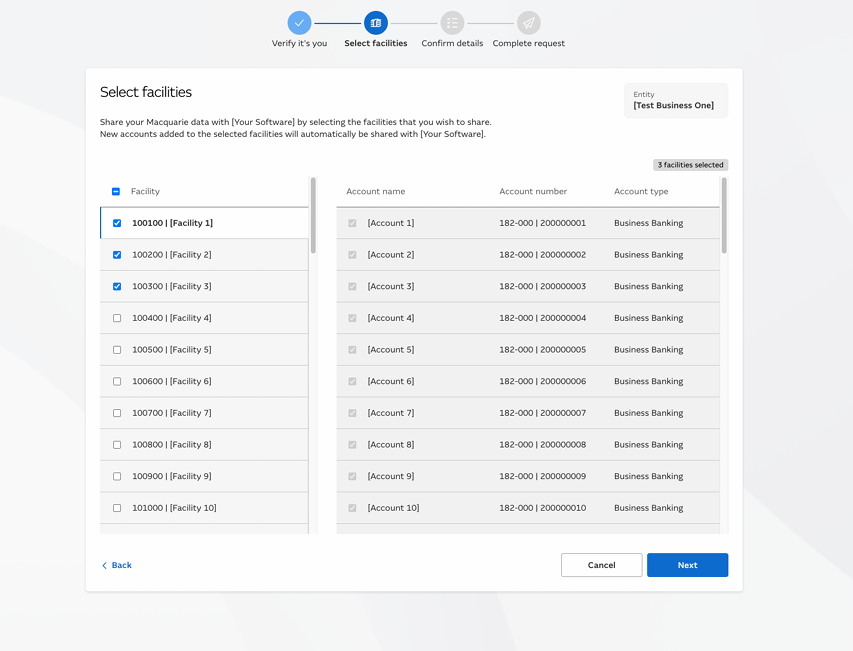
Step 5 – Select Facilities
Tick the accounts/facilities you want to share with Rex Cirrus8 and click Next.
Step 6 – Confirm Details
Review the details and click Confirm.
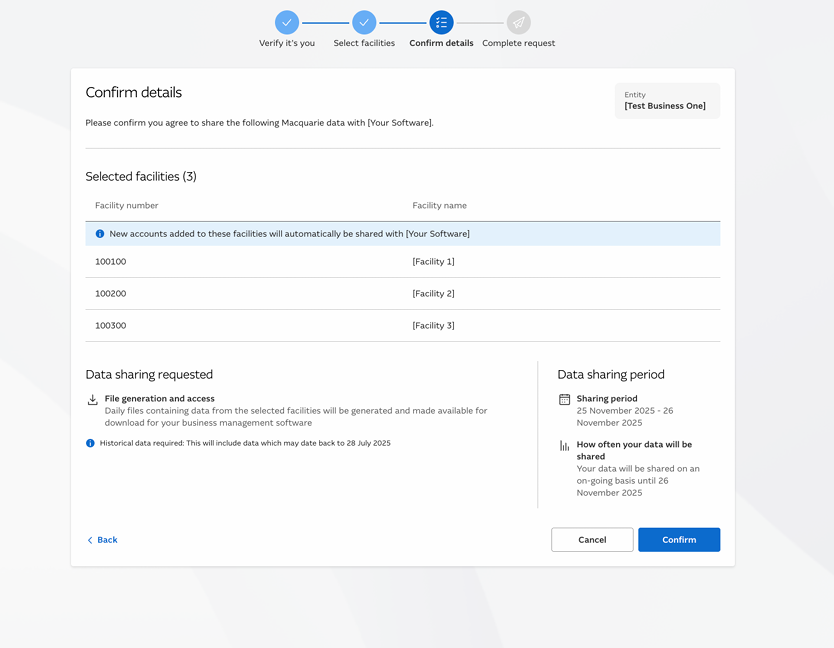
Step 7 – Complete the Request
The final screen will confirm the request has been submitted. You will automatically return to Rex Cirrus8.
If not, click Back to [Your Software].
Authentication Complete
Once complete, the status will display: ✓ Authenticated
The Consent Expiry Date will also display. Consent remains valid for 12 months. To renew, repeat the setup process.
TXN downloads can then continue through: Accounts Receivable > Receipts
No further login is required.
Disconnecting Macquarie Connect
- Open the Macquarie Connect page - Macqauire Connect Page
- Click Logout next to the bank account
- Click OK to confirm
The status will update to: ✘ Requires Login
You can reconnect at any time by completing the setup again.
Support
If you require assistance, contact:
Was this article helpful?
That’s Great!
Thank you for your feedback
Sorry! We couldn't be helpful
Thank you for your feedback
Feedback sent
We appreciate your effort and will try to fix the article