Step-by-Step Guide
1. Receipting
Objective: Ensure all funds received for the month are entered correctly and the bank balance matches receipts recorded in the system.
Steps
Identify all funds received
Gather bank statements, payment notifications, and remittance advice.
Include all receipts up to the last day of the month.
Enter receipts into the system
Record each payment against the correct tenant or account.
Confirm:
Amount
Date received
Payment method
Reference or description
Verify totals
Compare:
Total receipted in the system
Total funds showing in the bank
Check for discrepancies
Look for:
Missing receipts
Duplicate entries
Incorrect amounts
Confirm the bank balance matches
Ensure receipts recorded equal funds received.
Important:
Do NOT update or finalise the Bank Reconciliation at this stage. This will be completed later.
2. Unallocated Cash
Objective: Allocate any funds receipted to Unallocated Cash so they can be applied to tenant charges and made available for owner payments.
Steps
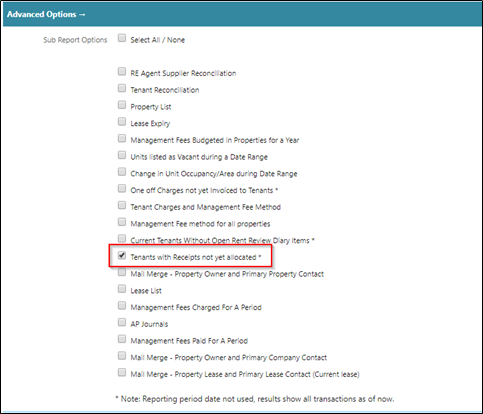
Run the Unallocated Receipts report
Navigate to:
Export or open the report.
Review the report
Identify:
Tenant name
Receipt amount
Date
Reference information
Match receipts to tenant charges
Locate the corresponding:
Rent
Fees
Arrears
Other charges
Allocate funds
Apply each unallocated receipt to the appropriate tenant charge.
Ensure:
Allocation equals receipt amount
No remaining balance unless legitimately unapplied
Recheck allocations
Re-run the report or refresh the screen.
Confirm:
No receipts remain unallocated (unless intentionally left).
Confirm funds are available
Once allocated, funds will be available for owner disbursements.
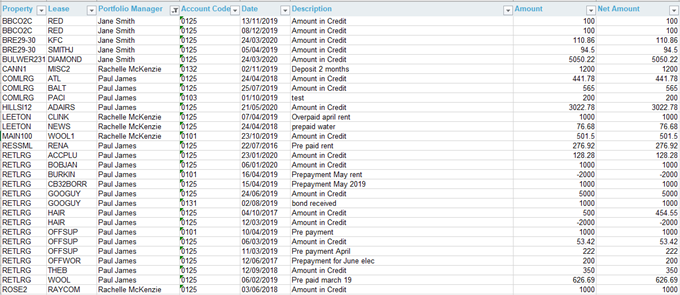
- In Excel, filter out transactions under the Sales and Leasing Portfolio:
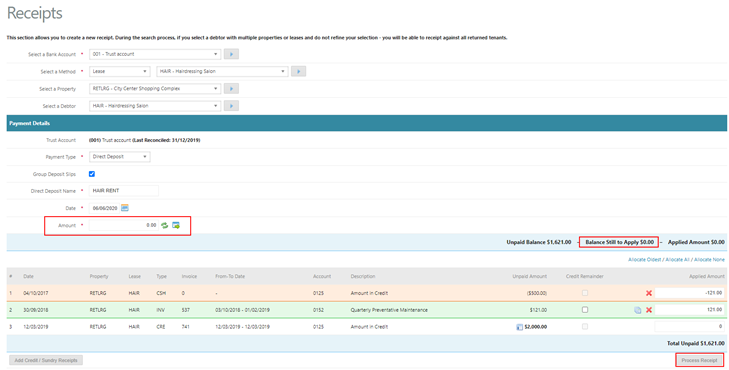
- ‘Zero Receipt’ any unallocated cash to unpaid transactions, if possible:
Accounts Receivable > Receipts:
3. Supplier Invoices — step-by-step guide
Goal: Make sure every supplier invoice is entered and approved so it’s ready to be paid in the Month End run.
Gather invoices
Collect all invoices received up to month end (email, post, portal).
Check none are missing from key suppliers (cleaning, utilities, repairs, compliance, etc.).
Validate invoice basics (before entry)
Correct supplier name and VAT/tax details (if applicable).
Correct property/site and (if used) unit/tenant/cost code.
Invoice has a clear invoice number, invoice date, and due date.
Amounts add up correctly (net + VAT = gross).
Check it’s legitimate
Matches a PO/quote/works order where required.
Work/service has been completed and is authorised by the relevant person.
Check duplicates
Search the system for the invoice number and supplier to ensure it hasn’t already been entered.
Enter the invoice
Add supplier invoice with:
Supplier
Property / building (and unit if relevant)
GL / nominal / cost code
Invoice number + invoice date
Amount (net/VAT/gross as required)
Due date / payment terms
Notes / attachments (PDF copy)
Attach supporting documents
Attach the invoice and any approval evidence (emails, PO, signed job sheet).
Submit for approval (if workflow applies)
Route to the correct approver.
Resolve any rejections promptly (coding, missing docs, incorrect property, etc.).
Confirm “ready for payment” status
Invoice should be posted/authorised and not on hold.
Payment method set correctly (BACS/CHAPS/cheque/etc. if your system uses it).
Final pre-month-end check
Run a report/list of unapproved/unposted invoices and clear them.
Confirm invoices intended for month end are included and correctly coded.
4. Month End Payment Run — step-by-step guide (Payment Type: Month End)
Goal: Each PM runs month-end payments for their own portfolio using the correct Month End run date.
Confirm you’re processing the correct month
Example: if processing January month end, you are closing out January.
Verify all supplier invoices are ready
No critical invoices stuck in “pending approval/unposted/on hold”.
Chase approvals before starting the payment run.
Start the payment run
Navigate to Payment Runs / Payments processing (your system path).
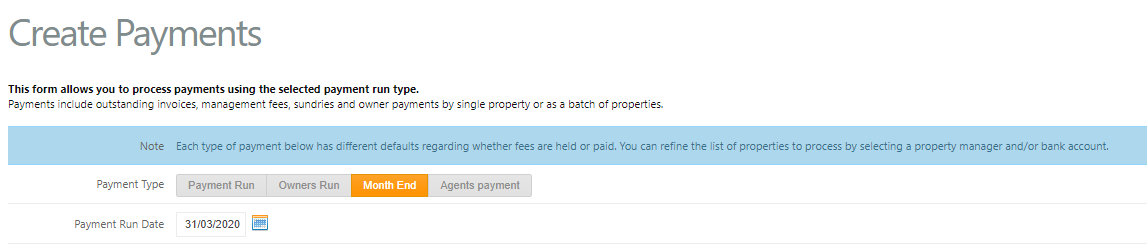
Select Payment Type: Month End.
Set the Payment Run Date (critical)
Payment Run Date must be the LAST DAY of the month you are processing.
Example:
Processing January month end → Payment Run Date = 31 January
Processing February (non-leap year) → Payment Run Date = 28 February
Do not use today’s date unless today is the last day of that month.
Why this matters: If the run date isn’t the month’s last day, it may affect month-end calculations and can result in management fees not being collected correctly.
Filter to your portfolio
Ensure the selection is limited to your buildings/properties only.
Double-check nothing outside your portfolio has been pulled in.
Review the proposed payments
Check supplier, property, invoice numbers, and totals.
Watch for red flags:
Duplicate invoices
Incorrect coding/property
Unexpected large values
Credits not applied
Invoices not meant to be paid yet
Resolve exceptions
Remove/hold anything not ready (disputes, missing docs, wrong supplier details).
Correct any coding or property allocations before proceeding.
Generate the payment output
Produce the remittance/payment file (or cheque list) per payment method.
Save/export according to your internal process.
Obtain approvals (if required)
Follow internal sign-off rules before releasing funds.
Post/confirm the payment run
Commit the run in the system.
Ensure invoices move to paid (or payment pending) status as expected.
Send remittances
Issue remittance advices to suppliers where applicable.
Reconcile and file
File run reports (payment summary, exception list).
Confirm totals align with bank/payment output.
Note anything held back to include in the next run.
PM’s must select and go through ALL of their properties to ensure Management Fees are all accounted for - either paid out or accrued. (This is VERY important as Management Fees in Cirrus8 do not roll over from month to month)
Ensure you select to PAY Management Fees where you have sufficient funds:

If you do not have sufficient funds to pay Management Fees, you will need to UNTICK both Pay and Reserve. This will force the system to create an Agent Invoice for Management Fees that will be available to be paid in the next payment run.
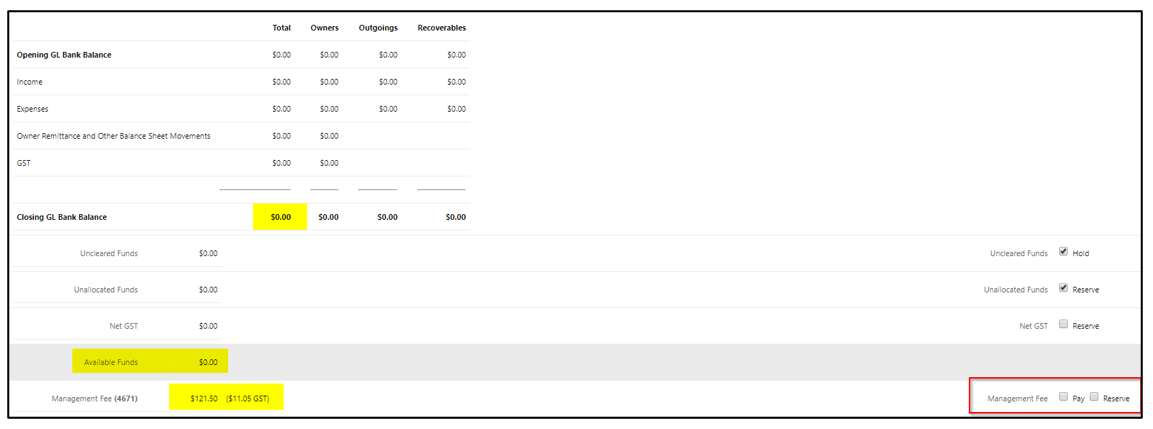
Wait for each PM to submit their Payment Forms and merge these into one payment run. The main thing you are checking for when approving the Payment Run is that all Management Fees are accounted for.
Assign Payment Numbers and create EFT, BPAY files and print cheques as necessary.
5. Close Calendars
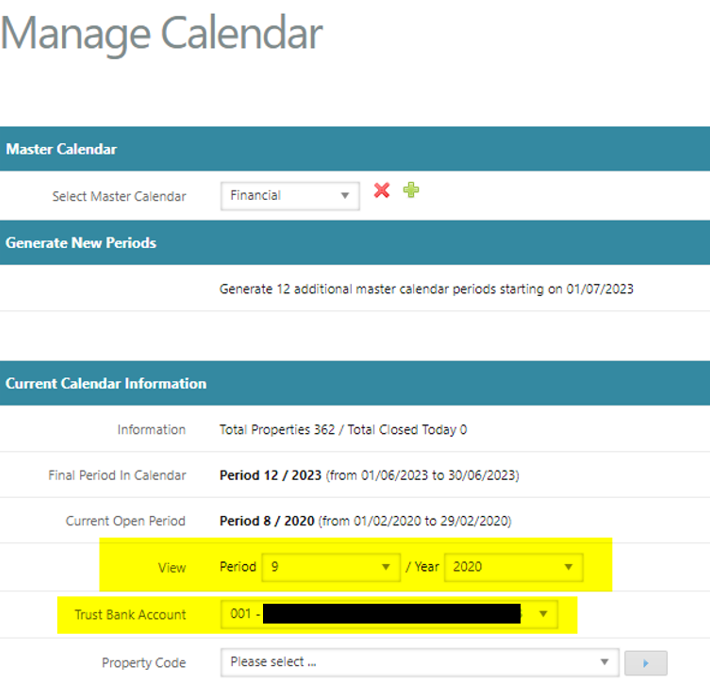
Go to Configuration > Manage Calendar.
Select View, choose the CURRENT period you’re closing.
Example: to close March 2020, select Period 9 / Year 2020.
3. In the columns Closed?, Update Retail?, and Update GL?:
Select ALL properties (tick/select all rows for each of those columns).
4. Scroll to the far right and then down to the bottom of the page.
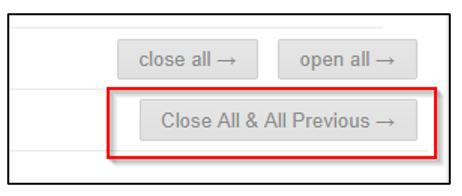
5. Click Close All & All Previous.
6. Result check:
This closes calendars for all properties from the selected month backwards (e.g., March 2020 and earlier).
You will only be able to post transactions from the next month onward (e.g., April 2020 onwards).
Select ALL properties in the Closed?, Update Retail? And Update GL? columns:
Scroll right to the bottom of the page and click Close All & All Previous. (This will close the calendars for all Properties from March 2020 backwards, allowing you to only transaction from April onwards)
6. Owner Reports
Run one portfolio at a time, and exclude Sales and Leasing.
Go to Management Reports > Owners Reports.
Set Report Type:
Select the desired report format.
Set Selection Criteria:
Selection Criteria: Property Manager
Selection Criteria Option: Property Manager
Default Property Report: no selection required.
Click Select all Properties.
Set Select Dates:
Choose the required date range.
 7. Email options (as required):
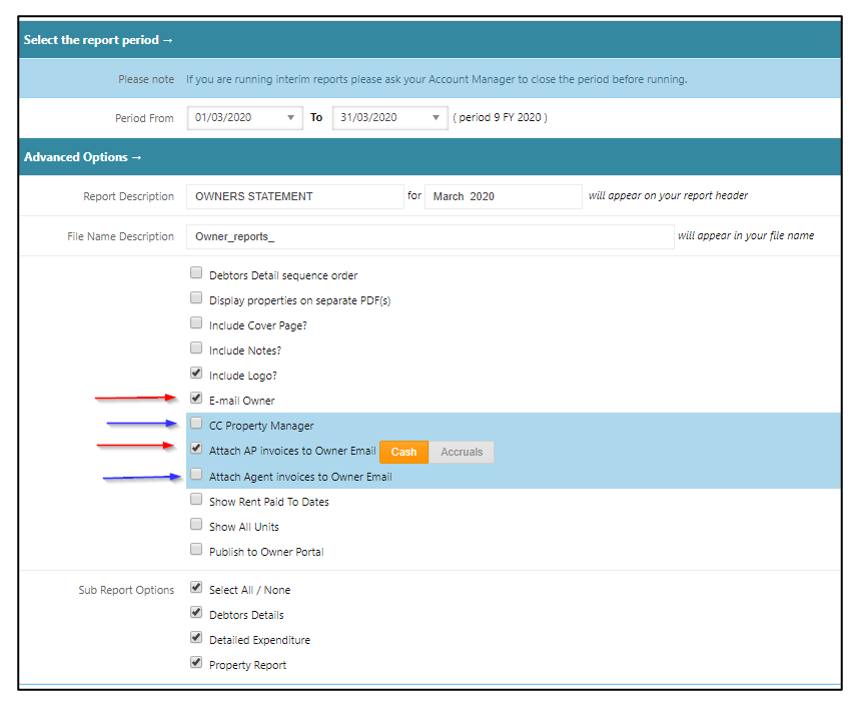
Tick E-Mail Owner.
Tick Attach AP invoices to Owner Email – Cash (if you want supplier invoices included).
Optional:
CC Property Manager (warning: they may receive many emails).
- Attach Agent Invoices to Owner Email (system-generated invoices for management/admin fees).
8. Click Generate Report.
9. Expected message:
“Due to it’s complexity, Owner Reports will be emailed upon completion”.
10. While it runs:
Continue with the next portfolio’s owner reports or move to the next month-end step
7. Bank Reconciliation
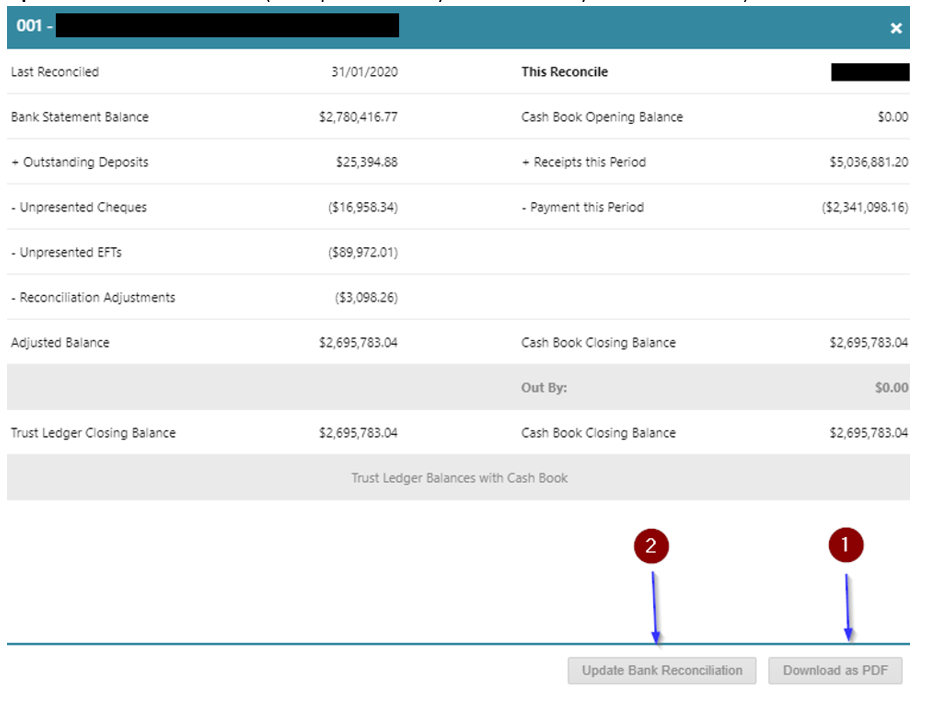
Enter the Bank Statement Date as the last day of the month.
Enter the Bank Statement Balance exactly as per the bank statement.
Leave cheques and EFT/BPAY payments made in the EOM payment run as unpresented.
Click View Bank Reconciliation Report.
Download as PDF and print/save it — BEFORE you update the bank rec.
Keep the PDF open to cross-check figures against later reports.
If balanced, click Update Bank Reconciliation.
Note: this option is only available if you are in balance.
8. BANK RECONCILIATION REPORTS
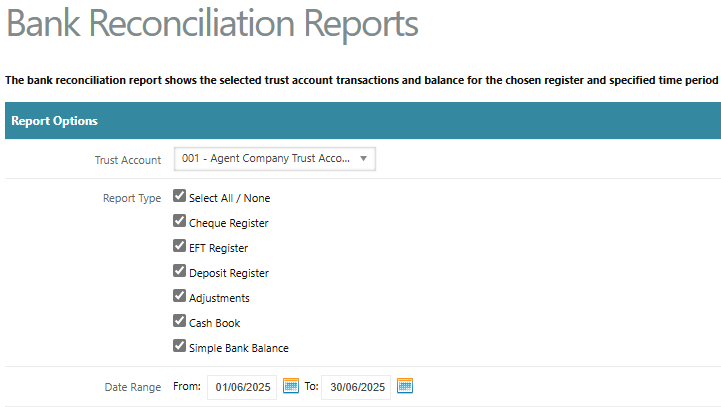
Run all 6 report types using a date range = 1st to last day of the month.
A) Cheque Register
Run Cheque Register.
Check:
Unpresented Amount = Unpresented Cheques on the Bank Rec.
B) EFT Register
Run EFT Register.
Check:
Unpresented Amount = Unpresented EFTs on the Bank Rec.
Cheque Amount (Cheque Register) + EFT Amount (EFT Register)
= Payments this Period on the Bank Rec.
C) Deposit Register
Run Deposit Register.
Check:
Unpresented Amount(s) = Outstanding Deposits on the Bank Rec.
Deposit Amount (Deposit Register) LESS Debtor Refund EFT Amount (from EFT Register)
= Receipts this Period on the Bank Rec.
D) Adjustments
Run Adjustments report.
Check:
Total Adjustments = Reconciliation Adjustments on the Bank Rec.
E) Cashbook
Run Cashbook.
Check:
Opening Balance = Cash Book Opening Balance on the Bank Rec.
Total Receipts = Receipts this Period on the Bank Rec.
Total Payments = Payments this Period on the Bank Rec.
Closing Balance = Cash Book Closing Balance on the Bank Rec.
F) Simple Bank Balance
Run Simple Bank Balance.
Ensure the option Display inactive properties is enabled.
Check:
Opening Balance = Cash Book Opening Balance on the Bank Rec.
Total Receipts = Receipts this Period on the Bank Rec.
Total Payments = Payments this Period on the Bank Rec.
Closing Balance = Cash Book Closing Balance on the Bank Rec.
Was this article helpful?
That’s Great!
Thank you for your feedback
Sorry! We couldn't be helpful
Thank you for your feedback
Feedback sent
We appreciate your effort and will try to fix the article