TABLE OF CONTENTS
- Overview
- How to Access Quick Payments
- Quick Payments vs Create Payments
- System Configuration
- Review Invoices and Available Funds
- How To Process Quick Payments
- How Quick Payments Calculates Payments
- Payment Run Types
- Understanding Payment Status Colours
- Example: Month-End Payment Run
- Troubleshooting Quick Payments
- Related Guides
- Important Reminders
Overview
Quick Payments allows Trust Accountants to process supplier invoices, management fees and owner payments across multiple properties in a single payment run.
Unlike Create Payments, where invoices are selected individually, Quick Payments automatically determines which payments to process based on available funds, invoice due dates and configured account priorities.
For each property, Rex Cirrus8 processes payments in the following order:
Management Fees and Sundries: Calculates and processes or reserves applicable fees.
Supplier Invoices: Pays eligible invoices according to their configured account priorities and available funds.
Owner Payments: Distributes the remaining available funds to owners after applicable withholding amounts.
This provides a more efficient way to complete regular payment runs, particularly for agencies managing large property portfolios.
How to Access Quick Payments
Available to users with Trust Accountant access.
Navigate to:
Accounts Payable → Quick Payments
Quick Payments vs Create Payments
Both functions follow the configured payment run rules, but offer different levels of control.
| Feature | Quick Payments | Create Payments |
|---|---|---|
| Payment selection | Automatic | Manual |
| Select individual invoices | No | Yes |
| Part-pay invoices | No | Yes |
| Allocate invoice credits | No | Yes |
| Account Code Priority | Applied automatically | Not applied |
| Partitioned properties and property funds | Not supported | Supported |
| Best suited for | Bulk payment processing | Individual payment management |
Recommendation: Use Quick Payments for routine bulk payment runs. Use Create Payments when you need greater control over individual invoices, partial payments or specific owner payments.
System Configuration
1. Invoice Due Date Range
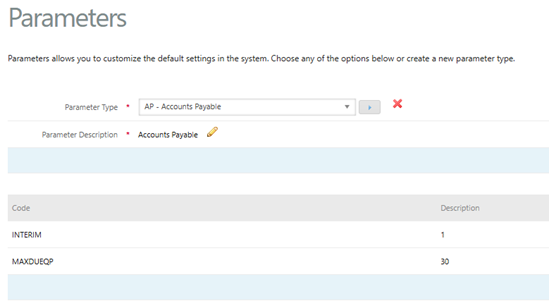
The MAXDUEQP system parameter determines how many days ahead Quick Payments will consider invoices for payment.
To configure this setting:
Navigate to Configuration → System Configuration.
Select the AP parameter type.
Click Add New Parameter.
Enter
MAXDUEQPin Parameter Code.Enter the required number of days in Parameter Description (e.g.
30).Click Submit.
For example, setting MAXDUEQP to 30 allows Quick Payments to consider eligible invoices due within the configured 30-day period.
2. Account Code Priorities
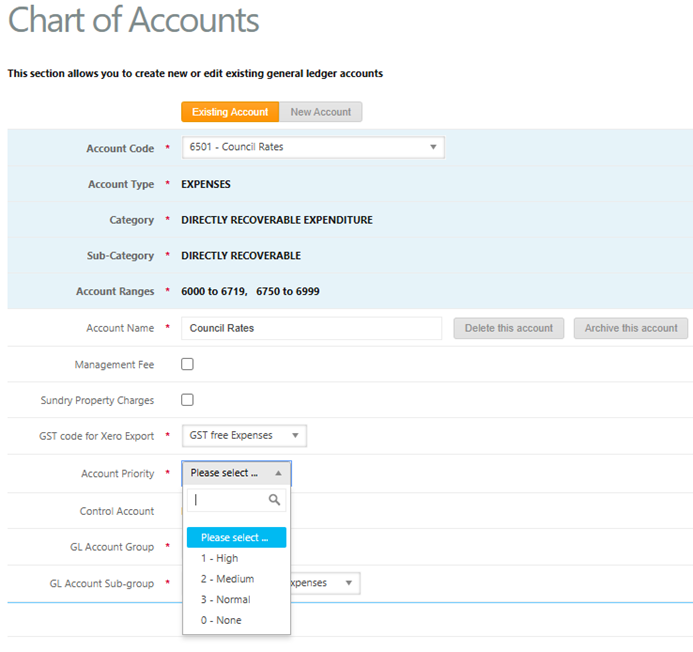
Account Priority determines the order in which supplier invoices are considered for payment when available funds are limited.
To configure account priorities:
Navigate to Configuration → Manage Chart of Accounts.
Select the relevant expense account code.
Set Account Priority to High, Medium, Normal or None.
Click Update Account Details.
| Priority | Payment Order | Suggested Use |
|---|---|---|
| High | First | Council Rates, Land Tax and other critical expenses |
| Medium | Second | Important operational expenses |
| Normal | Third | Routine supplier invoices |
| None | Last | Lower-priority expenses |
Tip: Consider assigning High priority to essential expenses with strict payment deadlines.
3. Payment Run Groups (Optional)
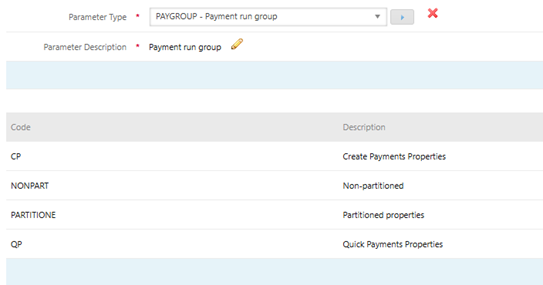
Payment Run Groups allow you to filter properties for specific payment runs, such as by portfolio, owner type or scheduled payment day.
To configure Payment Run Groups:
Navigate to Configuration → System Configuration.
Select the PAYGROUP parameter type.
Add the required Payment Run Group parameters.
Review Invoices and Available Funds
Before processing a payment run, ensure that:
Supplier invoices have been reviewed and approved for payment.
Invoices that should not be paid have been placed On Hold.
Any outstanding supplier credits have been allocated.
Owner withholding amounts have been reviewed.
Sufficient cleared funds are available.
Recommended Workflow
Property Managers: Review invoices, apply holds and configure owner withholding amounts through Unpaid Invoices & Property Balances Beta.
Trust Accountants: Review available funds, allocate outstanding credits and process eligible payments through Quick Payments.
Important: Quick Payments automatically selects invoices according to the configured rules. Review all relevant settings before processing, as individual invoice selections cannot be changed during the run.
How To Process Quick Payments
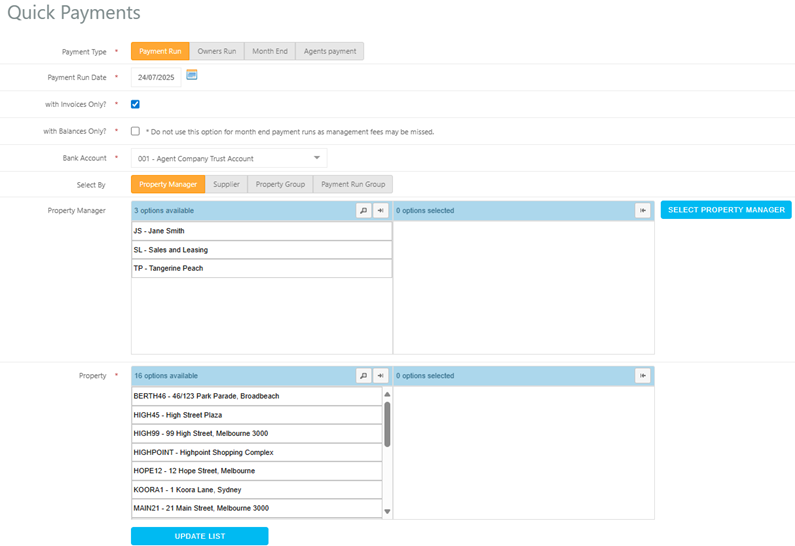
Navigate to Accounts Payable → Quick Payments.
Select the required Payment Run Type.
Enter the Payment Run Date.
Select the Bank Account.
Apply any required filters:
Property Manager
Supplier
Property Group
Payment Run Group
Select the properties to include.
Click Update List to calculate the proposed payments.
Review the payment details for each property using the available sections:
Management Fees & Sundries
Supplier Invoices
Owner Payments
Tick the checkbox beside each property you wish to process.
Click Process Payment.
Download any generated Agent Invoices, if required.
Under Successful Processed Payments, select the applicable EFT, BPAY or Cheque link to complete the payment process.
Note: Properties using partitioned funds or ledgers are not available through Quick Payments and must be processed using Create Payments.
How Quick Payments Calculates Payments
1. Available Funds
Rex Cirrus8 calculates the funds available for payment using the property's opening balance and recorded income, allowing for uncleared deposits and applicable reserved amounts.
Depending on your configuration, unallocated funds and net GST may also be excluded from the available balance.
2. Management Fees and Sundries
Management Fees and Sundries are processed first.
Depending on the selected Payment Run Type, these amounts may be:
Paid: Included in the current payment run.
Reserved: Set aside and excluded from funds available for other payments
3. Supplier Invoice Payments
An invoice is eligible for payment when:
It is not On Hold.
Its due date falls within the configured MAXDUEQP period.
Sufficient funds remain after applicable fees and higher-priority payments.
Eligible invoices are processed according to:
Account Code Priority
Invoice Due Date
Invoice Date
Invoice Amount
Important: Quick Payments does not support partial supplier invoice payments. If sufficient funds are unavailable, invoices may be excluded according to their priority.
4. Owner Payments
Owner payments are calculated after applicable fees and supplier invoices have been accounted for.
Rex Cirrus8 deducts any configured withholding amounts before distributing the remaining available funds.
Where a property has multiple owners, payments are calculated according to their configured ownership percentages or fixed payment amounts.
Payment Run Types
| Payment Run Type | Description |
|---|---|
| Payment Run | Processes supplier payments only |
| Owners Run | Processes supplier and owner payments |
| Month End | Processes management fees, sundry charges, supplier invoices and owner payments |
| Agent Payment | Processes management fees only |
Note: Any custom Create Payments configurations within your database are also applied to Quick Payments.
Understanding Payment Status Colours
Payment amounts are colour-coded to help identify how they will be processed.
| Colour | Meaning |
|---|---|
| Green | Amount will be paid |
| Blue | Amount will be reserved |
| Orange | Amount will not be paid ($0.00) |
Supplier invoices also display an icon identifying their configured Account Code Priority.
Review the payment status and priority before processing the payment run.
Example: Month-End Payment Run
The following example illustrates how Quick Payments distributes available funds.
Property Details
| Item | Amount |
|---|---|
| Available Funds | $18,500.00 |
| Management Fee | $1,650.00 |
| Sundry Fee | $55.00 |
| Available After Fees | $16,795.00 |
Supplier Invoices
| Invoice | Priority | Amount | Result |
|---|---|---|---|
| Council Rates | High | $4,200.00 | Paid |
| Water Rates | High | $1,150.00 | Paid |
| Cleaning | Normal | $880.00 | Paid |
| Roof Repairs | None | $3,500.00 | Excluded – Outside due date range |
Total Supplier Payments: $6,230.00
Remaining Available Funds: $10,565.00
Owner Payments
| Item | Amount |
|---|---|
| Remaining Funds | $10,565.00 |
| Owner Withholding | ($2,000.00) |
| Available for Distribution | $8,565.00 |
For a property with two owners:
Owner 1 (60%): $5,139.00
Owner 2 (40%): $3,426.00
If insufficient funds were available to cover all eligible supplier invoices, lower-priority invoices would be excluded and owner payments may be withheld.
This example uses illustrative amounts and payment settings.
Troubleshooting Quick Payments
| Issue | Possible Cause | Recommended Action |
|---|---|---|
| Property not displayed | Partitioned property, funds or ledgers | Use Create Payments |
| Invoice shows $0.00 | Invoice On Hold, outside due date range or insufficient funds | Check invoice status, due date and available funds |
| Supplier credit not applied | Credit remains unallocated | Allocate the credit before processing |
| Incorrect invoice payment order | Account Code Priority not configured | Review the expense account priority |
| Owner payment lower than expected | Fees, withholding or reserved funds | Review Available Funds and Owner Payments |
| Fees reserved instead of paid | Payment Run Type reserves fees | Confirm the selected Payment Run Type |
| Unable to part-pay an invoice | Partial payments are not supported | Use Create Payments |
After making corrections, click Update List to recalculate the proposed payments.
Related Guides
For additional information, refer to the following Rex Cirrus8 functions:
Create Payments: Manually select invoices, process partial payments and apply credits.
Unpaid Invoices & Property Balances Beta: Review invoices, place payments On Hold and configure owner withholding.
Generate EFT or BPAY Batch Payment File: Generate banking files for processed payments.
View Cheques: Review and manage cheque payments.
View and Email Remittance Advice: Review and send payment remittances to suppliers.
Important Reminders
Before completing a Quick Payments run:
Verify the payment run type and selected properties.
Review supplier invoices, payment priorities and holds.
Confirm available funds and owner withholding amounts.
Ensure outstanding supplier credits have been allocated.
Review the calculated payments before clicking Process Payment.
Quick Payments is designed to simplify regular bulk payment processing while maintaining the payment priorities and controls configured in Rex Cirrus8.
Was this article helpful?
That’s Great!
Thank you for your feedback
Sorry! We couldn't be helpful
Thank you for your feedback
Feedback sent
We appreciate your effort and will try to fix the article