Using clearly defined Property and Lease Notes in Cirrus8 can assist with various tasks across the system, improving visibility and efficiency for property managers and trust accountants.
Entering Property Notes
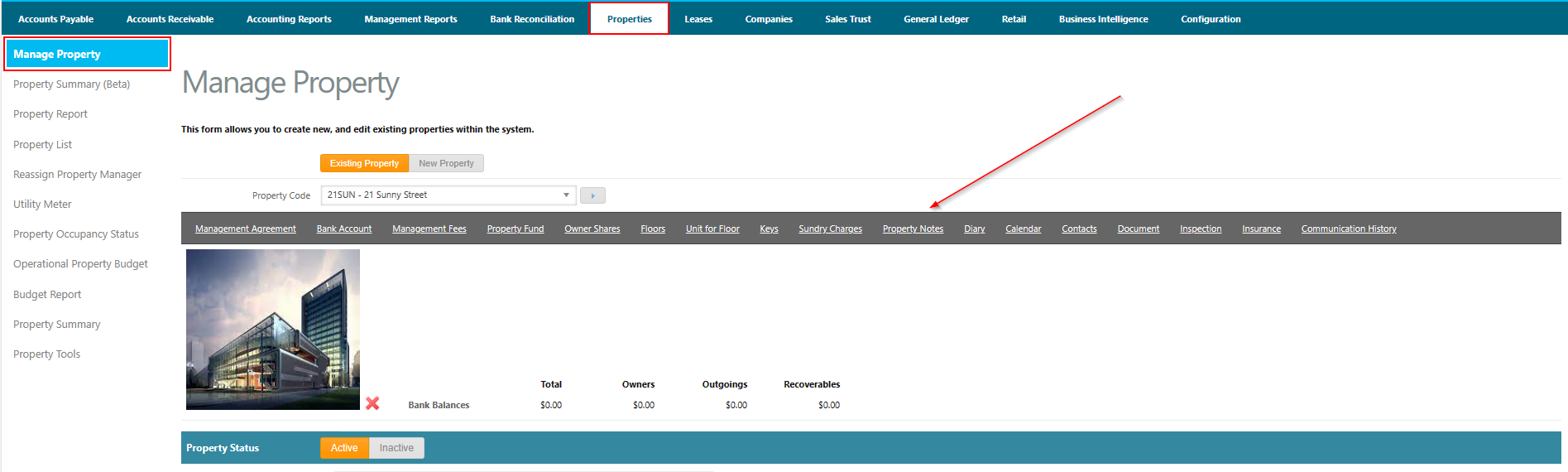
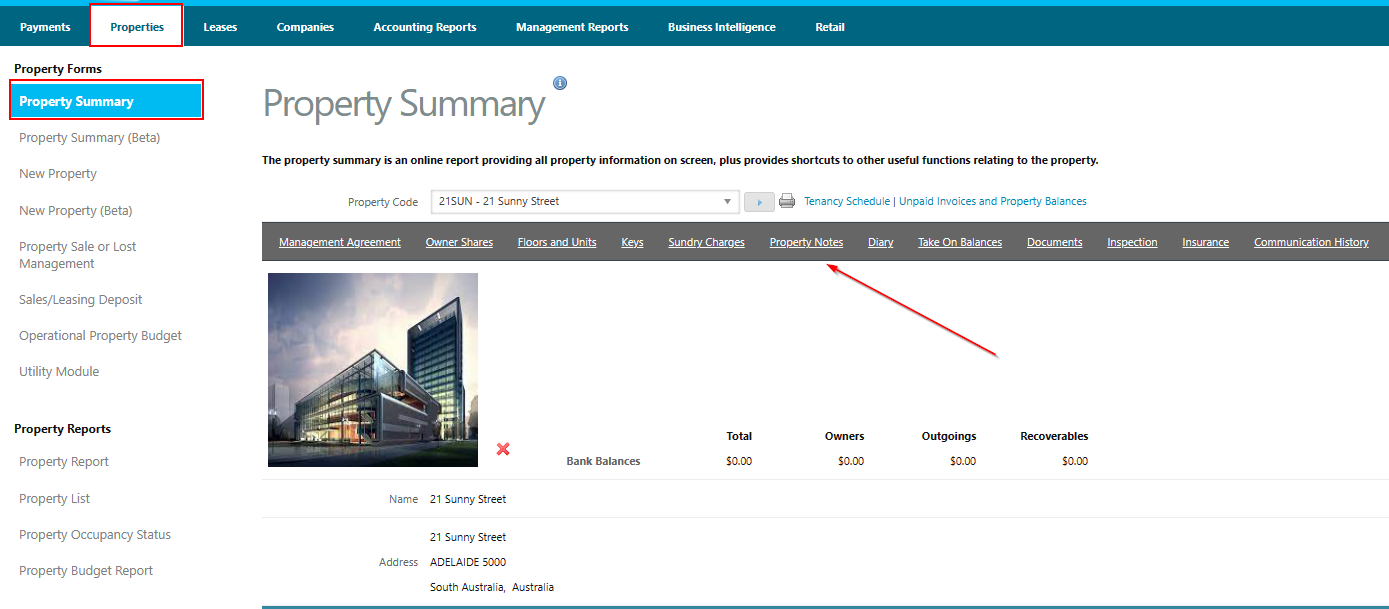
Location: Properties > Manage Property or Property Summary
Navigate to the Property Notes section.
Select the section header.
Click Add New to create a new note.
Entering Lease Notes
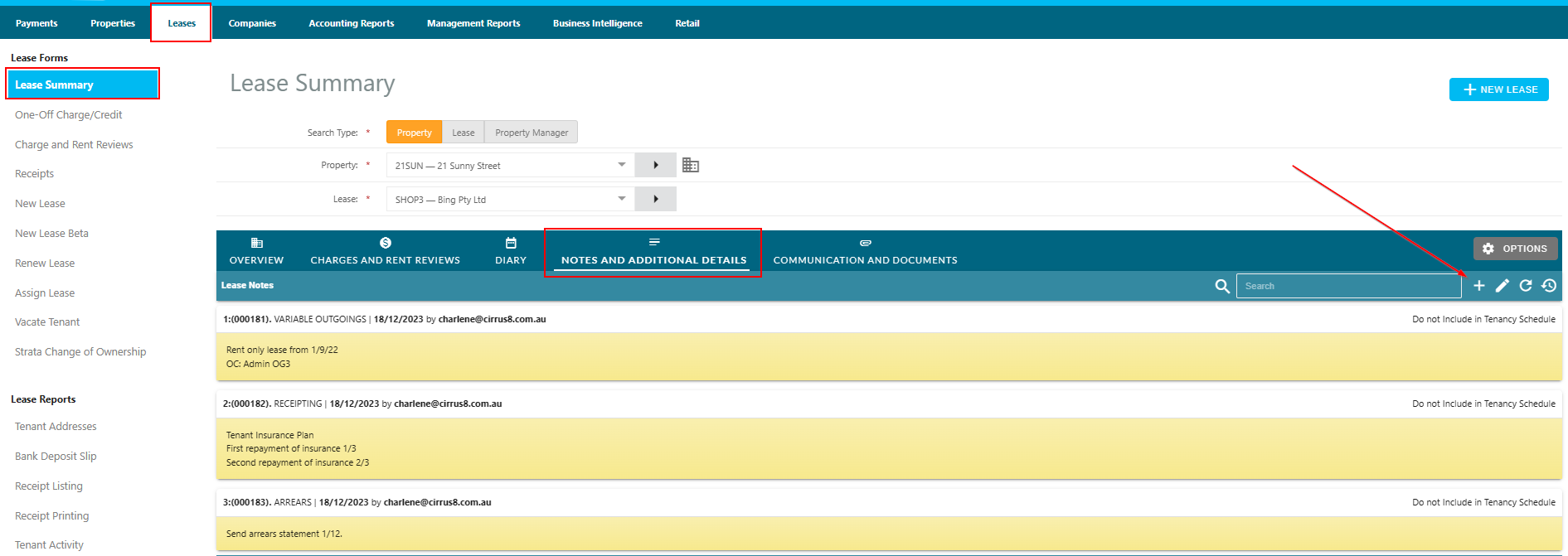
Location: Leases > Manage Lease or Lease Summary – Notes and Additional Details
Navigate to the Lease Notes section.
Click the Add Note button or the pencil icon to create or edit lease notes.
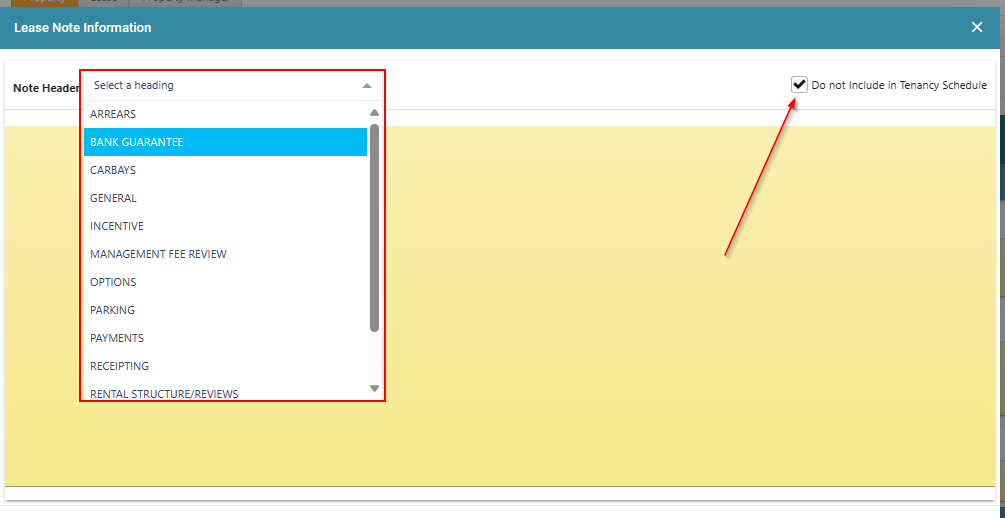
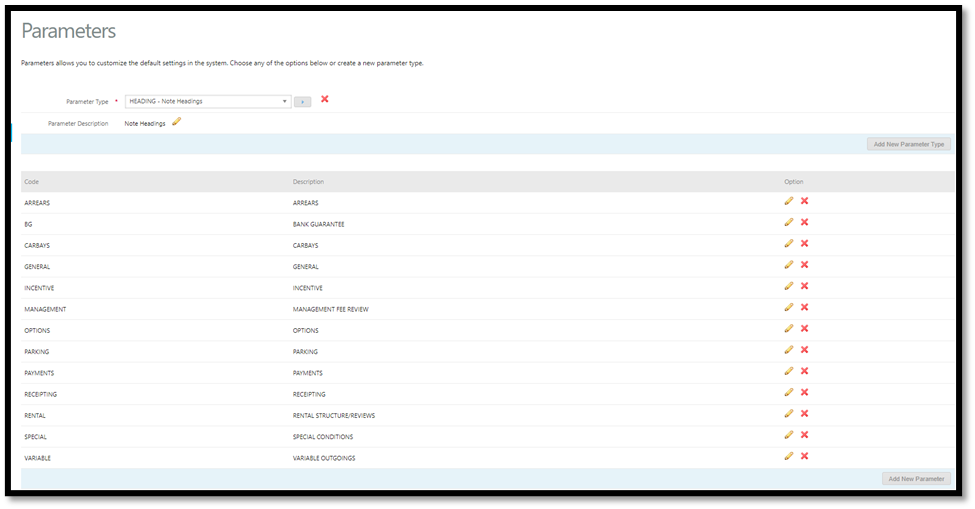
Both Property Notes and Lease Notes allow you to apply different note headings, which can then be referenced automatically in other areas of the system.
For Lease Notes, you can also choose whether the note remains internal or is included on the Tenancy Schedule.
Tenancy Schedule:
Variable Outgoings Notes (Property & Lease)
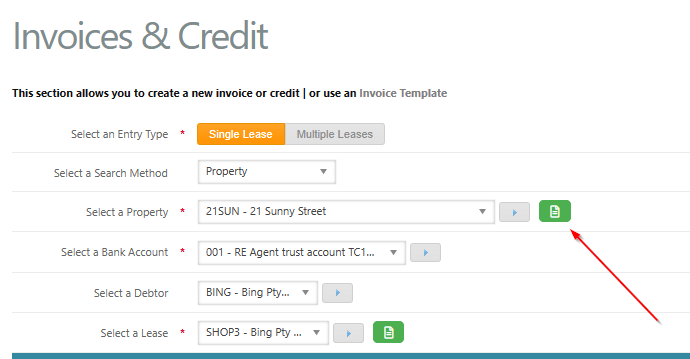
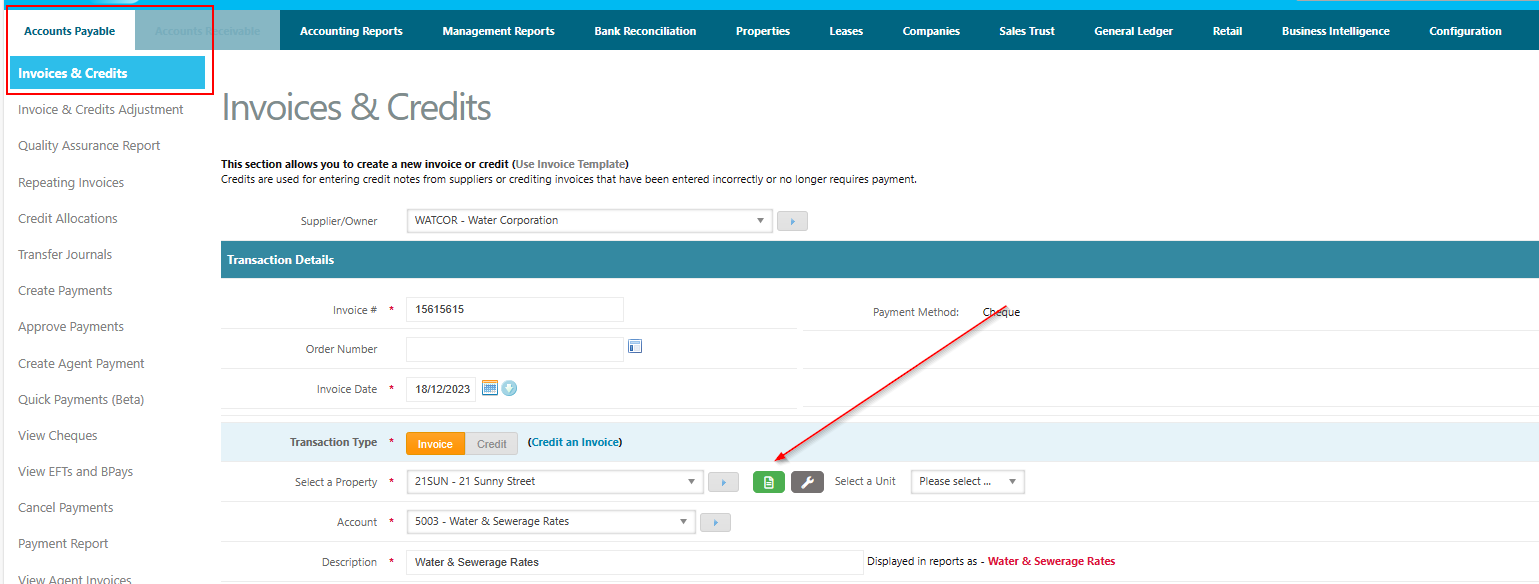
When creating Property Notes, selecting the “VARIABLE OUTGOINGS” heading allows the information to automatically appear on the Accounts Payable/Accounts Receivable (AP/AR) – Invoice and Credits screen.
This provides quick reference when:
Approving invoices in Accounts Payable (AI)
Raising one-off charges via Accounts Receivable – Invoice and Credits
Raising charges via Accounts Payable – Invoice and Credits
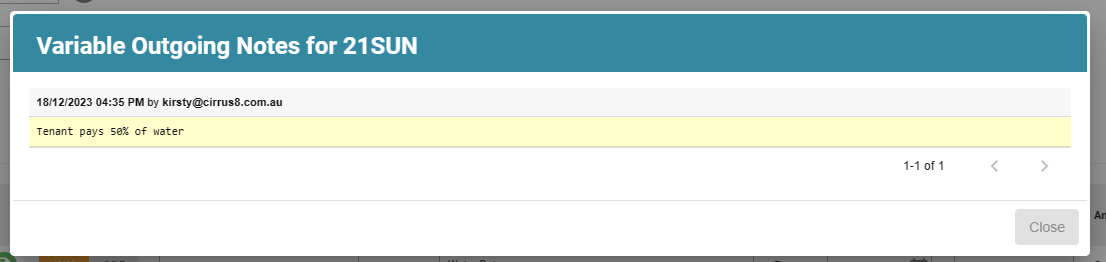
When these notes are available, the Property Notes button will appear highlighted in green, indicating that notes are available for reference.

When approving invoices in AI, the Property Notes button would be highlighted in Green indicating notes available for the PM to reference. (see below example):

When raising a one-off charge via Accounts Receivable - Invoice and Credits:
When raising a charge via Accounts Payable - Invoice and Credits:
If the “VARIABLE OUTGOINGS” heading is used in Lease Notes, the note will also automatically appear when creating AR charges through Accounts Receivable – Invoice and Credits.
Lease notes can also be configured to appear or remain hidden on the Tenancy Schedule by selecting or clearing the relevant checkbox.
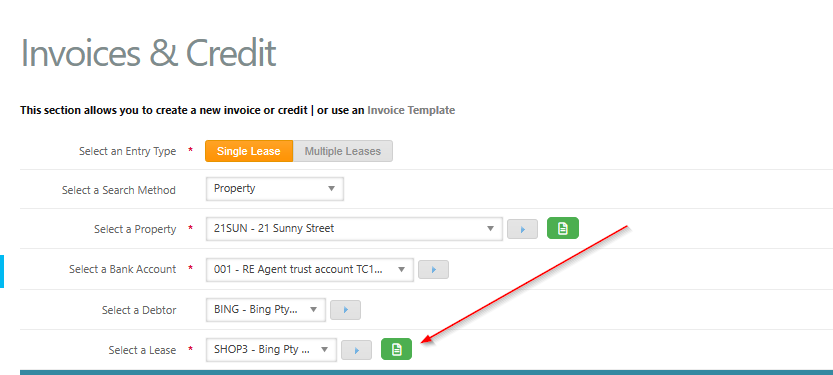
When a lease note is available, the Lease Notes button will be highlighted in green on the Invoice and Credits screen.
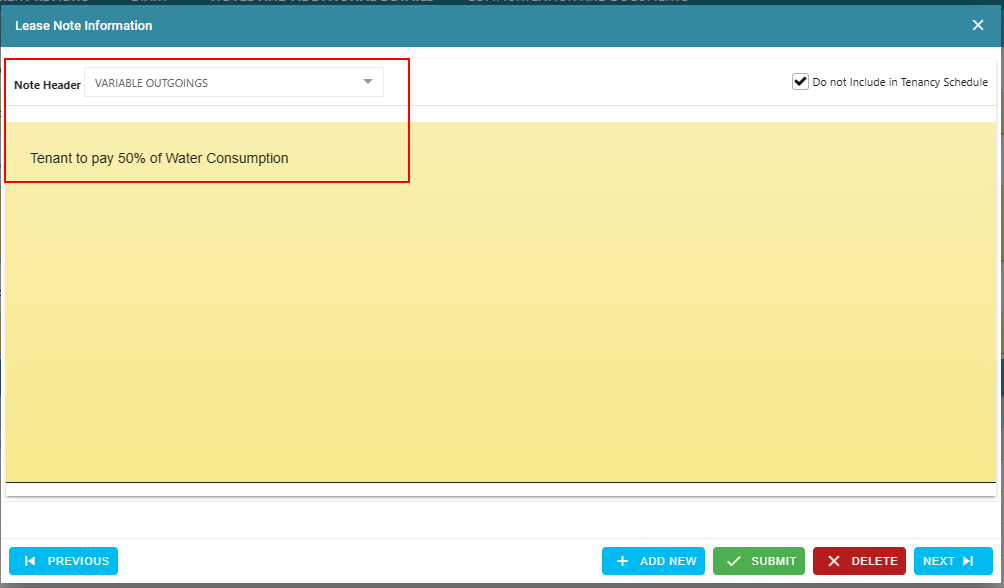
When raising a charge in Invoice and Credits, the lease Notes button would be highlighted in Green indicating notes available for the TA to reference. (see below example)
Receipting Notes (Lease)
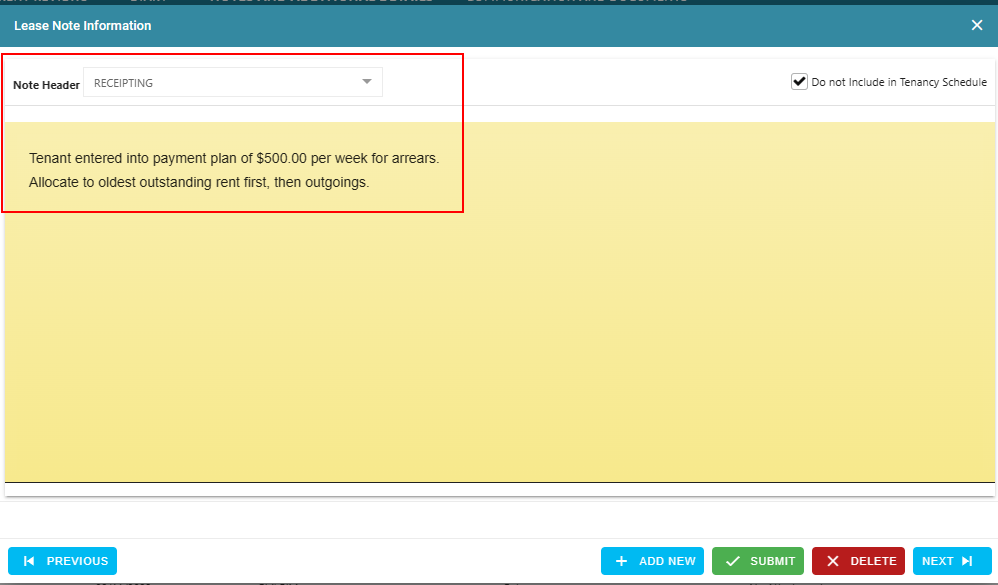
When creating Lease Notes, selecting the “RECEIPTING” heading will allow the note to automatically appear on the Receipting screen.
To configure:
Select Receipting from the note heading drop-down list.
Enter the relevant information.
Click Submit.
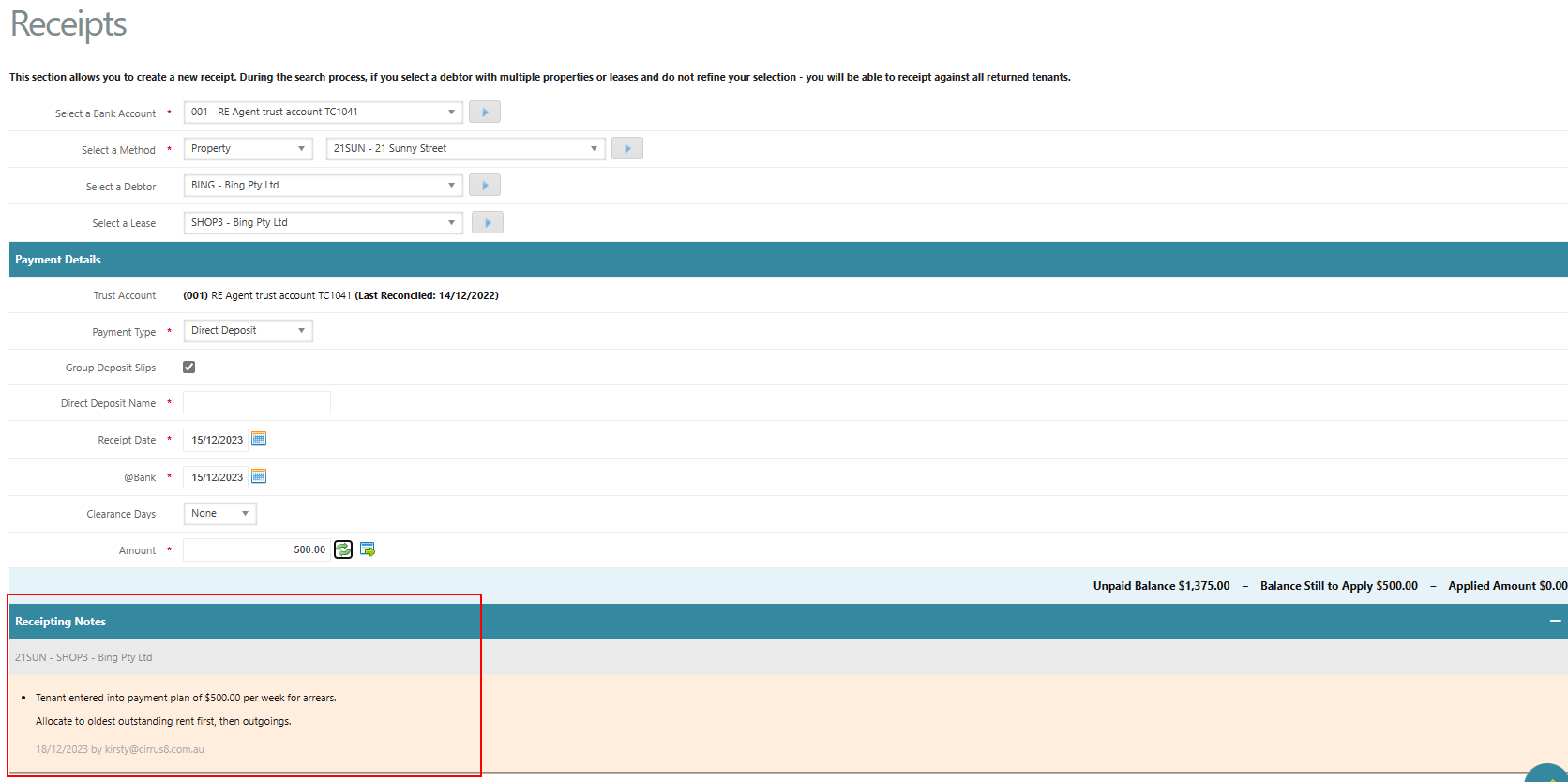
Once saved, the note will be visible directly within the Receipting screen.
Once the note has been added, you will now be able to see it on the receipting screen. (see below example):
Arrears Notes (Lease)
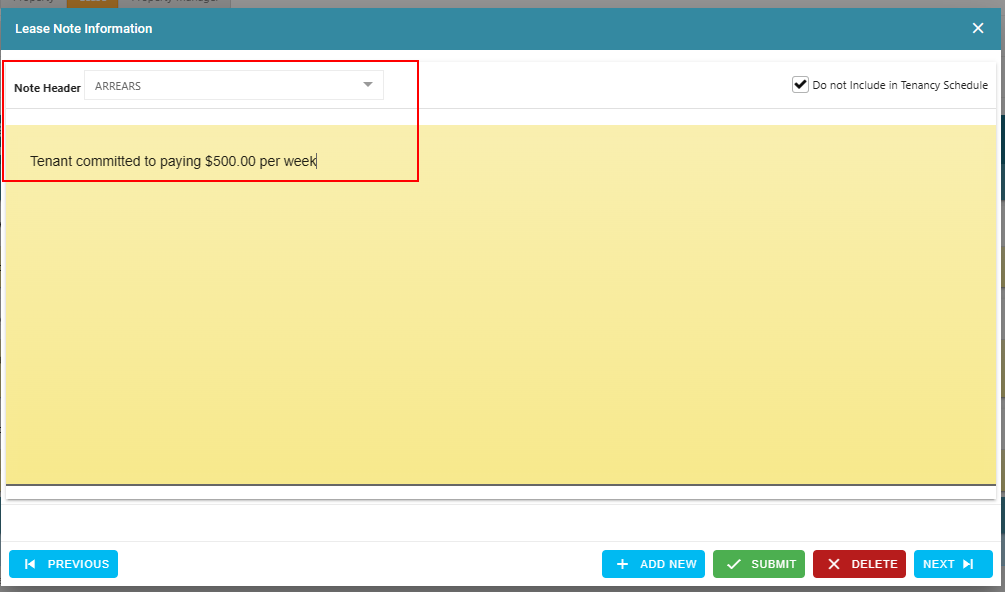
Lease Notes can also be used to store Arrears-related information by selecting the “ARREARS” heading.
In Lease Notes, select the Arrears heading.
Enter the relevant comments.
These notes will automatically appear when generating reports or notices related to arrears.
Locations where Arrears Notes appear:
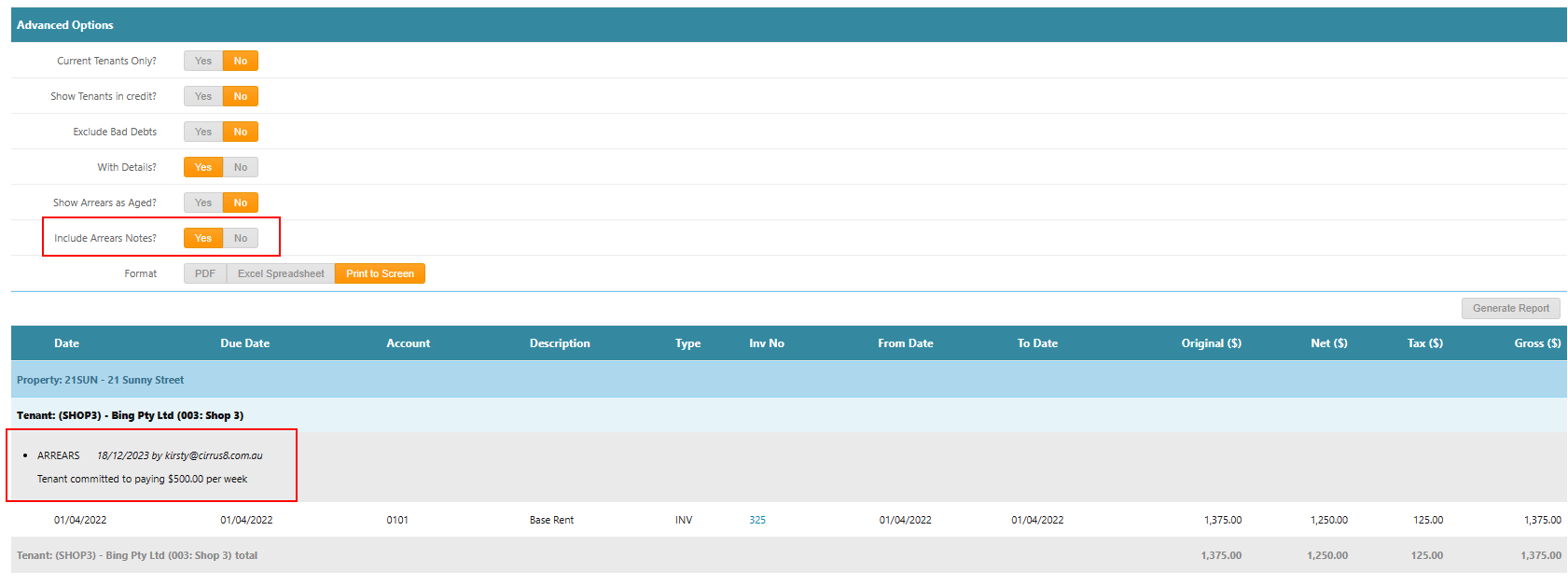
Accounting Reports > Arrears Report (with the option to include arrears notes)
Generate Arrears Statements when sending arrears notices
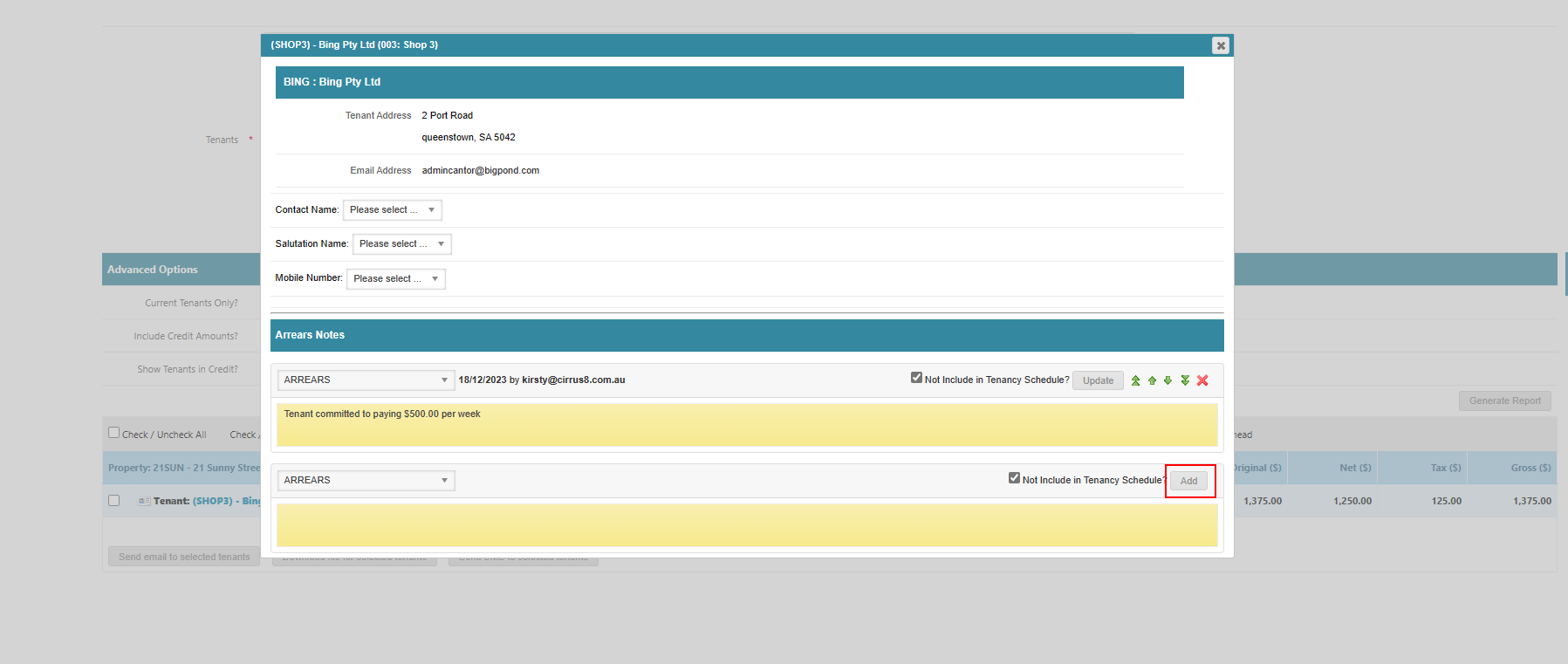
Arrears notes can also be viewed or updated directly from the arrears management screen.
When generating an arrears report via Accounting Reports – Arrears Report, you will have the option to include an arrears note. This will display the note you set up under the lease notes.
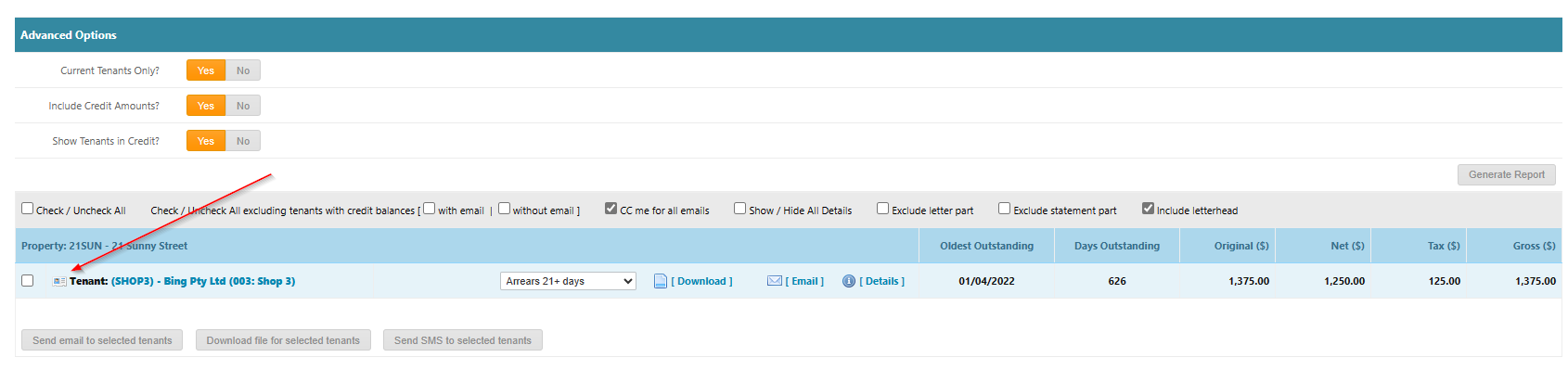
When sending Arrears Notices from Generate Arrears Statements, you can also refer to these arrears notes as a part of the process:
You can view & also also add further arrears notes to the lease from this screen:
Payment Notes (Property)
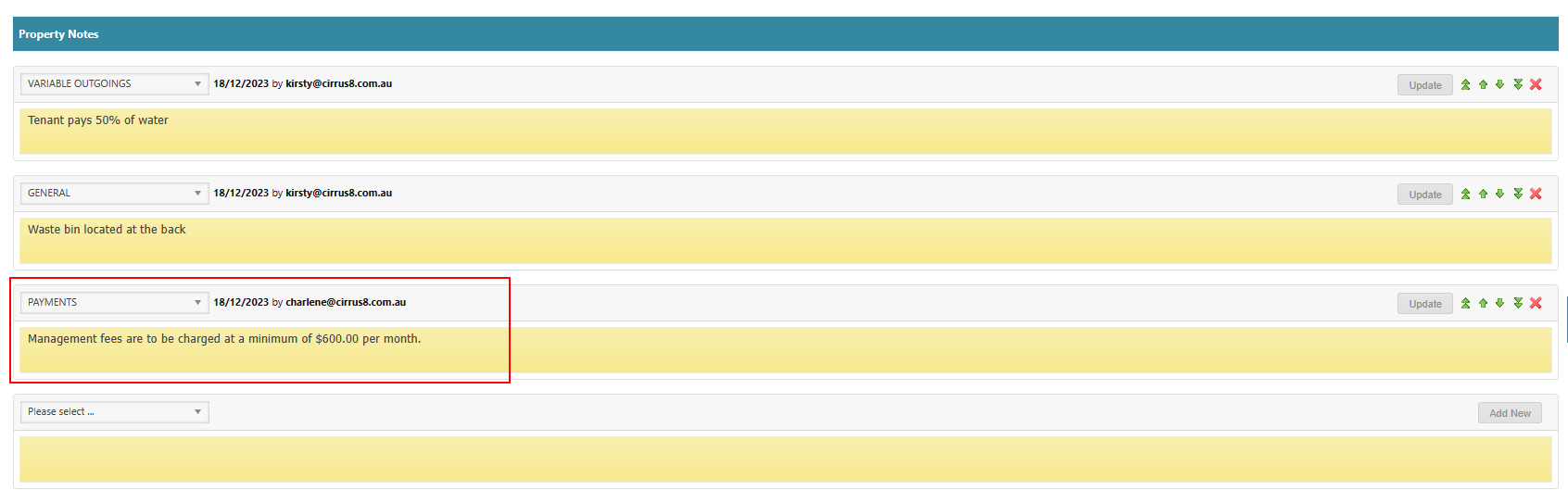
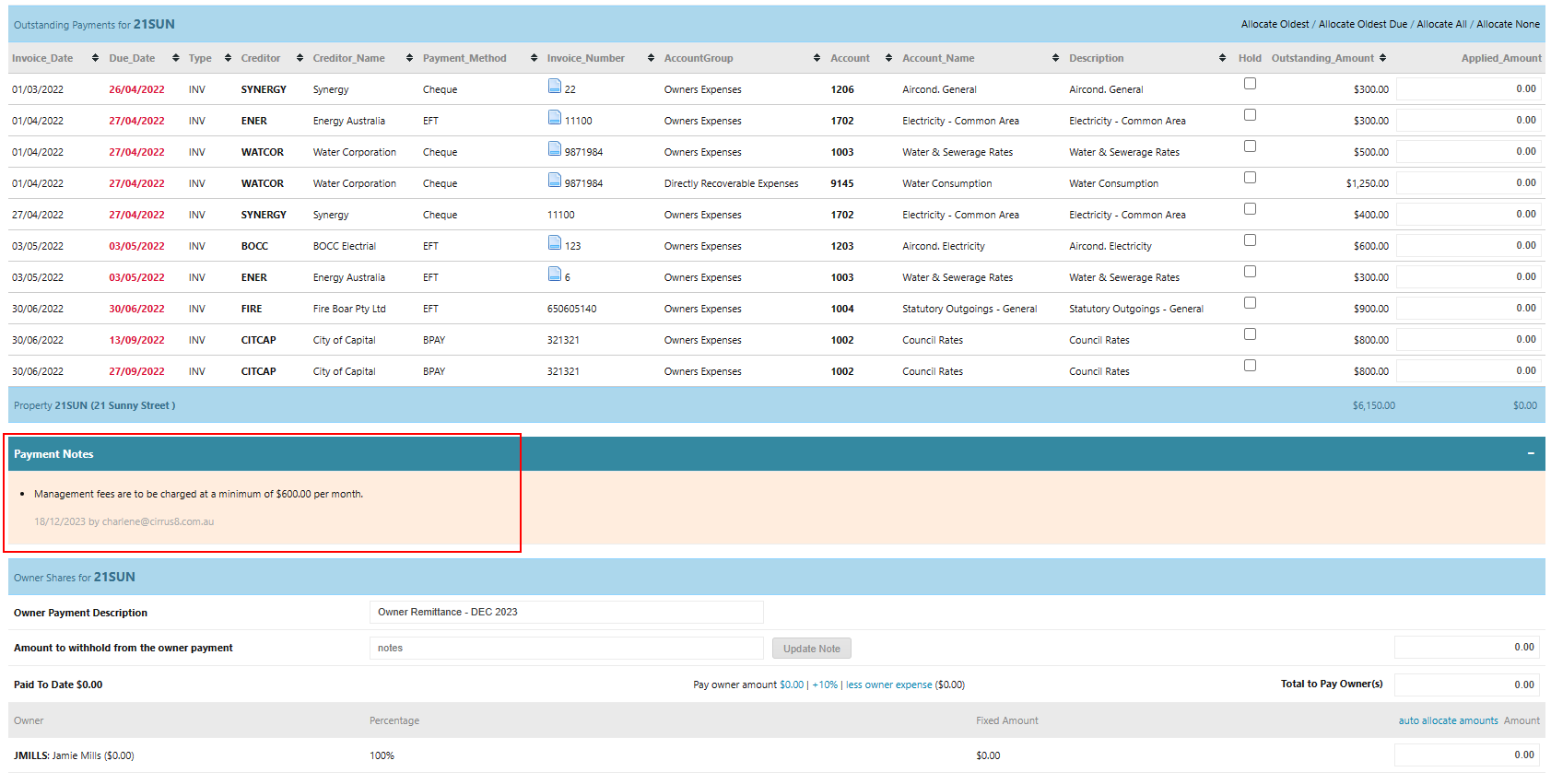
When creating Property Notes, selecting the “PAYMENTS” heading will ensure the note is automatically displayed on the Payment screen for reference.
Was this article helpful?
That’s Great!
Thank you for your feedback
Sorry! We couldn't be helpful
Thank you for your feedback
Feedback sent
We appreciate your effort and will try to fix the article