This guide explains how to use the Utility Meter feature to record meter readings and create tenant charges for utility costs based on usage, allocation, and any other applicable charges.
Utility Meter Overview
The Utility Meter module allows you to recover utility costs from tenants by setting up meters or sub-meters and recording meter readings, either per meter reading or via bulk import via the Import Reading tool. Based on these readings, Cirrus8 automatically calculates each tenant’s utility consumption, and then charges the amount through interim tax invoices.
Based on the readings entered (either manually or through the Import Reading tool), Cirrus8 automatically:
- Calculates each tenant’s utility consumption.
- Applies the meter setup (type, unit price, account code).
- Adds any additional charges (e.g. meter reading or service fees).
- Allocates the charges according to the meter’s configured allocation across tenants or units.
- Generates interim tax invoices for on-charging tenants.
- Meter reading details are included on the tenant’s tax invoice, either directly on the invoice itself or within an optional Supporting Information PDF (if enabled) that is sent alongside the invoice.
This feature is designed for situations where actual meter or sub-meter readings are available. If readings are not available, for example when a utility bill does not include a physical reading or the property is not sub-metered, the Utility Meter module is not suitable. In those cases, tenants should be billed using other calculation methods such as Net Lettable Area (NLA) or an agreed usage amount, processed through the One-Off Charge/Credit, Accounts Receivable Invoices & Credits or Automated Invoice modules. The raising of utility credits is also not supported within the Utility Meter module.
Navigation Path: Properties > Utility Meter for both Trust Accountant and Property Manager users.
Creating a New Utility Meter
* Indicates a mandatory field
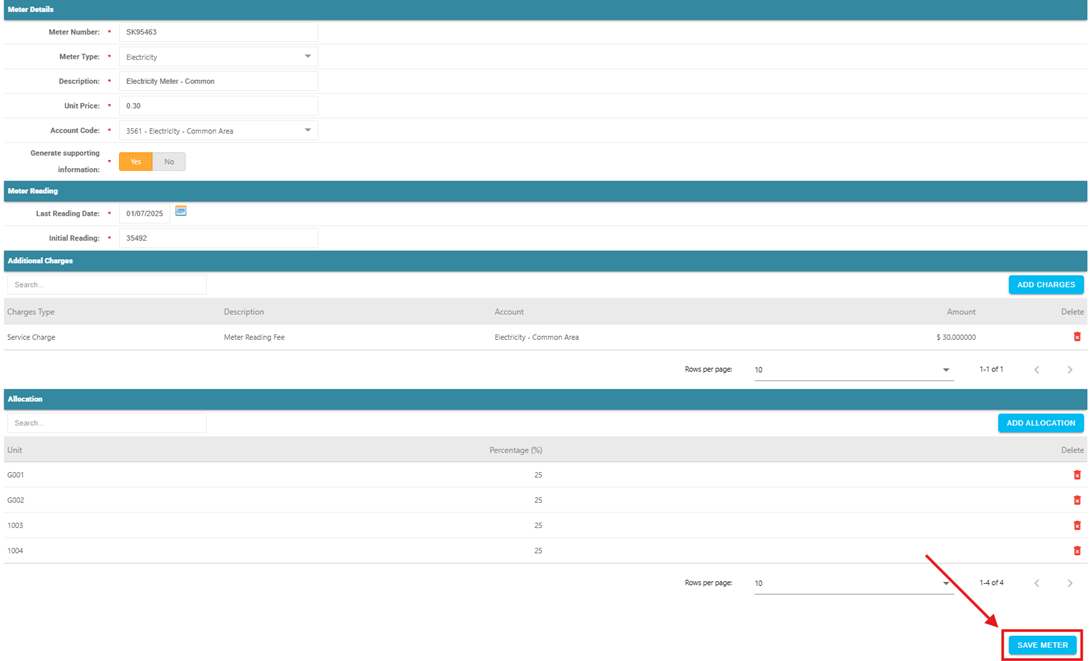
Step 1: Enter Meter Details
- Go to Properties > Utility Meter
- Select the relevant property
- Click +NEW METER to the right-hand side
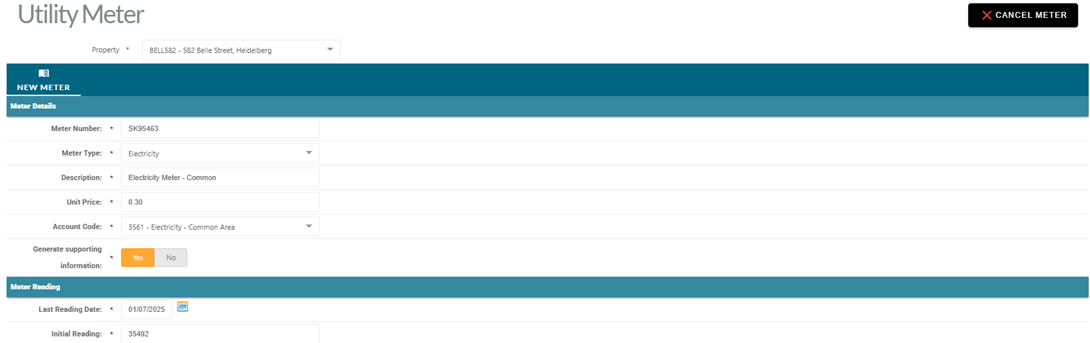
- Fill in the required fields for the Meter Details:
- Meter Number* – Unique meter identifier
- Meter Type* – Select from Electricity, Gas, Water
- Description* – Enter the transaction description to be generated on the tenant charge e.g. “Ground Floor Electricity Meter”
- Unit Price* – Enter the cost per unit in dollars
- Account Code* – Select the account code for tenant charges
- Generate Supporting Information* – Select Yes or No:
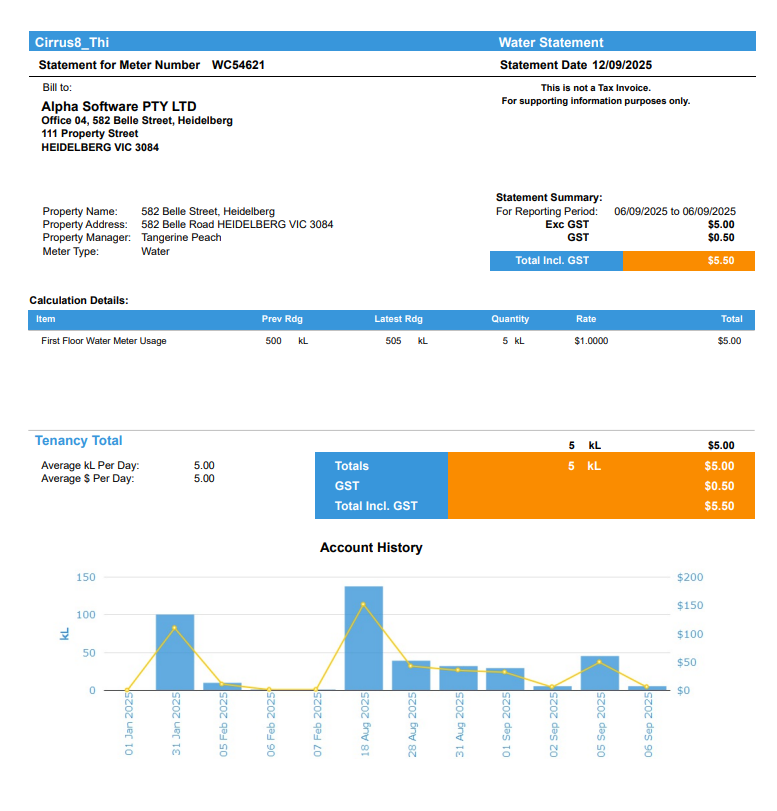
- Yes – Generates a supporting information document detailing meter readings, usage, charges, and graphical consumption history. This document is emailed to the tenant along with the tax invoice and recorded in the communication history.
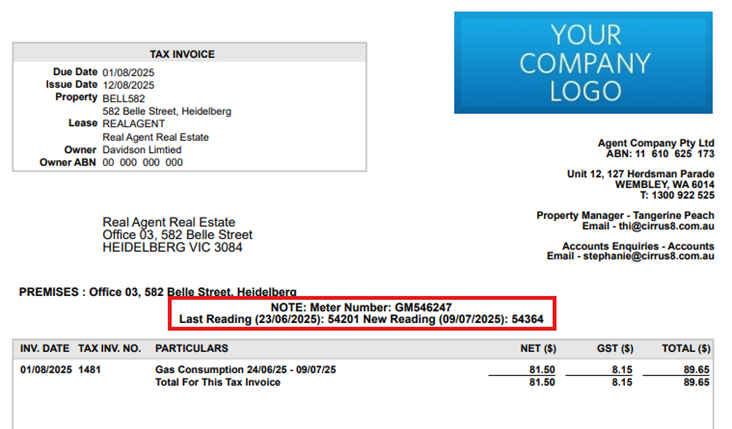
- No – Only the tax invoice is emailed to the tenant. In this case, the invoice itself includes a note summarising the meter number and meter reading information.
Step 2: Enter Initial Meter Reading
After entering the meter details, go to the Meter Reading section and enter:
- Last Reading Date* – The date of the most recent physical or invoiced reading. Use the calendar icon or type the date.
- Initial Reading* – The numeric value from that last reading.
This step is essential as it forms the starting point for calculating tenant usage in future readings.
Note: If this meter was previously billed outside Cirrus8, use the most recent value from that external invoice or reading. This ensures accurate consumption and billing calculations from the first invoice created in Cirrus8.
Step 3: Add Additional Charges (Optional)
You can add extra charges, such as meter reading fees or service costs, to be included on the tenant utility invoice.
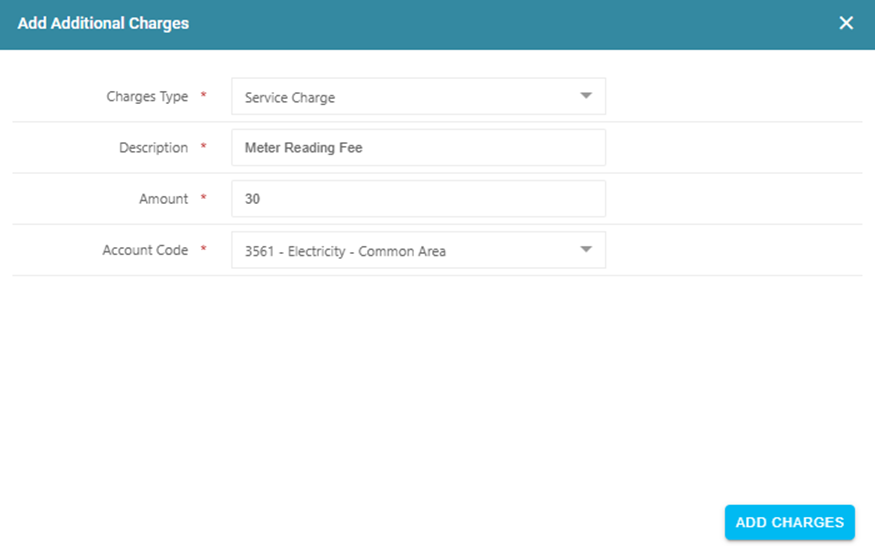
- Click Add Charges
- Fill in the following fields:
- Charges Type* – Select Daily, Service Charge or Supply Charge
- Description* – e.g. “Meter Reading Fee”. This will appear as the lease transaction description.
- Amount* – Enter the fee value (e.g. 5.00)
- Account Code* – Select the account to charge this fee against
- Click ADD CHARGE to save the entry
To delete an additional charge: click the red bin icon beside the existing entry.
Step 4: Allocate Units to the Meter
If the meter services one or more tenancy units, apply the appropriate allocation:
- Click Add Allocation
- Complete the fields:
- Unit* – Select the unit (e.g. Tenancy 1, Tenancy 2)
- Percentage* – Enter the share (e.g. 50 for 50%)
- Click Add Allocation to save the allocation set up
- Repeat for additional units as needed
To delete an allocation: click the red bin icon for the selected row.
Step 5: Save the Meter Setup
Click SAVE METER in the bottom right hand corner, to save the complete meter setup, including details, initial reading, any additional charges, and unit allocations.
If the property has more than one meter, you can set up additional meters by repeating the above steps for each meter.
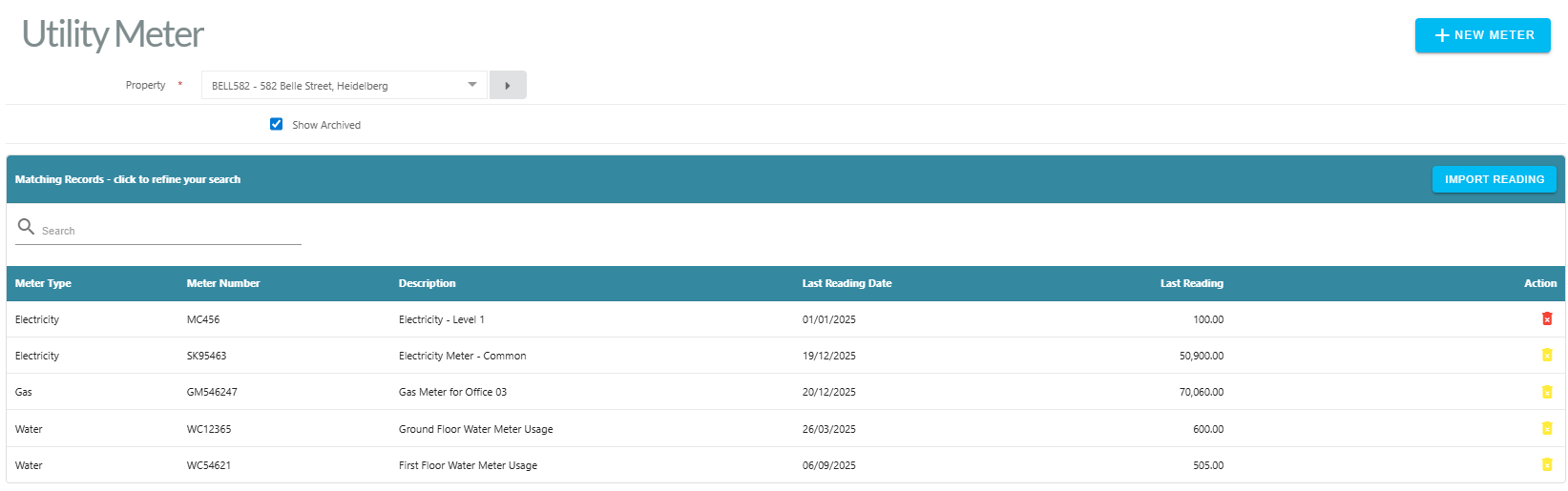
To delete an existing meter:
- Go to Properties > Utility Meter and select the relevant Property
- Click the red bin icon beside the meter and click Yes to confirm deletion
Note: A meter can only be deleted if no transactions exist against it. If transactions exist, the option to archive will be available instead.
To archive, click the yellow archive icon beside the meter and click Archive to confirm.
Entering Individual Meter Readings
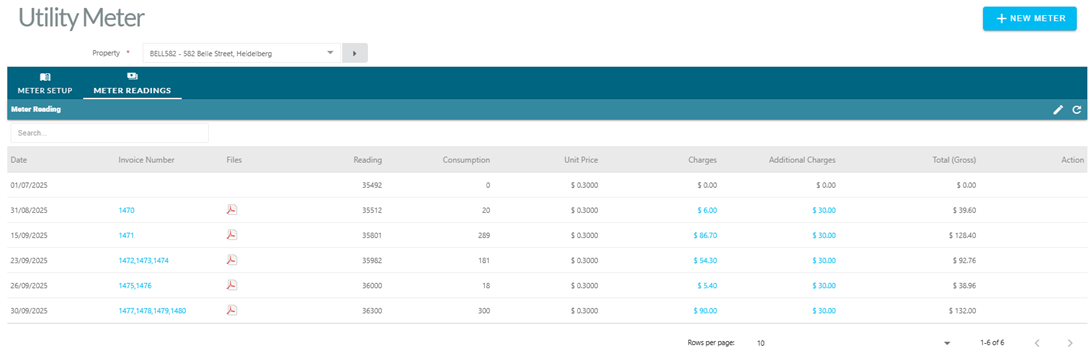
After a meter is set up, the Meter Readings tab will appear.
The first meter reading entered during the meter setup stage (in the Initial Reading field) will automatically display here. This reading acts as the baseline for calculating consumption when the next reading is recorded.
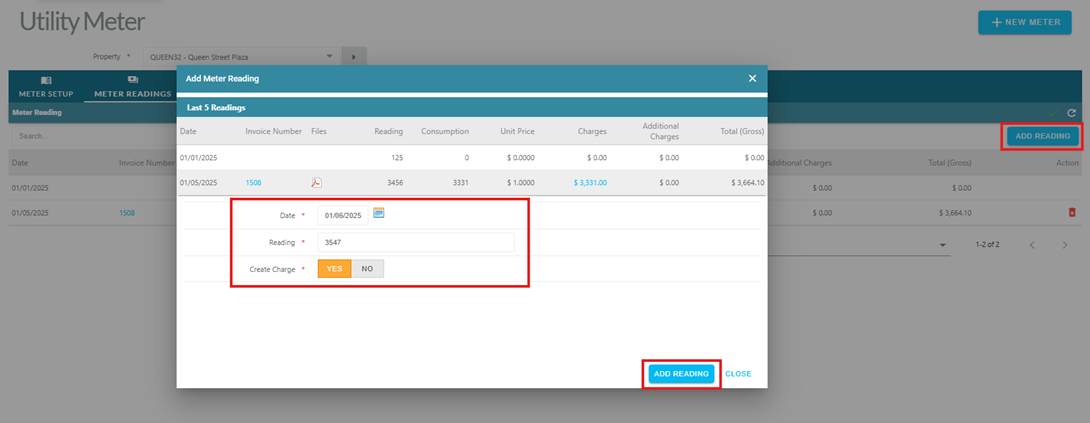
Steps to Add a New Reading
- Go to Meter Readings tab
- Click on the Edit Pencil to the right, and then click Add Reading
- Enter the following:
- Date* – Date of the reading
- Reading* – Numeric reading value
- Create Charge* – Select Yes to generate an interim invoice. Select No to enter the reading for internal record keeping and future calculation purposes only.
- Click ADD READING to submit. Readings cannot be edited after they are saved.
Create Charge and Interim Invoice
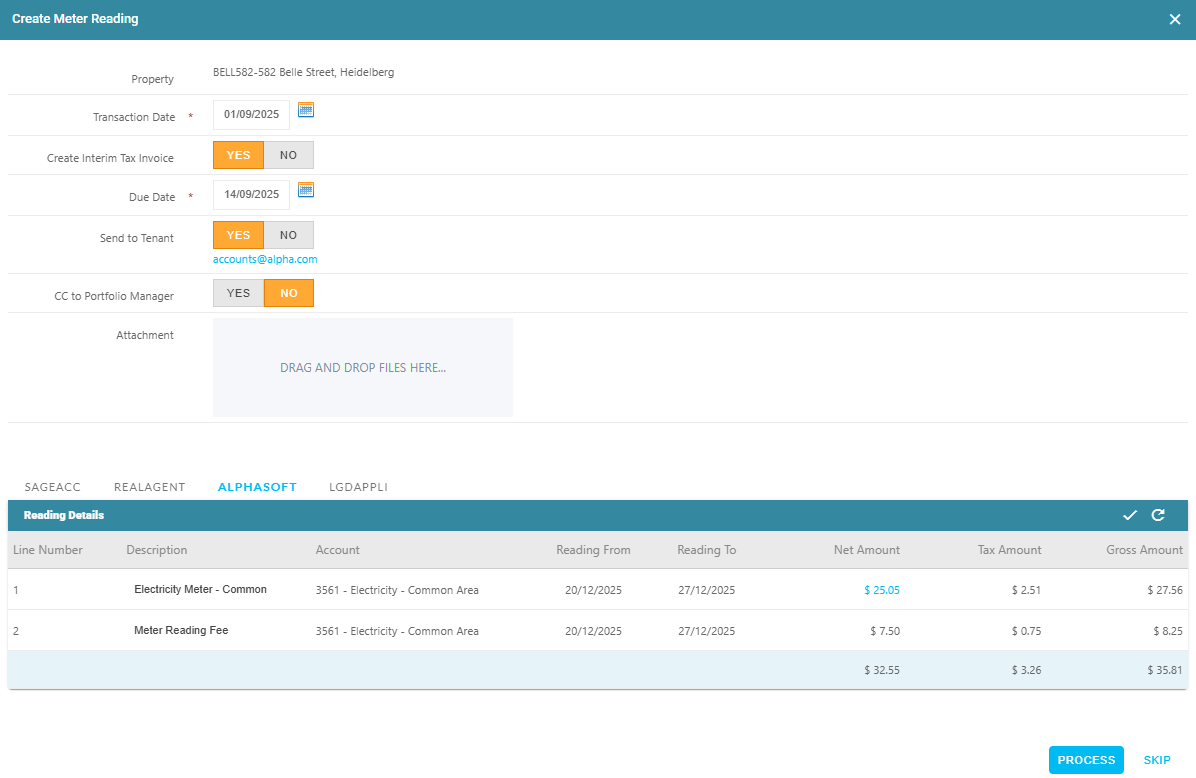
If Create Charge is selected as Yes, a Create Meter Reading form will display for you to complete:
Required and Optional Fields
- Transaction Date* – Invoice issue date
- Create Interim Tax Invoice– Choose Yes or No
- If Yes, additional fields appear:
- Due Date* – Invoice due date
- Send to Tenant – Select Yes to email directly
- CC to Portfolio Manager – Select Yes to copy the assigned Portfolio Manager to the invoice email
- Attachment – Drag-and-drop supporting documents in PDF format (scanned bills, etc.)
- If No:
- No utility charges will be posted to the lease(s).
- The meter reading will still be saved in Utility Meter for record-keeping purposes and will be available for use in future calculations.
- If Yes, additional fields appear:
Tenant Allocation Tabs
Each tenant will have a dedicated tab displaying their Lease Code that contains:
- Reading Detail – Review the meter reading information and edit the description/s if required.
- Save Changes – Click the tick button to save.
- Refresh Page – Click the refresh icon to refresh the data.
Note: The Create Meter Reading form will only display leases for on-charging where the lease start or end date falls partly within the utility billing period. The Utility Meter module does not pro-rata utility charges based on partial occupation dates.
Finalising or Skipping Charges
- Process – Click to finalise the charge(s) and generate the invoice(s) if selected.
- The utility charges will be posted as a Charge transaction to the relevant lease(s) based on the unit allocation settings.
- If Send to Tenant is set to Yes, the system will:
- Email the tenant’s tax invoice
- Email any attachments you uploaded during invoice creation
- If Generate Supporting Information is set to Yes, the supporting information document will also be attached to the email. If this is set to No, only the tax invoice is emailed to the tenant. In this case, the invoice itself includes a note summarising the meter number and meter reading information.
- This will be recorded in the Communication History
- Once processing is complete, the Meter Readings tab will update to display links to download generated invoices and any supporting information documents if generated (under the Files heading) as shown in the example screenshot below.
- Skip – Click to cancel invoice creation.
- No utility charges will be posted to the lease(s).
- The meter reading will still be saved in Utility Meter for record-keeping purposes and will be available for use in future calculations.
Importing Meter Readings in Bulk
The Import Reading tool allows you to upload multiple meter readings efficiently using an Excel template. This is particularly useful when managing a property with multiple meters.
Note: An initial meter reading for each meter must already exist in the system via meter setup before importing. Each import is property-specific and must be performed separately for each property.
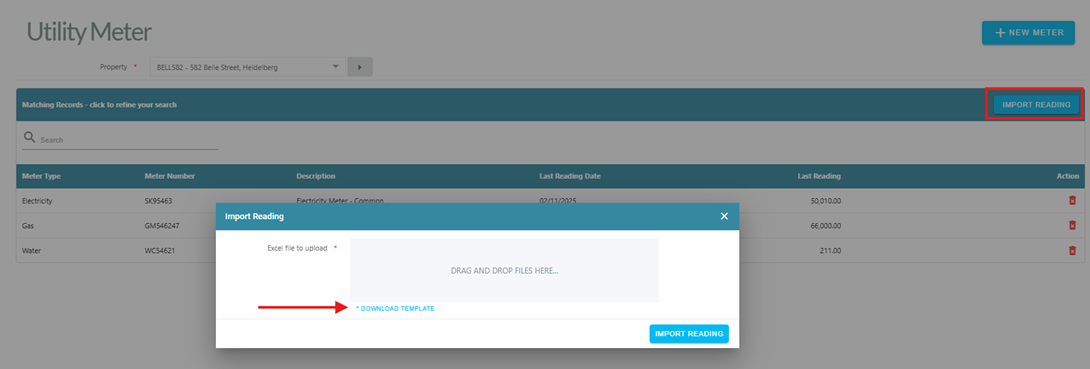
Step 1 – Open the Import Reading Tool
- Navigate to Properties > Utility Meter and select the relevant property
- Click IMPORT READING
- In the Import Reading window, click DOWNLOAD TEMPLATE to obtain the Excel file.
Step 2 – Understanding the Pre-Populated Template
When you download the template, some fields will be automatically filled based on the data already in Cirrus8 for the selected property and some fields will require updating:
| Column | Pre-Populated Value |
| Property Code | The selected property code |
| Meter Number | The existing meter number(s) for that property |
| Reading Date | Defaults to the date the file was downloaded and should be updated by the user to the meter reading date |
| Reading | The Reading column will be blank and must be filled in by the user with the new meter reading value |
| For Invoice | Defaults to Yes to generate an interim invoice for the utility charge(s) |
| Last Reading | Most recent saved reading for the meter |
| Last Reading Date | Date of the most recent saved reading |

Step 3 – Workflow for Completing the Excel Template
When preparing the template for import:
- Update the Reading Date
- Change this from the download date to the actual date the reading was taken.
- Enter the new Reading Value
- In the Reading column, enter the new reading number from the meter.
- Confirm or change the ‘For Invoice’setting
- Leave as Yes if you want an interim invoice generated.
- Change to No if you are recording the reading for reference only (no invoice will be created).
- Leave the Property Code, Meter Number, Last Reading, and Last Reading Date as they are.
- Save the completed Excel file.
Important: Each row in the template represents a single meter reading. A separate template must be downloaded and completed for each property.
Step 4 – Upload the Excel Template
- Return to the Import Reading window in Cirrus8.
- Drag and drop your completed Excel file into the Excel file to upload field or click the field to select the Excel file from your browser.
- Click IMPORT READING.
Step 5 – Reviewing Imported Readings
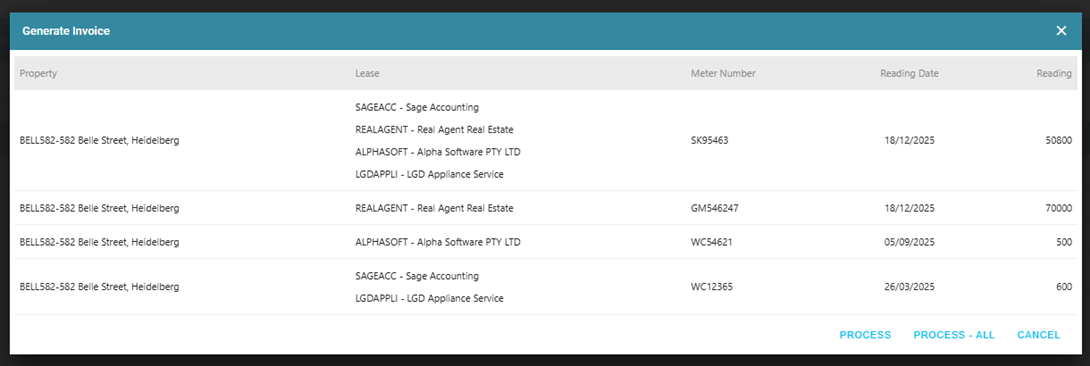
Once the file is uploaded, the Generate Invoice screen appears showing all imported readings, with details for:
- Property, Lease, Meter Number, Reading Date, Reading Value
Step 6 – Processing the Imported Readings
You have two options:
a) Process Individual Entries:
- Click Process
- The Generate form opens:
- Shows the last 5 readings for that meter.
- Complete:
- Transaction Date* – Invoice issue date.
- Create Interim Tax Invoice – Select Yes or No.
- If Yes:
- Due Date* – Invoice due date.
- Send to Tenant – Email invoice directly.
- CC to Portfolio Manager – Optional.
- Attachment – Upload any supporting documents.
- If Yes:
- Review the Tenant Allocation Tabs to confirm or adjust descriptions per Lease.
- Click Process to generate the invoice(s), or Skip to cancel.
b) Process All Entries in Bulk
- Click Process-All to invoice all imported readings at once.
- A bulk generate invoice form will appear:
- Enter a common Transaction Date.
- Select Yes to generate interim tax invoices for all readings.
- If Yes, set a Due Date and select the relevant sending options.
- If No, the charges will be posted against the lease(s) but no invoice(s) generated
- Click Process to finalise or Close to cancel.
Step 7 – Result Summary
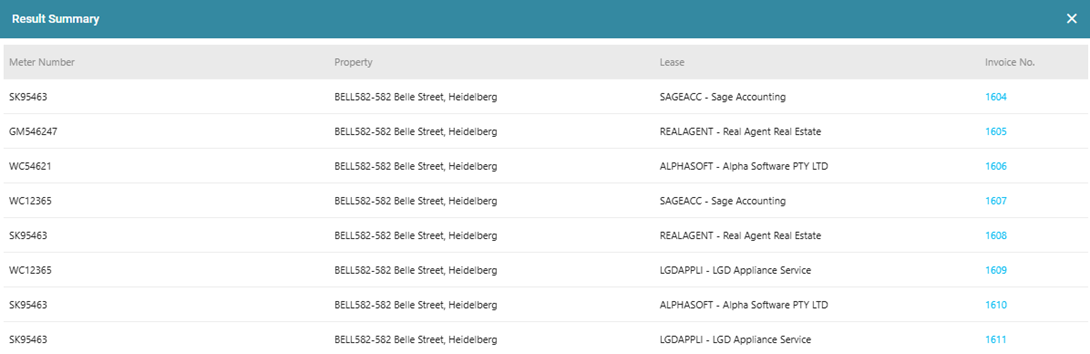
After processing, a Result Summary will display, showing the invoices created and charges posted to each lease. Please note: The Result Summary may not appear immediately. Allow time for it to fully load before navigating away to ensure processing is complete.
- If Send to Tenant was set to Yes:
- The tenant receives their tax invoice.
- Any uploaded attachments are included.
- If Generate Supporting Information was set to Yes, that document is also attached.
Step 8 – Cancelling an Import
- To exit without processing any imported readings from the Excel file:
- Click Cancel in the Import Reading screen.
- No charges will be posted, and the uploaded readings will not be saved.
Was this article helpful?
That’s Great!
Thank you for your feedback
Sorry! We couldn't be helpful
Thank you for your feedback
Feedback sent
We appreciate your effort and will try to fix the article