The reviewing and approving invoices process using Automated Invoice is designed to streamline invoice validation, ensure accuracy, and facilitate timely payments. This feature is accessible to Property Managers and Trust Accountants via the Dashboard > Forms > Automated Invoice section. Further details on the feature are outlined here: Introduction to Automated Invoice Feature.
Step-by-Step Guide to Reviewing Invoices
1. Accessing the Invoice List
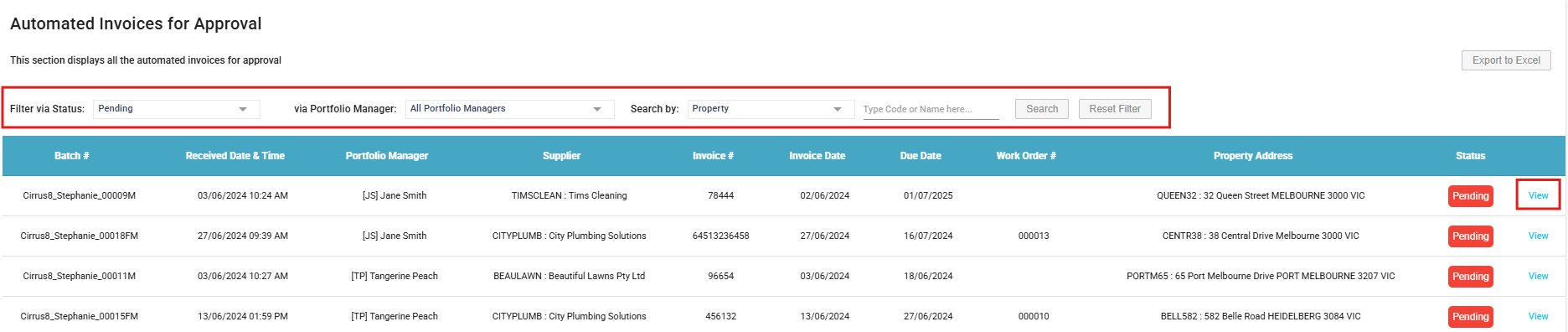
- Navigate to Dashboard > Forms > Automated Invoice
- Use filters to refine the list:
- Status Filter: Select “Pending” to view invoices awaiting approval
- Portfolio Manager Filter: Select a Property Manager to view invoices relevant to their portfolio
- Search by: Select a search method e.g. Search by Property and enter a keyword to refine the search
2. Opening an Invoice
- Click View next to an invoice entry to open the approval interface
- A scanned copy of the invoice appears alongside auto-populated fields
3. Supplier and Transaction Details to Review
Supplier Details:
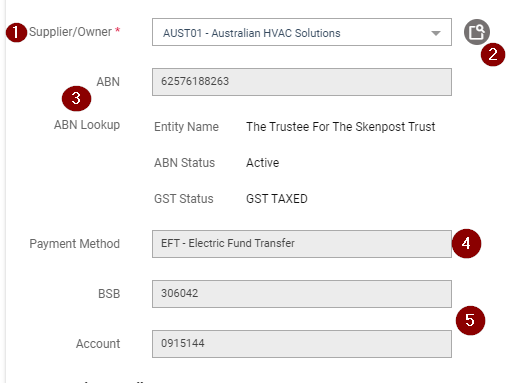
- Supplier/Owner - Ensure the correct supplier has been chosen. If this field is empty and/or the Supplier is not listed in the drop-down box, the new supplier company will need to be set up, by submitting the new company form, and will become available for selection once the Trust Accountant has approved the new company set up.
- Work Order Lookup Icon - This allows you to look up work orders for the supplier created in CirrusFM and will populate the work order number selected.
- ABN/ABN Lookup - This displays the ABN details entered for the supplier company.
- Payment Method - The payment method set up for the supplier company (EFT, BPAY or CHQ)
- Payment Details - Ensure these details match the payment details provided on the invoice. BPAY reference numbers can be manually amended (if required), however if a BPAY Biller Code or EFT details (BSB and/or Account Number) are incorrect, a Change Company Banking Details form will need to be completed and submitted to the Trust Accountant for approval prior to the next payment run.
Transaction Details:
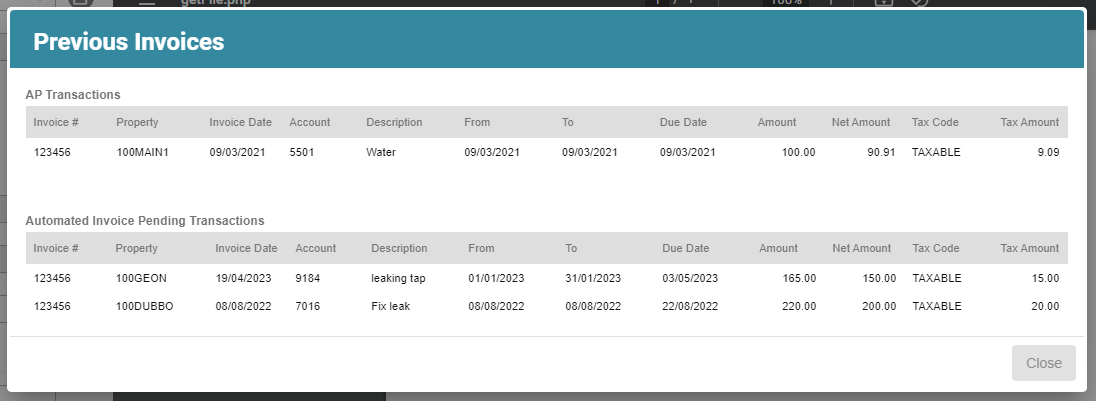
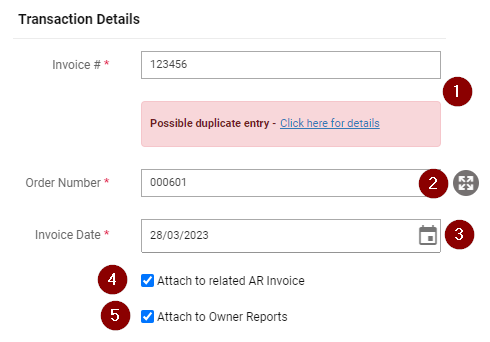
- Invoice Number - As per the supplier invoice. A warning message will appear if this invoice number has been used before and a quick link which provides a breakdown of previous invoices for this supplier and property. Ensure to check this breakdown to ensure this is not a duplicate entry.
- Order Number - Enter the work order number if applicable. This field is only required if the supplier has the 'Required valid CirrusFM work order for all invoices' check box selected, which can be updated via Companies > Company Summary.
- Invoice Date – As per supplier invoice
- Attach to related AR invoice - This will attach a copy of the supplier invoice to the relevant tenant invoice if the expense is on-charged when this checkbox is selected
- Attach to Owners Report - this will attach a copy of the supplier invoice to the relevant Owners Report when issued at Month End when this checkbox is selected
4. Invoice Line Item Review
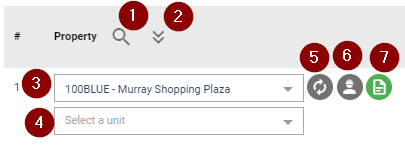
- # - Transaction line number
- Property - Ensure the correct property has been selected and the option to action the following:
- Property Code Look-up icon - This allows you to look up the property code.
- Down Arrow icon - This allows you to use top line property for all lines.
- Select a Property - Select property from the drop-down menu.
- Select a unit - Select a unit from the drop-down menu if the expense relates to a specific unit.
- Circular Arrow icon - Click icon to display all property options.
- Supplier icon - This allows you to view the supplier reconciliation breakdown that will detail all historical transactions for the supplier recorded under the property.
- Document icon - This allows you to view property notes entered for the property.
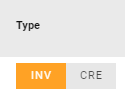
- Type - Ensure the correct invoice type has been selected (INV or CRE)
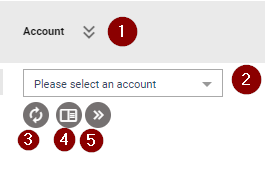
- Account - Automated Invoice will select a logical expense account code based on historical transactions and the property’s budget, if available. It is important to check that the correct account has been selected (i.e. Owner Expense, Directly Recoverable Expense or Variable Outgoing Expense). To assist with checking the account code, you will have the option to action the following:
- Down Arrow icon - This allows you to use top transaction line account code for all transaction lines.
- Select an Account - Select the account code from the drop-down menu.
- Circular Arrow icon - Click this icon to display all account code options.
- Budget Icon - Click this icon to view all expense account code included in budget. This provides monthly and YTD budget v actual figures for the selected account, both on a cash and accruals basis.
- Forward Arrow Icon - Click to overwrite line description.
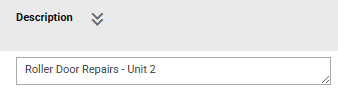
- Description - Enter the transaction description to reflect works performed and/or services provided as detailed on the supplier invoice. This description will display on generated financial reports. You also have the option to click the Down Arrow Icon which will allow you to use the top line description for all lines.
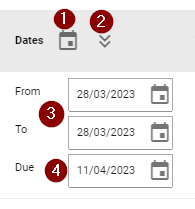
- Dates - Ensure the following date are correct. These dates can be actioned as follows:
- Calendar Icon - This will populate the Invoice Date entered against all date fields.
- Down Arrow icon - This allows you to use top transaction line date details for all transaction lines.
From & To Date - Select period in which the services provided or works performed relate to. If no date range is detailed on the invoice, it is recommended to leave both dates as the Invoice Date.
Due Date - As per payment terms detailed on invoice.
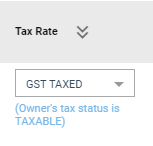
Tax Rate - Select 'GST FREE' or 'GST Taxed' from the drop-down menu, depending on the GST status of the supplier. You will also have the option to click the Down Arrow Icon which will allow you to use the top transaction line Tax Rates status for all transaction lines. Note: If the property owner is not registered for GST, all supplier invoices should be entered as GST FREE regardless of the Supplier's GST status (the owner's tax status will be flagged for ease of reference).
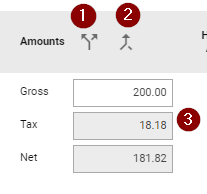
Amounts - Ensure the following details are correct and option to action as follows:
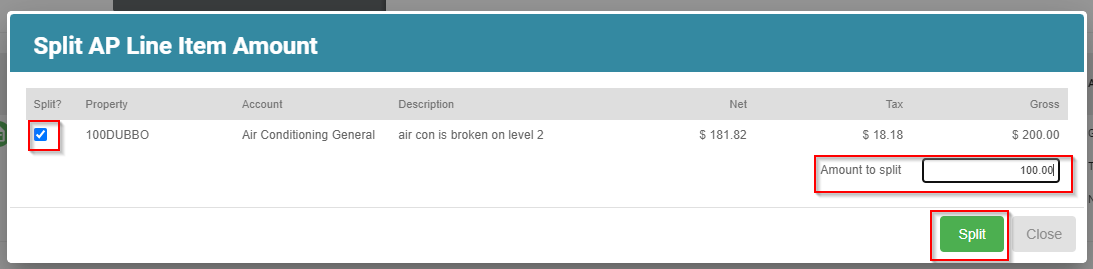
Split Icon - This will allow you to split the transaction line items. When this is selected a new pop-window will appear and you will be prompted to:
Select the relevant transaction line item
Enter the Amount to split
Click Split
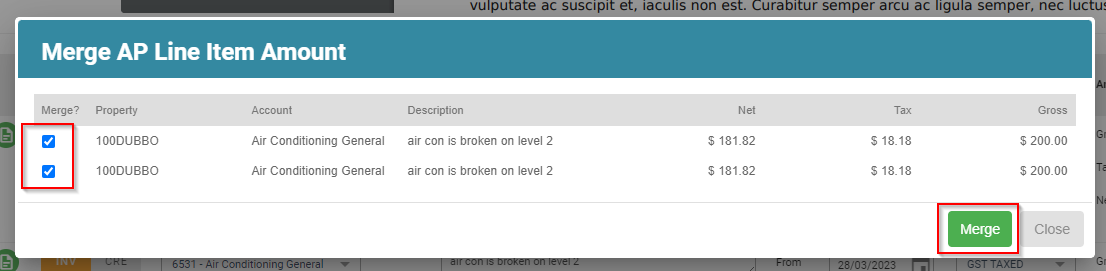
Merge Icon - This will allow you to merge the transaction line items. When this is selected, a new pop-window will appear and you will be prompted to:
Select the relevant transaction line items you wish to merge
Click Merge
Gross, Tax & Net Amount - Enter the Gross Amount as per supplier invoice. Note - If the Owner is not registered for GST, the Tax Amount should reflect $0.00. Please note that that you will not have the option to amend the Tax and Net amount shown.
Hold AP - Select the checkbox to place the supplier invoice on hold. The hold can be removed in the payment form when ready to be paid.
+ Add New Line - This will allow you to add additional transaction line items
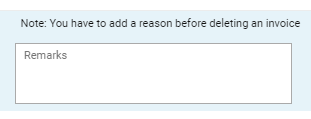
Remarks - This will allow you to add a comment
5. On-Charge Tenant
If a transaction line is coded as a directly recoverable expense, the expense can be on-charged to the tenant by clicking on the AR icon:
When this icon has been clicked, a pop-up window will display, and you will be prompted to enter the following:
- Property - This will display the selected property
- Bank Account - This will display the bank account attached to the property
- Entry Type - Select 'Single Lease' or 'Multiple Lease'
- Select Lease (Single Lease Only) - Select the relevant lease from the drop-down menu.
- Create Interim Tax Invoice - Select Yes or No. If you select Yes, the option to include a Due Date will appear.
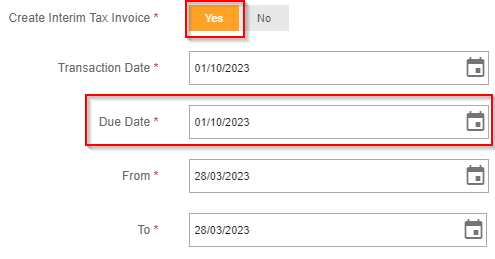
- Transaction Date - Enter the relevant transaction date. This will appear as the invoice date for the charges raised
- From & To Date - Select the period in which the services provided or works performed relate to or the invoice date if no dates are provided
- Transaction Type - Select Invoice or Credit
- Account Code - Select the relevant account code from the drop down menu
- Description - Enter description of charge as required
- Tax Rate - As per the tax rate selected for invoice
- Net Amount - Enter the relevant net amount to be on-charged to the tenants
- Tax Amount - This cannot be changed and will reflected accordingly subject to the tax rate selected
- Gross Amount - This cannot be changed and will be reflected accordingly subject to the net amount entered
- Percentage Method (Multiple Leases Only) - Select the relevant percentage/allocation method from the drop-down menu. The breakdown of each tenant’s charge is displayed and can be amended manually where 'Manual Allocation' has been selected as the method.
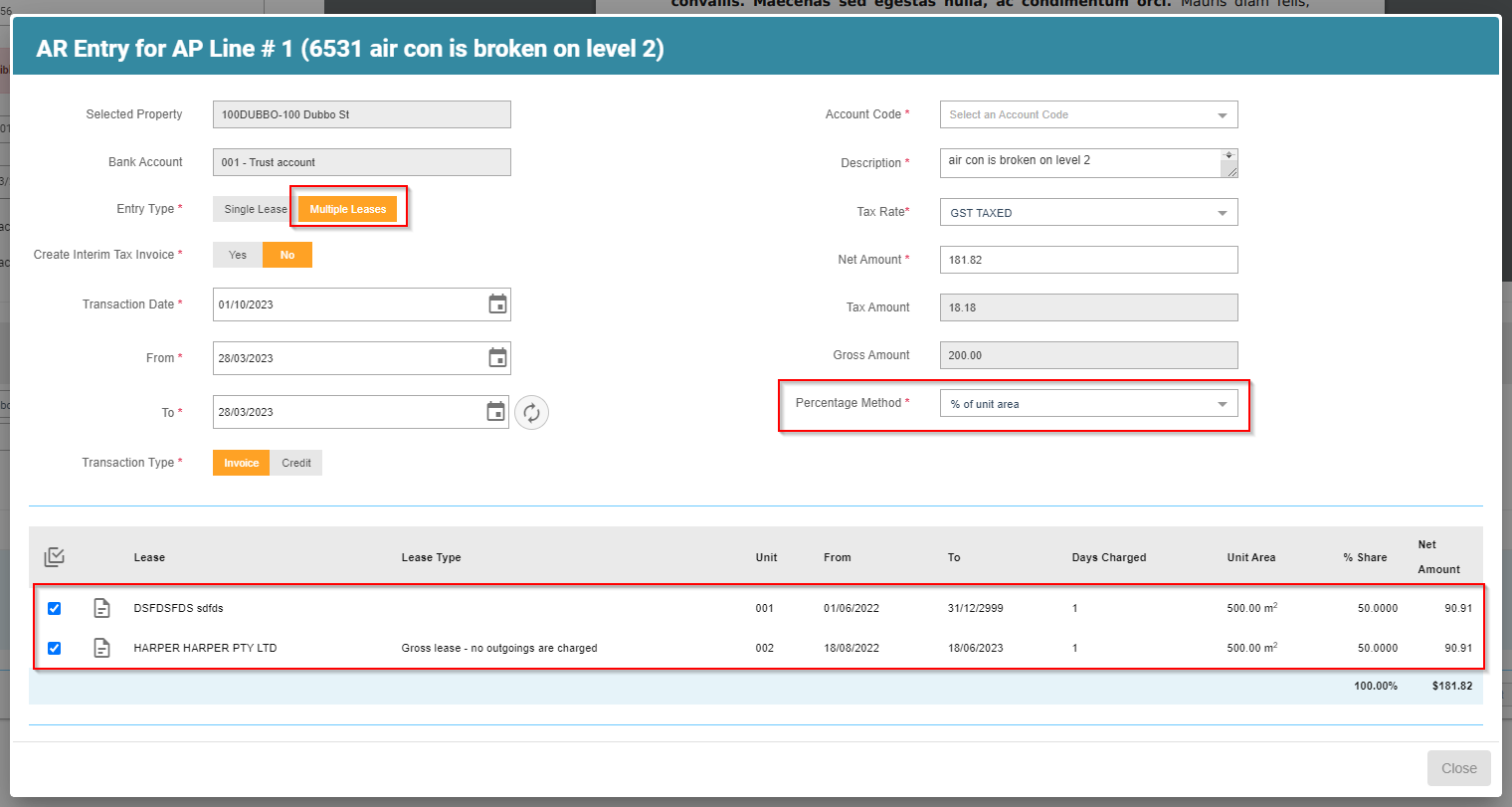
- Click Close to save the AR Entry Details. The AR icon will change to green when this has been successfully saved:

6. Final Automated Invoice Actions
Select the below actions to finalise the automated invoice process as required:
| Action | Description |
| Send Email to Tenants | Sends an interim invoice to the tenant if created. |
| CC me | Sends a copy of the email to yourself. |
| CC to Portfolio Manager | Sends a copy of the email to the Portfolio Manager. |
| Skip this entry | Does not save any changes made to the invoice details and moves onto the next invoice on the pending list. |
| Save as Draft and go to Next | Saves any changes made to the invoice details and moves onto the next invoice on the pending list. |
| Approve | Approves the invoice. |
| Approve and go to Next | Approves the invoice and moves to the next invoice on the pending list. |
| Delete and go to Next | Deletes the invoice and moves to the next invoice on the pending list. A reason for deletion needs to initially be provided in the Remarks box before deleting the invoice. |
Was this article helpful?
That’s Great!
Thank you for your feedback
Sorry! We couldn't be helpful
Thank you for your feedback
Feedback sent
We appreciate your effort and will try to fix the article