Overview
Council rates invoices follow a specific workflow in Cirrus8 because they often contain multiple payment options (yearly or instalments) and may require on-charging to tenants.
The Automated Invoice feature allows council rate notices to be submitted, reviewed, and processed efficiently.
Step 1: Submit Council Rates Invoice
Requirements for submission
Email the council rates notice to the Cirrus8 automated invoice email address.
Ensure the email subject line includes “RATE NOTICE”.
The invoice must be in PDF format only.
File size must be 10MB or less per email.
Step 2: Review Council Rates Transactions
Navigate to:
Dashboard → Forms → Automated Invoice
When the invoice is opened:
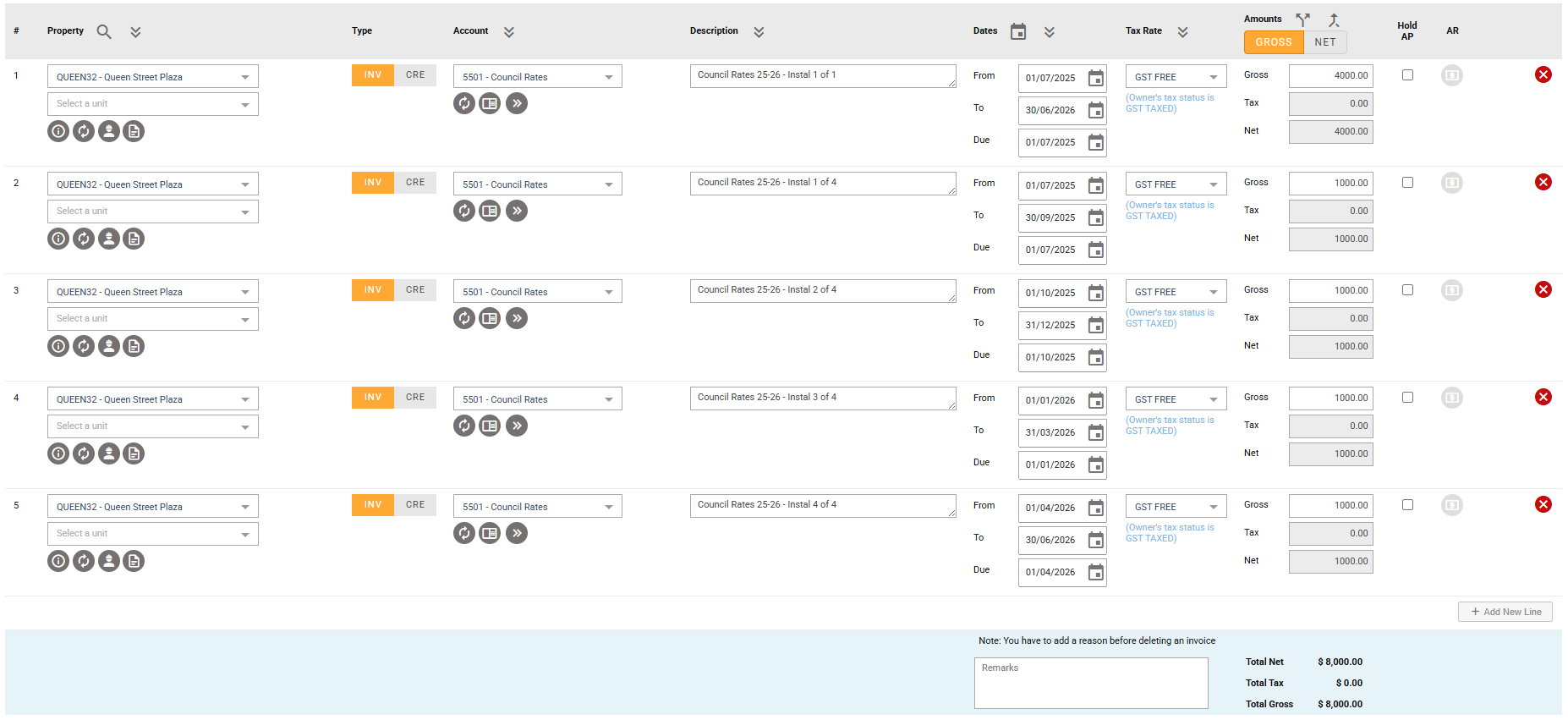
Each payment option (e.g. yearly or quarterly) will appear as separate transaction lines.
Check and confirm the following details:
Supplier
BPAY Reference or EFT details
Invoice Number
(May be the assessment number if no invoice number exists)Invoice Date
(Usually the issue date on the rates notice)Property Address and Unit (if applicable)
Account Code
Adjust depending on where the expense will be paid from:Owner
Variable Outgoings
Directly Recoverable
Description
Example:
Council Rates 2025 – Instalment 1 of 1From Date / To Date / Due Date
Ensure these match the instalment period.Gross, Tax and Net amounts
Select Payment Option
Choose the preferred payment option (Yearly or Quarterly).
Delete unused transaction lines by clicking the red X beside them.
Example:
If Yearly payment is selected → delete the 4 quarterly instalment lines.
Step 3: On-Charge Council Rates to Tenants (If Required)
If the rates are directly recoverable, you can charge the tenant using AR (Accounts Receivable).
A. Yearly Payment or Instalment 1
Use these steps to create and send a tenant tax invoice immediately.
Enable AR
Click the AR icon on the transaction line.
(Available only if the account code is Directly Recoverable)
Enter AR Details
Confirm or update the following:
Property & Bank Account – Auto-filled
Entry Type – Select:
Single Lease
Multiple Leases
Select Lease(s) – Choose relevant tenant lease(s)
Create Interim Tax Invoice – Select Yes
Transaction Date – Change to today’s date
From Date / To Date – Auto-filled
Account Code & Description – Auto-filled
Tax Rate & Amounts – Automatically calculated
If Multiple Leases:
Choose a Percentage Method or manually adjust allocation.
Click Close to save.
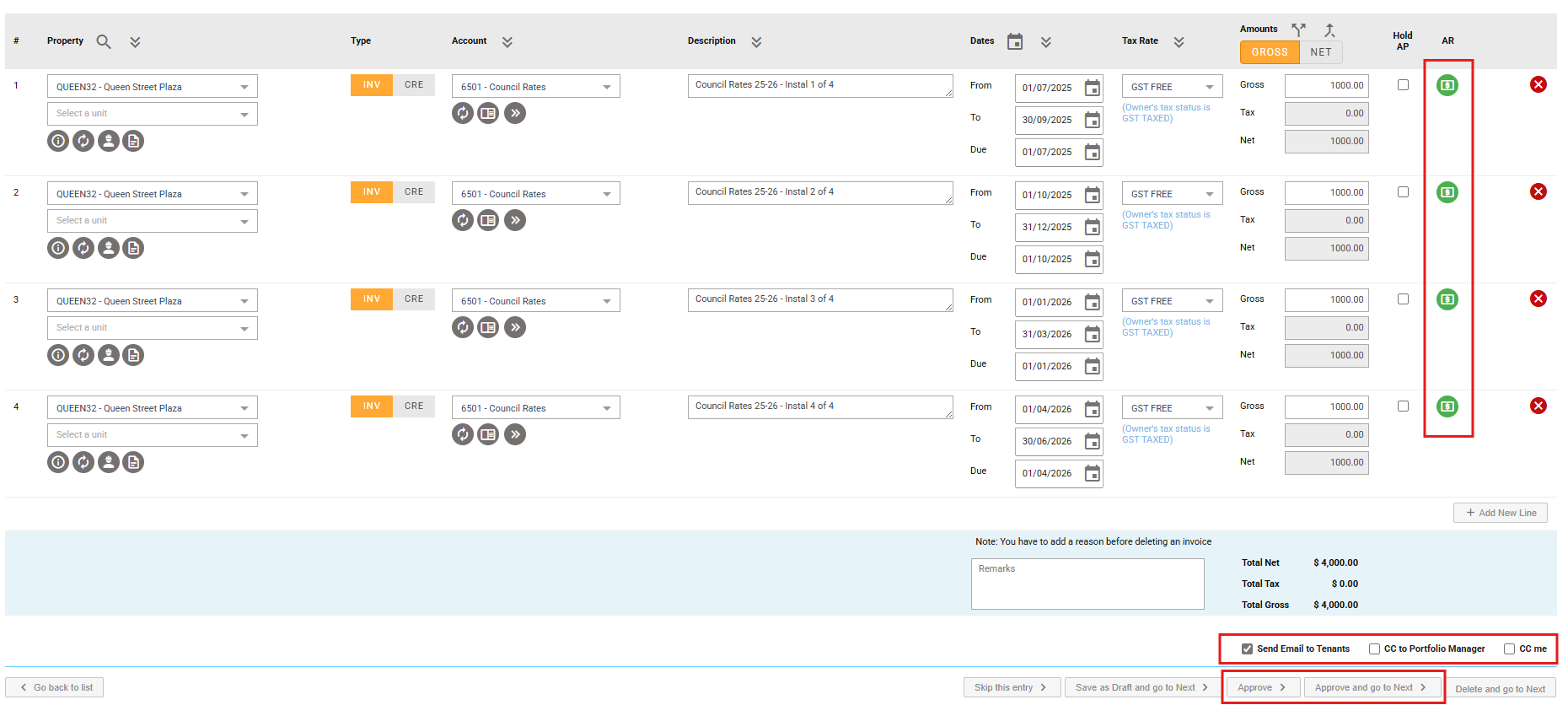
✔ The AR icon turns green once successfully saved.
B. Instalments 2, 3 and 4 (Future Charges)
These instalments should be set up for future billing via Standing Charges.
Enable AR
Click the AR icon on the relevant instalment line.
Enter AR Details
Entry Type – Single Lease or Multiple Leases
Select Lease(s) – Choose tenant lease(s)
Create Interim Tax Invoice – Select No
Set Transaction Date
Set the Transaction Date to the 1st of the month when the invoice should be issued.
Example:
| Council Due Date | Recommended Tenant Invoice Date |
|---|---|
| October instalment | 01/09/20XX |
This allows time to collect tenant payment before paying council.
Other fields:
From Date / To Date – Auto-filled
Account Code & Description – Auto-filled
Tax Rate & Amounts – Auto-calculated
Click Close.
✔ The AR icon turns green once saved.
Step 4: Approve and Email Invoice
After reviewing all transaction and AR details:
Review invoice details carefully.
Choose email preferences (bottom right):
CC Portfolio Manager
CC Me
Click one of the following:
Approve
Approve and Go to Next
Final Result
Once approved:
The tenant tax invoice is emailed automatically (if generated).
The council rates invoice becomes available for payment in the next payment run.
Final Approval Actions
| Action | Description |
| Send Email to Tenants | Sends an interim invoice to the tenant if created. |
| CC me | Sends a copy of the email to yourself. |
| CC to Portfolio Manager | Sends a copy of the email to the Portfolio Manager. |
| Skip this entry | Does not save any changes made to the invoice details and moves onto the next invoice on the pending list. |
| Save as Draft and go to Next | Saves any changes made to the invoice details and moves onto the next invoice on the pending list. |
| Approve | Approves the invoice. |
| Approve and go to Next | Approves the invoice and moves to the next invoice on the pending list. |
| Delete and go to Next | Deletes the invoice and moves to the next invoice on the pending list. A reason for deletion needs to initially be provided in the Remarks box before deleting the invoice. |
Was this article helpful?
That’s Great!
Thank you for your feedback
Sorry! We couldn't be helpful
Thank you for your feedback
Feedback sent
We appreciate your effort and will try to fix the article