1. Invoice Submission Requirements
Before invoices are submitted to Cirrus8, ensure the following requirements are met:
Attach invoices as PDF files only.
Maximum of 10 PDFs per email.
Total email size must not exceed 10 MB.
A personalised email signature is not required.
Ensure each supplier in Cirrus8 has a unique ABN.
The ABN on the invoice must match the ABN of an active supplier in Cirrus8.
Property Manager Procedure
2. Submitting Supplier Invoices
Forward supplier invoices to the dedicated Cirrus8 email address assigned to your agency.
You may include multiple PDF invoices in one email.
Ensure the total email size is under 10 MB.
Within 2–48 hours, the system will:
Scan the invoice
Code the invoice
Upload it to Cirrus8 for review.
3. Accessing Automated Invoices
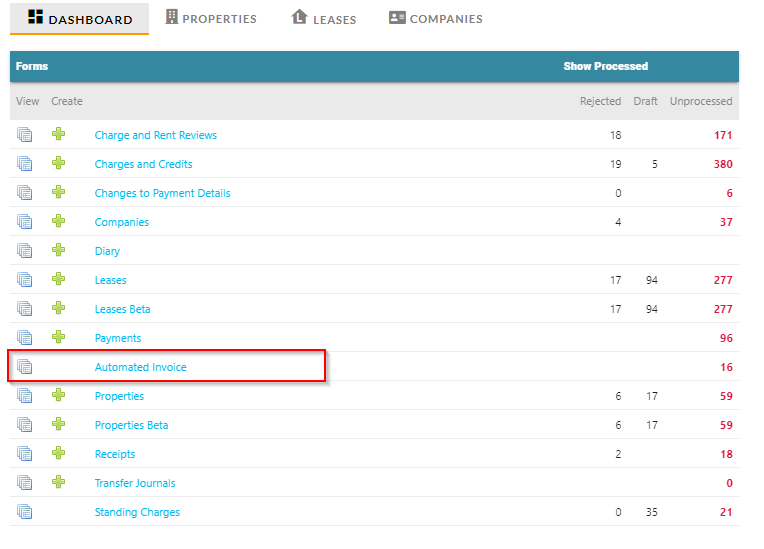
Log into Cirrus8 as a Property Manager or Trust Accountant.
Go to the Dashboard.
Select Forms.
Click Automated Invoice.
4. Filtering Pending Invoices
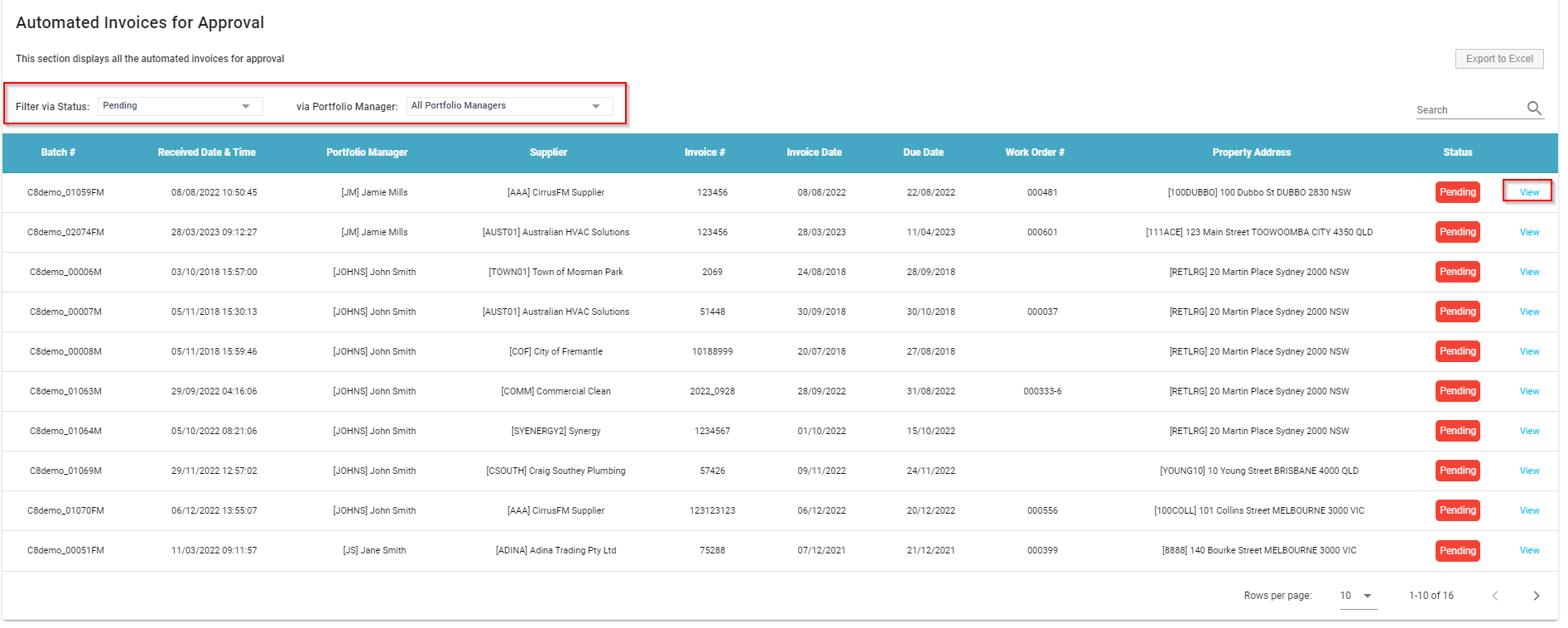
To locate invoices awaiting approval:
Use the Status filter.
Select Pending from the drop-down menu.
Use the Portfolio Manager filter to view invoices relevant to a specific Property Manager.
Click View beside an invoice to open it for review.
5. Reviewing Invoice Information
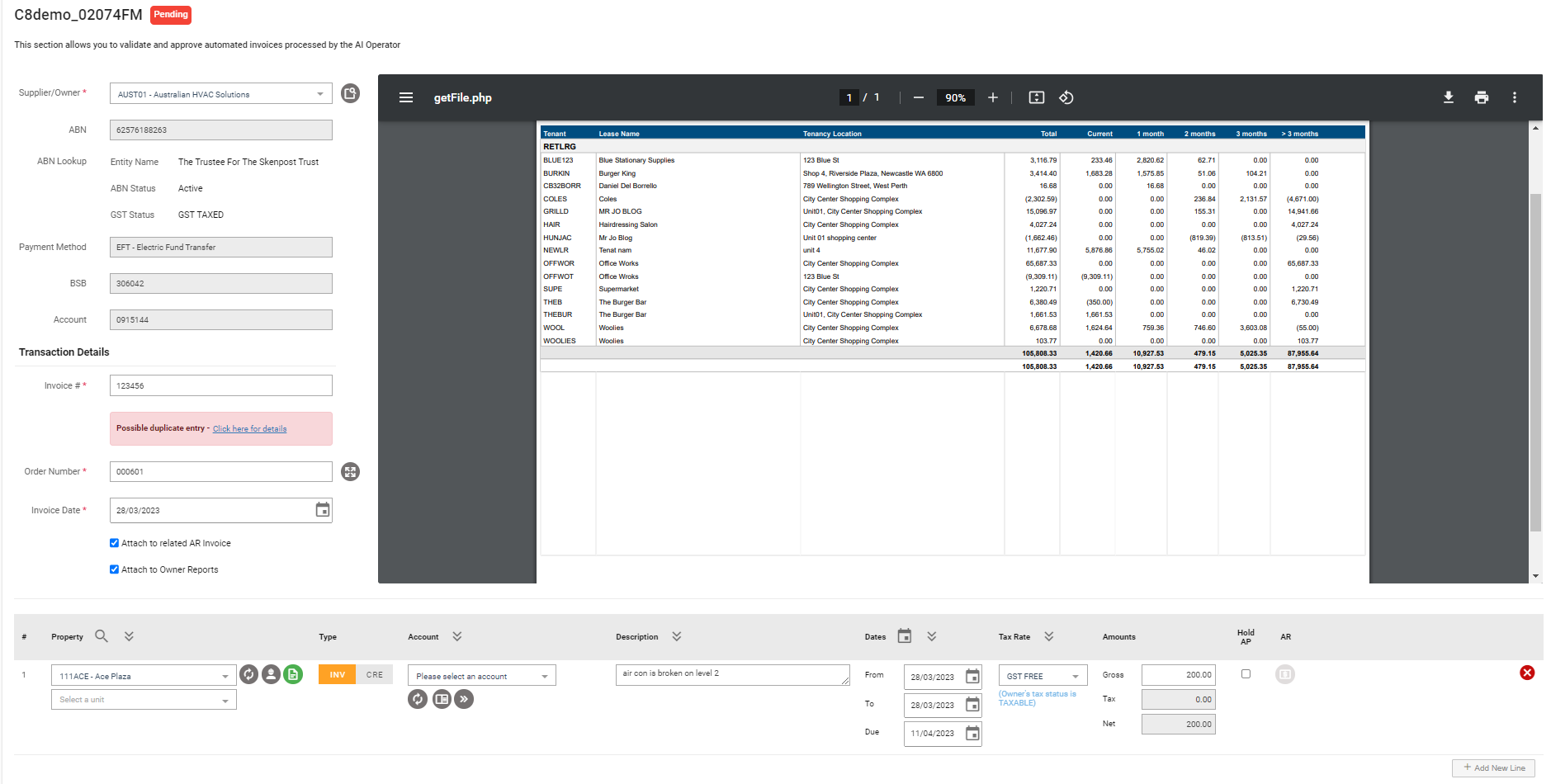
When the invoice opens:
The scanned supplier invoice appears on one side.
The system-extracted invoice data appears in editable fields.
⚠️ Important:
All details must be checked against the original invoice and corrected if necessary before approval.
6. Verify Supplier Details
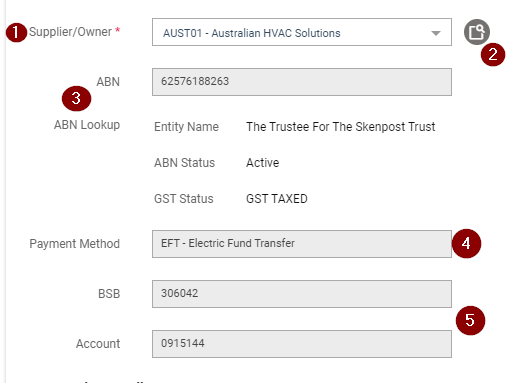
Check the following fields:
Supplier / Owner
Confirm the correct supplier is selected.
If the supplier is missing:
Submit a New Company request.
The Trust Accountant must approve it before use.
Work Order Lookup
Search for related CirrusFM work orders and populate the order number if applicable.
ABN Lookup
Confirm the ABN matches the supplier details.
Payment Method
Verify the payment type:
EFT
BPAY
CHQ
Payment Details
Check payment information matches the invoice.
If incorrect:
BPAY reference can be manually amended.
For incorrect BSB or account details, submit a Change Company Banking Details form.
7. Verify Transaction Details
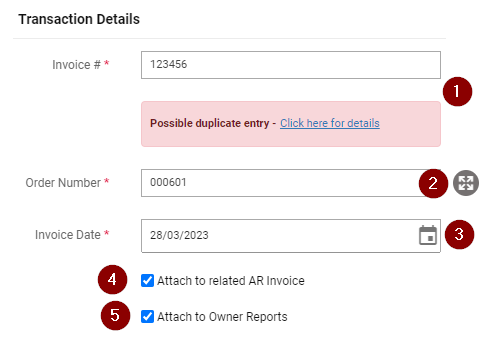
Invoice Number
Enter the invoice number from the supplier invoice.
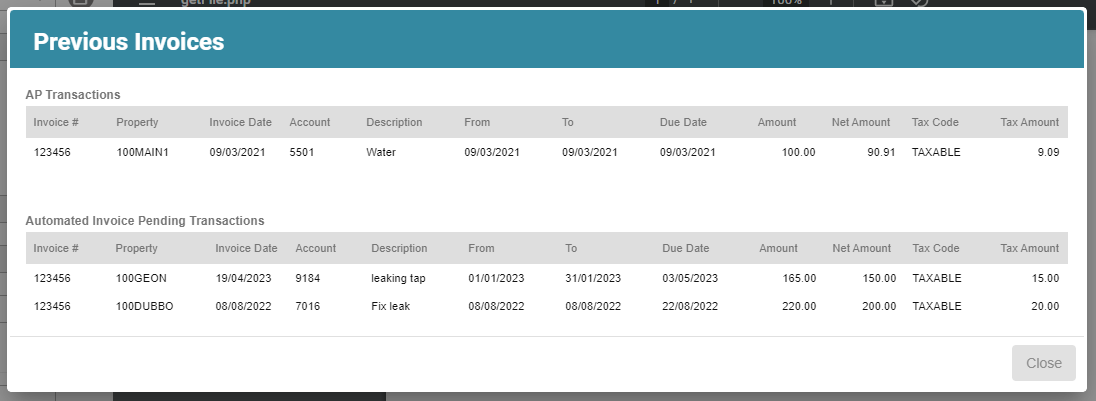
If a warning appears, check previous entries to ensure the invoice is not a duplicate.
Order Number
Enter the work order number if required.
Invoice Date
Enter the date shown on the supplier invoice.
Attachment Options
You may select:
Attach to related AR invoice (if tenant charges apply)
Attach to Owner’s Report
8. Review Invoice Line Details
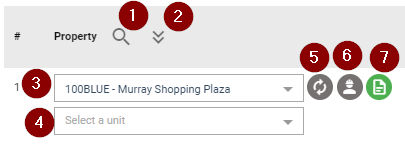
1. Property
Confirm the correct property by:
Using the Property Code Lookup
Selecting from the dropdown menu
Applying the top-line property to all lines if required.
Additional tools available:
Supplier transaction history
Property notes
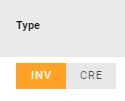
2. Invoice Type
Select:
INV – Invoice
CRE – Credit
3. Account Code
The system may automatically suggest an account based on historical data.
Confirm the correct expense category:
Owner Expense
Directly Recoverable Expense
Variable Outgoing Expense
Helpful tools:
Budget view (monthly and YTD comparisons)
Account code dropdown list.
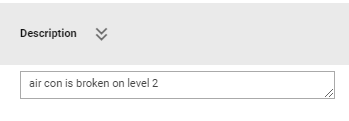
4. Description
Enter a short description of the services or works performed.
Example:
Plumbing repairs
Electrical maintenance
Lift servicing
Keep descriptions brief for reporting purposes.
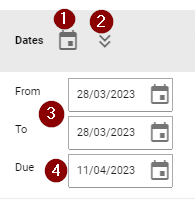
9. Confirm Dates
Check the following:
From Date
To Date
Due Date
Guidelines:
If no service period is listed, use the Invoice Date.
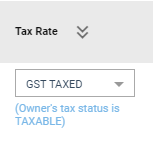
10. Select Tax Rate
Choose the appropriate tax rate:
GST FREE
GST TAXED
⚠️ Important rule:
If the property owner is not registered for GST, enter the invoice as GST FREE, regardless of supplier GST status.
11. Confirm Amounts
Check the following values:
Gross Amount
Tax Amount
Net Amount
Enter the Gross Amount as shown on the invoice.
Additional options:
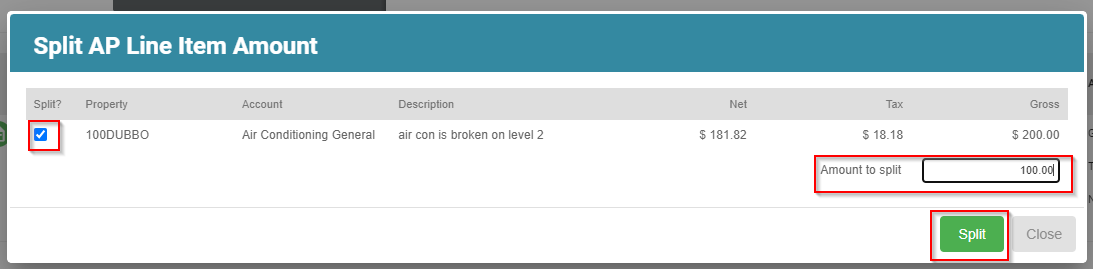
Split Line Items
Used when costs need to be divided across accounts or properties.
Steps:
Click Split icon
Select the line item
Enter the Amount to split
Click Split
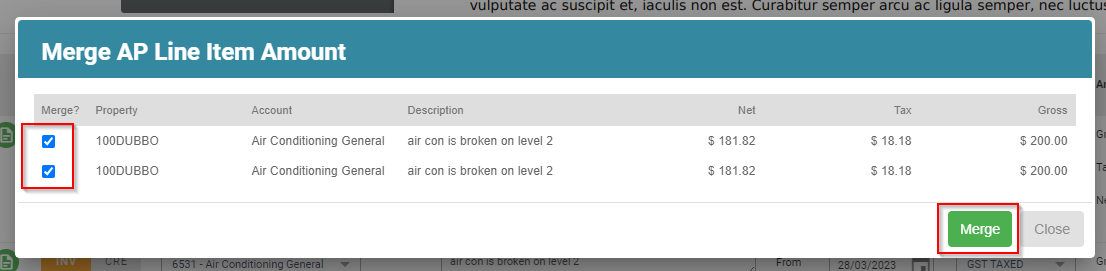
Merge Line Items
Used to combine entries.
Steps:
Click Merge icon
Select lines
Click Merge
12. Hold Accounts Payable (Optional)
Select Hold AP if the invoice should not be paid in the next payment run.
The hold can be removed later.
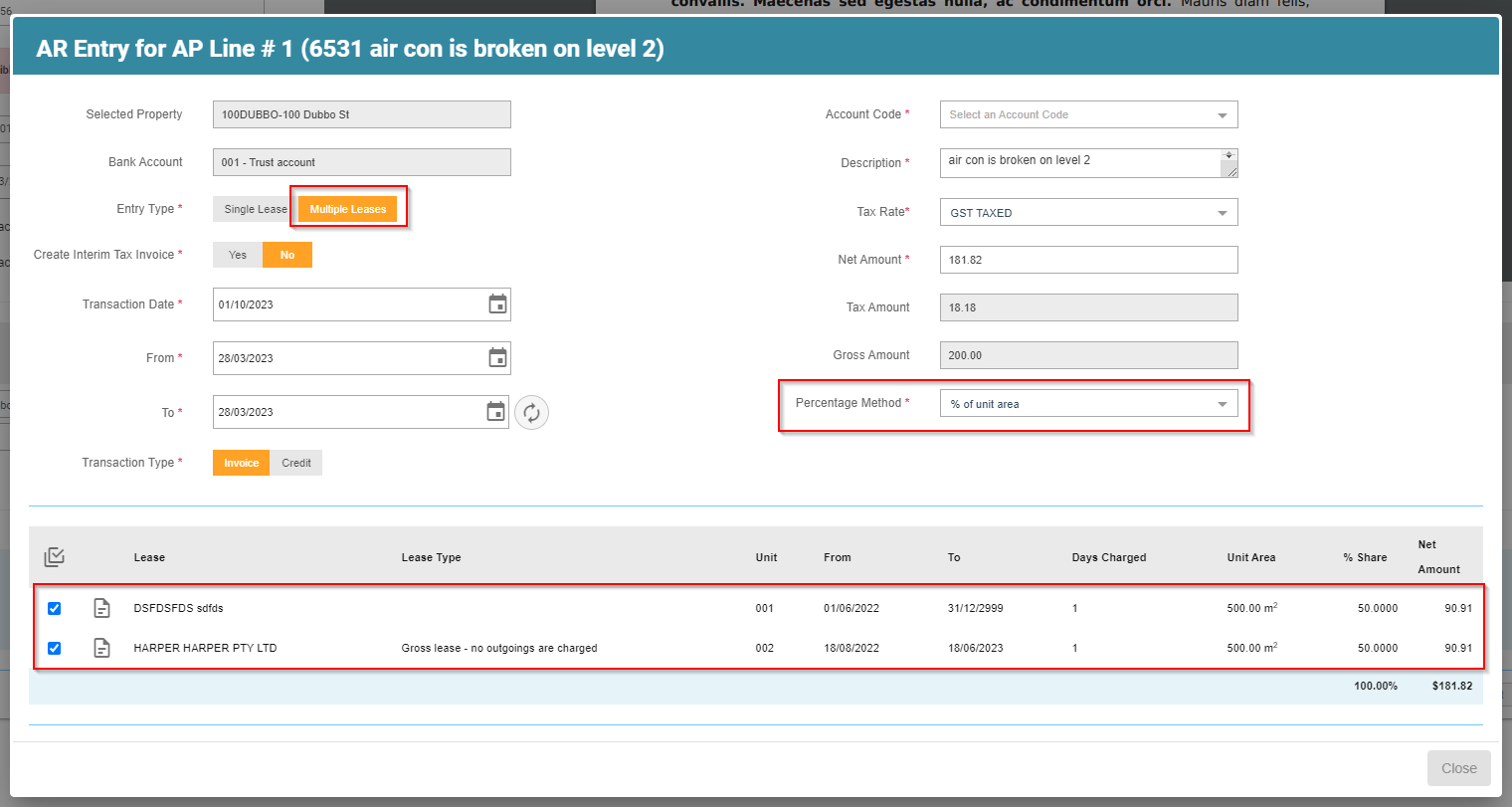
13. On-Charge Costs to Tenants (AR)
If costs must be charged to tenants:Click the AR icon.
Complete the following fields:
- Entry Type (Single Lease or Multiple Lease)
- Lease selection
- Transaction Date
- Service period dates
- Account Code
- Description
- Net Amount
- For multiple leases:
Select the percentage allocation method.
- Optional:
Create an Interim Tax Invoice..
14. Add Additional Line Items
If required:
Click + Add New Line
Enter the relevant transaction details.
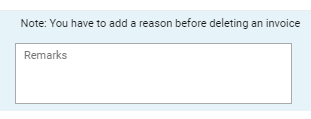
15. Add Remarks (Optional)
Use the Remarks field to add notes or comments related to the invoice.
16. Final Actions
After reviewing the invoice, choose one of the following actions:
Send Email to Tenants – Sends interim AR invoice
CC Me – Receive a copy of tenant email
Go Back to List – Return to invoice list
Skip This Entry – Move to the next invoice
Save as Draft and Go to Next
Approve
Approve and Go to Next
Delete and Go to Next

18. Processing Council Rates
Council Rate invoices must:
Be emailed with subject “RATE NOTICE”.
The system will automatically capture all payment instalment options.
The Property Manager must:
Select the desired payment option
Delete all other instalment lines.
Was this article helpful?
That’s Great!
Thank you for your feedback
Sorry! We couldn't be helpful
Thank you for your feedback
Feedback sent
We appreciate your effort and will try to fix the article