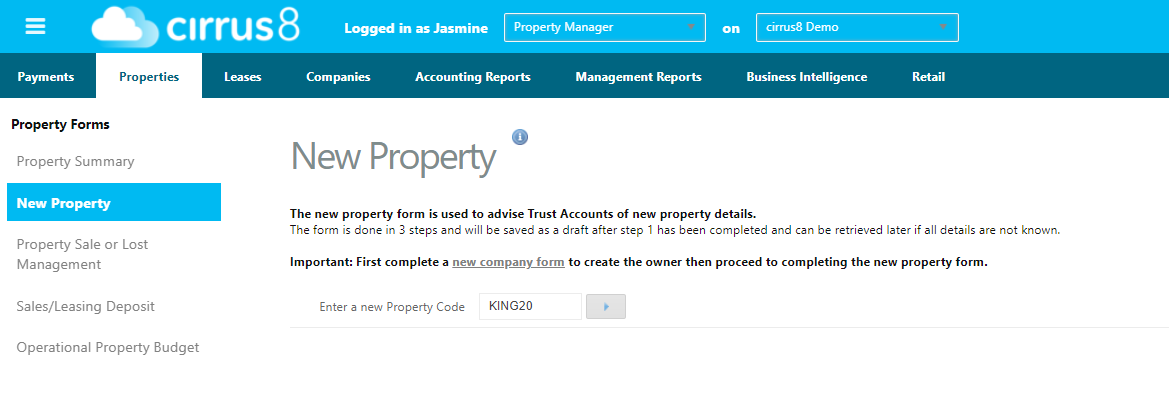
The new property form is used to advise Trust Accounts of new property details.
The form has 3 steps and will be saved as a draft after each step has been completed and may be retrieved later. Click here to see Editing and Approving procedures.
Creating a New Property (TA)
(Owner must be set up first)
TA - Properties - Manage property
- Property Code: Normally first four letters of street name followed by street number. This can be a maximum of 10 characters, letters, numbers. no special characters or spaces.
Step 1
Basic Property Details
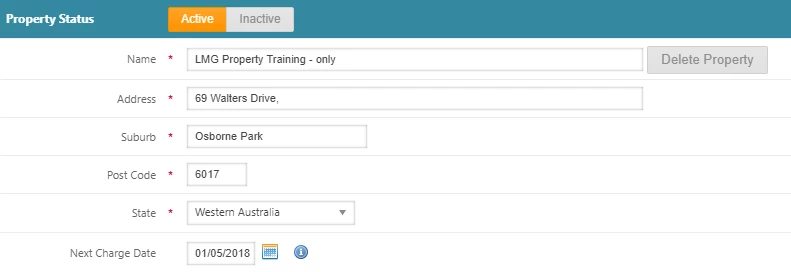
- Trust Accountants may make properties Active/Inactive.
- Inactive properties will no longer appear in reports.
- NB. ensure to finalise property balances prior to making inactive. (see property sale/lost management for details)
- Property name defaults to property address, change if the property has a specific name e.g Plaza Shopping Centre.
- Next Charge Date - Date next charges to be raised in Cirrus8 for all leases under the property. NB. During set-up it's recommend to leave as default and add individual next charge dates for each lease.
Management Details
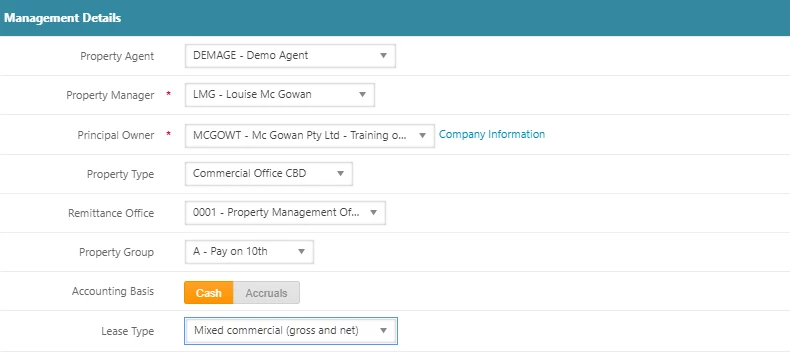
- Property Agent (agent company)
- Property Manager - assign portfolios (TA - system configuration)
- Principle Owner - name and address will appear on all owner(s) statement/reports an alternative is;
- create a 'dummy' owner company, company name: owners of <property name>, address <property address>.
- select the 'dummy' owner company as the principle owner.
- assign property owner(s) shares (step 2 of this property form) do not assign shares to 'dummy' owner company.
- all owner(s) statement/reports will be addressed to the 'owners of <property name>'.
- payments will be allocated to owner companies as per owner(s) share (step 2 of this form).
- Property Type: (TA - system configuration)
- Remittance Office: Agent office (TA - manage remittance office)
- Property Group: (TA - system configuration)
- May be used to assign properties to a payment group, e.g Group A paid on 10th monthly, Group B paid on 20th monthly.
- Accounting basis: Cash or Accruals - this will determine the budget type that the automated invoice feature will refer too - default cash.
- Lease Type: The leases of this property consist of; Gross, Semi-Gross, Net, Mixed commercial (Gross & Net), Mixed retail & commercial, Retail or Residential.
Management Agreement
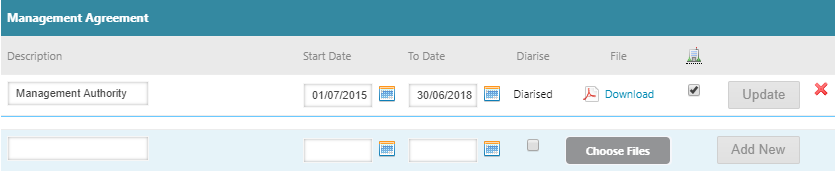
- Clicking diarise will give you a reminder prior to the expiry dates.
- Publish to owner portal
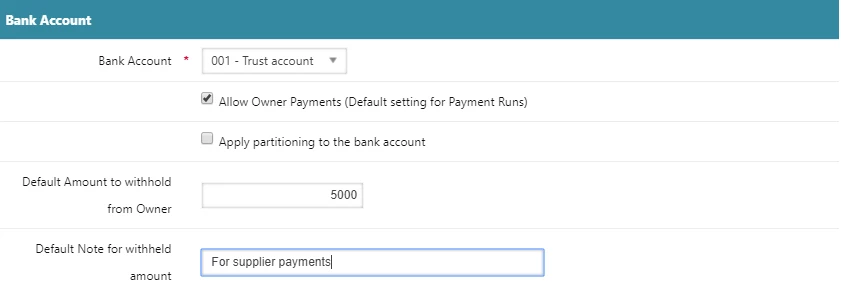
Bank Account
- Select bank account from drop down e.g. 0001-Demo (TA - Manage Bank Accounts)
- Allow Owner Payments (Default setting for Payment Runs)
- ticked - enables owner payments (default).
- unticked - owner never to receive property funds.
- Apply partitioningto the bank account,
- Is used for properties where only rent is paid to the owner leaving outgoing and recoverable balances in the property.
- Partitioning is not required if all funds are normally paid out to the owner.
- The default partitions are: Owners funds, Outgoings funds & Recoverable funds. * Custom partitions will appear in the payment form as separate properties e.g. WALT69 (PROMO) see Property Fund section below.
- Withhold amount from owner monthly
- Note to appear on owner report for withheld amount.
Management fees
- Account code (TA - Manage chart of accounts):
- Owner Expenditure - owner pays fee/deducted from owner funds (retail/shopping centre's),
- Variable Outgoing Expenditure - collect management fee from tenant via outgoings charge - management fee included in VO budget.
- Directly Recoverable Expenditure - (uncommon) collect management fees directly from tenant (not incl in outgoings). See Directly charging tenants management fees for set up details.
- Method of calculating/collecting management fee,
- Fixed monthly (net).
- Percentage of Total Receipts
- Percentage is calculated on net total property income.
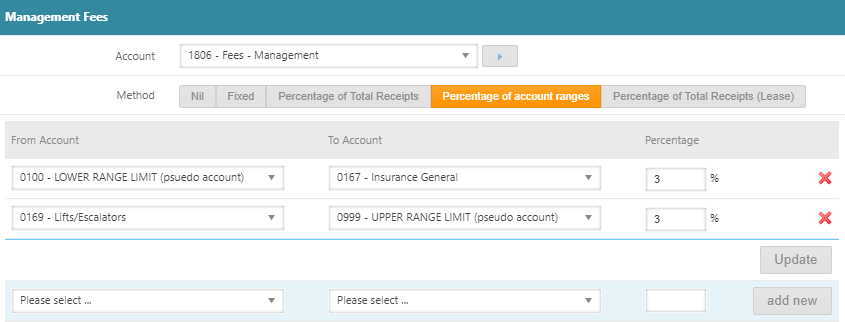
- Percentage of account ranges
- Select this option to choose account ranges - eliminate codes from management fees.
- e.g. owner contribution or legal fees:
- enter account from and account to range excluding legal account code.
- Percentage of Total Receipts (Lease)
- Percentage is calculated on net total property income, if management fees are to be calculated using different percentages for income on certain units. Enter the percentage on the specified lease (see lease, management fees), if left blank the default percentage entered here on the property will be used.
NB. GST is added to management fees on payment if property is taxable.
NB. Do not change management fee method part way through a month, first review Management fee's for details and options.
Property using multiple methods to collect management fees.
Management fees are calculated on a property as a whole, If some tenancy's are charged management fees via outgoings and others aren't (owners expenses) i.e. mixed retail and commercial properties, three options;
1. Set the property up with management fees - variable outgoings expenses (Non-Partitioned Property)
1.1. reconcile at year end.
2. Set the property up with management fees - variable outgoings expenses. (Partitioned Property)
2.1. each month transfer journal the management fee balance for gross leases (outgoings not charged) from the owners partition to the VO partition, prior to the month end payment run to collect all management fees. see Management fee's for details.
3. Set the property up twice; (Partitioned and Non-Partitioned Property)
3.1. retail with management fee - owners expense.
3.2. commercial with management fees - variable outgoings expense.
Note: if a property has vacated units, management fees will be calculated on the occupied units 'percentage of only base rent received', therefore no management fees are raised to the vacated units.
Reporting
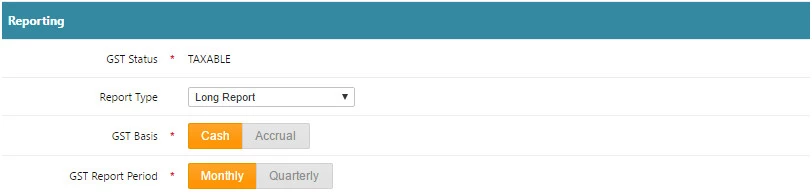
- GST Status - defaults to principle owner company GST status when company is approved.
- Report Type - select the owners preferred owners statement for end of month.
- GST Basis - owners accounting preference, determines BAS report GST basis irrespective of owner report type chosen (cash report/accrual report)
- GST Report Period - owners accounting preference.
Property Fund
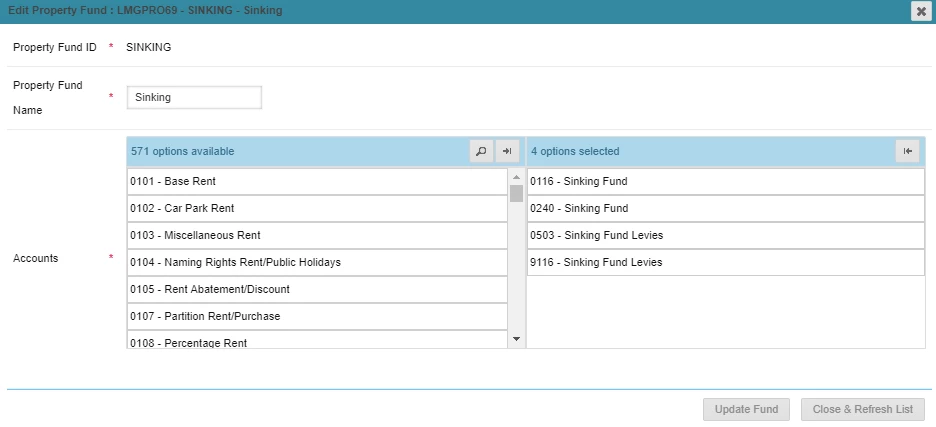
- The default partitions are: Owners funds, Outgoings funds & Recoverable funds.
- Custom partitions (Promo, Sinking Funds etc...) may be set up here and will appear in the payment form as separate properties e.g. WALT69 (PROMO).
- Click Add Property Fund, selecting a fund ID and account codes, when these account codes are receipted to the balance will be held separate from the main property funds.
- Custom partitions (Promo, Sinking Funds etc...) may be set up here and will appear in the payment form as separate properties e.g. WALT69 (PROMO).

Parking Bays
- Leasable Parking Bays - bay(s) leased with a property unit.
- One lease agreement covering unit/tenancy and parking = one lease on Cirrus8.
- When adding parking charges to the lease the number of car bays are required. The tenancy schedule will then show the number of leasable bays vacant for the property.
- Licensed Parking Bays- bays leased without a property unit.
- One 'carbay' unit to be created per parking lessee. Bay numbers may be listed in the 'carbay' unit description.
- One lease to be attached to the 'carbay' unit with parking charges. Bay numbers may be listed in the parking charges description.
- Casual Parking Bays-
- bays without charges e.g. temporary retail customer parking.
- No unit or lease required on Cirrus8
- bays with charges but no lease e.g. day parking.
- A unit to be created per casual carbay. Unit code: carbay number
- One lease to be attached to each carbay unit.
- Lease code and tenant code: carbay number e.g. CARBAY07
- bays without charges e.g. temporary retail customer parking.

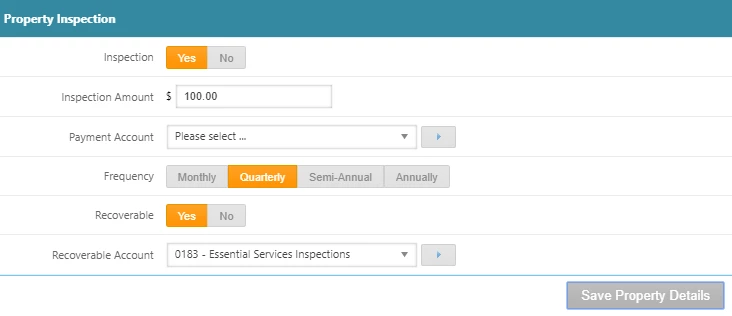
Property Inspection
- Record inspection fee preferences here, Cirrus8 will not automatically raise fees. TA must raise fees manually.
- If using a property inspection app that syncs with Cirrus8, property details will sync with your app once submitted & approved on Cirrus8.
 Next Step
- Clicking Save property details will save step 1 in draft, for completion later if required.

Step 2
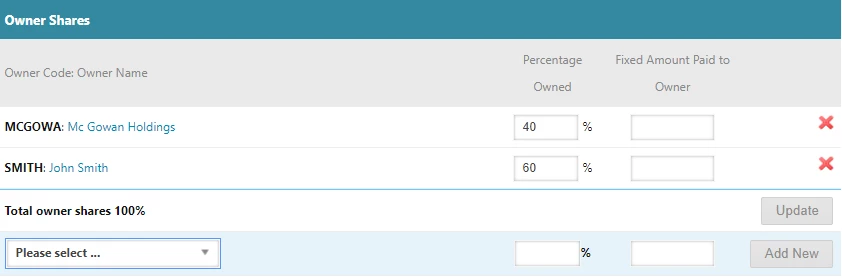
Owner Shares
- Each owner (company) is assigned a percentage share, if only one owner - 100% is applied to the owner (company).
- Owner shares will show on the payment run form and Cirrus8 will split the total to pay owners to each owner (company) based on their percentage share, users may adjust allocation prior to payment.
- If multiple owner companies are linked to a property, each share owner will receive a copy of the owner statement when emailed from Cirrus8.
- The email will be sent to the email(s) on the owner companies (under owner shares).
- The owner statement sent to each share owner, will be addressed to the principle owner - see principle owner (step 1) for details.
- Enter a fixed amount only if paying the owner a fixed amount each month.
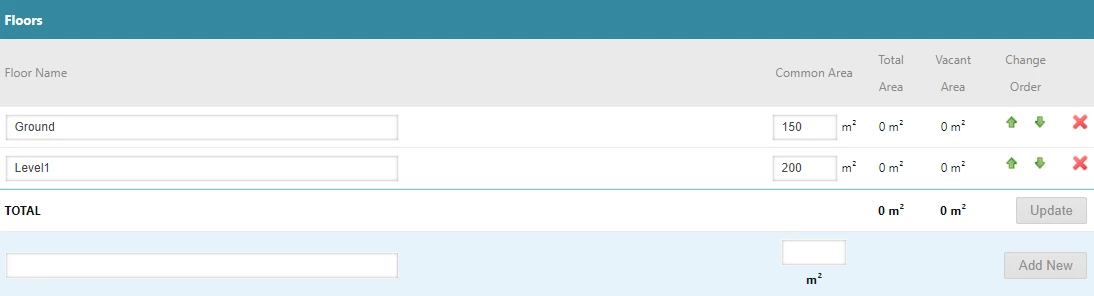
Floors
- Ground Floor, Level 1 etc... enter common area (optional - not used by Cirrus8), click add new
- Change the order of floors if required using the green arrows.
- Click the update button if changes are made to existing floors.
NB. if the entire property is leased by one tenant a floor and unit is still required to attach the lease. e.g. Floor: WB - Whole Building, Unit: Unit1.
Units
- Select a floor to add unit(s).
- Enter unit code, description and unit area m2;
- Example commercial unit codes
- Ground floor unit 1 - 00/01 or UNIT01
- Example retail unit codes:
- Supermarkets - SMKT.
- ATM's - ATM1. NB. ATM's are usually gross lease and no area entered - no land tax)
- Kiosks - <floor no> <kiosk no> - 00/K1.
- Ride On - RID1
- Library - LIB1
- Medical Center - MED1
- Status - Vacate (this will allow a lease to be attached to the vacate unit from or after the start date.
- Don't show in tenancy schedule, ticking hides the unit from the TS.
- Example commercial unit codes
NB. Lettable Area is important as Cirrus8 uses it to calculate the total property lettable area and to split multiple tenant charges based on percentage of unit area.
If the unit area changes Cirrus8 will split the tenant charges appropriately.
*If the total property area changes any charges that the change dates falls within will need to be split into two charges, one charge before the total property area change and one after. All future charges outside of the total property area change will split appropriately as per the new total property area m2.

| Unit History - TA |
|---|
Trust accountants may edit the units details and history by clicking on 'edit details'.
|
Key Register
The Key Register can be created and maintained by both Property Manager and Trust Accountant users, either when creating the property or updating an existing Property.
A Property Manager user can update this from Property Reports > Property Summary.
This section for Keys is found under Floors and Units.
- Reference - We recommend using the key code assigned to the key as this information will be used for the key status report.
- Description - This is where you can enter the relevant unit description and property address as this information will be used for the key status report.
- Status - Checked In or Checked Out.
- Who has the key? - This is where you can fill out who has collected the keys.
- Checked Out - Enter the date the keys were checked out.
- Return Due - Enter the date you are expecting the keys to be returned, for example if a contractor has collected them to complete a job.
- Files - This is where you can upload PDFs such as photocopy of the keys or signed documentation of the person who has collected the keys.
- Keys History - This is where you can see all the documents that have been uploaded to the files and any keys you have made inactive.
To add a new key to the property you will need to complete the following:
- Enter a Reference and Description.
- Select Add New.
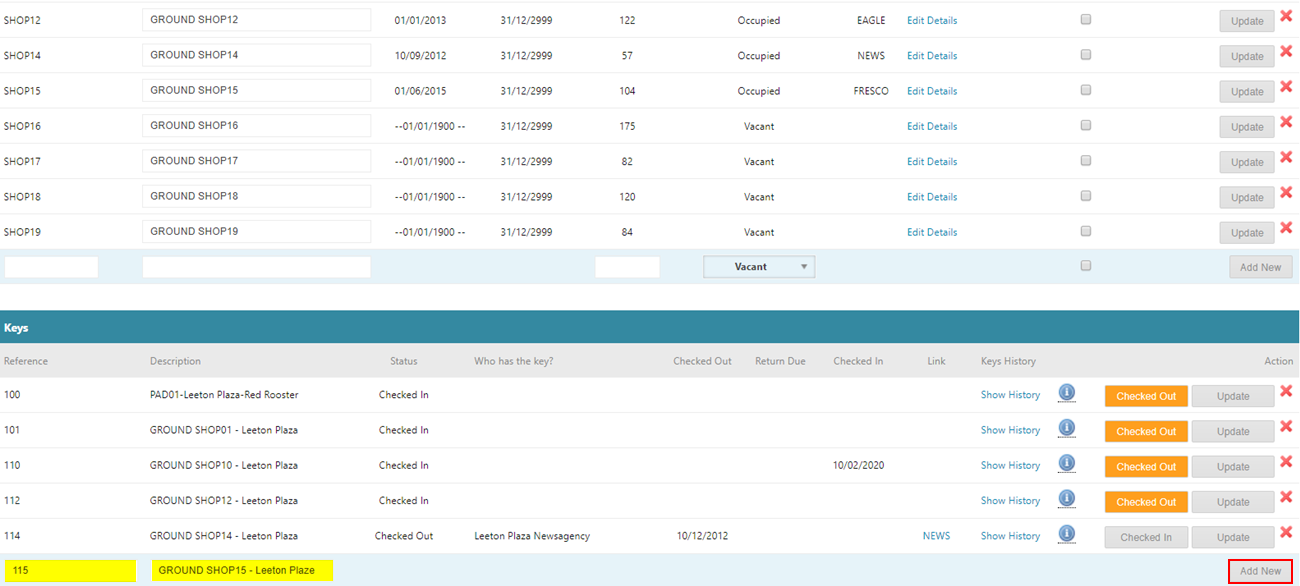
Once you have entered the key you are able to update more information:
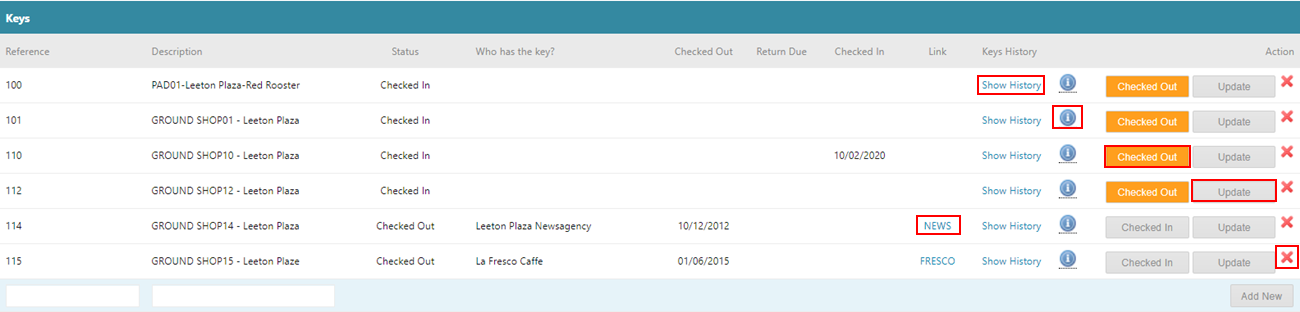
- Show History - this will open a pop up with the Key History, such as if a key has been checked out by who and when.

- If you hover over the blue information i it will inform you of who updated it last and what date.
- There is the ability to upload documents by selecting Choose Files.
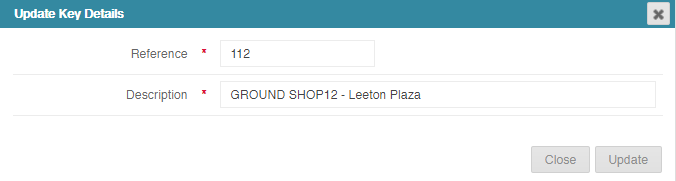
- If you need to make changes to the description or key number you can select Update and a new popup window will appear where you can edit the information and select Update to save.
- If keys have been returned you are able to Check-In keys that have been checked out, by entering a date and selecting Checked In.
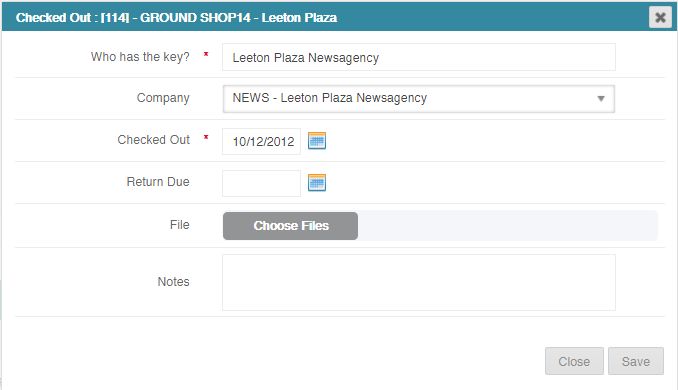
- If keys are being given out you can also select Checked Out entering who has the keys and if they are a company in the system you can select them from the dropdown search bar next to company, the date they were checked out and the date you expect them to be returned. To save this information, select Save.
Sundry Charges
- Chargeable items by the agent, e.g. Petites & Postage and administration fees
- choose expense account code: owner, outgoings or directly recoverable - uncommon (TA - system configuration)
- Cirrus8 will automatically populate the sundry charge on the payment form next to management fees.
- always charge:
- Tick - sundries may be collected during each owner payment run.
- Un-tick - sundries may be collected once during each period.

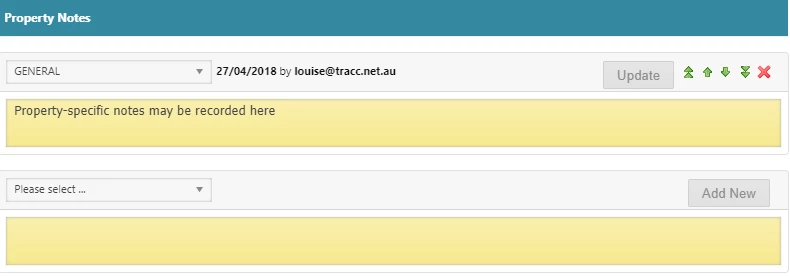
Property Notes
- Examples:
- Car park information.
- Alarm code.
- Restructuring of property and or units.
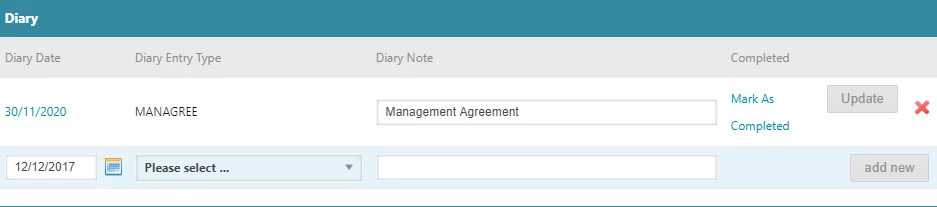
Diary
- The assigned property manager will receive email notifications - normally on the day and 90 days prior (TA - system configuration).
| Property Calendar - TA |
|---|
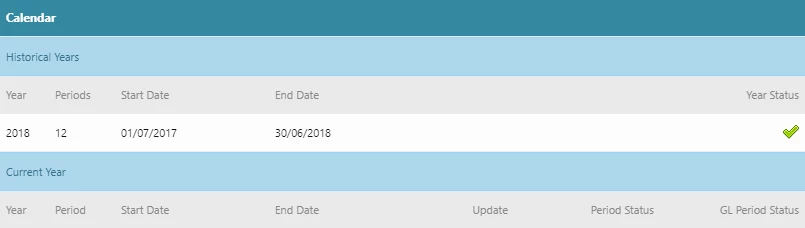
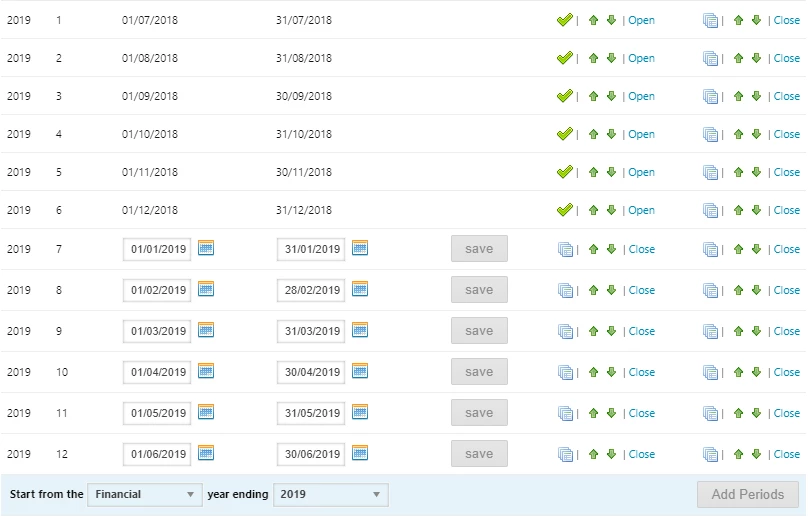
When the trust accountant approves a property, Cirrus8 automatically creates a property calendar, with 12 periods for the current financial/calendar year. All periods up to the prior period are closed.
|
Contacts
- Enter contact name and select a type of contact.
- Enter contact details and click add new.
- To add another contact detail against the same contact click on the green add (plus) button and click update.
NB: Ensure to click update after adding or editing contact details.

Documents
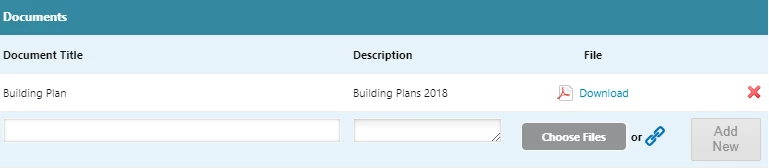
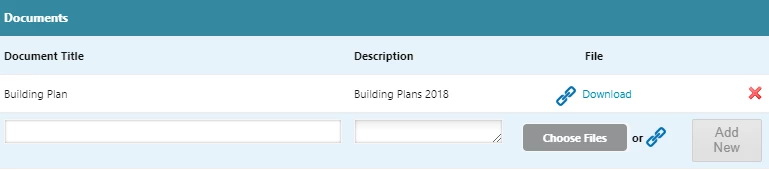
- Attach property related documents. Attach lease related documents to the lease.

| Upload PDF | Insert link |
|---|---|
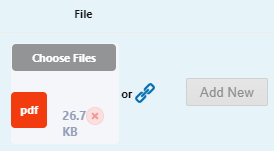
PDF documents stored on your computer/file share may be uploaded.
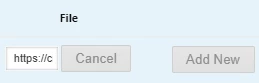
Clicking 'Download' will open the PDF document. | A link to documents stored on an external file share program may be inserted.
Clicking 'Download' will open a separate web browser to your documents location. |
 |  |
Property Insurance
- Enter insurance details and diarise expiry date.

| Year To-date Take On Balances - TA |
|---|
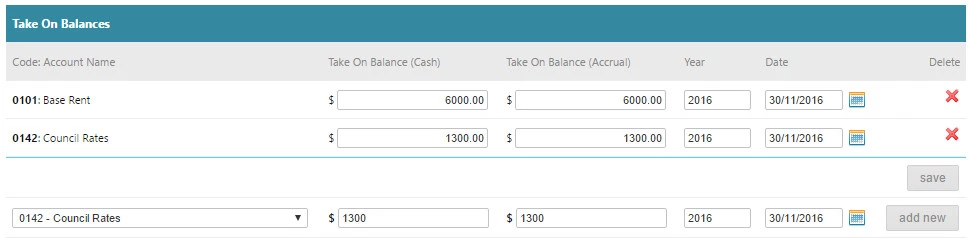
Example; Management changed on 1st Dec 2015, base rent prior to Dec is take on. $1,200 monthly rent; July to Dec = $6,000 Take-on Balance. Account name - Base Rent, Take-on Balance $6,000, Year: 2016, Date: 30/11/2015. No take on required if management changed 1st July. Will show year to date figures on owners report.
|
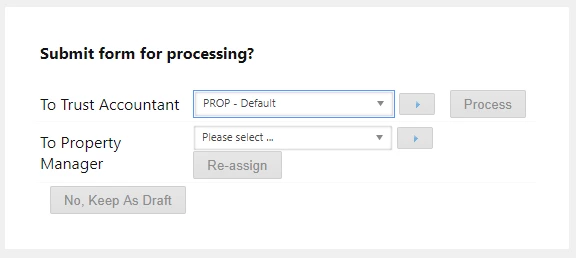
- Complete form

- Select either of the below and click process.
- Trust accountant, if you are a property manger submitting a form for your own portfolio
- Property manager, if you are an assistant and are submitting a form on behalf of the property manager.
- Forms may be re-assigned if the authorisor is unavailable.
- Keep as draft to finalised details and submit at a later date.
| TA Approving Properties created by Property Manager |
|---|
Step 1
Approve New Property
|


| PM Editing Existing Property Data | TA Editing Existing Property Data |
|---|---|
Property data can be edited or added to using Property Summary Property Summary
Next Steps - Set up Leases. | Property data can be edited or added to using Manage Property Manage Property
|
Was this article helpful?
That’s Great!
Thank you for your feedback
Sorry! We couldn't be helpful
Thank you for your feedback
Feedback sent
We appreciate your effort and will try to fix the article