WEB BUDGET VIDEO TO INSERT HERE
The Property Budget is located under Properties > Operational Property Budget. Both user types have the same access to the Property Budget form and there is no level of hierarchy - no approval steps required.
Note: To the Budget to be used to its full capacity, it is recommended that each Property has a MISC lease set up. Expenses you predict will be incurred by the property and will not be recovered by tenant's outgoings payments (i.e. for Vacancies & Gross Leases) can be assigned to the MISC Lease. The system will then be able to calculate an Owners Portion/Contribution to Outgoings. If there is not a MISC lease set up, your Trust Accountant can do this.
Property Budget
The Budget is initially a 5 step process:

1. Budget Settings
This section allows the user to determine the parameters for the Budget specific to the Property (Cash Budget, Accruals Budget, Financial Year etc).
2. Expenses
This section allows the user to enter budgeted expenses for the relevant financial year. Expenses are to be allocated to Units/Tenancies and/or Owners as appropriate
3. Income
This section allows the user to load lease charges and calculate the new Outgoings charge for each Tenant based on the Expenses previously entered and allocated
4. Management Fees
This section allows the user to calculate Management Fees for the Property based on the calculated Income.
5. Budget Overview
This section provides the user a final overview of the Budget whereby the Budget can then be finalised and locked.
6. Lease Charges
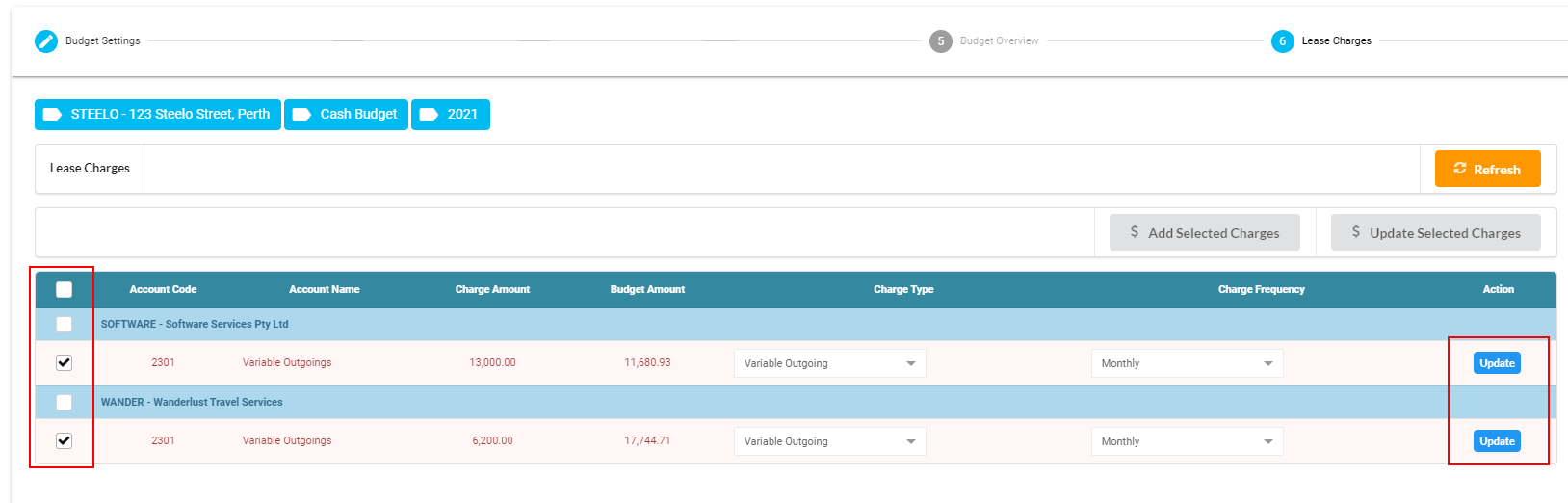
Once the Budget has been finalised & locked, an additional step (6. Lease Charges) will appear that allows the user to update each Tenant's lease charges for the upcoming financial year based on the calculated income.
Budget Settings
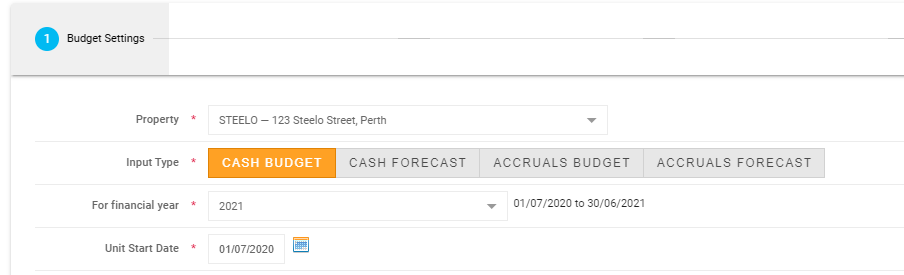
Select the Property you are creating a Budget for along with the type of Budget you are looking to create.
Select the relevant Financial Year (the system will default to the next available financial year open for the Property). If the year you require does not exist, a Trust Accountant user will need to open the relevant year for you.
The Unit Start Date will then default to the start date of the financial year selected - this date determines the occupancy status of each unit in the property - i.e. the below will pull through the occupancy status of each unit as at the 1st July 2020. This date can be used to pull through any new information during the year if there has been movement within the Property and you are looking to update the Budget accordingly.
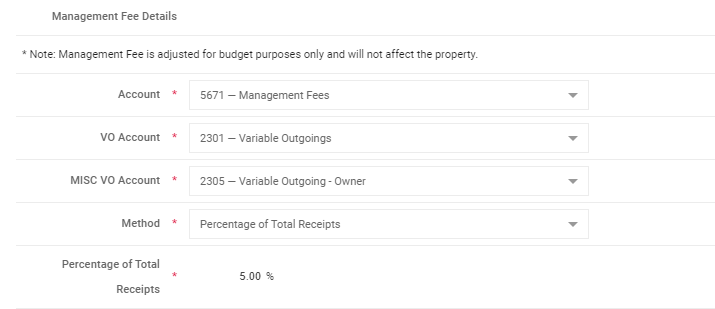
Management Fee Details:
It is important to note that any Management Fee adjustments made within the Budget are for budget purposes only and will not affect the Property setup.
Account: Management Fee account code as set up for the Property
VO Account: Account code the system will use to calculate and apply Tenant's Outgoings charges to
MISC VO Account: Account code the system will use to calculate the Owners Contribution to Outgoings (any expenses allocated to the MISC lease)
Method & Percentage: Method and percentage for the Management Fee calculation as per the Property set up
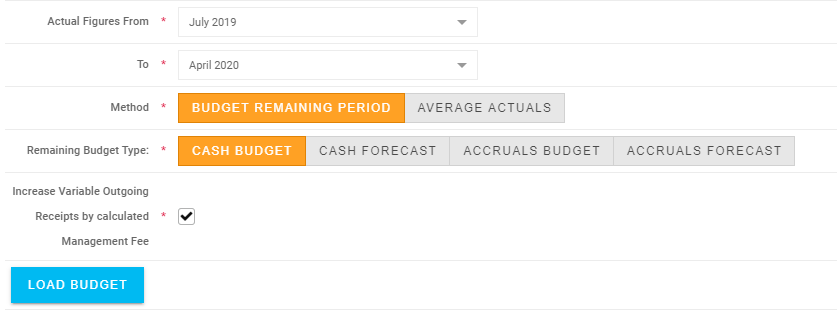
Estimated Actuals
Actual Input Type: Cash or Accruals
Actual Figures From & To: The system will pull through actual expenditure for each expense account code within the period selected on a cash or accruals basis dependant on the Input Type selected
Method:
- Budget Remaining Period: The system will pull through actual figures for the period selected above and add any budgeted or forecasted amounts for the remaining months to give you an estimated actuals figure for the current financial year. (Please note this will only be accurate if there is a current budget in Cirrus8).
- Average Actuals: The system will tally up the actuals to date, divide the totals by the number of months the period covers and times this by 12 to give an estimated actual figure for each
Increase Variable Outgoing Receipts by calculated Management Fee: This allows the system to populate the budgeted Management Fees back into the budgeted expenses and increase the Tenant Charges.
LOAD BUDGET
Expenses
If you have a current Budget in the system, you can click 'Load Last Year Budget' to bring through the prior year's budget and make the necessary amendments to the budgeted figures.
If this is the first time you are creating a Budget in Cirrus8, you will need to manually add all expense codes you wish to budget for.
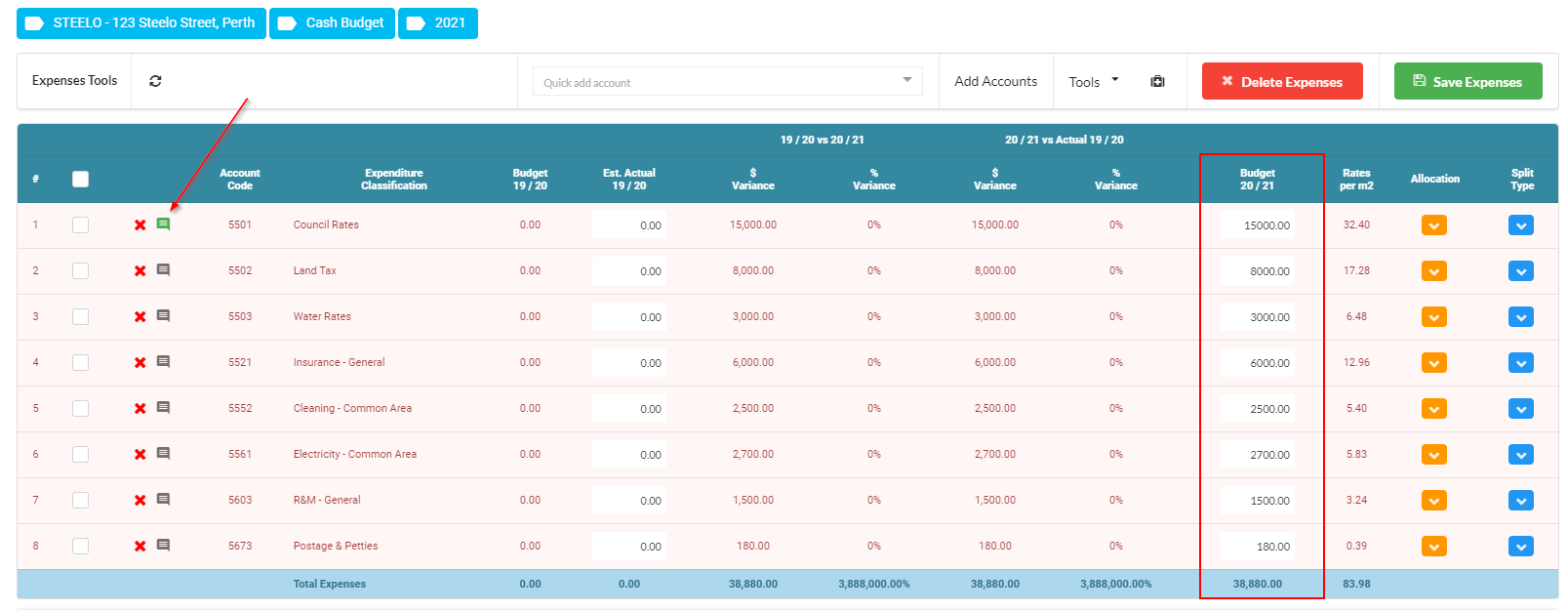
1. Add relevant account codes via the Quick add account dropdown box function or add account codes in bulk via the Add Accounts function:
Note: It is important that you select the VARIABLE OUTGOINGS account codes in order for the system to calculate tenant charges. You are able to select Owner & Directly Recoverable codes if you wish to include these in the budget however these will be disregarded in the tenants' outgoing charges calculation.
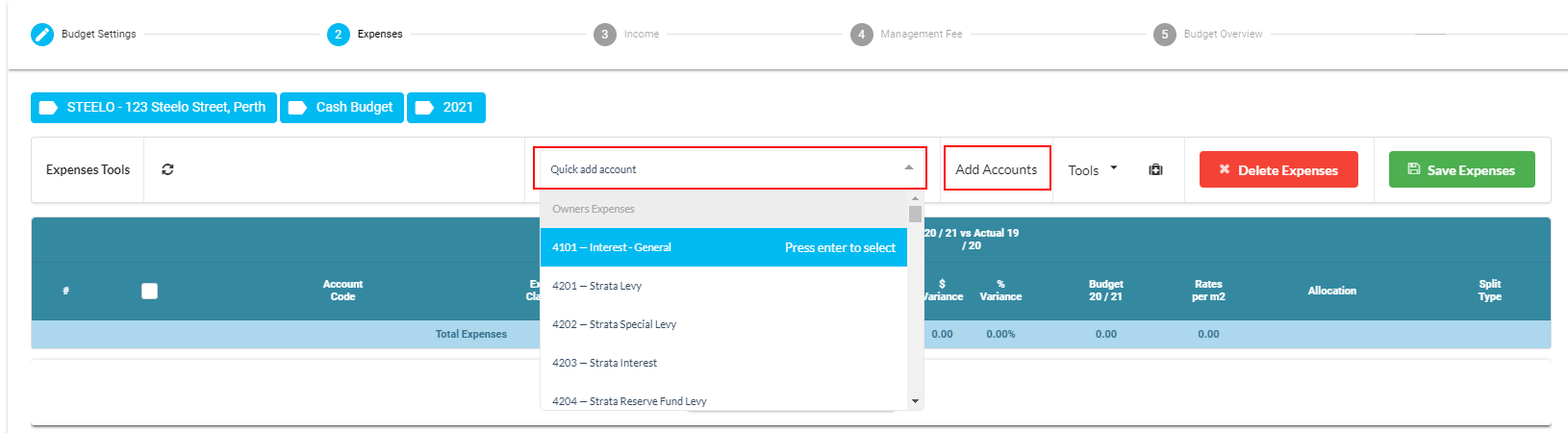
NOTE: If you have calculated budgeted Management Fees in advance, you can select the Management Fee account code at this point however if you choose to use the system to calculate and implement a budgeted Management Fee expense, do not add the code in at this stage. This will be done automatically in Step 4.
2. Enter your Budgeted figures in the relevant Budget FY column. You can enter comments in reference to each expense via the Speech Bubble icon - these comments can then be populated into a nice report alongside the Budget:
3. Allocating expenses to Units/Tenancies:
The system will split each expense to each Unit/Tenancy by Net Lettable Area as a default. These allocations can be overridden via the Allocation button against each line item:

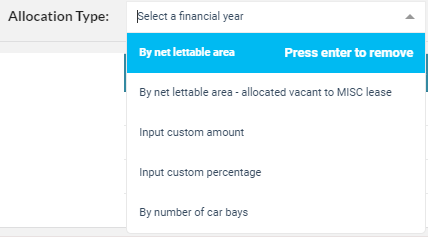
This section allows you to make changes to the default allocation with options to split each expense by NLA, NLA with vacancies allocated to MISC (Owner), Custom Percentage, Custom Amount or by Number of Car Bays:
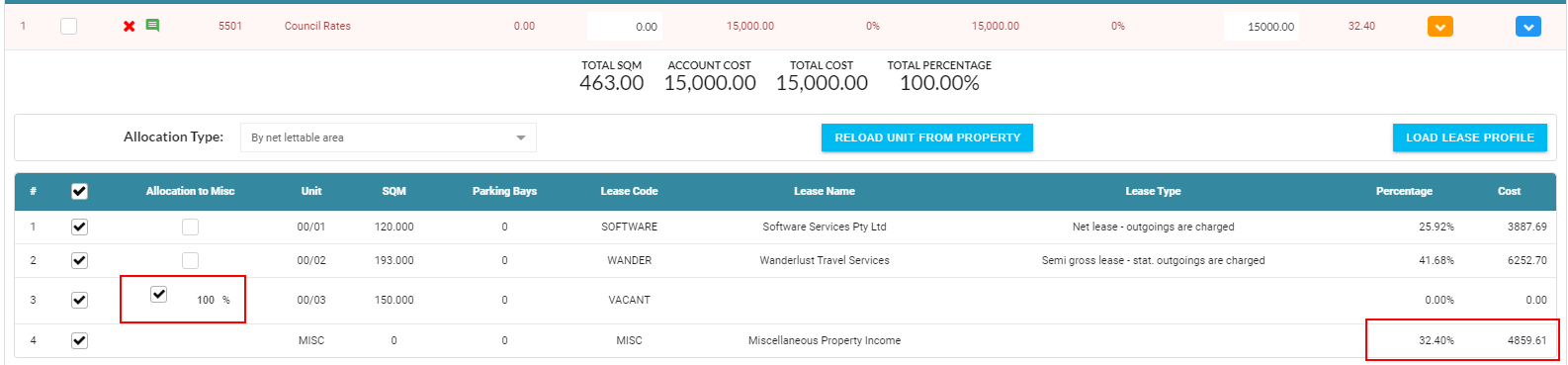
The below example shows the vacant unit's portion of Council Rates has been allocated to MISC which will now allow the system to calculate an Owners portion/contribution in Step 3: Income. You have the ability to allocate any expense to the Owner where necessary either in full, or split by a percentage.
Note: It is important when allocating expenses by Custom Percentages or Custom Amounts that you ensure the total split equates to 100% of the cost. The system will give you an error/warning if this is not correct.
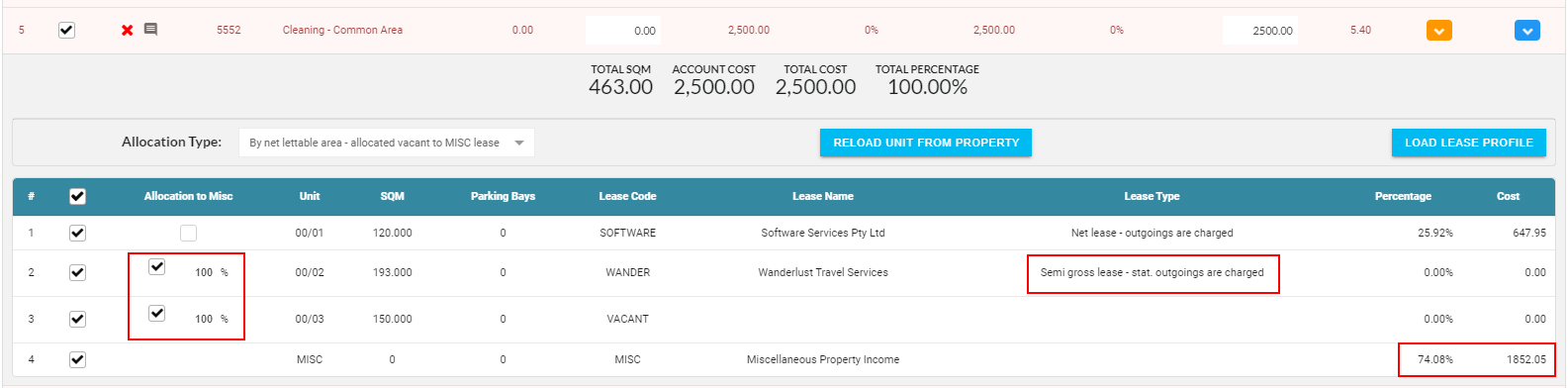
Another example below shows that the Tenant in Unit 2 is on a Semi Gross Lease with only stat. outgoings charged therefore any non-stat. outgoings expenses are allocated to the Owner along with the vacant unit's portion:
The system will automatically split the annual budgeted amount evenly over the 12 months however you may also split each expense out over the year based on the frequency in which these are expenses are paid via, the Split Type function (optional):

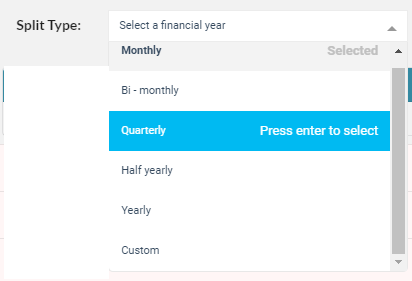
Once you are happy with your comments, amounts, allocations and splits, click Save Expenses and move onto Step 3: Income:

Income
1.The first step in the Income section is to load the current Lease Charges: Tools > Load Charges:
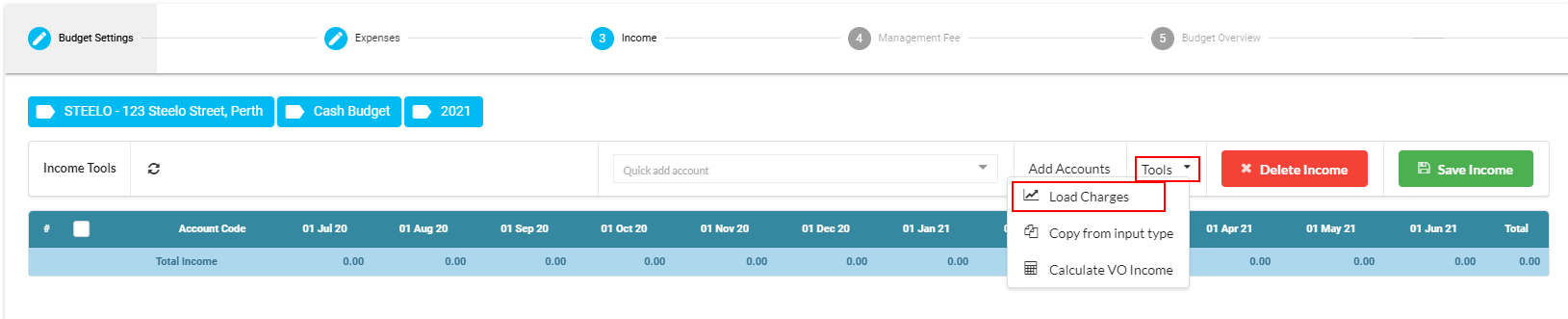
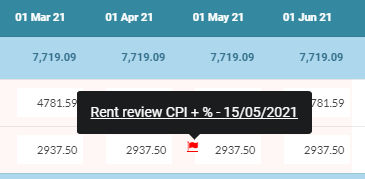
This will pull through the current lease charges based on what is set up under each Lease. Red Flags will alert you to any Rent Reviews that are due during the year and Blue Flags will alert you to any Lease Expiries due within the year. You may hover over these flags for more information and make any changes to the budgeted income amounts based on your assumptions. (Please note this will NOT update tenant lease charges).
Comments may also be entered using the speech bubble next to each line item.
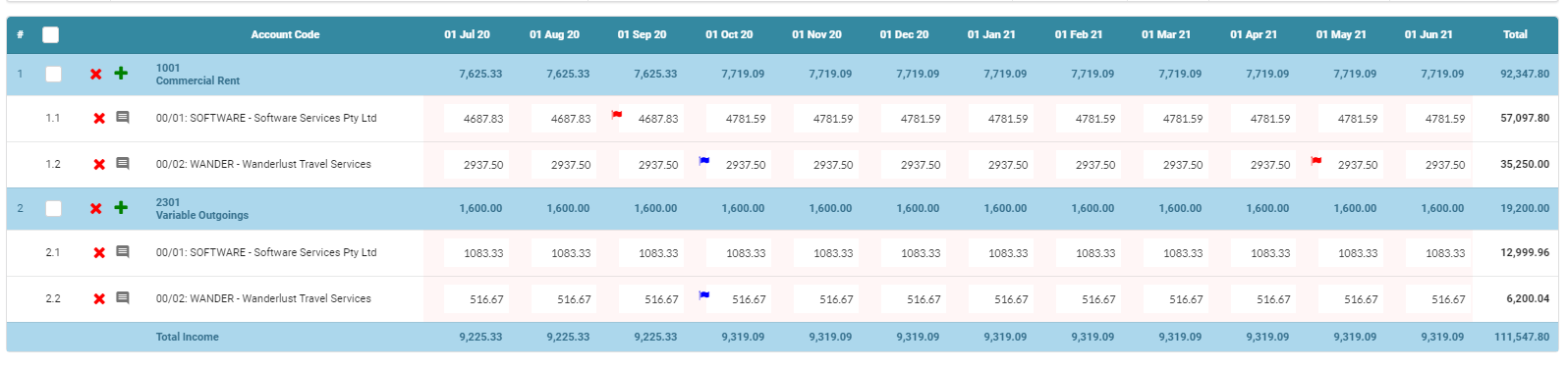
2. The second step is to calculate the new Variable Outgoings charges based on the Expenses you have budgeted for and entered: Tools > Calculate VO Income:

This will then update the Variable Outgoings income amounts for each Tenant and calculate an Owners portion/contribution based on any expenses that were allocated to MISC. (This step will not amend the tenant's VO charges at this stage - this will be done in Step 6: Lease Charges):
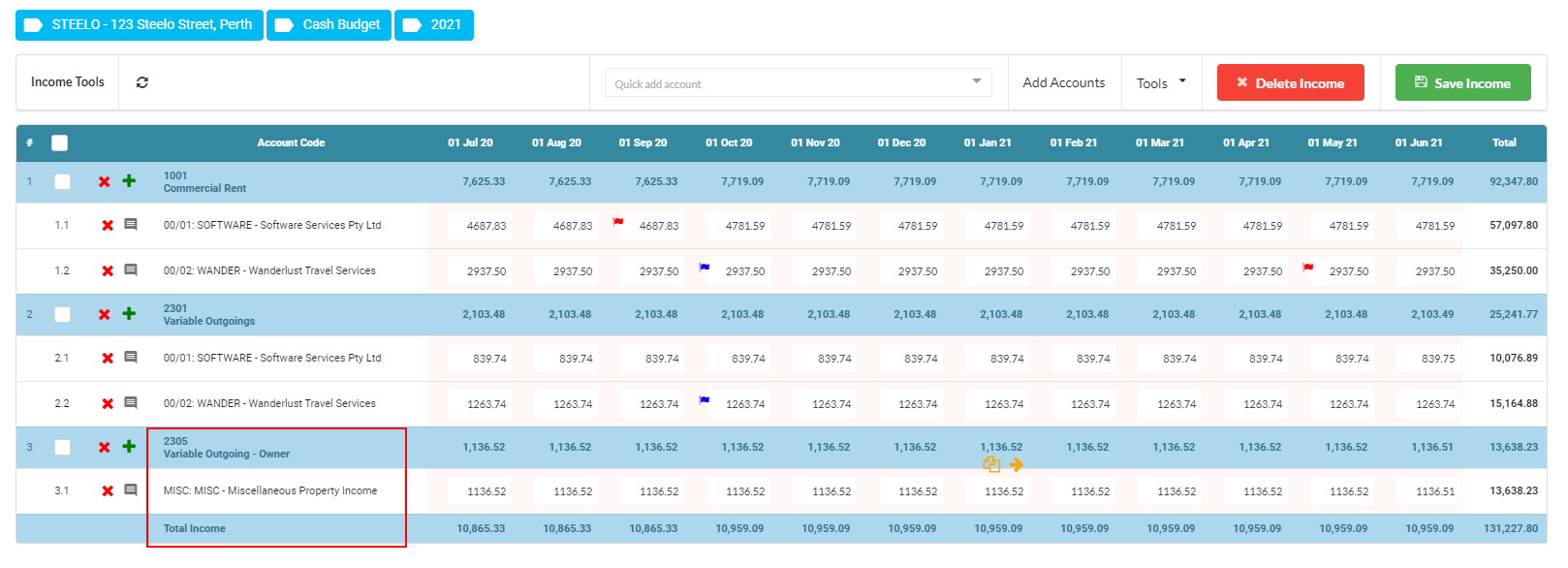
Once you are happy with the calculated Income, click Save Income and move onto Step 4: Management Fees

Management Fees
This section will calculate the budgeted Management Fees for the year based on the Property setup and Income figures from Section 3. If required, amend the allocation of the Management Fee amongst units/leases similarly to how expenses were allocated in Section 2 and once done, you will need to click on 'Apply Management Fee':
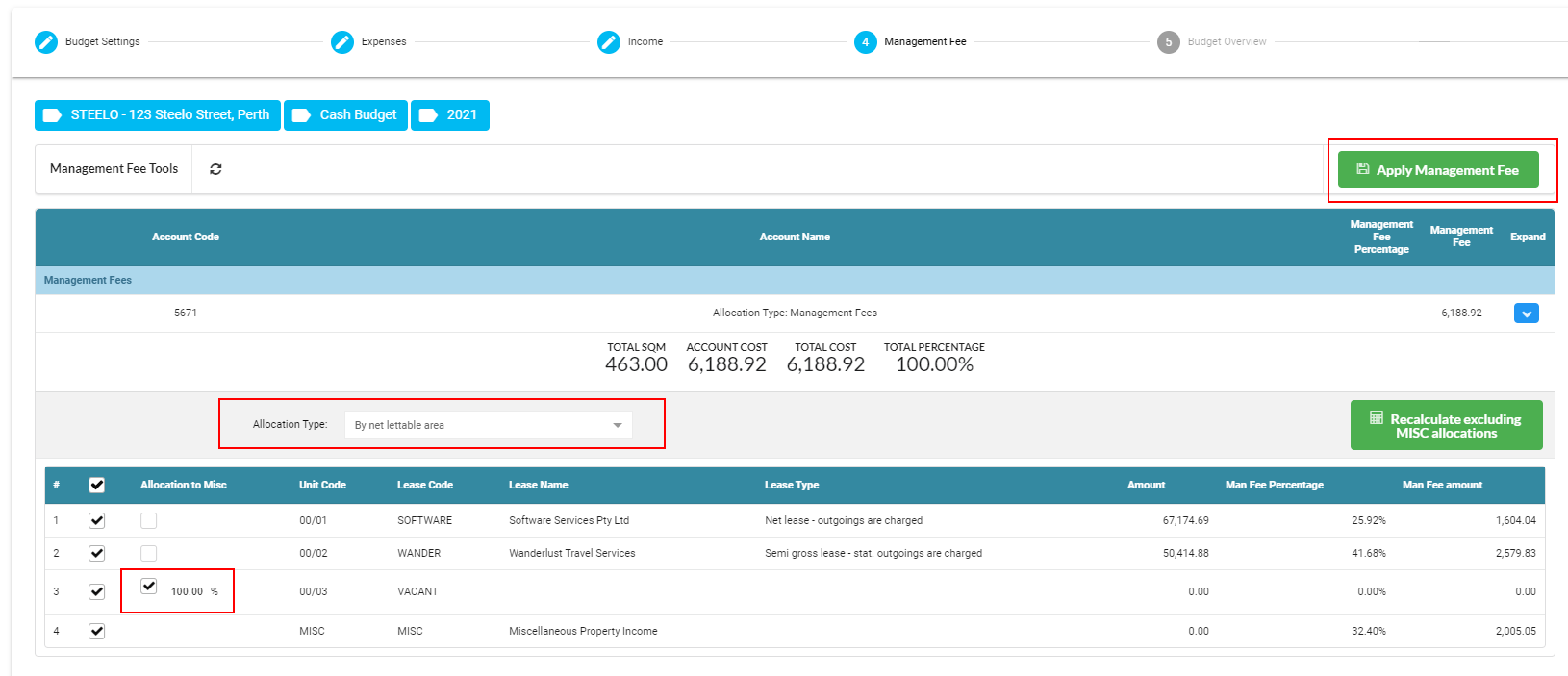
This will update the Expenses budget to include the calculated Management Fees and alter the Tenant's VO charges to account for this also.
Budget Overview
This section allows you to cast your eye over the budgeted income and expenditure one last time before the budgeted is finalised/approved. It is always good to double check that the total calculated VO Income (tenant charges and owner portion/contribution) is equal to the total VO expenses.
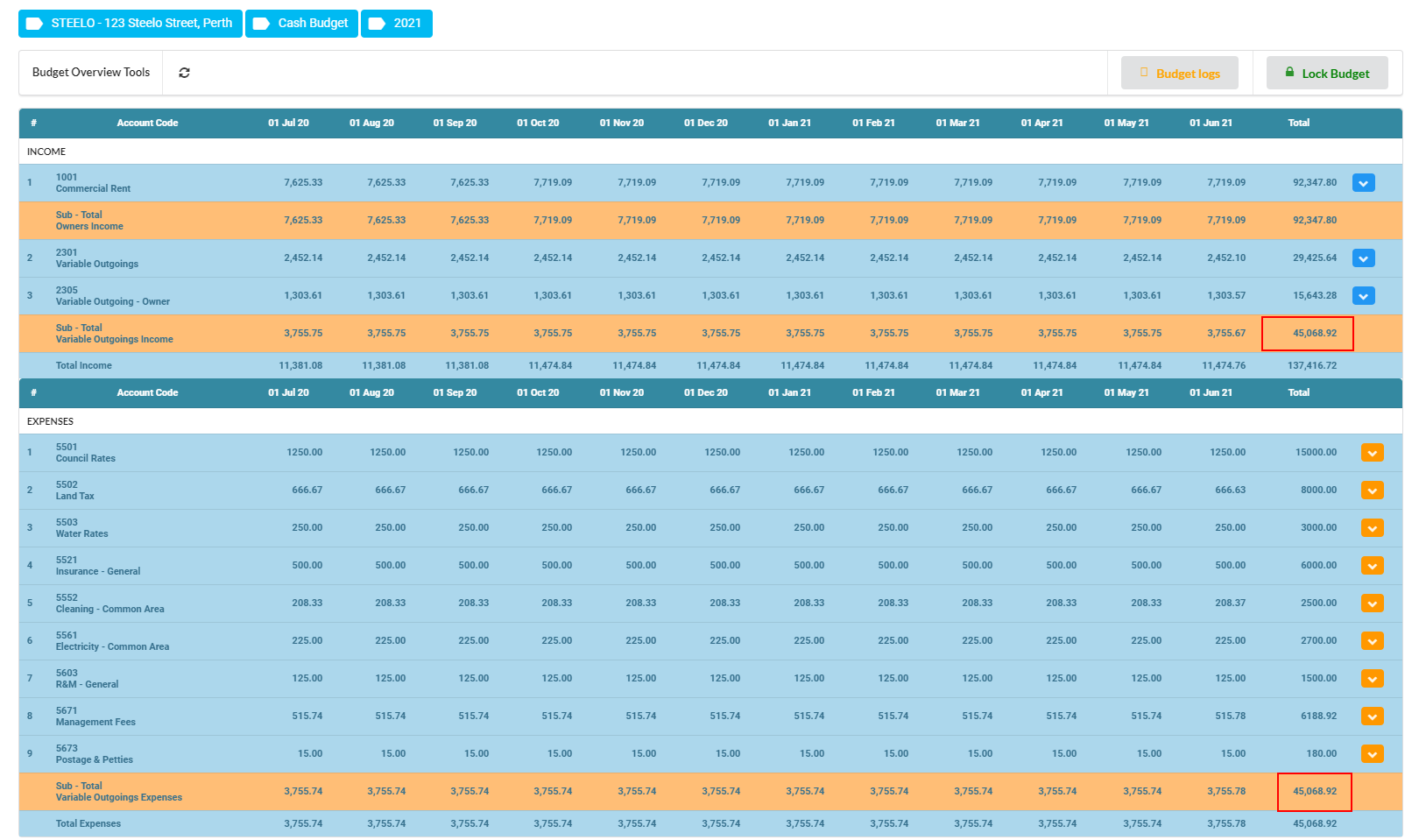
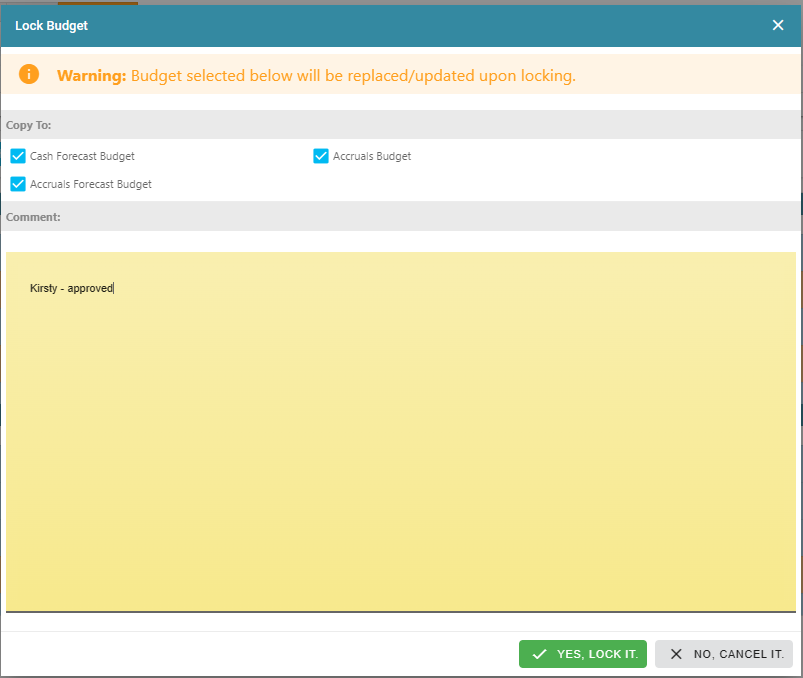
Once you are happy with the finished product, click Lock Budget and enter a comment where prompted. You may also select to copy the budget across to another format also i.e. copy the cash budget to an accruals budget for accrual reporting and/or across to cash/accruals forecast for any forecast reports. Copying to another format will override any data if that format has already been entered.
Budgets can be unlocked and amended if necessary and the system will keep an audit trail of this information
Lease Charges
Once the Budget has been locked, a final section will appear - Lease Charges. Here you can select to update the tenant's lease charges as at the start date of the relevant financial year based on the new calculated charges:
Bulk Budget Copy

This allows you to copy the previous budget to the current budget for multiple properties.
- Click Bulk Copy button and the below screen will appear
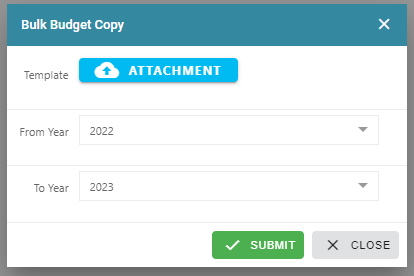
- Click 'Attachment' to upload an excel template with the property codes of the properties you wish to copy
- Select the 'From and To Year' from the drop-down menu
- Click Submit to copy the previous budget
Was this article helpful?
That’s Great!
Thank you for your feedback
Sorry! We couldn't be helpful
Thank you for your feedback
Feedback sent
We appreciate your effort and will try to fix the article