The Utility Upload function allows Trust Accountant users to upload utility meter reading company provided .zip files to Cirrus8 to charge tenants, based on the meter readings and invoices these companies provide. For example, from utility meter reading providers such as Energy-Tec.
Once the .zip file is uploaded into Cirrus8, tenant's accounts receivable invoices will be generated with attached individual tenant meter reading .pdf documents if they have been provided by the utility company. Users will then have the opportunity to make adjustments to transactions prior to finalising the invoices and emailing them.
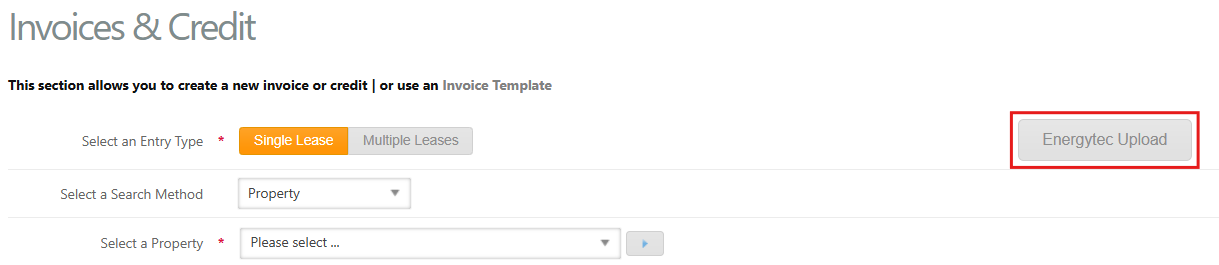
To access Utility Upload, go to Accounts Receivable > Invoices & Credits > Utility Upload
Please contact Energy-Tec or visit energy-tec.com.au to find out more about Energy-Tec energy metering and procurement services.
Utility Upload Cirrus8 Configuration
The Utility Upload feature needs to be initially configured in Cirrus8 before use by a Trust Accountant user via System Configuration. To do this, follow the below steps:
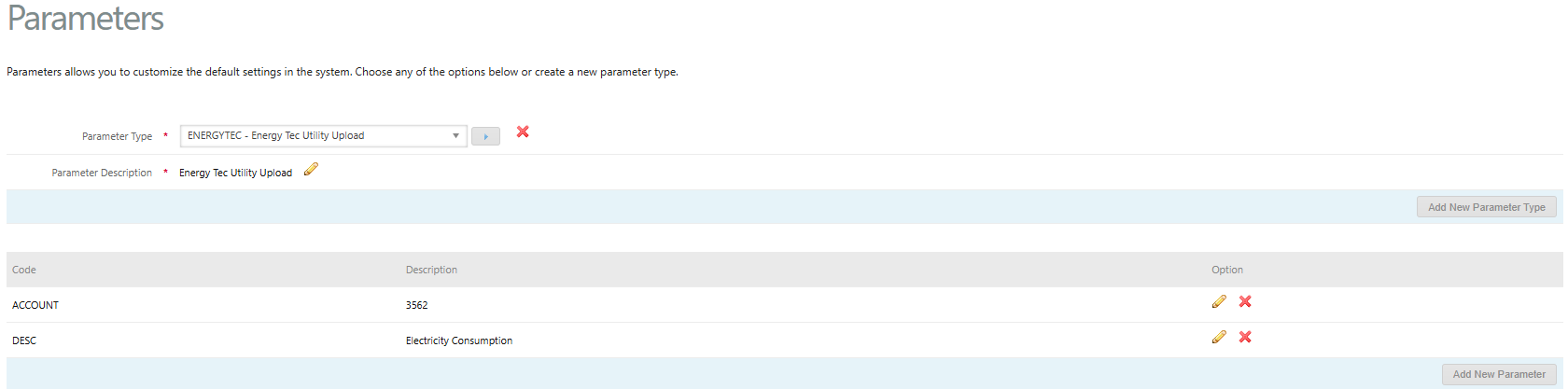
1. Create New Parameter Type:
- Go to Configuration > System Configuration
- Click Add New Parameter Type
- Enter ENERGYTEC as the Parameter Type
- Enter Utility Upload as the Parameter Description
- Click Submit
2. Add New ACCOUNT Parameter:
- Under the newly created Parameter Type, click Add New Parameter
- Enter new Parameter Code as ACCOUNT
- Enter new Parameter Description as the default Directly Recoverable account code used for the utility e.g. 3562 Electricity
- Click Submit
3. Add New DESC Parameter:
- Under the newly created Parameter Type, click Add New Parameter
- Enter new Parameter Code as DESC
- Enter new Parameter Description as the description to appear as the default transaction description when using Utility Upload e.g. Electricity Consumption
- Click Submit
If you require any assistance regarding the initial system configuration, please contact support@cirrus8.com.au.
Utility Meter Reading Provider ZIP File Configuration
To ensure successful uploads using the Utility Upload feature, it is essential that following requirements are met:
- The file to upload is in .zip format
- Inside the .zip file is a .csv
- The .csv file must contain the following headings and completed details:
Row 1 Property Code Lease Code From Date To Date Net Amount GST Amount Lease PDF Row 2 and onwards The exact Property Code as per Cirrus8 The exact Lease Code attached to the Property Code as per Cirrus8 The From Date of the meter reading The To Date of the meter reading The Net Amount of the meter reading The GST Amount of the meter reading The exact file name of the supporting document .pdf for the associated lease
For example:
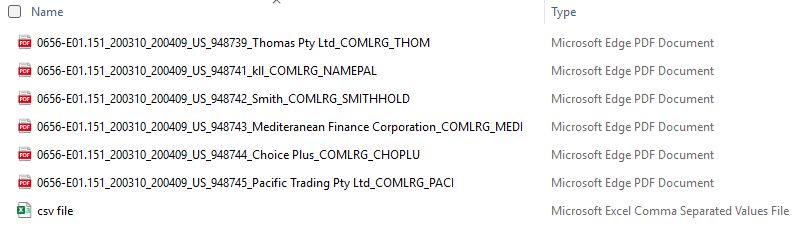
- The supporting documents are in .pdf format
For Energy-Tec users, Lease codes on the Energy-Tec portal will need to be updated to match the Lease codes used in Cirrus8. The Lease codes will be included in the csv files within the .zip file for upload. Please contact Energy-Tec if you require assistance updating data in their portal. If the lease codes do not align, the upload process may fail or result in incorrect tenant charges.
Upload Zip Files to Utility Upload and Create Invoices
To upload a zip file via the Utility Upload function, go to:
- Accounts Receivable > Invoices & Credits
- Click on Utility Upload, this will direct the user to the Utility Upload screen
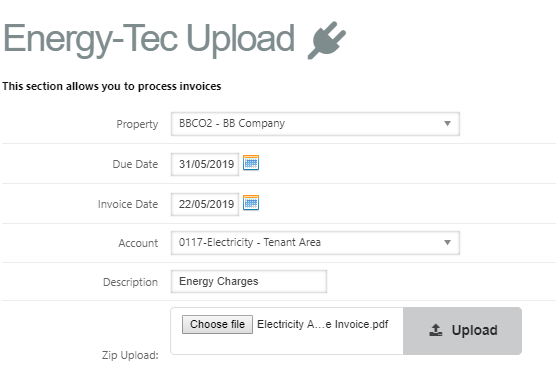
- Property - Select the relevant Property
- Due Date - Enter the due date of the invoice
- Invoice Date - Enter the date you want the transaction to appear as
- Account - Select the relevant account code e.g. electricity
- Description - Enter the transaction description to appear on the tax invoice
- Zip Upload - drag and drop the .zip file to the Zip Upload field or select this from your computer by initially clicking on the Zip Upload field
- Click process
- Link to existing AP transaction - click this to link the transactions to any relevant accounts payable transactions by selecting the relevant tick boxes and clicking Link Transaction
- Review the Lease Name, From Date, To Date, Net Amount, GST Amount and edit if required
- Select CC to Portfolio Manager if required
- Click Process Interim Invoices & Email
Was this article helpful?
That’s Great!
Thank you for your feedback
Sorry! We couldn't be helpful
Thank you for your feedback
Feedback sent
We appreciate your effort and will try to fix the article