Purpose
This process allows you to create a payment run for one or multiple property owners, and additionally suppliers, using the Owners Run payment type.
Steps:
- Navigate to:
- Trust Accountant: Accounts Payable > Create Payments
- Property Manager: Payments > Create Payments
- Select the Payment Type as Owners Run.
- Leave the Payment Run Date as today's date.
- Choose the relevant bank account.
- Use the Property Manager and Property filters to select the properties to be included in the Owner Run.
- Additionally use payment run filters if required by selecting the following:
- With Invoices Only – to only show properties with outstanding invoices.
- With Balances Only – to only show properties with available funds.
- Click Update Properties.
- Review the available funds in the property
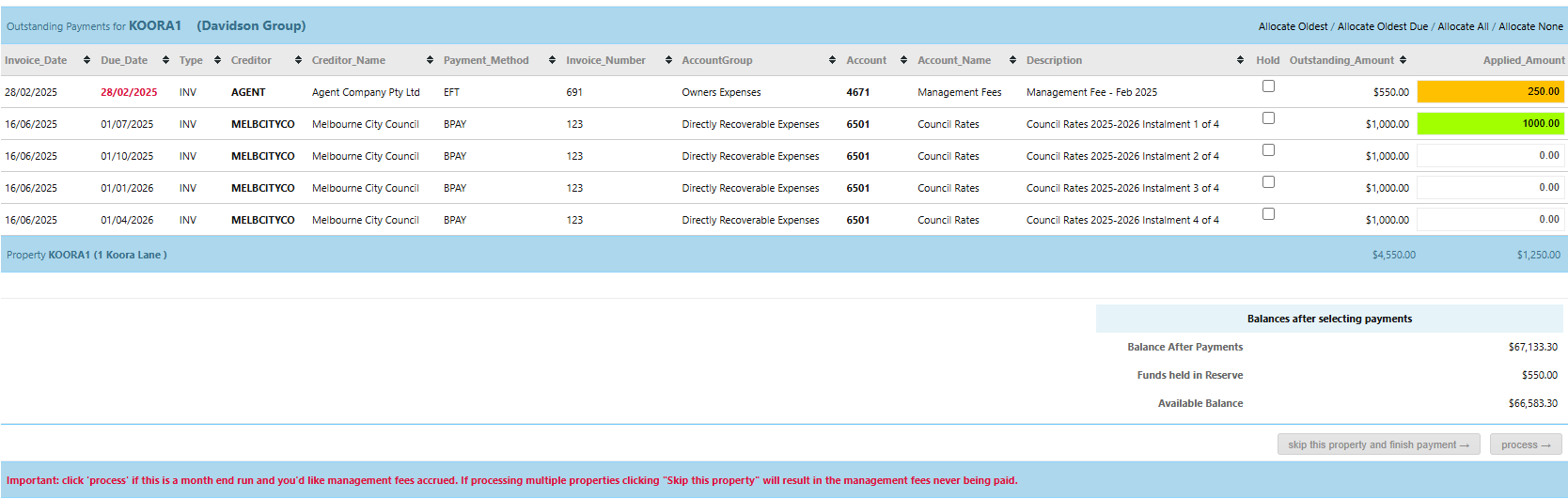
- Review each property’s outstanding supplier invoices displayed under the Outstanding Payments section.
- Allocate payments to supplier invoices as required using the following methods:
- Double clicking in the Applied Amount field to pay the invoice full. This will turn the field green
- Part paying supplier invoices by typing in the amount to pay in the Applied Amount field. This will turn the field orange.
- Select invoices to pay using options like Allocate Oldest, Allocate Oldest Due, Allocate All or Allocate None.
- In the owner payment section at the bottom of the screen:
- Enter the specific amount to pay to the owner(s) in the Total to Pay Owner(s) field.
- Update the Owner Payment Description as required, or leave this as a default description of "Owner Remittance - [Month] [Year]"
- Optionally, leave a note under Amount to withhold from the owner payment and click Update Note.
- Click Process in the bottom right-hand corner of the page top complete the payment submission for the property.
- This will then display the next property in the list. Repeat steps 8, 9, 10 11 and 12 for each property in the payment run list.
- If this Owner Run has been submitted as a Property Manager user, this will be submitted to the Trust Accountant user for approval. See article: Approve Payments
- If this Owner Run has been submitted as a Trust Accountant user, proceed with the following next steps:
Was this article helpful?
That’s Great!
Thank you for your feedback
Sorry! We couldn't be helpful
Thank you for your feedback
Feedback sent
We appreciate your effort and will try to fix the article