Domain Setup
For cirrus8 to send emails on behalf of the your company domain, please add the below to the domains DNS entry.
- v=spf1 a:mail.cirrus8.com.au a:mail2.cirrus8.com.au -all
Office 365 Single Sign On
To enable Office365 / Cirrus8 Single sign, Cirrus8 needs to be registered in Azure Active Directory.
To do this in the Azure Active Directory admin centre go the:
- App registration
- Add an application using + New Registration
- Add your own allocation
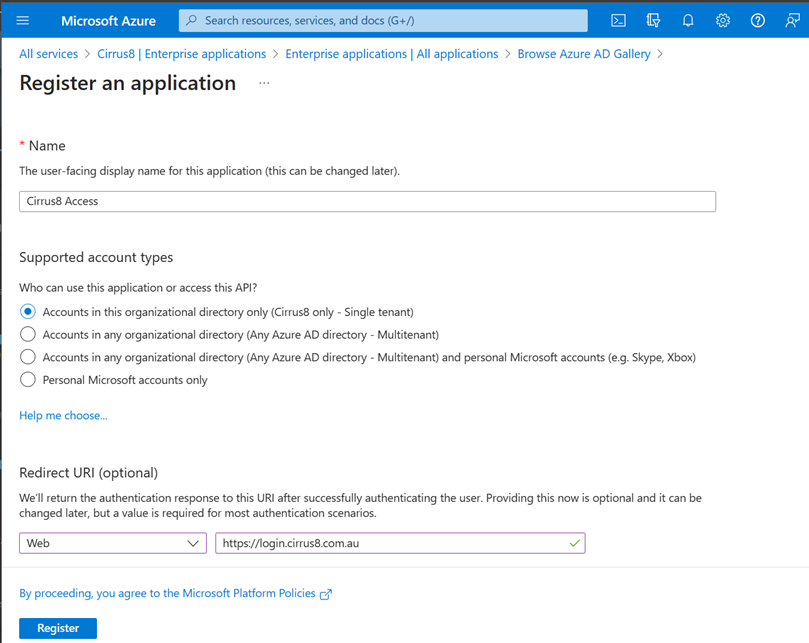
- Name the application cirrus8
- Select Account in this organisational directory only
- Redirect URL should be Web and https://login.cirrus8.com.au
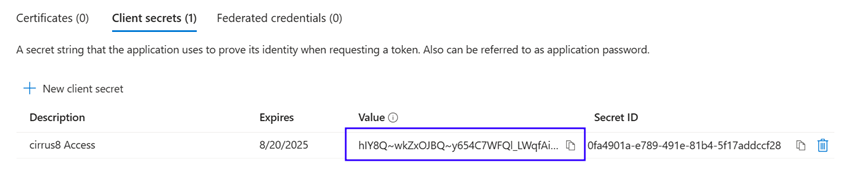
Then select the newly created App and under Certificates & Secrets generate a New Client Secret.
Please send the generated Application ID and Client Secret to support@cirrus8.com.au, so he can setup the SSO for the company.
Microsoft Azure AD®
You can integrate Microsoft Azure AD® (Active Directory) with Cirrus8 to allow Azure AD (Office 365) users to authenticate and login to Cirrus8.
Set up Azure AD as an Identity Provider
When setting up the Azure AD, you will need to complete the following steps:-
- Obtain Azure AD Settings
- Configure API Permissions
- Configure Login Settings in Cirrus8
Step 1 - Obtain Azure AD Settings
The following Azure AD values are required to set up the integration:
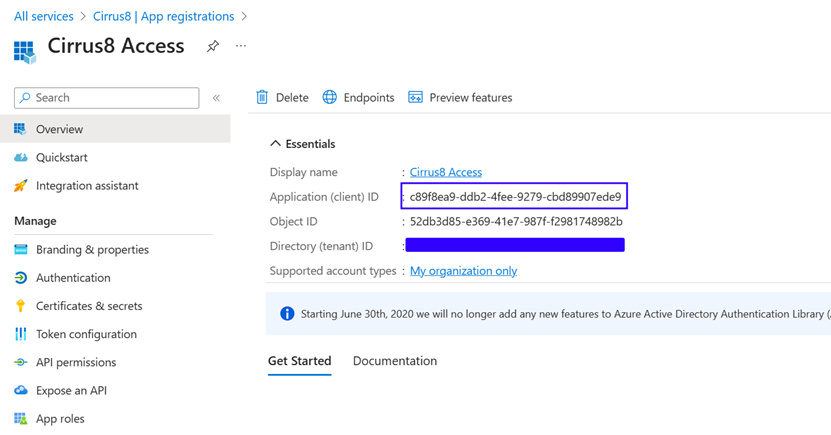
- Application (client) ID
- Directory (tenant) ID
- Client secret
To retrieve those values:
- Log in to the Azure Dashboard.
- Go to All services > Azure Active Directory.
- In the Azure Active Directory menu, go to Enterprise applications.
- Select New application > Create your own application.
- Name your application.
- Select Register an application to integrate with Azure AD (App you're developing) and then select Create.
- Under Redirect URI, select the Web platform and enter the following URL - https://login.cirrus8.com.au
- Select Register.
- Next, return to the Azure Active Directory menu and go to App registrations.
- Select the app you just created. Copy the Application (client) ID
- Go to Certificates & secrets and select New client secret.
- Name the client secret and choose an expiration period.
- After the client secret is created, copy its Value field. Store the client secret in a safe place, as it can only be viewed immediately after creation.
Step 2 - Configure API permissions in Azure
- From the App registrations page for your application, go to API permissions.
- Select Add a permission.
- Select Microsoft Graph.
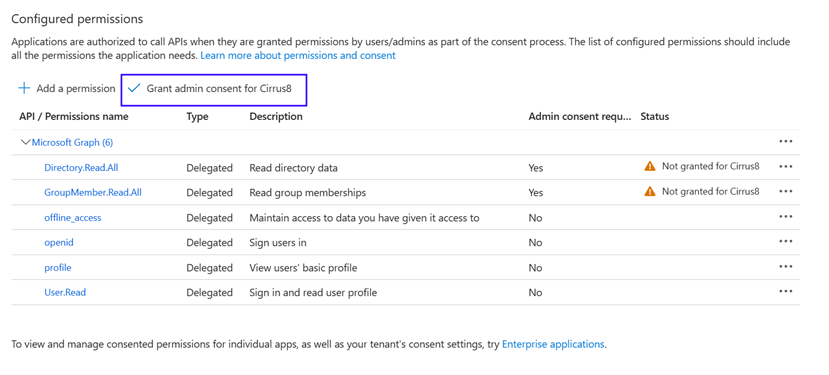
- Select Delegated permissions and enable the following permissions:-
- Offline_access
- Openid
- Profile
- User.Read
- Directory.Read.All
- GroupMember.Read.All
Note: More narrow permissions may be used, however this is the set of permissions that are tested and supported by Cirrus8.
- Once all seven permissions are enabled, select Add permissions.
- Select Grant admin consent for Cirrus8
Step 3 - Configure Login Settings in Cirrus8
You will require Admin rights in Cirrus8 to do the bellow steps. If you do not have this, please sent the Application Client ID and Secret Value through to Cirrus8 Support / Implementation Team to have them configure the Single Sign on for you
- Log in to Cirrus8 and go to the Admin Portal
- Select the Login Settings Icon
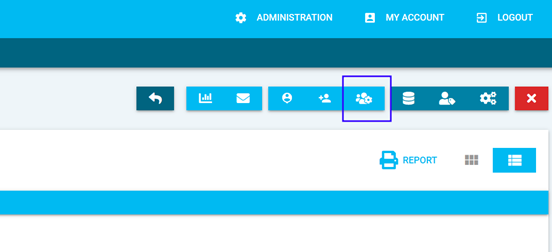
- In the lower half of the form make sure Office 365 is selected. If you want to disable all other login methods, uncheck Normal Login (login with username and password) and Goolge (Google Workspaces SSO).
- Enter your company name (no spaces), Office 365 Client ID (the Application (Client) ID copied from Azure AD and the Office 365 Client Secret Key (the Secret Value copied from Azure AD).
- Select Submit
- Based on the company-name entered above, your login URL will be - https://login.cirrus8.com.au/<company-name>
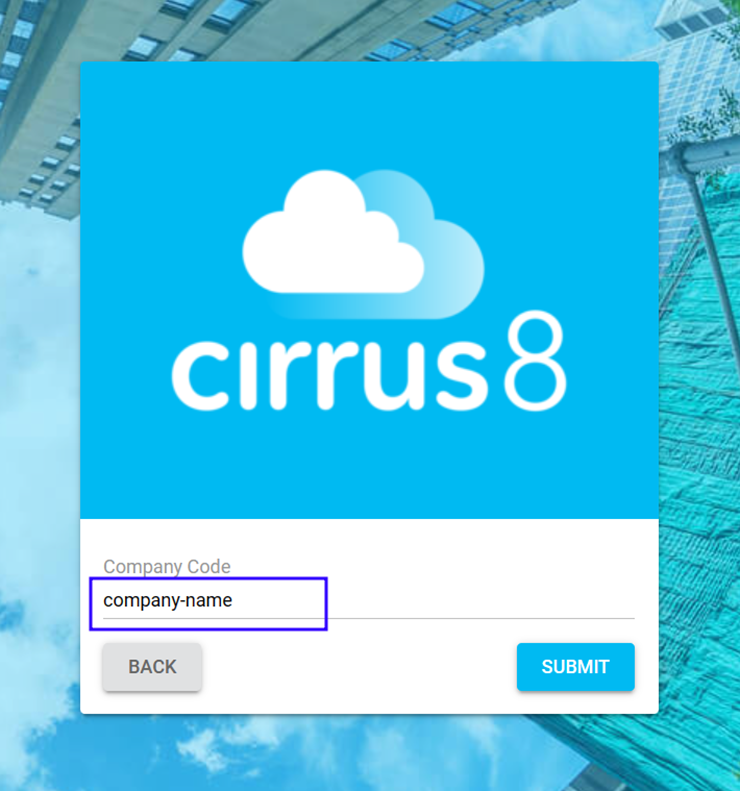
- You can also login by selecting Sign in with Office 365 in the login page and entering your company-name as the Company Code and selecting Submit
Was this article helpful?
That’s Great!
Thank you for your feedback
Sorry! We couldn't be helpful
Thank you for your feedback
Feedback sent
We appreciate your effort and will try to fix the article