Workorders can be created from the Dashboard, by converting a Quote, or from Workorder tab by selecting Create New Workorder.
Creating Workorder from Quote
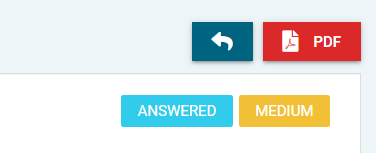
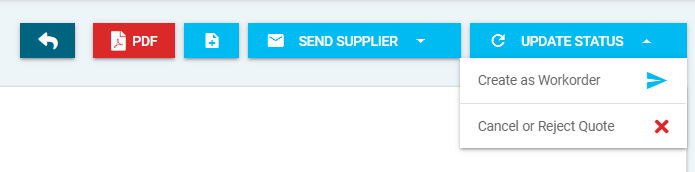
CirrusFM allows you to create a Workorder from a Quote once the quote has been updated to a status of Answered. Under the update status button, there will be an option to create as workorder. It will pull through all the information that was entered on the quote into the workorder. You will then review the details using the same 3 step process to submit the Quote.
Step 1 - Workorder details
Creating Workorder Without A Quote
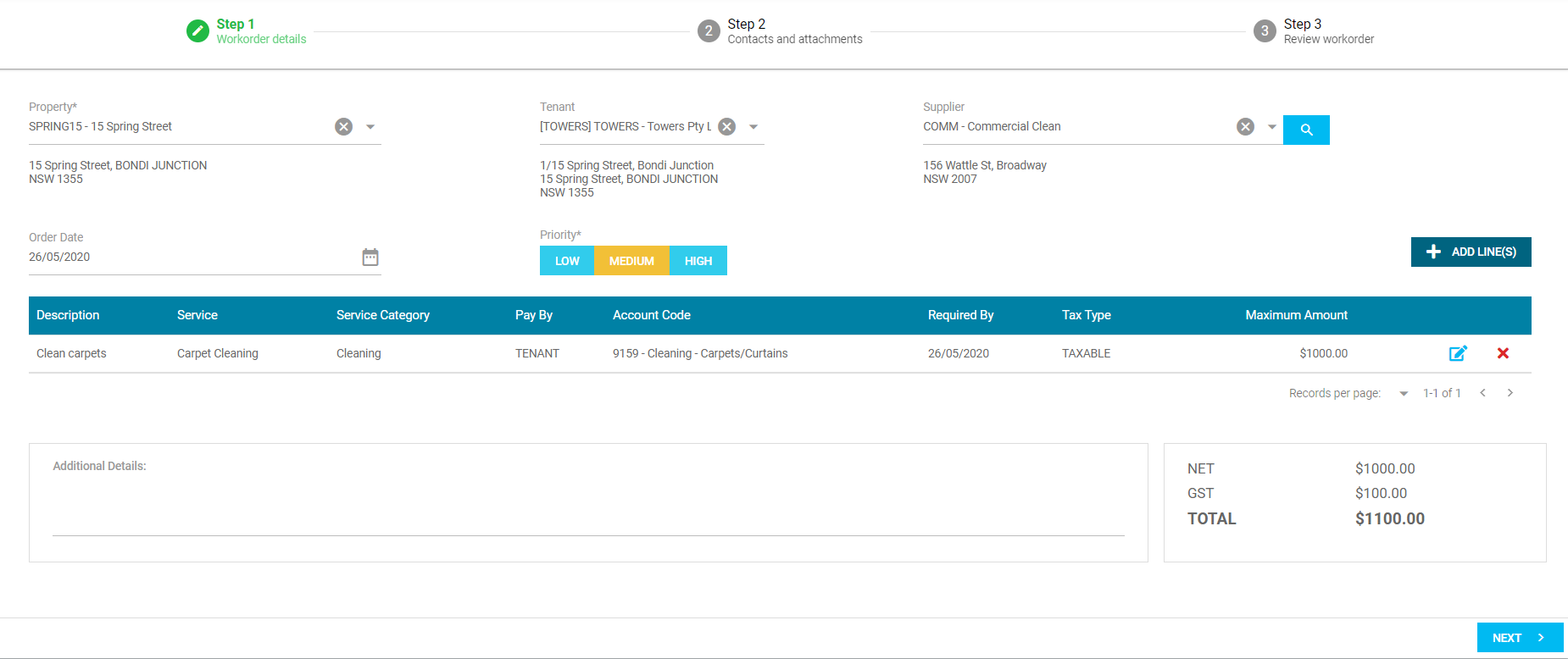
If you are entering a new workorder, please see below breakdown of what needs to be entered before moving onto the next step:
* means this is a mandatory field and must be entered to move onto next step.
- Property* - Select the property form the drop down menu.
- Tenant - This is optional if the quote is specific to a tenant you can select them, and their contact detail will appear on the workorder.
- Priority* - Select the priority of the work.
- Additional Details - If there is more information to expand on this can be entered here.
- Add Lines* - This is where you can enter the details of the work to be completed on, you can add multiple lines if there is more than one item they are to attend to. A pop-up window will appear as per below. At least one line must be added for you to proceed to step 2
Under Add Lines pop up you have the following fields.
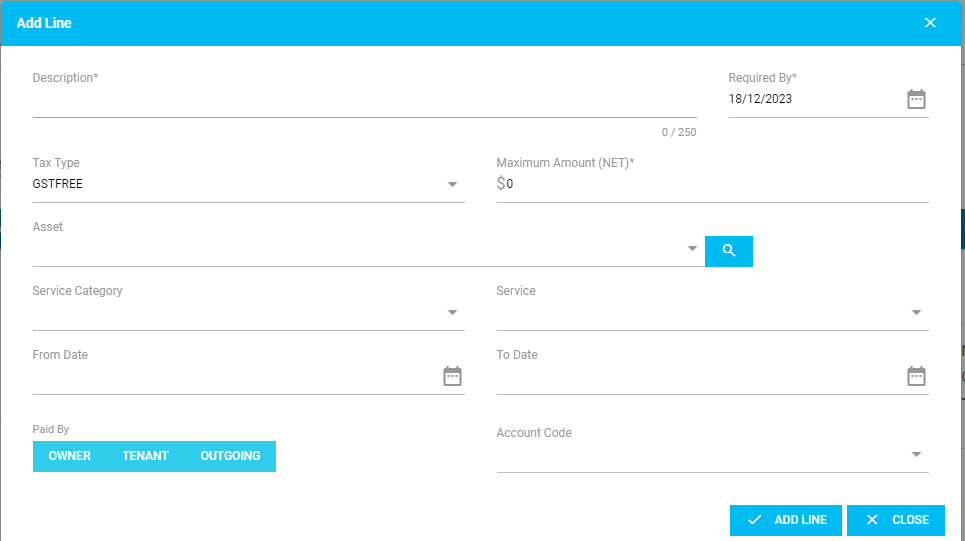
- Description* - This field must have the line item description for the service on the order.
- Required By* - The due date for this line item.
- Tax Type - This will add GST or exempt it based on the chosen drop down menu item.
- Maximum Amount* - The maximum amount allowed to invoice for the contractors reference. You can leave this as 0 and then override at the time of invoice.
- Asset - This will have a list of Assets from the property. This can help the contractor narrow down where the job is actually occurring.
- Service - Select service from drop down menu. These are populated from the created Services in the Services tab, this will auto fill some fields including Service Category and Account Code (once the Paid By has been set).
- Service Category - This must be setup under Services and you can specify who is responsible for payment.
- From Date and To Date - The period where the order will be filled by the contractor.
- Paid by - Who is responsible for the payment of this service when recouping costs.
- Account Code - Which GL account the cost will be coded to.
Once you have completed the required information you can move onto the next step by selecting Next.
Step 2 - Contacts and attachments
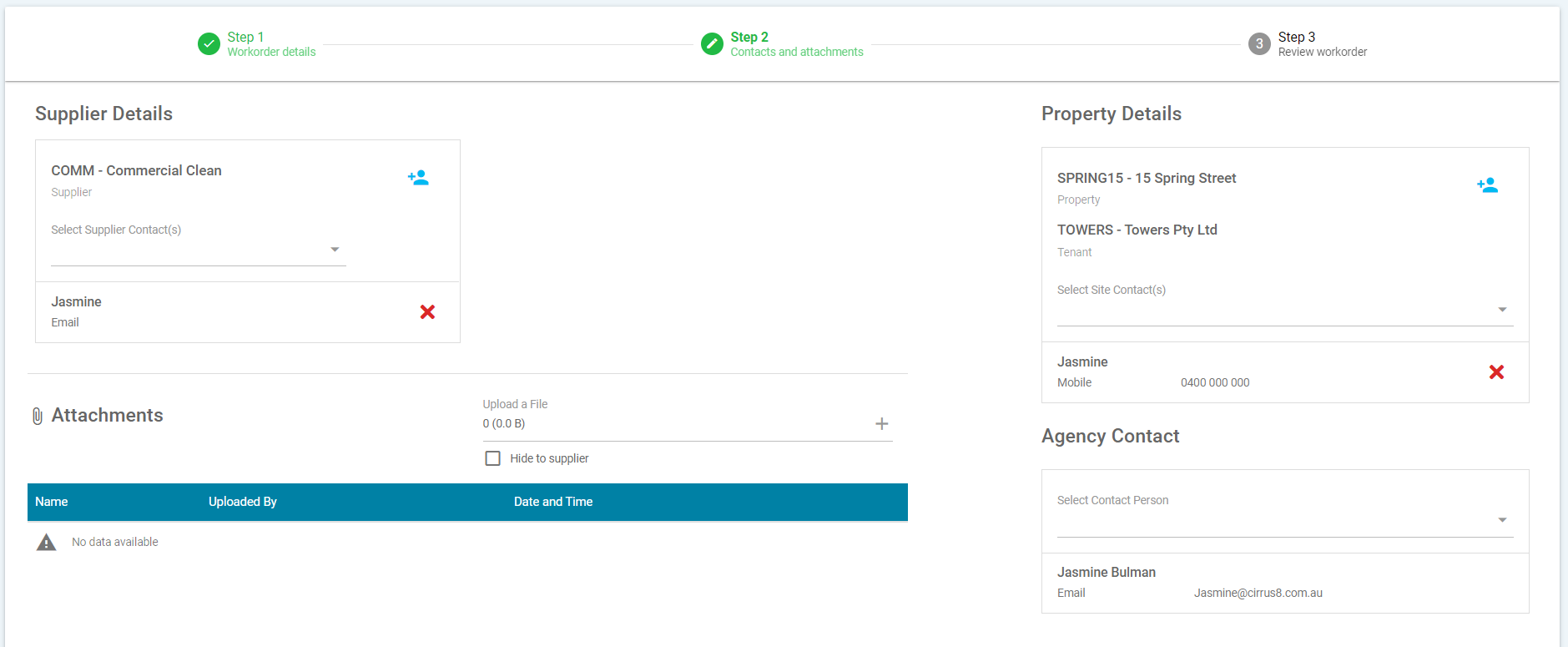
- Attachments - Photos/documents can be added to the workorder these can be shown or hidden from the supplier, by ticking the hide to supplier check box.
- Property Details - This will pull through the property information, if you have selected a tenant in Step 1 this will appear under the property details.
- Agency Contact - This will automatically select the contact creating the quote, however you can override this and select anyone from the drop down.
- Supplier Details - The system will default to show preferred suppliers, however you can override this by un-ticking show only preferred suppliers. Tick the suppliers you would like to send this through to and click on select. Once the supplier has been selected you can select the drop down to specify the main supplier contact.
You can move onto the next step by selecting Next.
Step 3 - Review Workorder
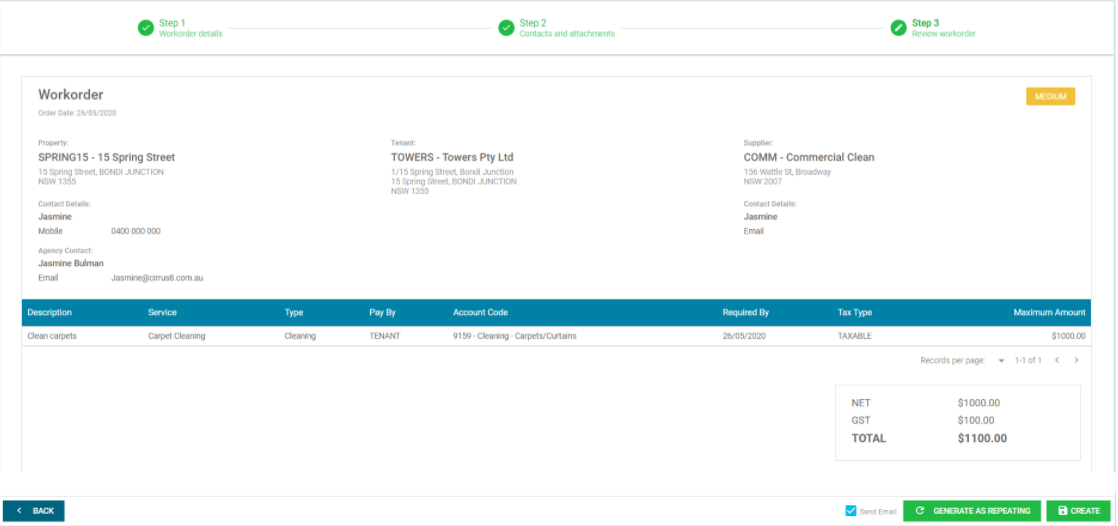
- The system will then show you the workorder you have created with a breakdown of the information entered.
- There is the option to save as draft.
- You can create, create and send email, or generate as repeating.
- If you generate as repeating you can set this up as weekly, monthly or yearly.
- Enter a start date and end date, the repeating pattern and repeating order details.
- Select preview and a breakdown of the dates these will automatically be sent out of the system will appear.
- Then you can select create.
Was this article helpful?
That’s Great!
Thank you for your feedback
Sorry! We couldn't be helpful
Thank you for your feedback
Feedback sent
We appreciate your effort and will try to fix the article