Workorders
Under the Workorder tab you are able to action a few different items from here:
- Repeating workorders - You can create a repeating workorder.
- Create new workorder - You are able to create a new workorder.
- Green document with X - Export all workorders to excel.
- Journal Entry - You can create a journal entry to accrue the expense for a work order (FM Plus Only)
- Search filters - Search by keywords, status or priorities.
- Reset - Resets the filters currently set to default.

NOTE: * means this is a mandatory field and must be entered
Creating New Workorder
Workorders can be created from the dashboard and workorder tab by selecting Create New Workorder via a 3 step process.
When creating a work order, you will also have the option to action the following:-

- Back arrow - This will take you back to the previous screen.
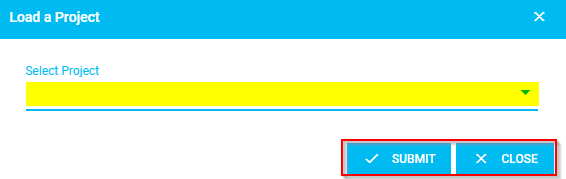
- Project - This will allow you to select and load a project. Once selected a pop-up window will open which will prompt you to action the following:-
- Select a project from the drop-down menu then click 'Submit'; or
- Click 'Close' to go back to the work order
- Save as Draft - This will save the workorder as a draft
Step 1 - Workorder details
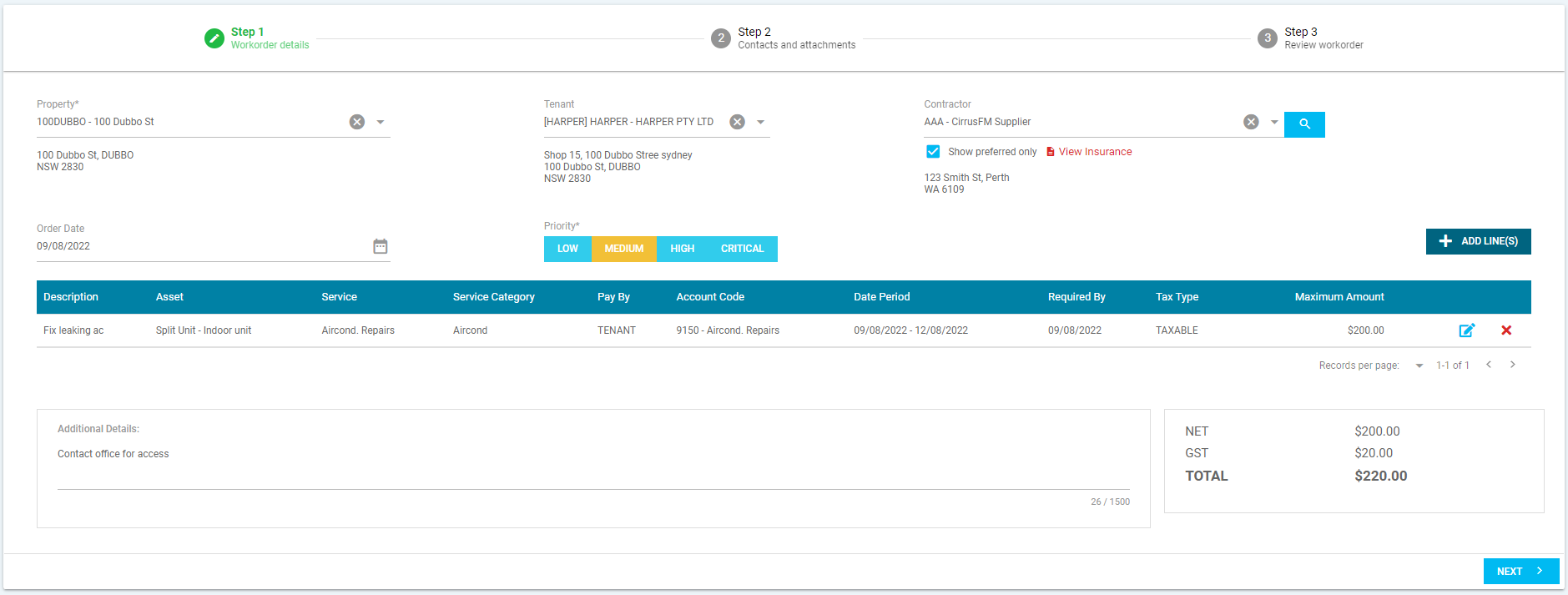
To create the new workorder you will be prompted to enter the following details before moving onto the next step:
- Property* - Select the property from the drop-down menu
- Tenant - Select a tenant from the drop-down menu. This is optional if the workorder is specific to a tenant.
- Contractor - Select the contractor from the drop-down menu. The system will default to show preferred contractors, however you can override this by un-ticking 'Show Preferred Only'. It will also show the insurance status and give you the option to view the contractors insurances by clicking 'View Insurance'
- Order Date - Select the workorder date
- Priority - Select the priority of the work (Low/Medium/High/Critical)
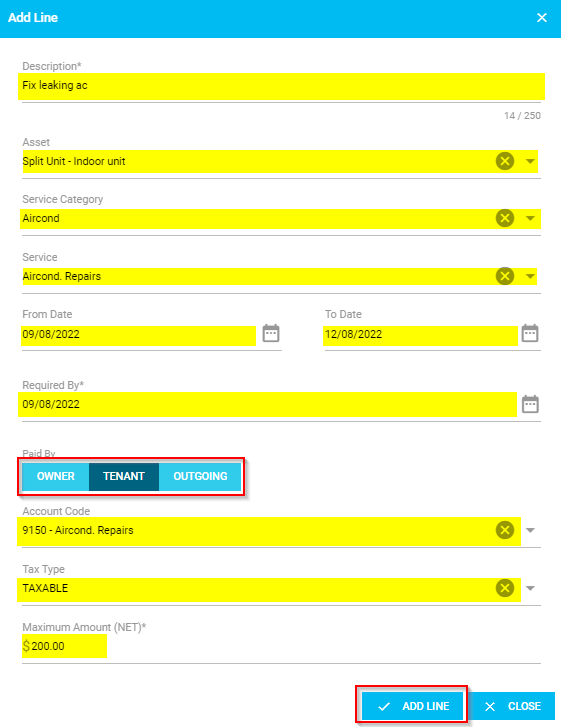
- Add Lines- This is where you can enter the details of the work to be completed on and you can add multiple lines if there is more than one item they are to attend to. Once selected, a pop-up window will appear which will prompt you to enter the following then click 'Add Line' to the work order:-
- * means this is a mandatory field and must be entered
- Description* - Enter details of the work to completed
- Asset - Select an asset from the drop-down menu
- Service Category - Select a service category from the drop-down menu
- Service - Details will populate from the service category selected or you can select a service from the drop-down menu
- From & To Date - Select the period the works are to be completed within
- Required By* - Select date when the contractor is required to respond by
- Paid By - Select who is responsible for the cost of the works to be completed (Owner/Tenant/Outgoing)
- Account Code - Account code will populate from the service category and paid by selected or you can select an account code from the drop down menu
- Tax Type - Select the tax type from the drop-down menu
- Maximum Amount (NET)* - Enter the maximum spending amount
- Additional Details - If there is more information to expand on this can be entered here, such as access details
Once happy with the information you can move onto the next step by selecting Next.
Step 2 - Contacts and attachments
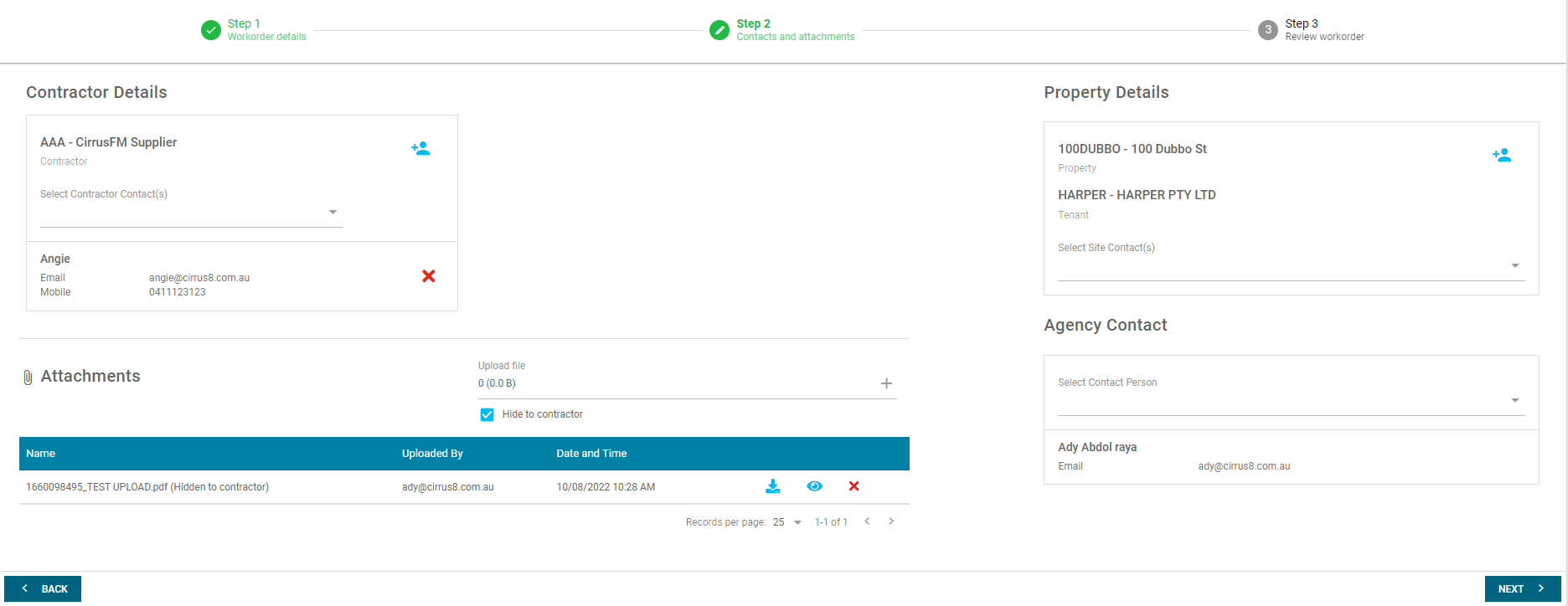
- Contractor Details - Select the contractor contact from the drop-down menu or add a contact by clicking the blue plus button (
 ). The system will default to show the primary contact, however you can remove the default contact by clicking the red cross. Please note that more than one contact can be selected.
 - Property Details - Select a site contact from the drop-down menu or add a contact by clicking the blue plus button (
 ). The system will pull through the property details from the property and lease contact details. If you have selected a tenant in Step 1, only the lease contact details will appear.
 - Attachments - Photos/documents can be added to the workorder these can be shown or hidden from the contractor, by ticking the 'Hide to Contractor' checkbox before uploading the attachment.
- Agency Contact - This will automatically select the contact creating the quote, however you can override this and select an agents from the drop down.
You can move onto the next step by selecting Next or select Back to go back to Step 1.
Step 3 - Review Workorder
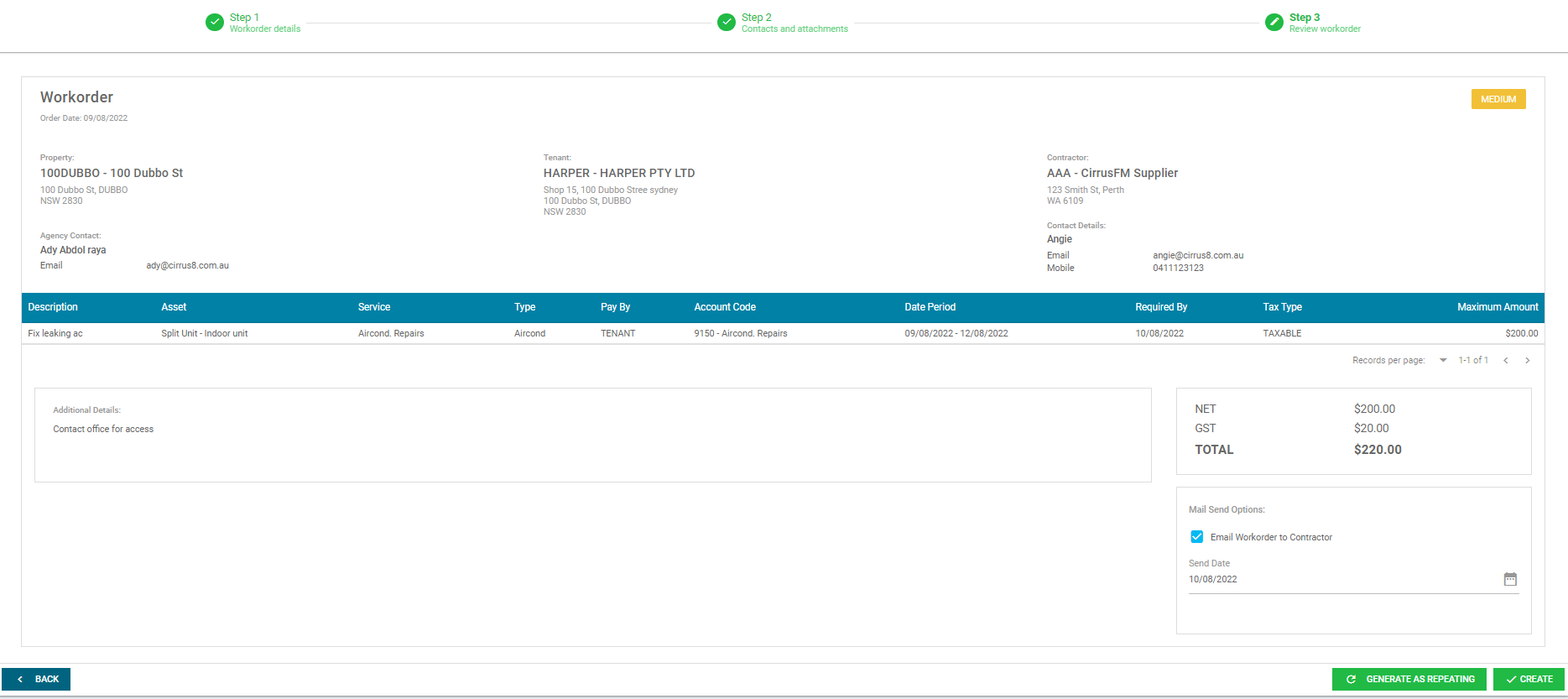
The system will show you the workorder you have created with a breakdown of the information entered.
Once happy with the information, you can select from the following options to action:-
- Mail Send Options - The system will default to tick the 'Email Workorder to Contractor', however, you can override this by unticking the check box. The system will also default the 'Send Date' as the date created, however, this can be amended by entering or selecting an alternative send date.
- Create - This will create the work order
- Generating As Repeating - When selected, a new pop-up window will open which will prompt you to enter the following:-
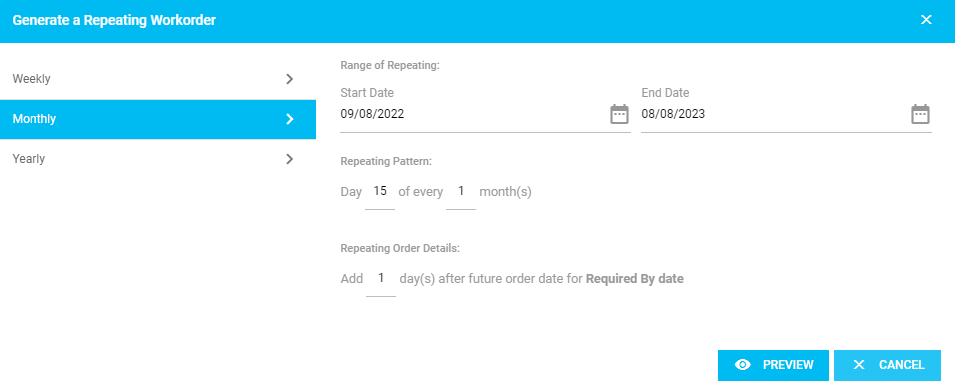
- Set up the frequency up as weekly, monthly or yearly. Please note that if weekly is selected as the frequency, a day of the week must be selected.
- Enter a start date and end date, repeating pattern and repeating order details
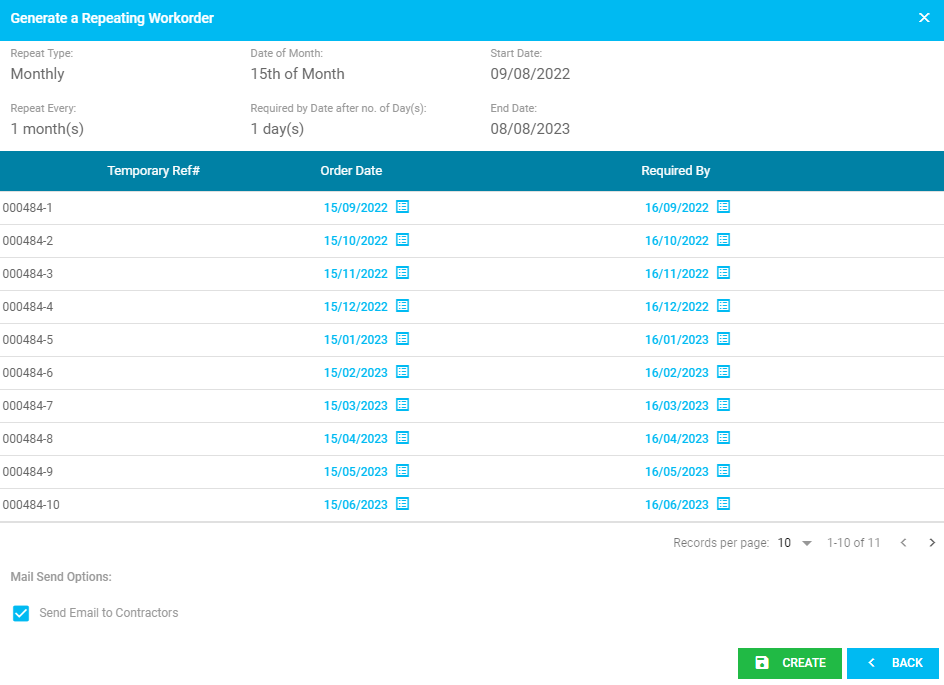
- Select preview and a breakdown of the dates these will automatically be sent out of the system will appear.
- Under 'Mail Send Options' The system will default to tick the 'Email Workorder to Contractor', however, you can override this by unticking the check box.
- Select 'Create' to create the repeating workorder or 'Back' to edit the frequency details
Creating Workorder from Quote
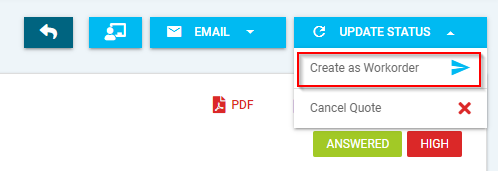
The system allows you to create a workorder from a quote once the quote has been answered. Under the update status button, there will be an option to create as workorder. It will pull through all the information that was entered on the quote into the workorder. You will then be prompted to work through the same 3 step process to submit the workorder.
Copy Workorder
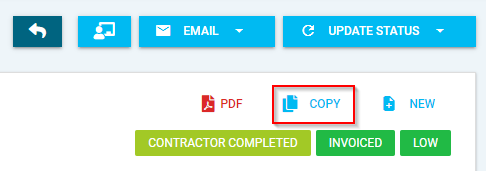
The system allows you to copy an existing workorder once created by clicking 'Copy'. It will pull through all the information that was entered for the selected workorder and will then be prompted to work through the same 3 step process to submit the workorder.
Viewing a Workorder
Once you have selected a workorder to view there are a few options you can action:
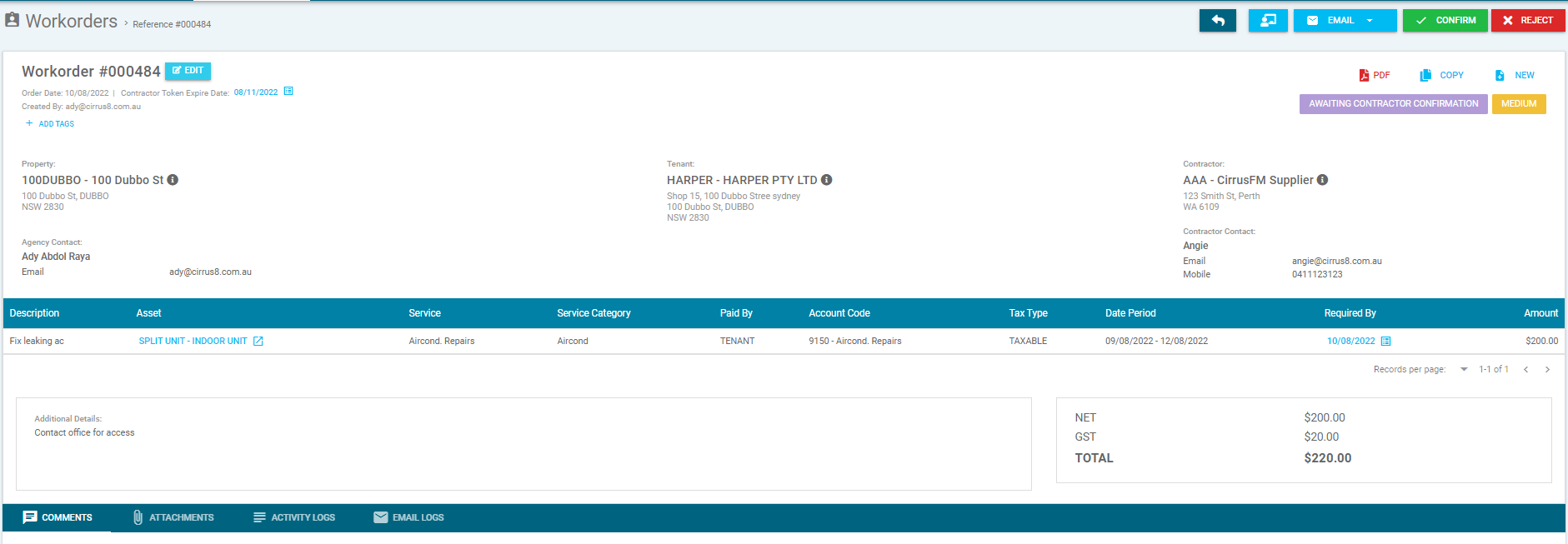
- Back arrow - This will take you back to the previous screen
- Person with Monitor - This will take you to the 'Manual Contractor View' screen. This is the screen the contractor will see when they click on the link from the workorder request.
- Email - You can select the following options in the drop-down menu:-
- Send Reminder - This will send a reminder to the contractor to confirm or update the workorder status
- Resend Workorder - This will resend the workorder to the contractor
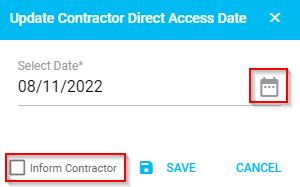
- Update Expiry Date - This will update the 'Contractor Expiry Token Date' with the option to inform the contractor of the update
- Confirm - This will confirm they are accepting the workorder.
- Reject - This is to reject doing the work, a pop-up window will appear where you can enter your reason.
- PDF - This will download a PDF version of the report.
- Copy - This function will copy and create a new workorder.
- New - This is if you wish to create a new workorder.
- Update Status - Once the workorder has been confirmed, the 'Update Status' option will appear and you will be able to select the following in the drop-down menu:-
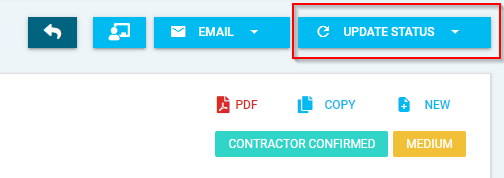
- Work Order Status - The system will default the initial status to 'Contractor Confirmed', then the agent or contractor can update the status to 'Mark as Work Started', then to 'Work in Progress', then lastly to 'Mark as Completed'. A notification will be sent as the status is updated.
- Close Workorder - This will close the selected workorder
- Cancel Workorder -This will cancel the selected workorder. When selected a pop-up window will appear where you can enter your reason.
- Comments - The agent and contractor can add comments and upload files with the option to hide from the contractor by ticking the 'Hide to contractor' checkbox If the contractor adds any comments an email notification will be sent to the agent and if the agent adds any comments the contractor will be notified.

- Attachments - The agent and contractor can upload attachments, for example photos of the completed work, or view the attachments added when the workorder was created, for example of the invoice or photos of the completed work. The system will log the name of the upload, who it was uploaded by and the date and time of the attachments initially uploaded and will also notify the other party of any attachments added.

- Activity Logs - This will allow you can view the activity log which shows a list of the actions taken, update from, update to, description, who it was submitted by and the date and time of the items completed for the workorder.

- Email Logs - This will allow you to view the email logs which shows a list of the description, who it was emailed to, subject of the email, email sent status, which agent it was sent by and the date and time.

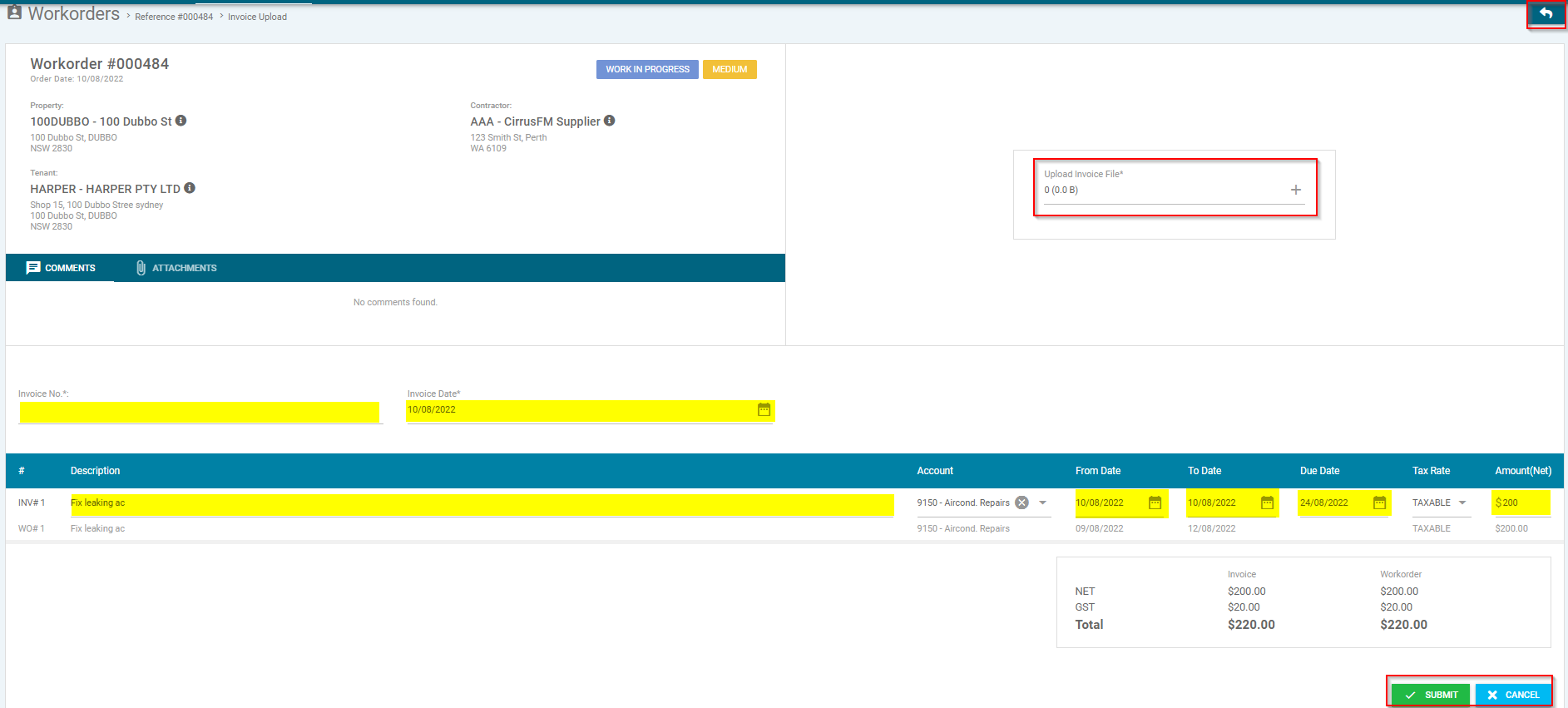
- Invoice - Once the status has been marked as 'Work In Progress' the invoice tab will appear and the agent or contractor can upload the invoice, by clicking 'Upload Invoice', which will populate to the 'Automated Invoices' function in Cirrus8 for payment or view invoice uploaded. When you upload an invoice, a new pop-up window will open, which will prompt you to action the following:-

- Back arrow - This will take you back to the previous screen
- Comments - This will allow you to view the comments entered
- Attachments - This will allow you to view the attachments uploaded
- Upload Invoice File - You can upload a copy of the invoice by clicking the plus button or dragging the file
- Invoice No.* - Enter the invoice number
- Invoice Date* - Enter or select the invoice date
- Line Details - You can view and amend the following line details:-
- # - Invoice and workorder number. You will not have an option to amend this column
- Description - Line description entered in workorder.
- Account - Account code populated from the workorder, which will be used to process the invoice
- From Date - This is the from date populated from the workorder
- To Date - This is the to date populated from the workorder
- Due Date - This is the due date of the invoice
- Tax Rate - This is the selected tax rate populated from the workorder
- Amount(Net) - This is the invoice amount payable which has been populated from the workorder
- Once you are happy with the information, click 'submit' to send to the Automated Invoices in Cirrus8 or 'Cancel' to go back to the work order
Editing a Workorder
Once you have created your workorder, if there is something that needs to be updated or there are changes in the work required you can edit the workorder.
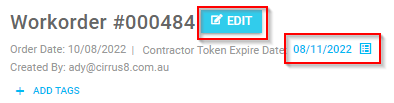
- Select the workorder then click 'Edit' allow you to edit the information on the workorder. You will also be able to add a diary reminder by clicking the 'Contractor Token Expire Date' in blue.
- The property, agency contact and contractor will open up and you will be able to update them as required.
- You will also be able to action the following:-

- Add a new line by clicking 'Add line'
- By clicking on the asset, a pop-up will appear with the asset details
- Add a diary reminder for the required by date, by clicking on the date.
- Edit the line details by selecting the edit pencil. Then a pop-up will appear where you can update the description, asset, service category, service type, required by date, from and to date, paid by, account code, tax type and maximum amount. Then to save select 'Update Line'.
- Delete a line by clicking the red cross
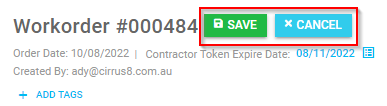
- Once all of the information has been updated, don't forget to select save. If you do not wish to save the changes, you can select cancel.
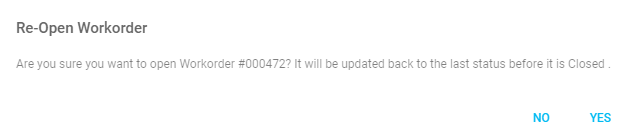
- If the workorder has been closed in the system, you can re-open it by going into the quote and clicking on the below button. The system will bring a pop-up asking if you are sure you want to re-open it and you can select yes or no.

View & Edit Repeating Workorder
Once you have clicked the 'Repeating Workorders' button in the Workorders tab, you will have the option to action the following:-
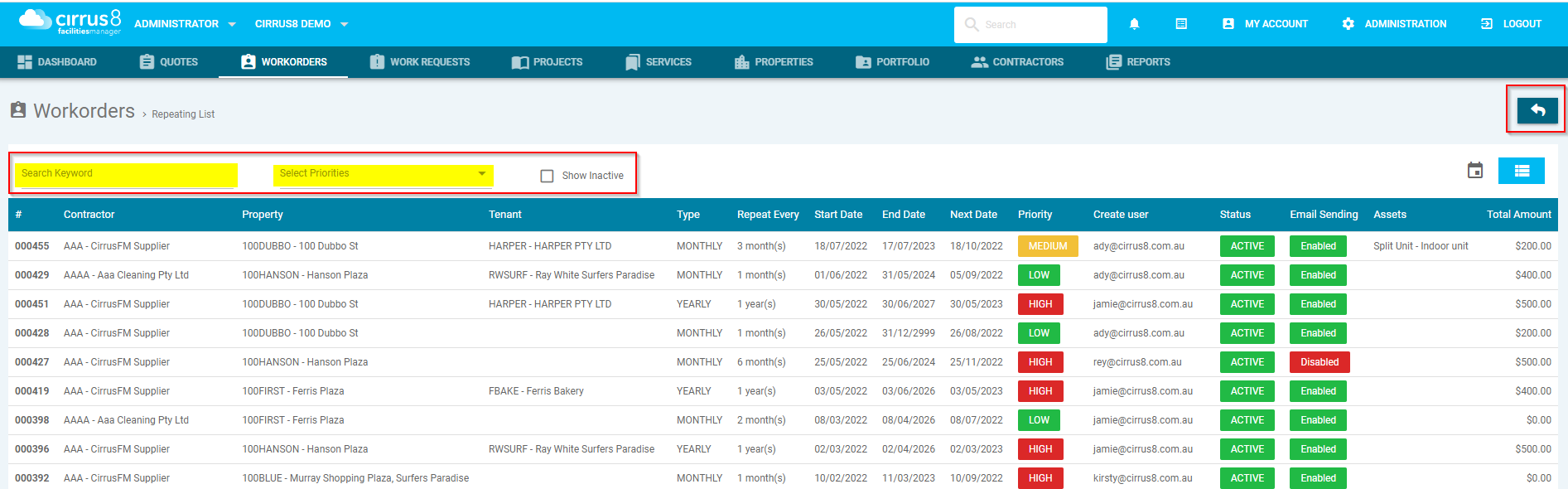
- Back arrow - This will take you back to the previous screen
- Search filters - Search by keywords, or priorities
- Show Inactive - Tick checkbox to view inactive work orders
Once you have selected a workorder to view, there are a few options you can action:
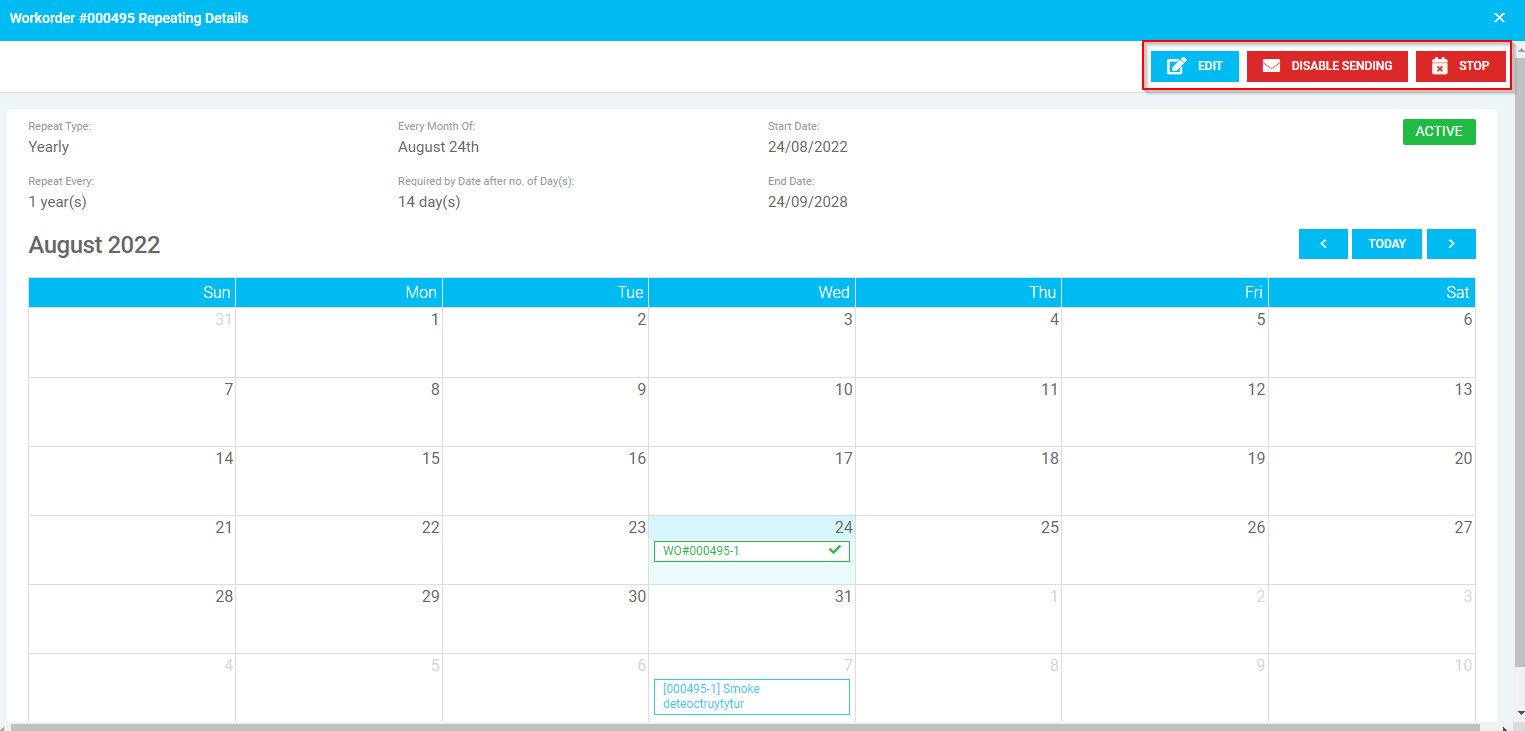
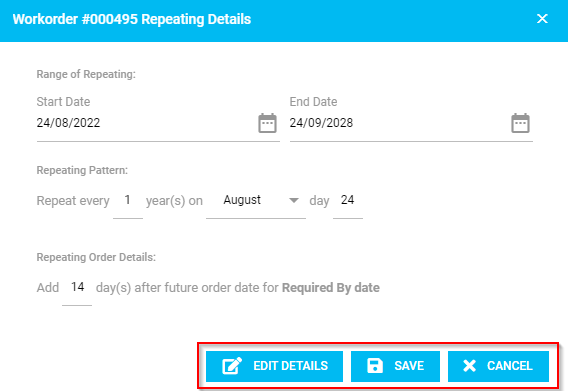
- Edit - This allows you to edit the repeating workorder details. When selected, a pop-up window will open which will allow you to action the following:-
- Range of Repeating - You can edit the start and end date
- Repeating Pattern - You can edit the repeat pattern
- Repeating Order Details - You can edit the days after the future order date
- Edit Details - This will take you to the selected workorder to edit the workorder details
- Save - This will allow you to save the changes made
- Cancel - This will cancel the changes and go back to the previous screen
- Disable Sending - This will disable the sending of the workorder to the contractor contact
- Stop - This will stop the repeating work order
- Repeating Details - This allows you to view the Repeat Type, Every Month Of, Start Date, Repeat Every, Required by Date after no. of Day(s), End Date and Status for the repeating workorder
- Calendar - This allows you to view the diary reminders for the selected month
Creating Journal Entry
A journal entry can be created from workorder tab by selecting Journal Entry, which will prompt you to select the following then click 'Search':-
- Back arrow - This will take you back to the previous screen
- Select Property* - Select the property from the drop down menu
- Select Status – Select the status from the drop down menu
- Order Month – Select the month you wish to post a journal to
- Order Year – Select the year you with to post a journal to

Select the work orders you want included from the list, by checking the box next to each item, then click 'Next'.
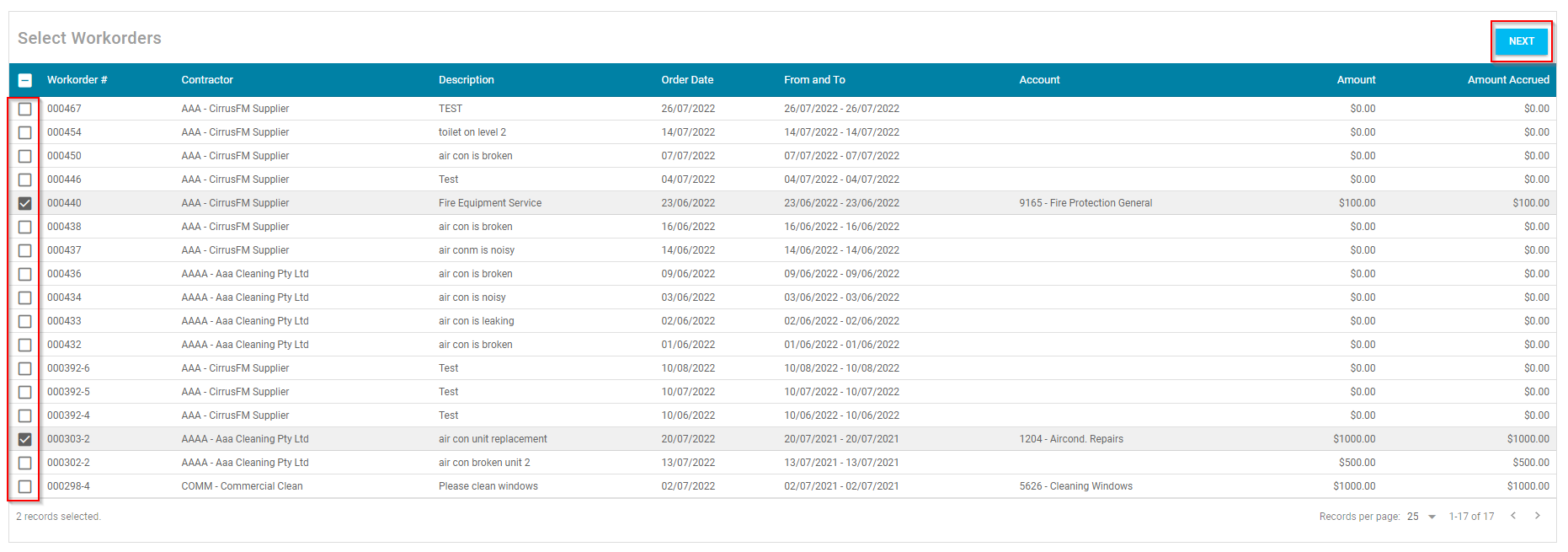
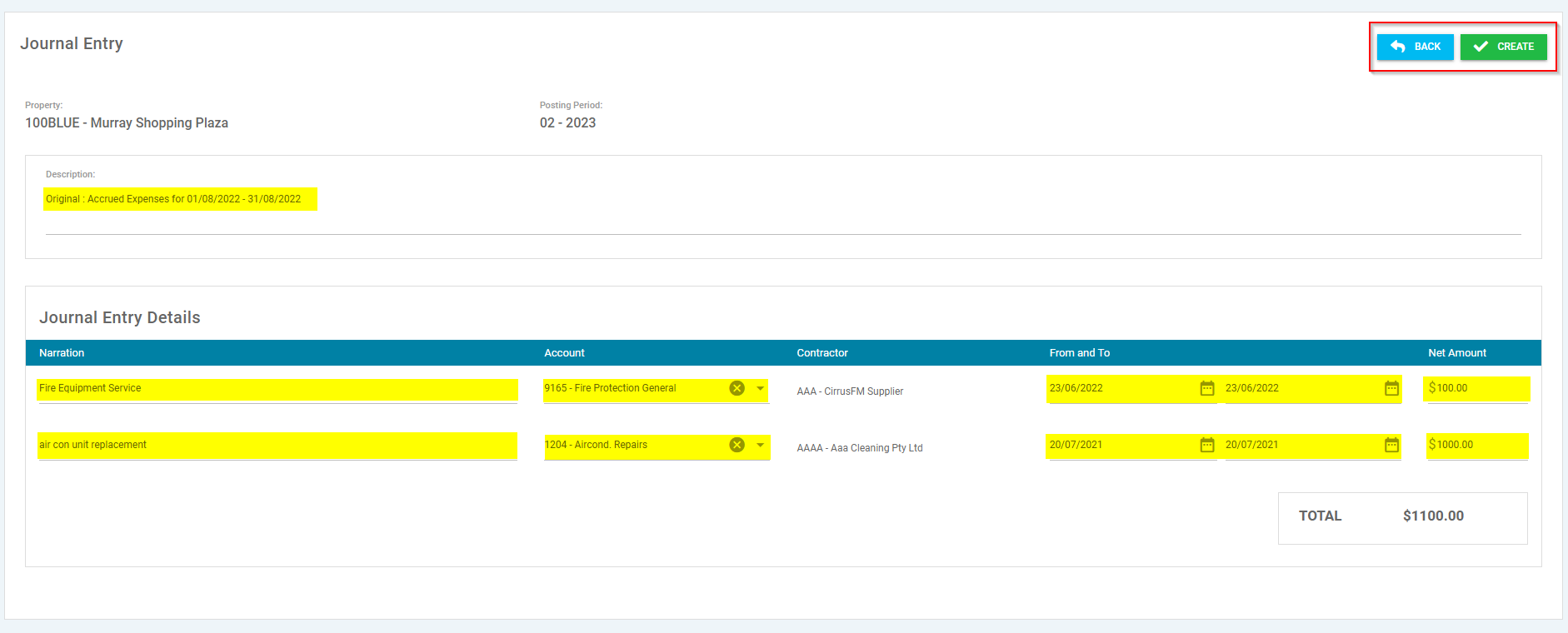
For the selected work order, you will be able to check and amend the following:-
- Description - This is the description of the journal entry
- Journal Entry Details - In this section you can amend and update the following details:-
- Narration - Line description entered in workorder
- Account - Account code selected for workorder
- Contractor - Contractor selected for workorder. Please note that the contractor cannot be amended in this section.
- From and To - Required By dates entered in workorder
- Net Amount - Amount Limit entered in workorder
Once you have checked and/or amended the details, click 'Create' or click 'Back' to go back to the previous page.
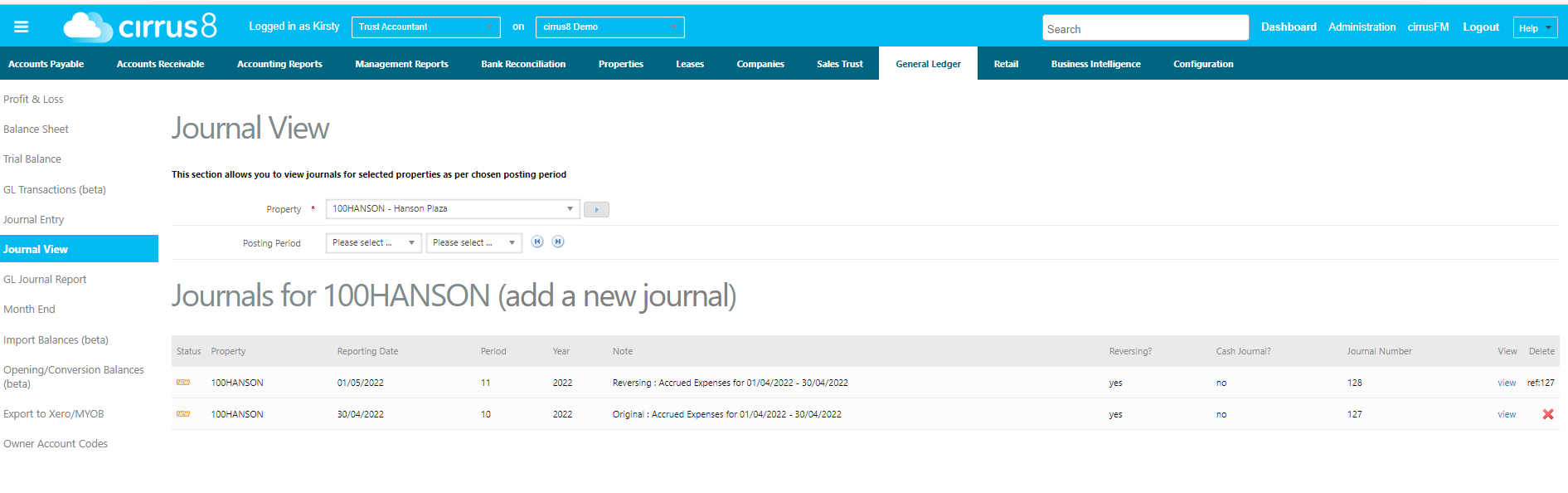
Once created, there will be a draft journal awaiting processing by a Trust Accountant user via 'General Ledger > Journal View':-
You can click on View and either make any amendments, or click on 'Commit' to process the Journal.
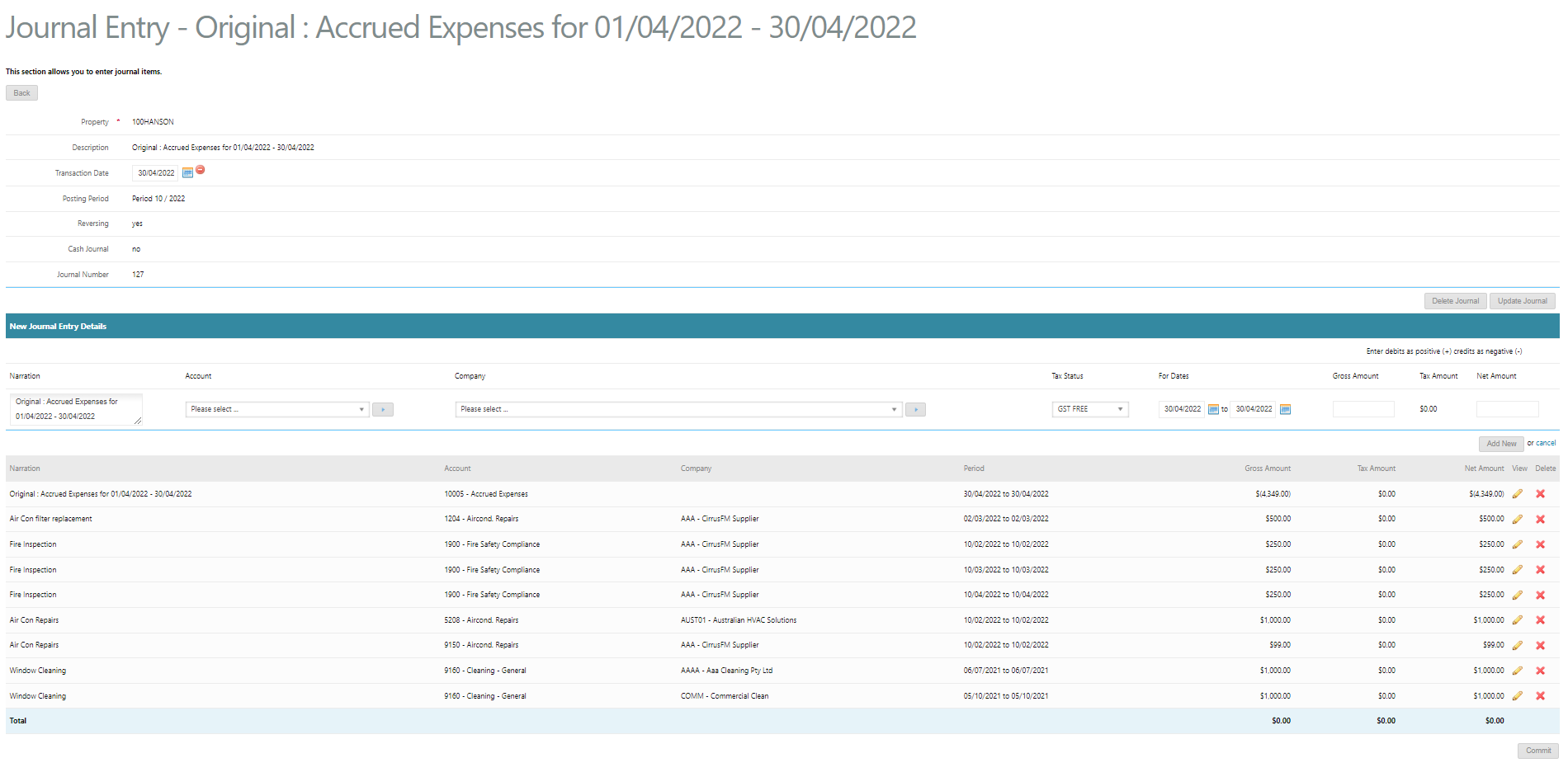
Please note that this journal will automatically reverse on the 1st day of the subsequent period.
Was this article helpful?
That’s Great!
Thank you for your feedback
Sorry! We couldn't be helpful
Thank you for your feedback
Feedback sent
We appreciate your effort and will try to fix the article