1) Download the Contractors FM Guide (PDF)
Open the link provided to access the Contractors FM guide.
Click Download (or View / Download PDF, depending on your browser).
Save the file somewhere easy to find (e.g., Downloads or a shared folder)
Submitting a Quote
Log in to Contractors FM.
Go to the relevant Quote Request (this is usually accessed from your list of open quote requests).
Open the quote request and review:
Work description
Site / address details
Required dates / deadlines
Any notes or attachments
Select Submit Quote (or the equivalent action button).
Enter quote details:
Labour / materials breakdown (if applicable)
Total cost
Proposed start and completion dates
Any assumptions or exclusions
Attach supporting documents if required (e.g., itemised quote, scope notes).
Click Submit to send the quote back through the system.
✅ Result: The quote is submitted and visible to the FM team for review/approval.
Accepting Works (Workorders)
Log in to Contractors FM.
Navigate to Workorders (or Jobs / Workorders Issued).
Open the workorder you want to accept.
Review the workorder details carefully:
Scope of works
Site details and access notes
Required SLA / due date
Purchase order reference (if shown)
Attached documents
Click Accept Works (or Accept Workorder).
Confirm acceptance when prompted.
✅ Result: The job moves into an “accepted / in progress” workflow and the FM team can track progress.
Updating Workorder Status
Keeping statuses up to date helps prevent delays and avoids invoice/payment issues later.
Log in to Contractors FM.
Open Workorders and select the relevant workorder.
Find the Status section (or Update Status button).
Choose the appropriate status, for example:
Accepted
Scheduled
On Site / In Progress
Works Completed
On Hold / Awaiting Parts
Unable to Access
Add notes where needed (highly recommended), e.g.:
What was done today
What’s outstanding
Any access issues / tenant contact attempts
Save / Submit the status update.
✅ Result: The FM team sees live progress and can respond quickly if anything is blocked.
Uploading Invoices for Payment Against Workorders
To avoid payment delays, make sure your invoice matches the workorder reference and totals.
Log in to Contractors FM.
Go to Workorders and open the completed workorder.
Confirm the status is set to Works Completed (or the required completion status).
Locate Invoices (or Upload Invoice / Submit Invoice for Payment).
Upload the invoice PDF (and any required supporting documents).
Enter invoice details if prompted:
Invoice number
Invoice date
Amount (ensure it matches approved quote/workorder value)
VAT (if applicable)
Confirm the invoice is being submitted against the correct workorder.
Submit.
✅ Result: The invoice is logged against the workorder and enters the payment approval process.
Suggested Admin Setup (Attach the PDF Guide to Quotes & Workorders)
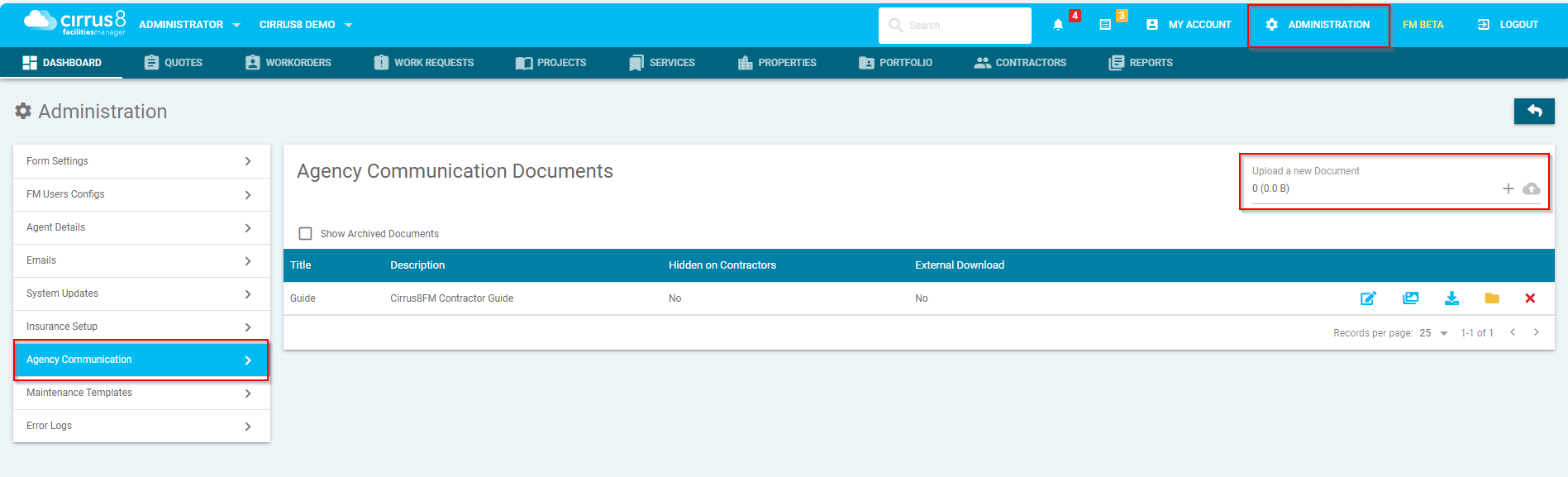
Your FM Administrator can attach the PDF guide to each quote and workorder issued by uploading the document to Agency Communication.
Steps (FM Administrator)
In FM, go to: Administration
Select: Agency Communication
Click Upload (or Add Document)
Upload the Contractors FM guide PDF
Save / Publish (depending on your system prompts)
✅ Result: The guide can be included/attached on outgoing Quotes and Workorders, so contractors always receive the instructions.
Was this article helpful?
That’s Great!
Thank you for your feedback
Sorry! We couldn't be helpful
Thank you for your feedback
Feedback sent
We appreciate your effort and will try to fix the article