Setting Up Supplier Access
CirrusFM allows you to give suppliers access so they can:
Update quote and work order statuses
Track outstanding work with your company
Submit quotes directly in the system
Step 1 — Open the Supplier Tab
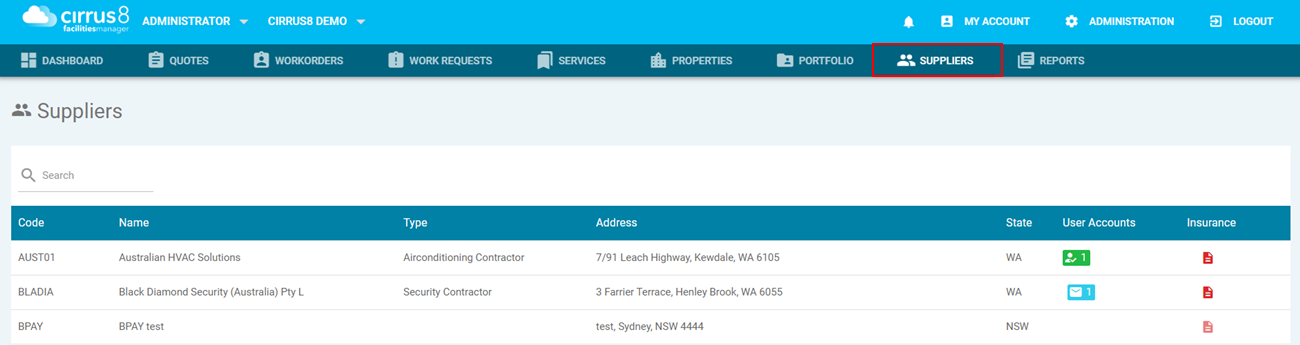
Go to Supplier in CirrusFM.
Under User Accounts, you will see supplier access status:
? Green box → Registered user exists
? Blue box with envelope → Invitation sent (awaiting acceptance)
⬜ Empty box → No user or invitation
Step 2 — Send a Supplier Invitation
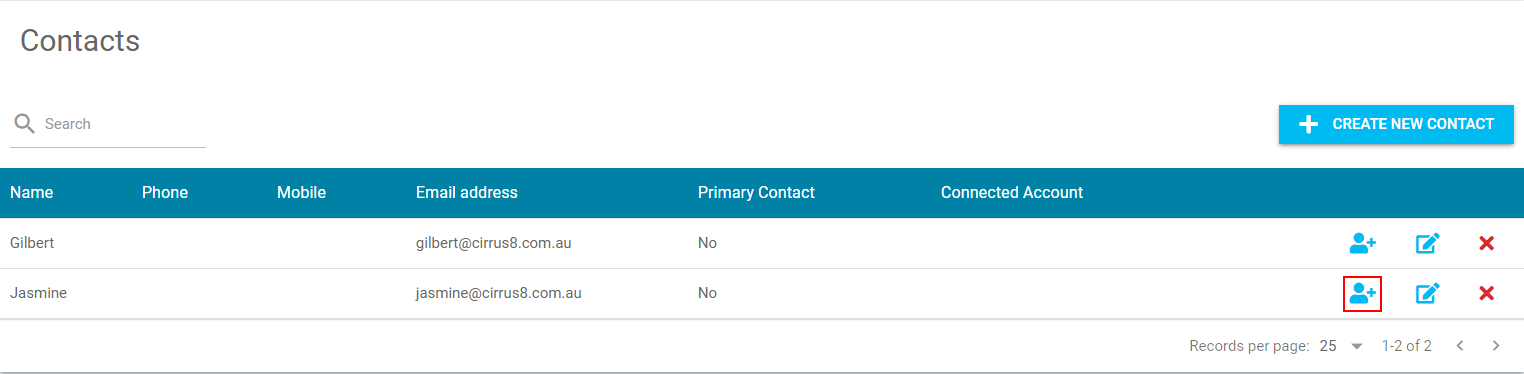
Select the supplier company from the Suppliers tab.
Open the Contacts section.
Click the blue person icon.
➡️ This sends an invitation email to the supplier.
Step 3 — Confirm Registration
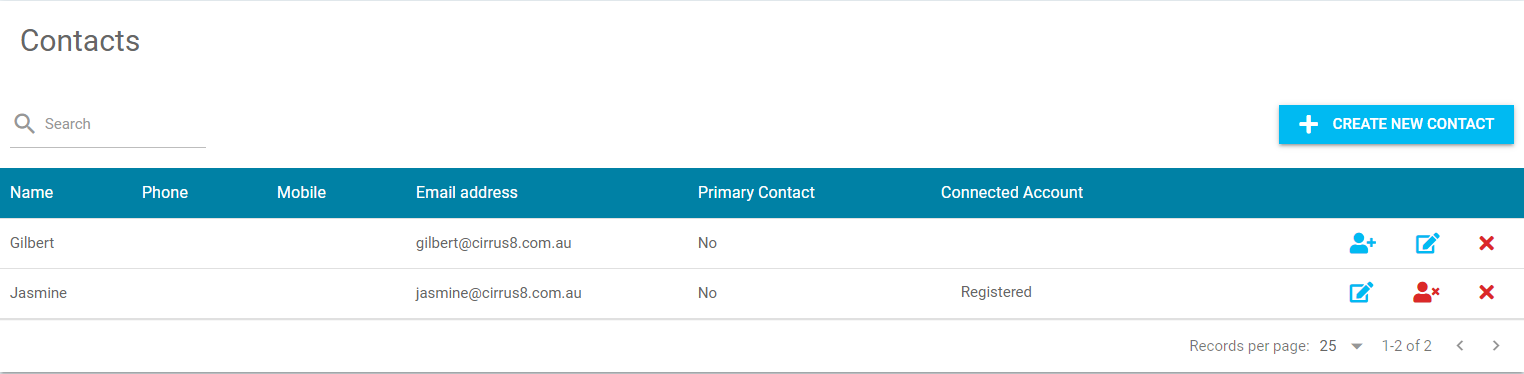
Once the supplier accepts the invitation:
The account will show as registered.
A red person icon will appear.
➡️ The red icon can be used to remove supplier access if required.
Logging in as a Supplier in CirrusFM
Supplier Login Instructions
After account setup, suppliers must log in using:
Correct website:
https://fm.Cirrus8.com.au/
⚠️ Important:
Password resets must also be done via this site.
❌ Do NOT use:
https://client.Cirrus8.com.au/
(The system will not recognise supplier accounts.)
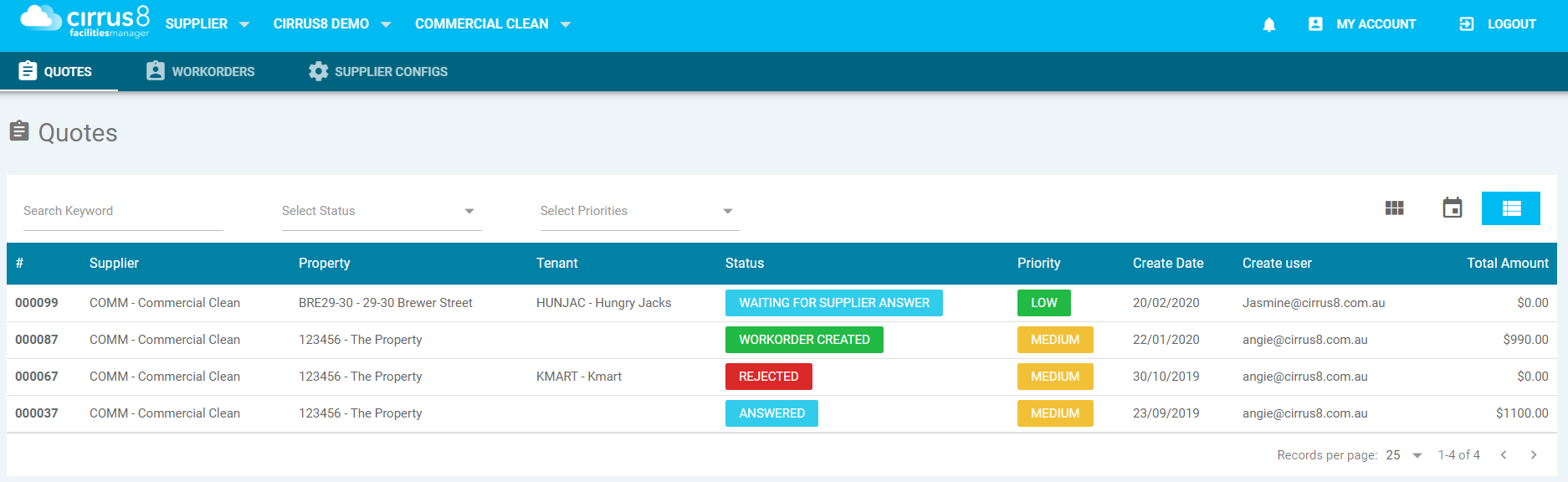
Main Tabs Suppliers Use
After logging in, suppliers mainly work within:
Quotes
Work Orders
Responding to a Quote or Workorder
Step 1 — Open the Job
Click directly on the Quote or Work Order to view details.
Step 2 — Review Options
Inside the record, suppliers can:
Use the Back button
Download PDF
Select Set Quotation
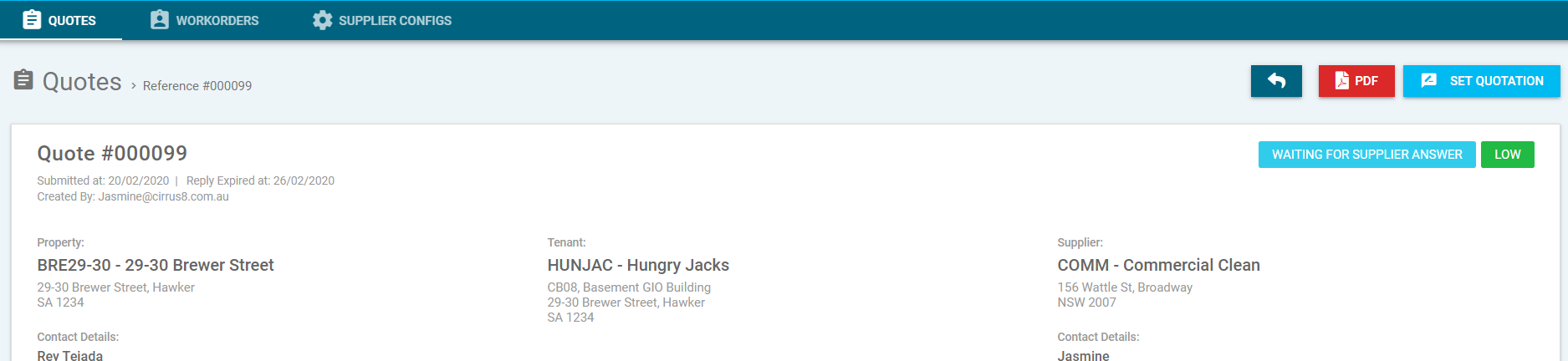
Step 3 — Set a Quotation
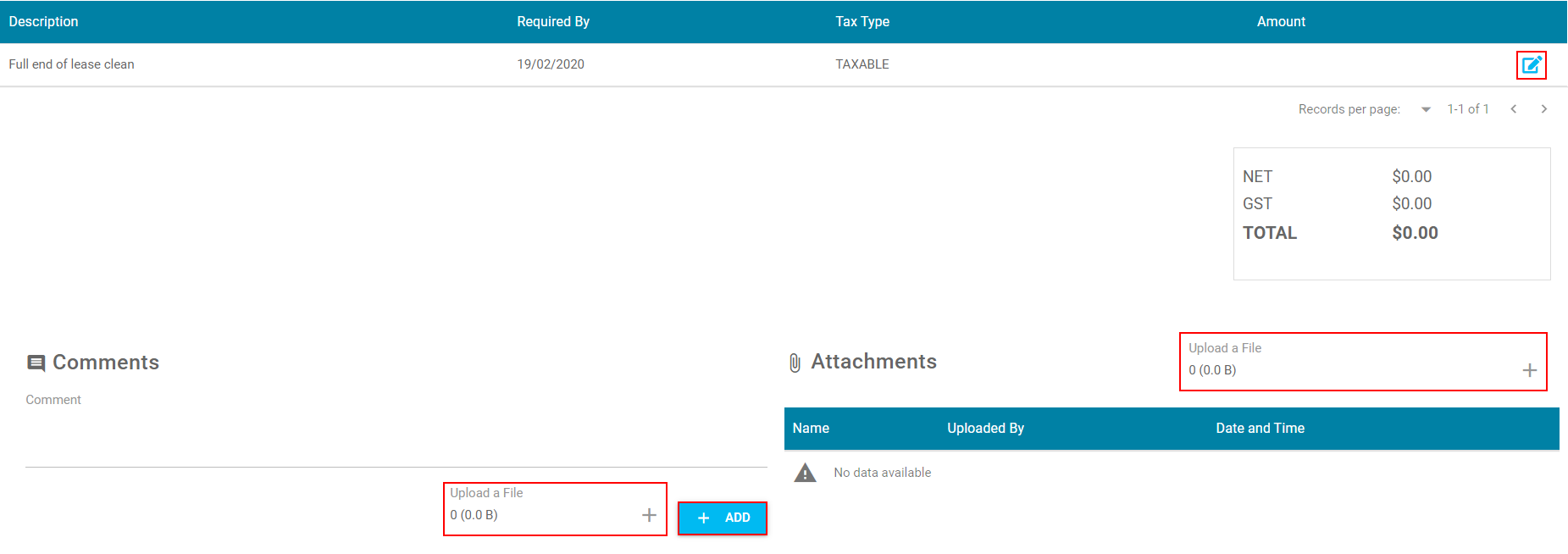
When selecting Set Quotation, suppliers can:
Click the edit pencil to enter a quote amount
⚠️ This field is mandatory
Upload attachments (e.g., photos)
Upload files (e.g., formal quote document)
Add comments
Click ADD to save comments
Step 4 — Submit or Reject
Once all details are entered:
Select Submit Quotation to send to client
ORSelect Reject if not proceeding

Client Review Process
After submission:
The client can Approve and create a Work Order
Or Reject the quote
If approved:
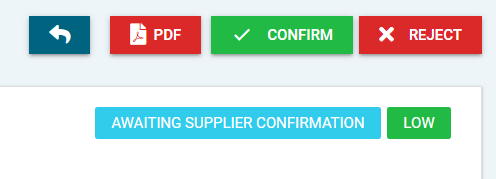
A Work Order email is sent to the supplier.
The supplier follows the link and chooses:
✔️ Confirm
or
❌ Reject
Updating Work Order Status
Suppliers can update progress using the original Work Order email:
Mark as Work Started
Mark as Completed

utomatic Work Order Closure (Optional)
CirrusFM can automatically close work orders when marked complete.
Path:
Administration → Form Settings
Was this article helpful?
That’s Great!
Thank you for your feedback
Sorry! We couldn't be helpful
Thank you for your feedback
Feedback sent
We appreciate your effort and will try to fix the article