Setting up Supplier Access
In CirrusFM you have the ability to give your suppliers access to update statues for quotes and work orders and keep track of the outstanding work they have with your company.
Under the Supplier tab you can see what companies you have given access to and who are yet to accept the invitation under User Accounts:
- Green box means there is a registered user.
- Blue box with an envelope means there is an invitation sent.
- Empty means there is no registered users or outstanding invites.
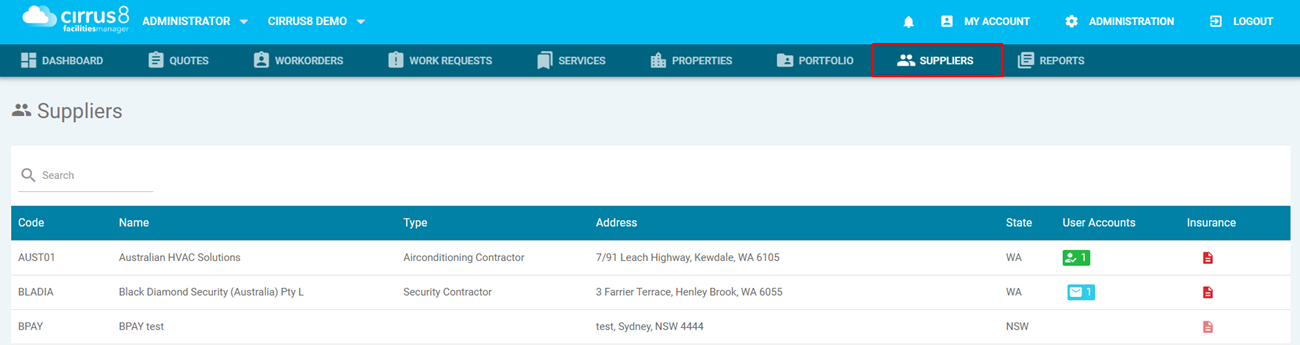
To send an invitation to a supplier you will need to select the company from the Suppliers tab and go into the Contacts section.
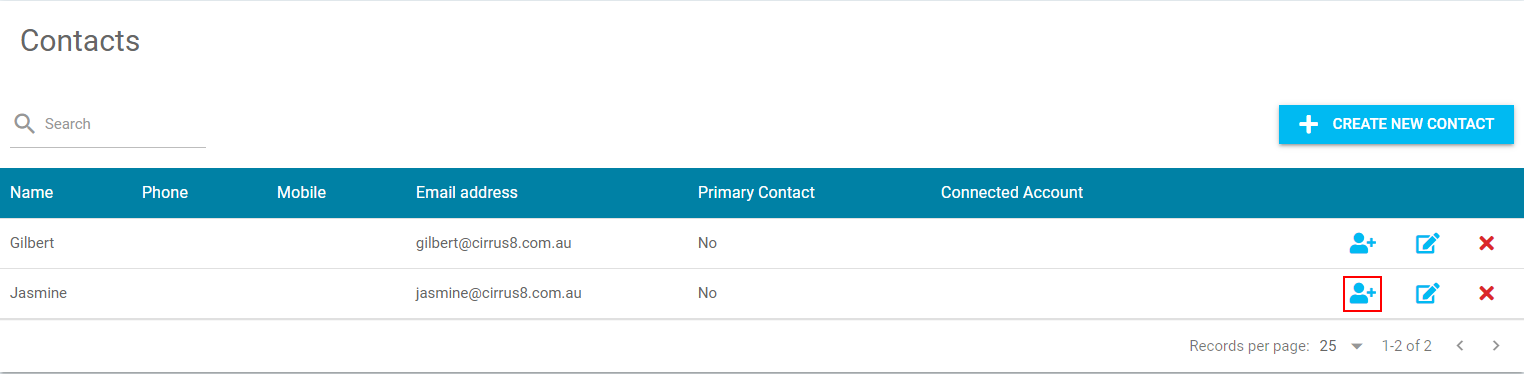
From here you will be able to click on the blue person icon, this will send an invitation to the supplier.
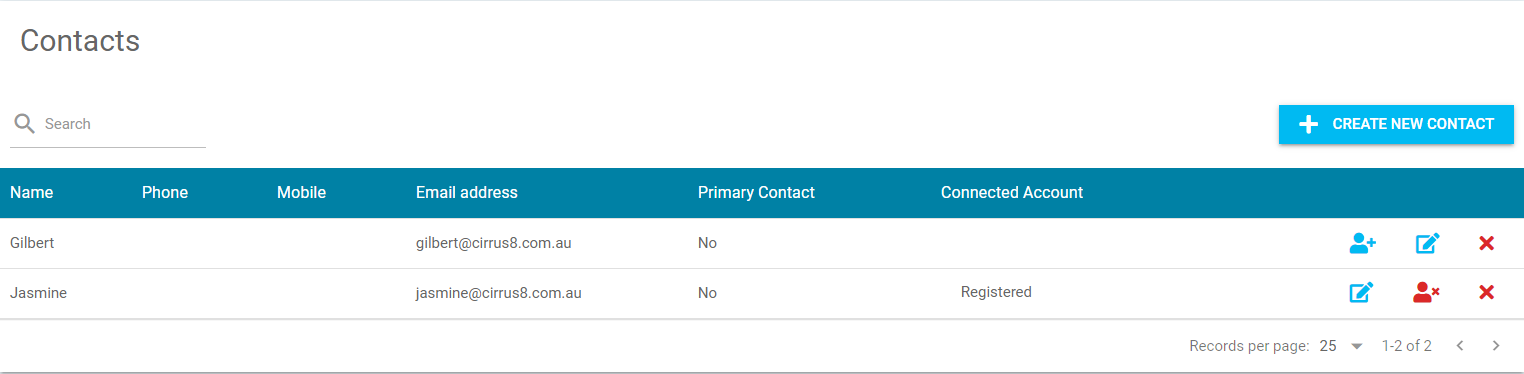
Then once they have accepted the invitation, it will now show that they are registered and there is now a red person icon if you ever need to remove their access.
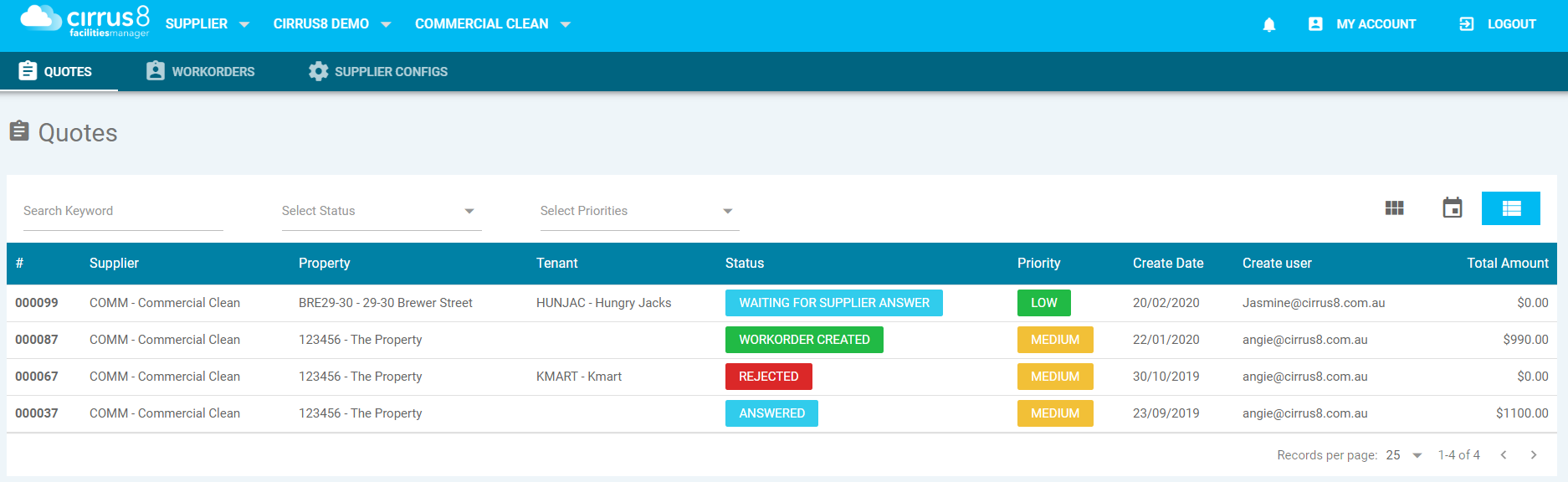
Logging in as a Supplier in CirrusFM
Once they have set up their account they will now be able to access CirrusFM through the following website https://fm.Cirrus8.com.au/. If they ever have to reset their password it is important they log in through the following website and not https://client.Cirrus8.com.au/, otherwise the system will not be able to find their account.
Once logged in the two main tabs they will be using will be Quotes and Workorders.
Responding to a Quote or Workorder
To view more details this can be done by clicking directly on the quote or workorder.
From here there is a back button, download to PDF or the quote can be set.
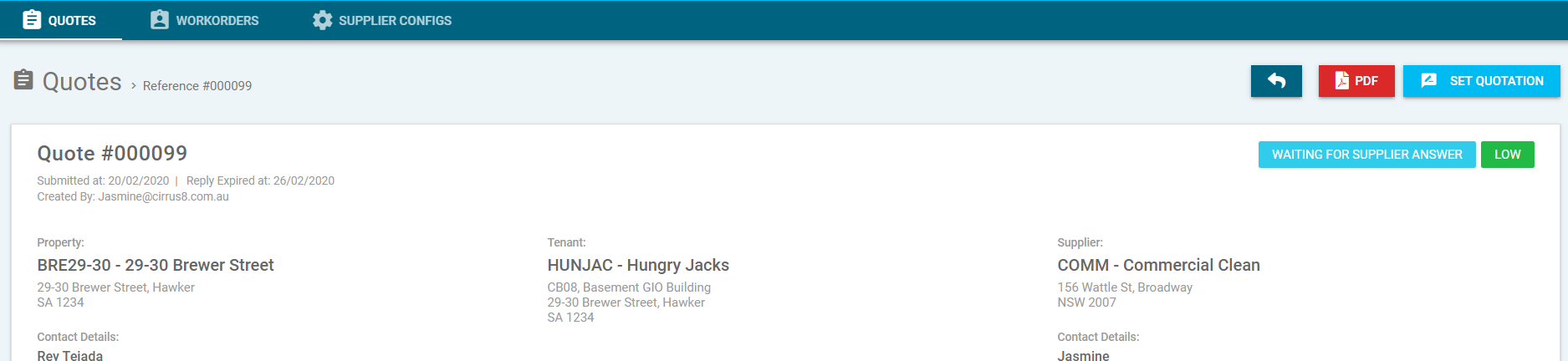
Once selected Set Quotation you will now have the ability to edit and upload more information:
- The edit pencil allows for the supplier to set a quote amount, this is a mandatory field.
- There is the option to upload an attachment such as photos.
- A file can also be uploaded which could be a copy of the quote.
- Comments can also be made, once entered you will need to click on ADD for the information to save.
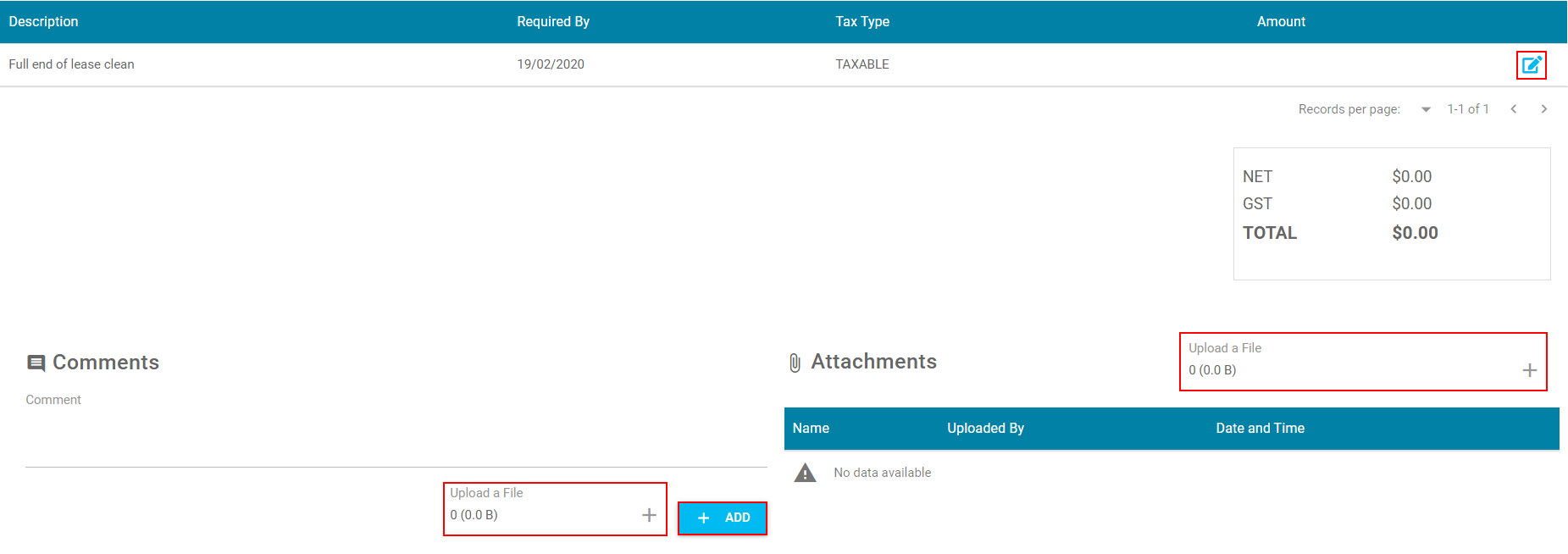
Once all the information has been entered they can now select Submit Quotation or if they are not going ahead with the work they can also Reject it.

This then sends it back to the client to either Approve and create a Workorder or Reject.
If they Approve and create a Workorder, this will be emailed through to the supplier. Where they can click on a link which will take them through to CirrusFM asking them if they either Confirm or Reject.
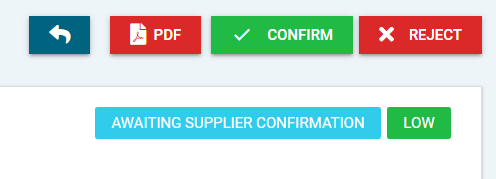
The supplier can continue to update the status by going back to the original workorder request email:
- Mark as Work Started
- Mark as Completed

The system can be configured under Administration > Form Settings to automatically close workorders once suppliers have marked them as Completed.
Was this article helpful?
That’s Great!
Thank you for your feedback
Sorry! We couldn't be helpful
Thank you for your feedback
Feedback sent
We appreciate your effort and will try to fix the article