The Administration tab is where you have access to updating settings, users and check email logs within CirrusFM. Only users who are set up as administrators have access to this tab.
Form Settings
The form settings tab is where you have access to update the users view and defaults for quotes and workorders.
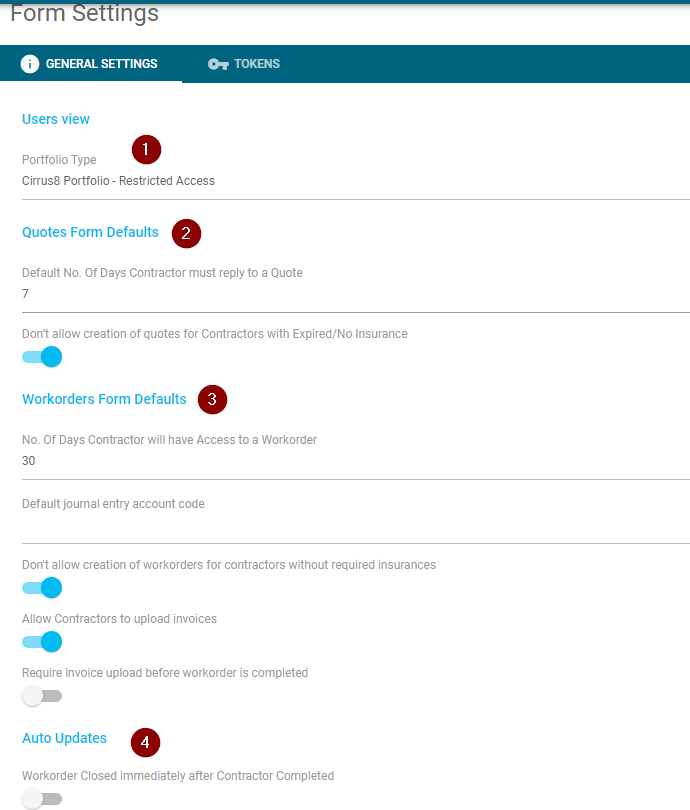
1. Users View
Please refer to the Porfolio page for a full breakdown of how to set this up
2. Quotes Form Defaults
- This is where you can select the number of days that a supplier can respond/open a quote. We recommend setting these to a maximum of 90 days. Once they expire the supplier will no longer be able to click on the link.
- You can set the option to block user from selecting a contractor with expired mandatory insurances
3. Workorder Form Defaults
- This is where you can select the number of days that a supplier can respond/open a work order. We recommend setting these to a maximum of 90 days. Once they expire the supplier will no longer be able to click on the link.
- Default Account code for Journal entries (FM PLUS FEATURE)
- You can set the option to block user from selecting a contractor with expired mandatory insurances
- Allowing Contractors to Upload invoices
- Requiring Contractors to upload an invoice before they can mark an order as complete
4. Auto Updates
- Workorder Closed immediately after Contractor Completed - this will close off your workorders for you if the supplier completes the job.
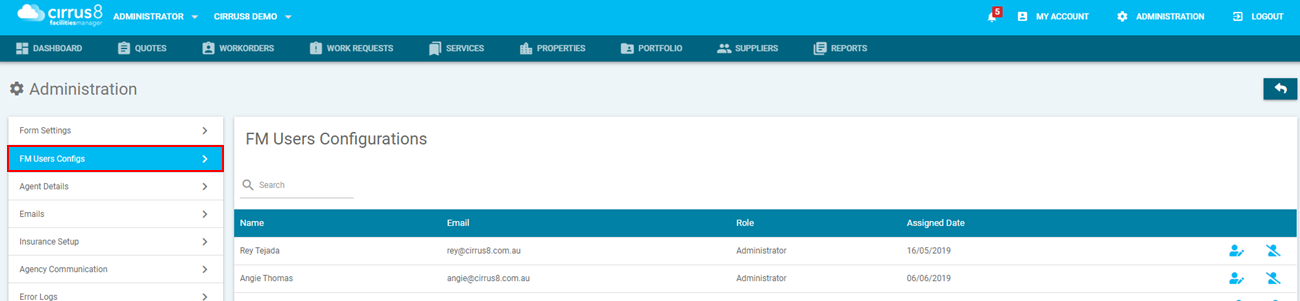
FM User Configurations
This is where administrators can edit the user configurations.
- Next to each user are the below icons.
- The person with the pencil will open a popup where you can select if they always need approval, no limit or has limit.
- The person with a line crossed through means you want to revoke their administration access.
- The person is to allow them access as an administrator.

Agent Details
The agent details is where you can update the agent details that appear on workorders/quotes, the company logo and the terms.
- General Details - the company name and contact details.
- Addresses - the billing and company address.
- Logo - the company logo.
- Terms - this appears on all quotes and workorders, if your company has a PDF you would like to attach this can be uploaded. Then when a quote or workorder is sent to the supplier there will be two attachments to the email, one for the quote or workorder and the other for the terms.
Emails
There is now an email log for reference of all of the emails sent out of cirrusFM.
- This can be accessed under Administration > Emails.
- This can also be sorted by Supplier, Transaction Type, Send By, Create Date and Status.

Insurance Setup
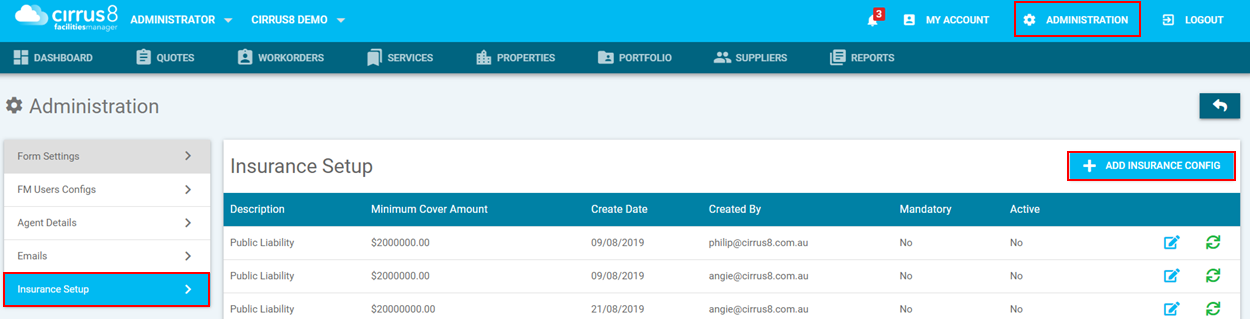
The system now allows you to setup guidelines for checking new suppliers so that their insurances comply, this can only be completed by an Administrator user in the system.
- These can be created by clicking on Administration > Insurance Setup > Add Insurance Config
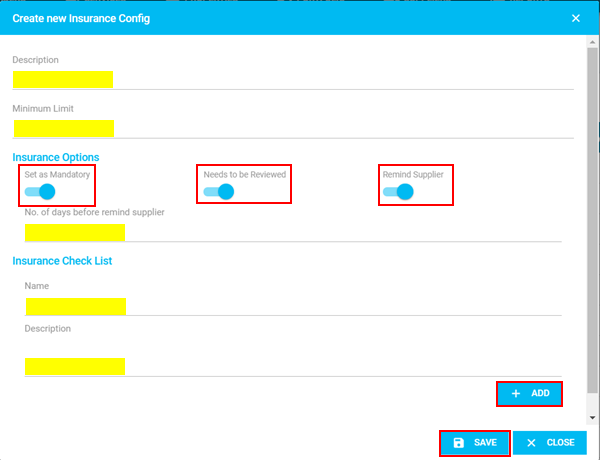
- It will open up the below popup window.
- Here you can enter all the highlighted fields:
- Description - this would be the type of insurance.
- Minimum Limit - this is the minimum amount that is covered.
- Insurance Options - these toggles you are able to turn on and off, for example it is mandatory for them to have insurance, remind supplier the number of days is configurable by the user.
- Insurance Checklist - this is configurable by the user of what you require to be checked, for example you could set one up to be for the dates to be valid or the insured name is correct.
Active / Inactive status can be set by pressing the button at the end of each row

Was this article helpful?
That’s Great!
Thank you for your feedback
Sorry! We couldn't be helpful
Thank you for your feedback
Feedback sent
We appreciate your effort and will try to fix the article