CirrusFM – Portfolio Type Configuration Guide
In CirrusFM, property access is controlled through the Portfolio Type setting. This determines which users can view which properties.
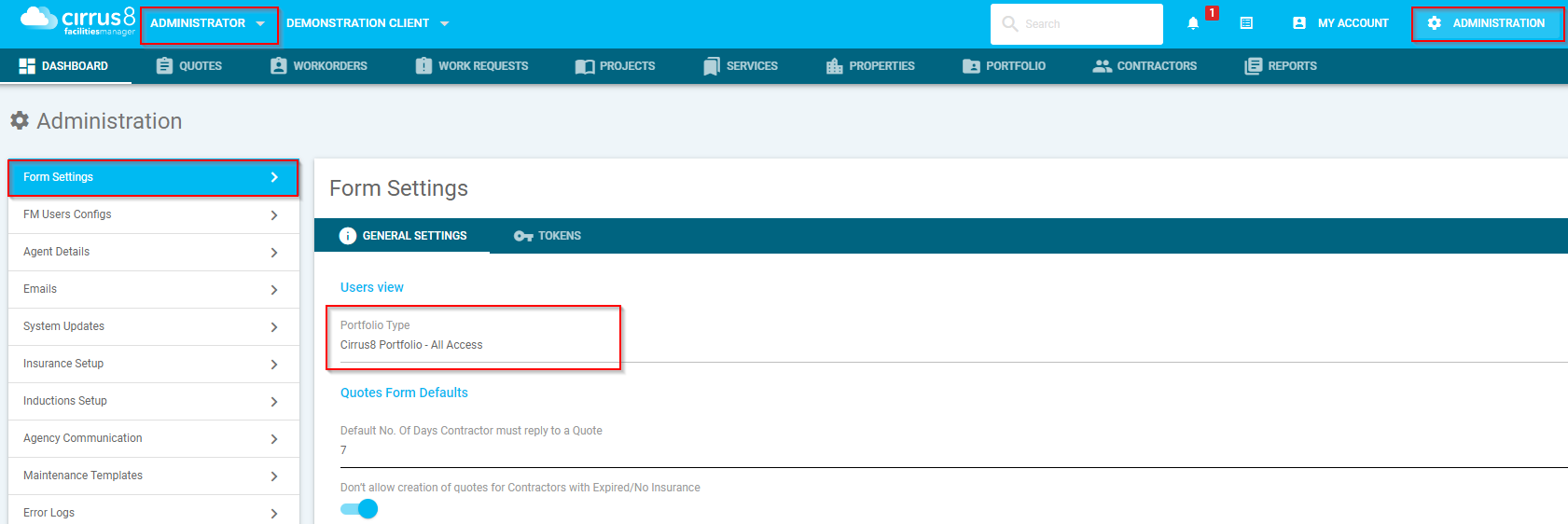
? Where to find this setting
Log into CirrusFM with an FM Administrator account.
Go to Administration.
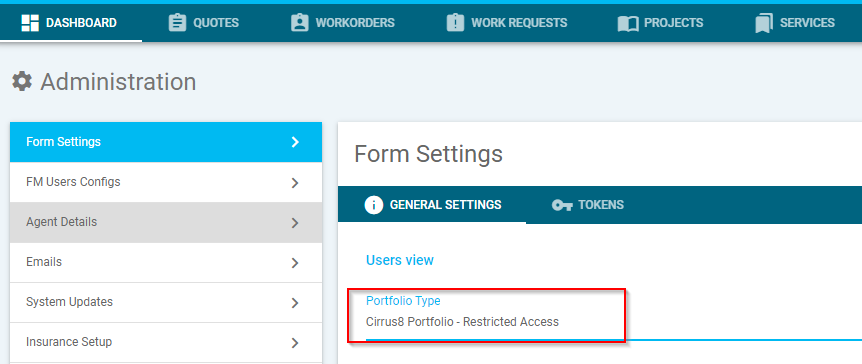
Open Form Settings.
Locate the Portfolio Type dropdown.
None
What it does
All users can view all properties.
Portfolio restrictions are disabled.
The Portfolio tab is hidden because it is not used.
When to use
Use this if:
Everyone should be able to see all properties.
You do not need portfolio separation.
Setup steps
Go to Administration → Form Settings.
Select None from Portfolio Type.
Click Save.

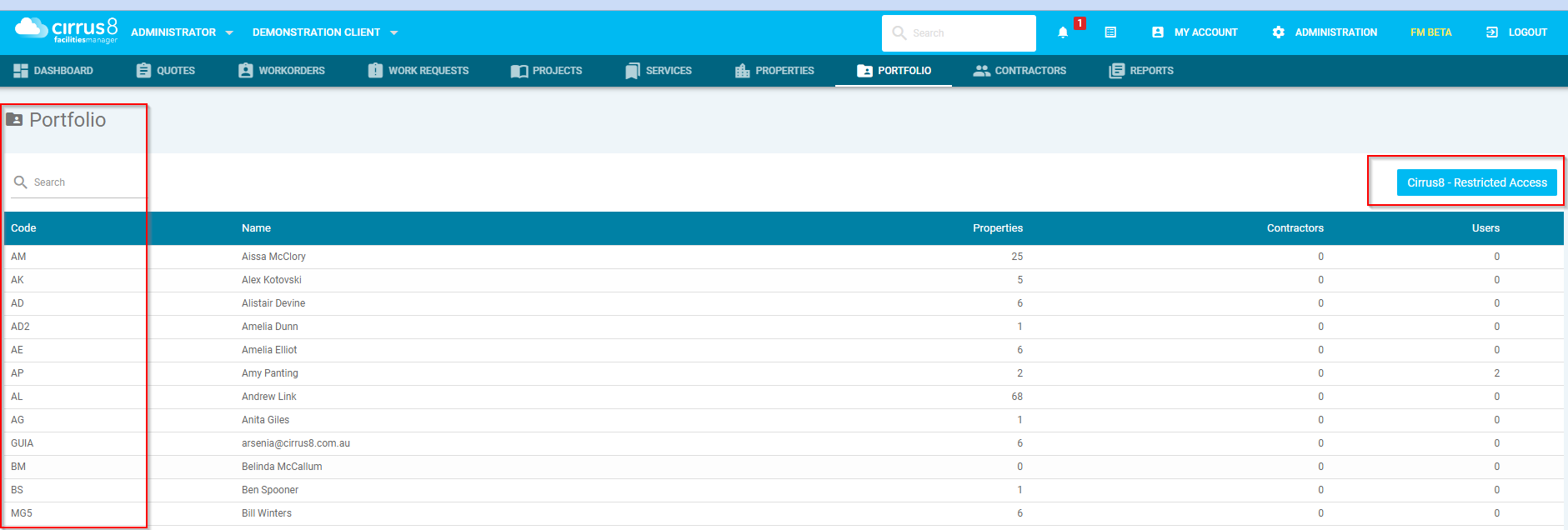
Cirrus8 Portfolio – Access Restricted
What it does
Uses portfolios defined in Cirrus8.
Users only see properties within their assigned portfolio.
When to use
Use this if:
Property Managers also act as Facility Managers.
Users should NOT access other portfolios.
Setup steps
Open Form Settings.
Select Cirrus8 Portfolio – Access Restricted.
Save changes.
Ensure users are assigned to the correct portfolios in Cirrus8.
3. Cirrus8 Portfolio – All Access
What it does
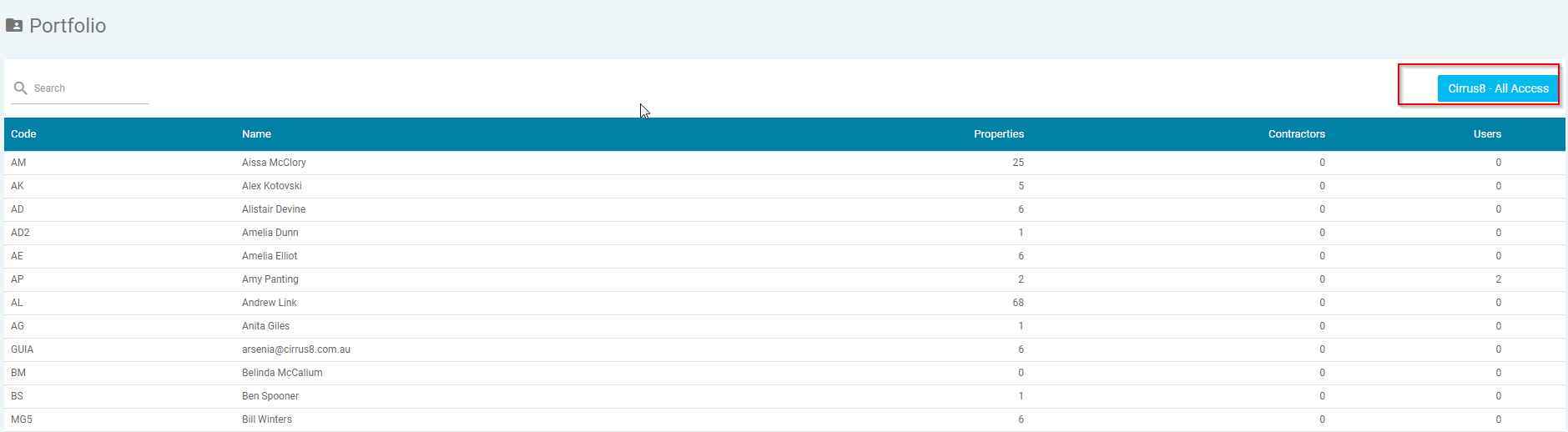
Uses portfolios defined in Cirrus8.
If a user has a portfolio assigned → they see only that portfolio.
If no portfolio is assigned → they can see all properties.
When to use
Use this if:
Property Managers should see only their own portfolios.
FM/Admin staff need access to all properties to provide support.
Setup steps
Open Form Settings.
Select Cirrus8 Portfolio – All Access.
Save changes.
Assign portfolios only to users who need restricted access.
4. FM Own Portfolio
What it does
Uses a custom FM portfolio configuration.
Not linked to Cirrus8 portfolios.
Gives full control over who can view properties.
When to use
Use this if:
You need custom visibility rules.
Cirrus8 portfolio structure does not meet your needs.
Setup steps
Open Form Settings.
Select FM Own Portfolio.
Save settings.
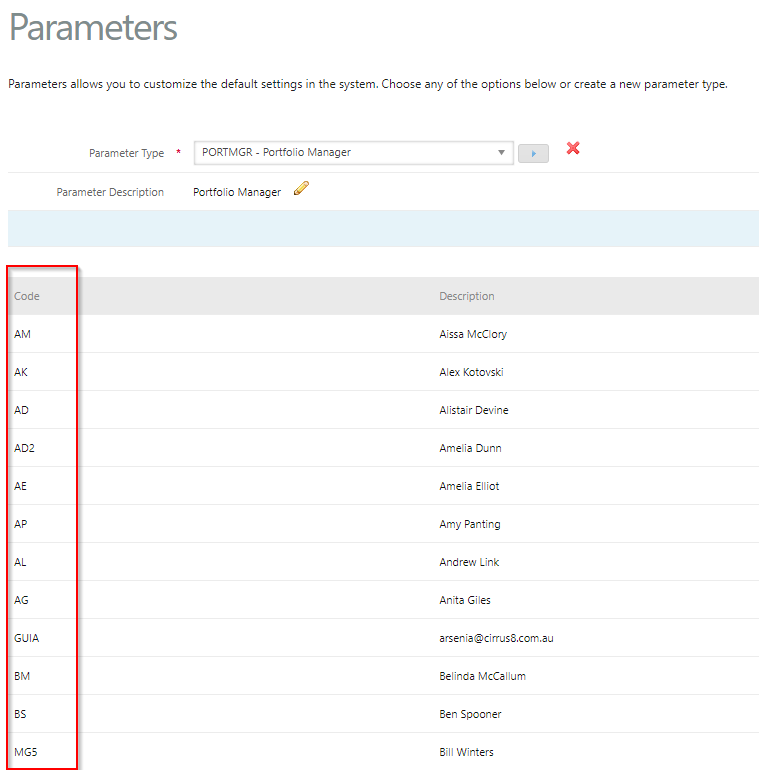
Configure portfolios using FM Portfolio Setup & Configuration.
Troubleshooting
Problem: FM/Admin staff can’t see any properties
Cause
This usually happens when older configurations were not resaved after new portfolio options were introduced.
Fix (Step-by-Step)
Go to Administration → Form Settings.
Open Portfolio Type.
Re-select your preferred option.
Click Save.
This refreshes the configuration and restores access.
If you want, I can also turn this into a clean training document or a step-by-step SOP format (with

however it will behave as if restricted and the options will have the following
Problem: Cannot see a Property Manager’s Portfolio in FM
Cause
Required parameters are missing.
Fix (Step-by-Step)
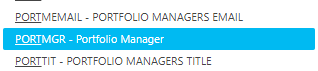
Go to Configuration → System Parameters
(Trust Accountant access required).Open each relevant parameter.
Scroll to the bottom.
Click Add New Parameter.
Save changes.
⭐ Quick Decision Guide
| Scenario | Recommended Setting |
|---|---|
| Everyone sees everything | None |
| Strict portfolio separation | Cirrus8 Portfolio – Access Restricted |
| Managers restricted, Admins full access | Cirrus8 Portfolio – All Access |
| Fully custom access rules | FM Own Portfolio |
Was this article helpful?
That’s Great!
Thank you for your feedback
Sorry! We couldn't be helpful
Thank you for your feedback
Feedback sent
We appreciate your effort and will try to fix the article