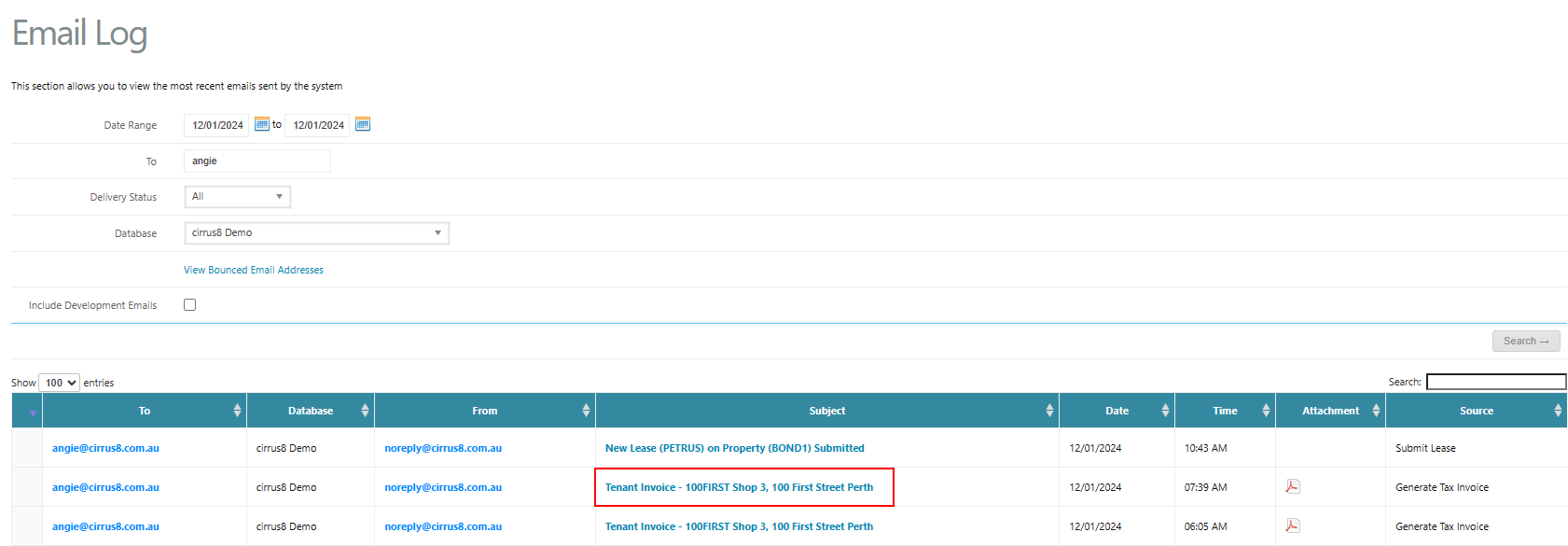
 3. In the pop-up window:
Hover your mouse over each recipient’s name.
4. You will see:
When the email was processed
When it was delivered
Whether and when it was opened
Viewing Email Content
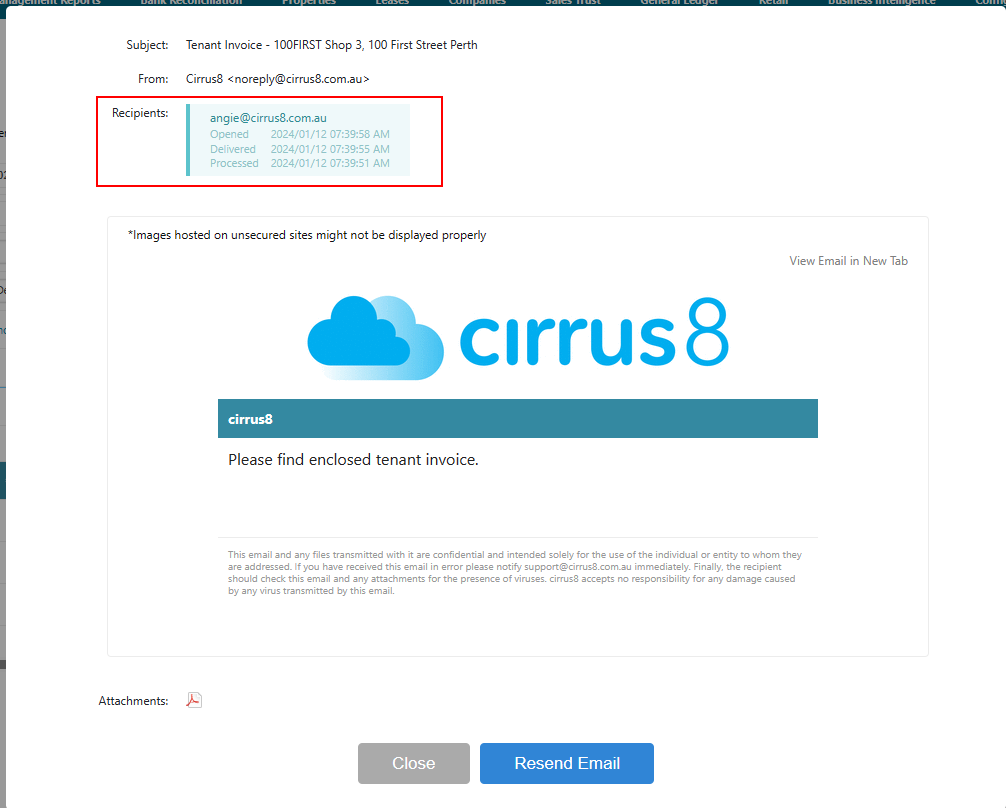
4. View the Email Body and Attachments
Go to the Email Log / Email History.
Click the Subject of the relevant email.
The system will display:
The full email body
Any attachments sent
Note: Email bodies are retained for one year.
Resending Emails
5. Resend a Previously Sent Email
Open the Email Log / Email History.
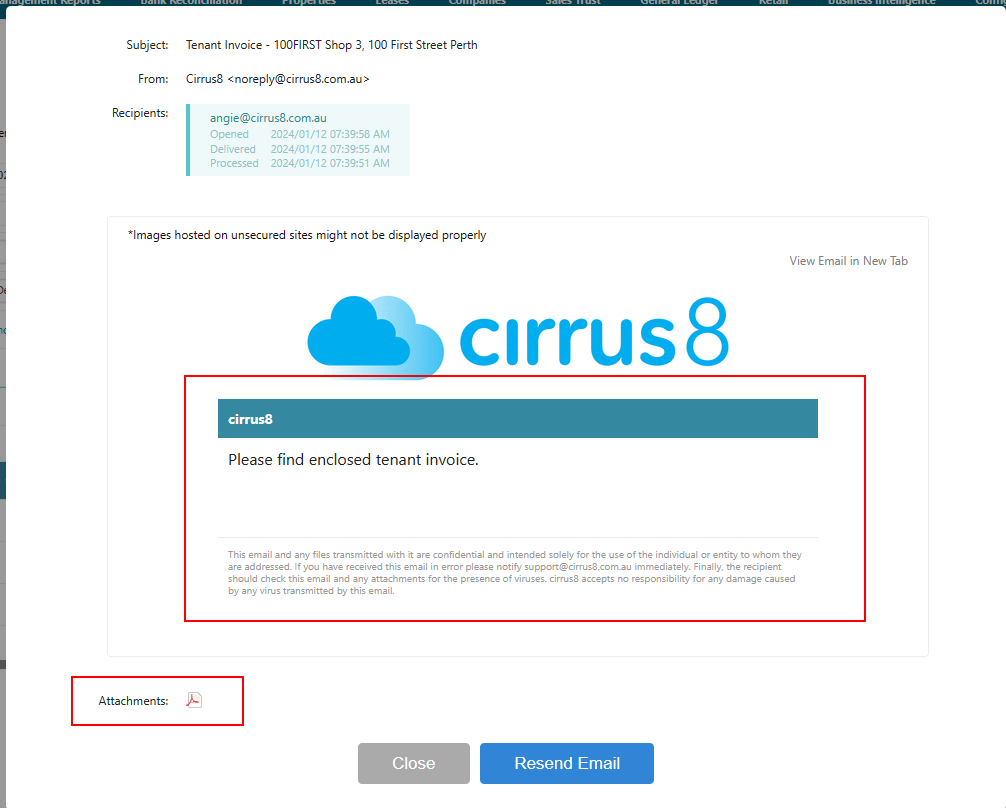
Click the Subject of the email.
Select Resend Email.
The email will be resent to the original recipient.
Handling Bounced Emails
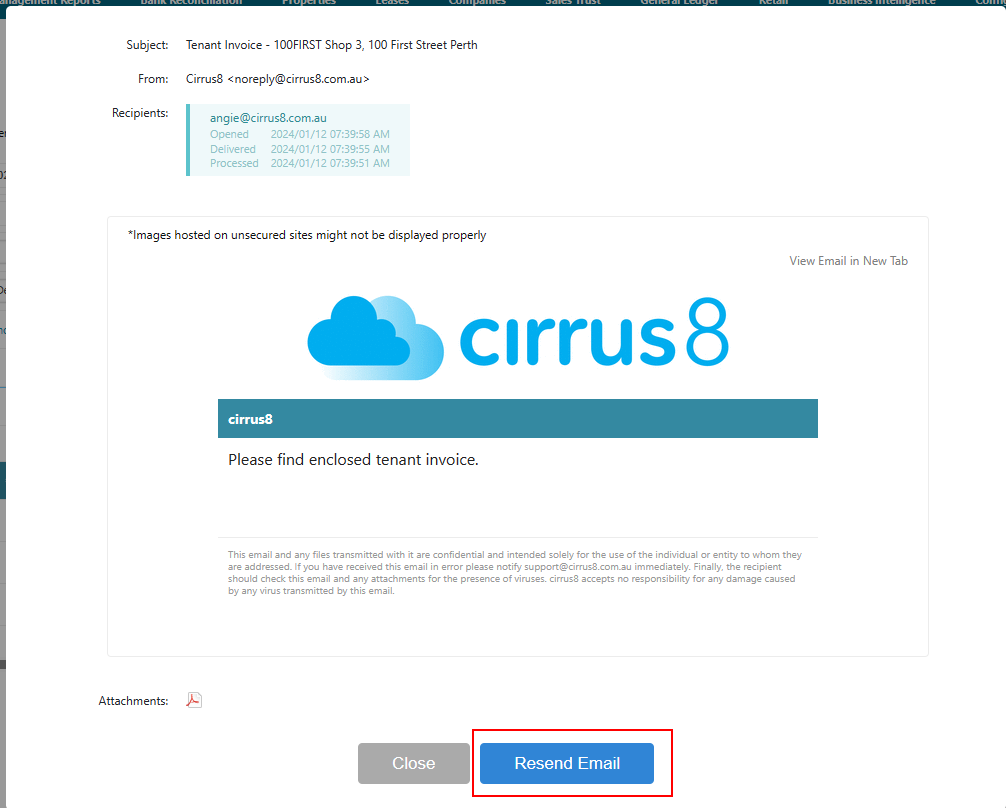
6. Identify Bounced or Failed Emails
Open the Email Log / Email History.
Look for a warning icon beside a recipient.
Hover over the icon to see:
The reason the email failed.
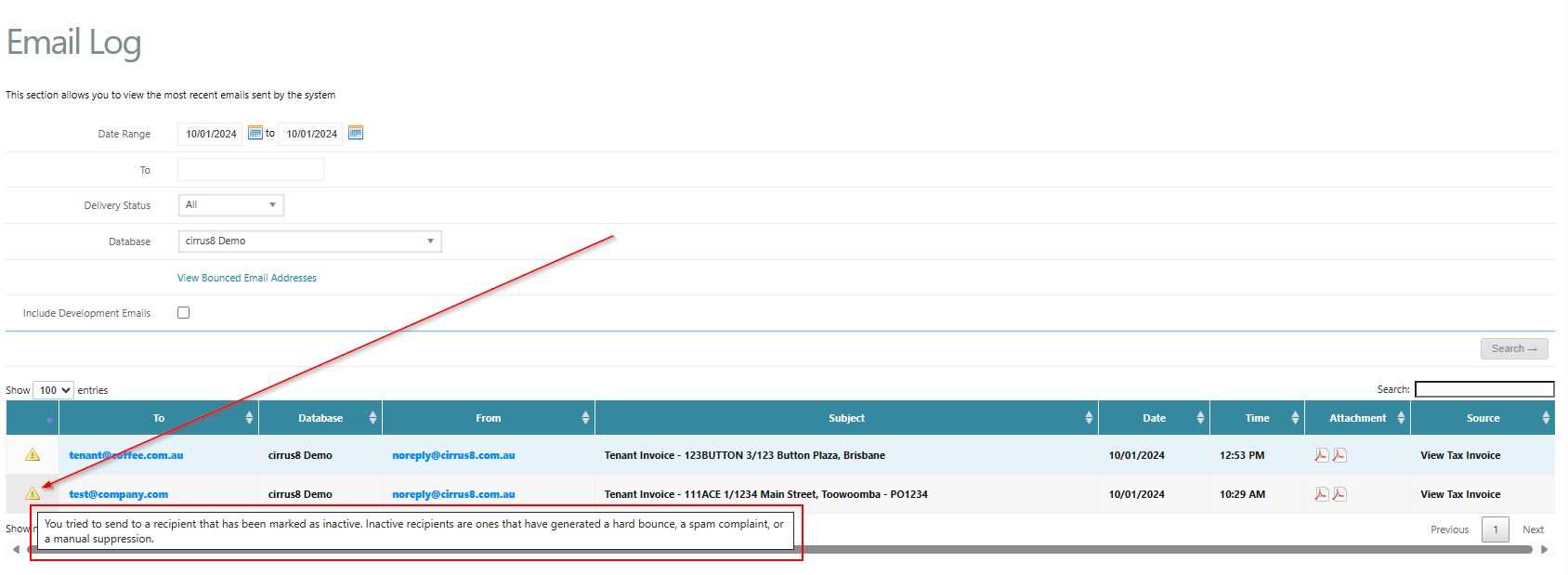
7. Understand Hard Bounces
A hard bounce usually means:
The recipient’s email address does not exist, or
The recipient’s mail server has blocked delivery.
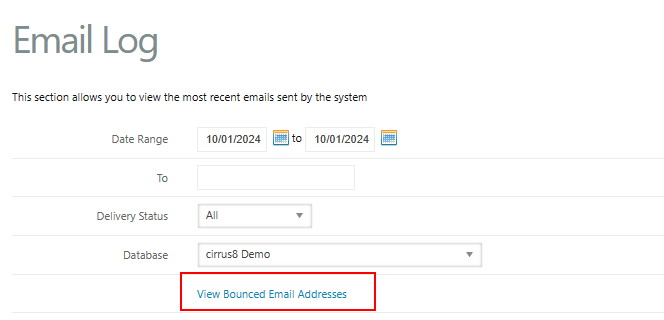
This section allows you to view inactive email recipients:
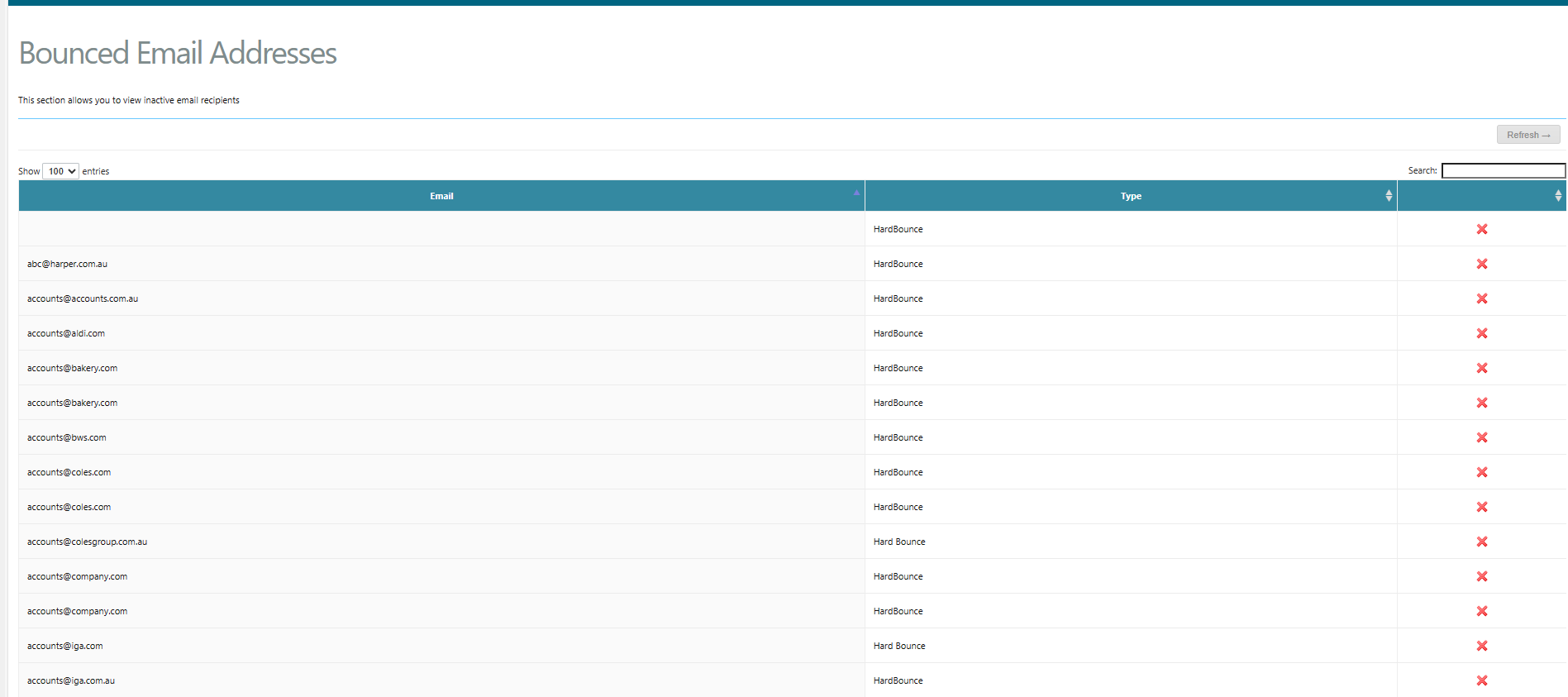
8. Resolve Bounce Issues
Ask the recipient to:
Add your domain to their contact or safe-sender list, or
Ask their IT team to whitelist Postmark sending IP addresses.
Review inactive or bounced recipients in the Bounce Email Addresses section of Cirrus8.
Any corrections must be made on the recipient’s side, as the issue is typically caused by their email domain settings.
Getting Help
9. Contact Support
If you experience issues or need assistance:
Email support@cirrus8.com.au
Was this article helpful?
That’s Great!
Thank you for your feedback
Sorry! We couldn't be helpful
Thank you for your feedback
Feedback sent
We appreciate your effort and will try to fix the article