The Administration tab is where administrators manage system settings, users, and email logs within CirrusFM.
⚠️ Only users with Administrator access can view and use this tab.
Step 1: Open Form Settings
Go to Administration
Select Form Settings
This section allows you to control user views and default settings for quotes and work orders.
1.1 Set Up Users View
Open Users View.
Configure how users see information within the system.
Refer to the Portfolio page for full setup instructions.
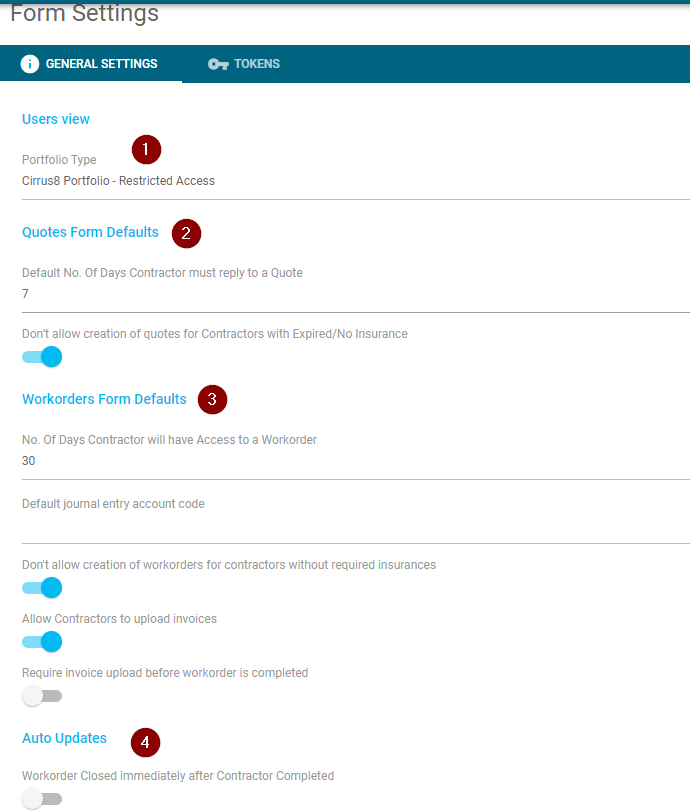
1.2 Configure Quotes Form Defaults
Go to Quotes Form Defaults.
Set the number of days a supplier can open or respond to a quote.
Recommended maximum: 90 days
After expiry, the supplier link will no longer work.
Enable or disable the option to:
Block users from selecting contractors with expired mandatory insurance.
1.3 Configure Workorder Form Defaults
Open Workorder Form Defaults.
Set how many days suppliers can respond to or open a work order.
Recommended maximum: 90 days
Configure additional options:
Default account code for journal entries (FM PLUS feature).
Block users from selecting contractors with expired mandatory insurance.
Allow contractors to upload invoices.
Require contractors to upload an invoice before marking work as complete.
1.4 Configure Auto Updates
Go to Auto Updates.
Enable:
Workorder Closed Immediately After Contractor Completed
Automatically closes work orders when suppliers mark jobs as completed.
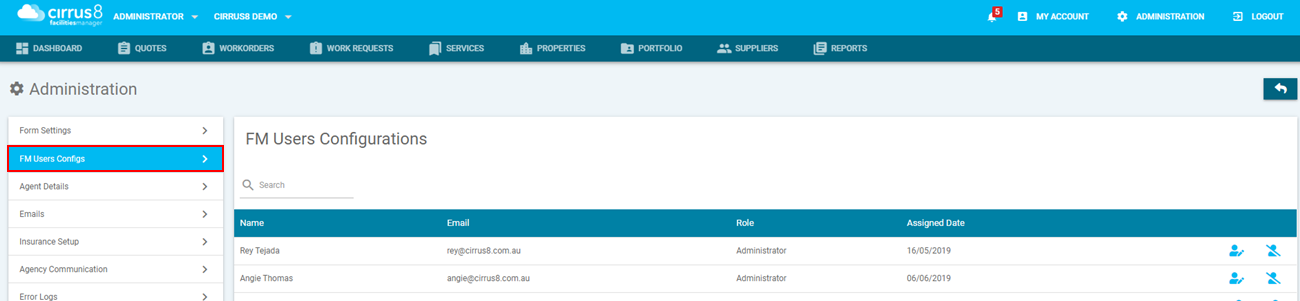
Manage FM User Configurations
Administrators can edit user permissions and limits.
Go to Administration > FM User Configurations.
Locate the user you want to edit.
Use the icons next to each user:
✏️ Person with pencil
Set approval type:
Always needs approval
No limit
Has limit
? Person with line through
Revoke administrator access.
? Person icon
Grant administrator access.

Update Agent Details
Go to Administration > Agent Details.
Update the information that appears on quotes and work orders.
Sections include:
General Details
Company name and contact information.
Addresses
Billing and company addresses.
Logo
Upload company logo.
Terms
Add terms shown on quotes and work orders.
You can upload a PDF.
When sent to suppliers, two attachments will be included:
Quote or work order
Terms document
View Email Logs
The system includes a log of all emails sent from CirrusFM.
Go to Administration > Emails.
View email history.
Sort emails by:
Supplier
Transaction Type
Sent By
Create Date
Status

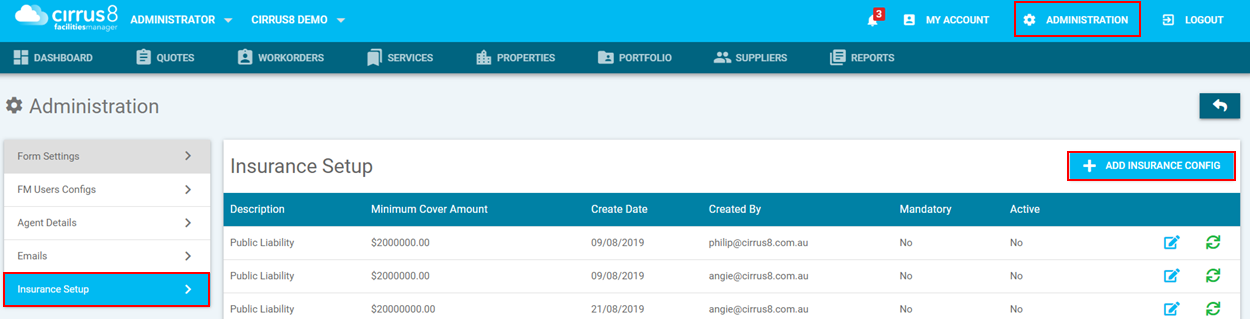
Set Up Insurance Requirements
Administrators can define insurance rules for supplier compliance.
Go to Administration > Insurance Setup.
Click Add Insurance Config.
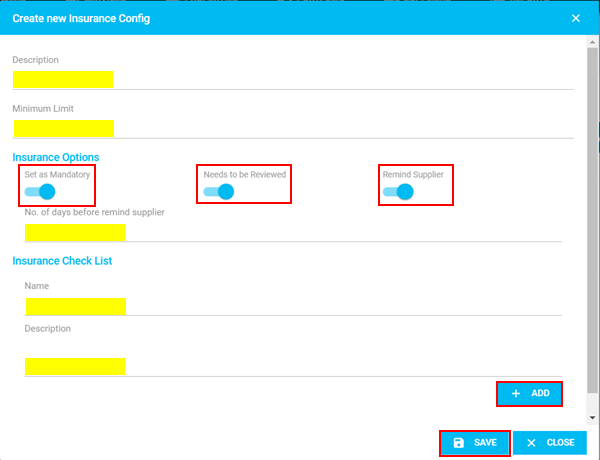
Complete the Insurance Configuration:
Description
Type of insurance.
Minimum Limit
Minimum coverage amount required.
Insurance Options (toggle on/off):
Mandatory insurance requirement.
Supplier reminders (days configurable).
Insurance Checklist
Define what must be checked, for example:
Valid dates
Correct insured name
Save the configuration.
Activate or Deactivate Insurance Rules
Use the Active / Inactive button at the end of each row to change status.

Was this article helpful?
That’s Great!
Thank you for your feedback
Sorry! We couldn't be helpful
Thank you for your feedback
Feedback sent
We appreciate your effort and will try to fix the article