The Contractors tab allows you to select from the following options:- Please note this is only available in CirrusFM+

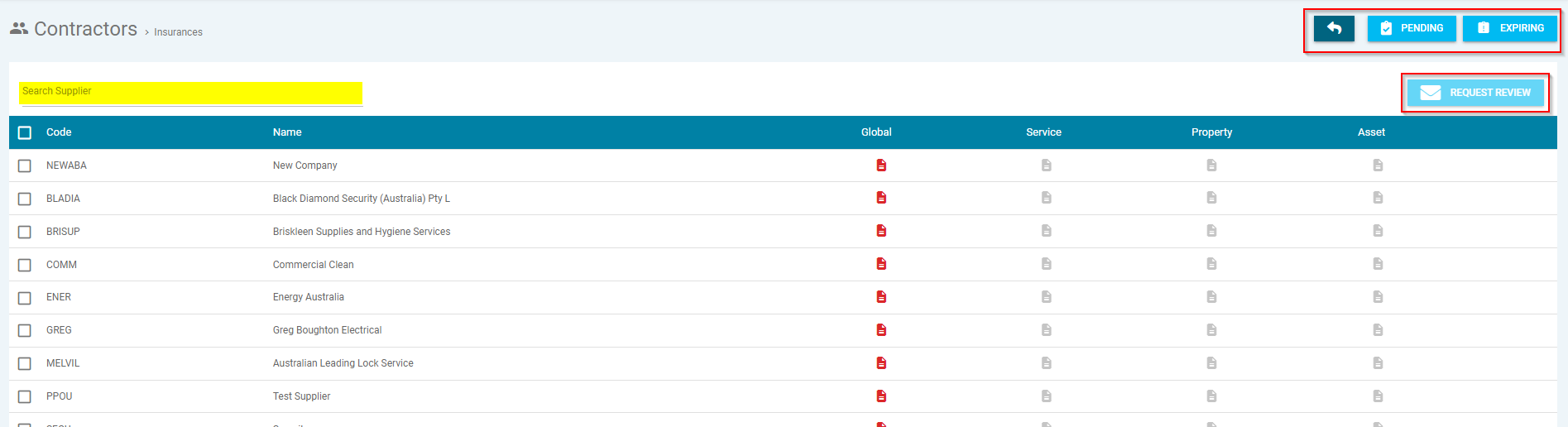
- Insurance Review -This allows you to send the insurance review request to multiple contractors by clicking 'Insurance Review'. Once selected you can action the following:-
- Back Arrow - This will take you back to the previous screen
- Pending - This will show insurance reviews uploaded pending approval
- Expiring - This will show insurances expiring
- Search Bar - You can search for a specific supplier
- Request Review - This will send the insurance reviews to all contractors selected
- Search Keyword - Search by keyword
- Filters - This allows you to filter the list of contractors by code, name and type
- User Accounts Column - This will allow you to view the user registration status. When the following is selected, it will take you to the contractors contact:-
- Blue Mail Icon - This will show you the number of invites sent
- Green Person with Tick Icon - This will show you the number of registered user
- Insurance Column - This will allow you to view the insurance status. When the following is selected, it will take you to the contractors insurance:-
- Green Icon - This means the insurance is current
- Orange Icon - This means the insurance is due to expire within 30 days
- Red Icon - This means the insurance has expired
- Faded Red Icon - This means there is no insurance in the system for the contractor
- You can view information in regards to a specific contractor, by selecting the contractor you wish to view
Contacts
The Contacts tab will show all the contacts for the contractor.
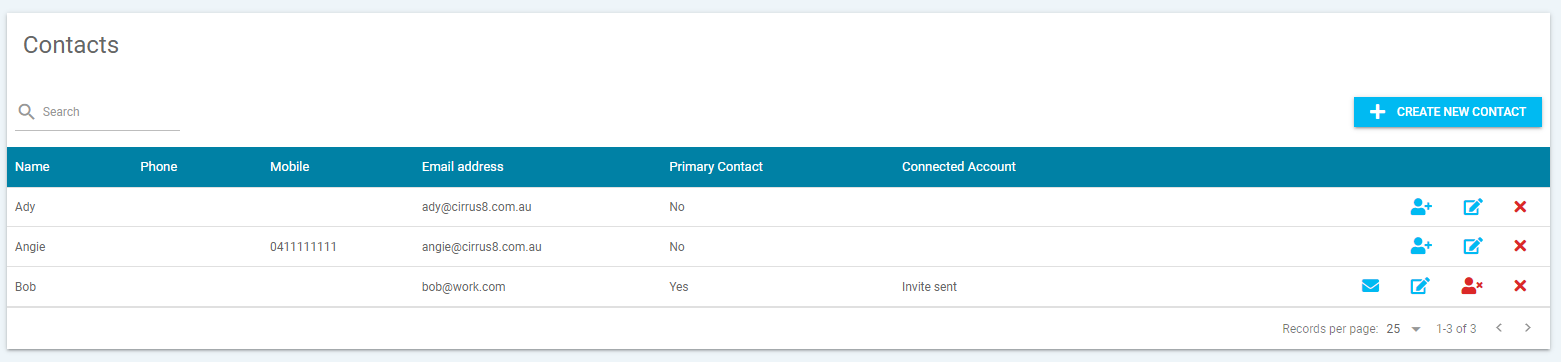
Where the contacts are pulled through from Cirrus8, you will need to update these details in Cirrus8 and the information will update in CirrusFM.
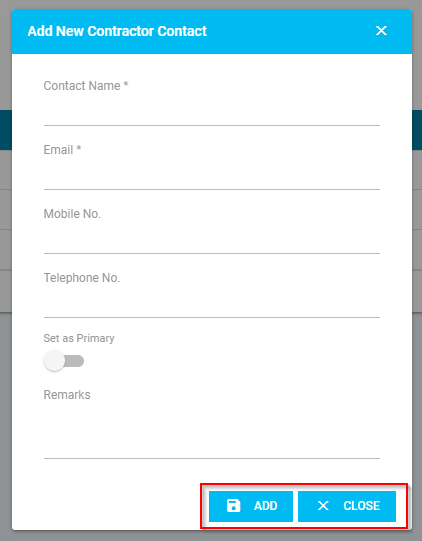
You can add a contact by clicking 'Create New Contact', which will open a pop-up window and prompt you to enter the following, then click 'Add' to save or 'Close' to go back:-
- * means this is a mandatory field and must be entered to create the new property contact
- Contact Name* - Enter the name of the contact
- From Tenant - Select the tenant from the drop-down menu
- Email* - Enter the email of the contact
- Mobile No. - Enter the mobile number for the contact
- Telephone No. - Enter a contact number for the contact
- Set as Primary - Turn on this toggle to make the contact the primary contact
- Remarks - Enter remarks for the contact
 Once the contacts has been added, you will have the option to action the following:-
- Blue Person with + Icon - This will send an invite to the contractor to register to the supplier portal
- Pencil Icon - This will allow you to edit the contact details
- Blue Mail Icon - This will allow you to resend the invite to the contractor
- Red Person with x Icon - This cancel the invite request sent to the contractor
- Red Cross Icon - This will delete the contact
Insurances
The Insurance tab will allow you to view and add the insurance policies for the contractor.
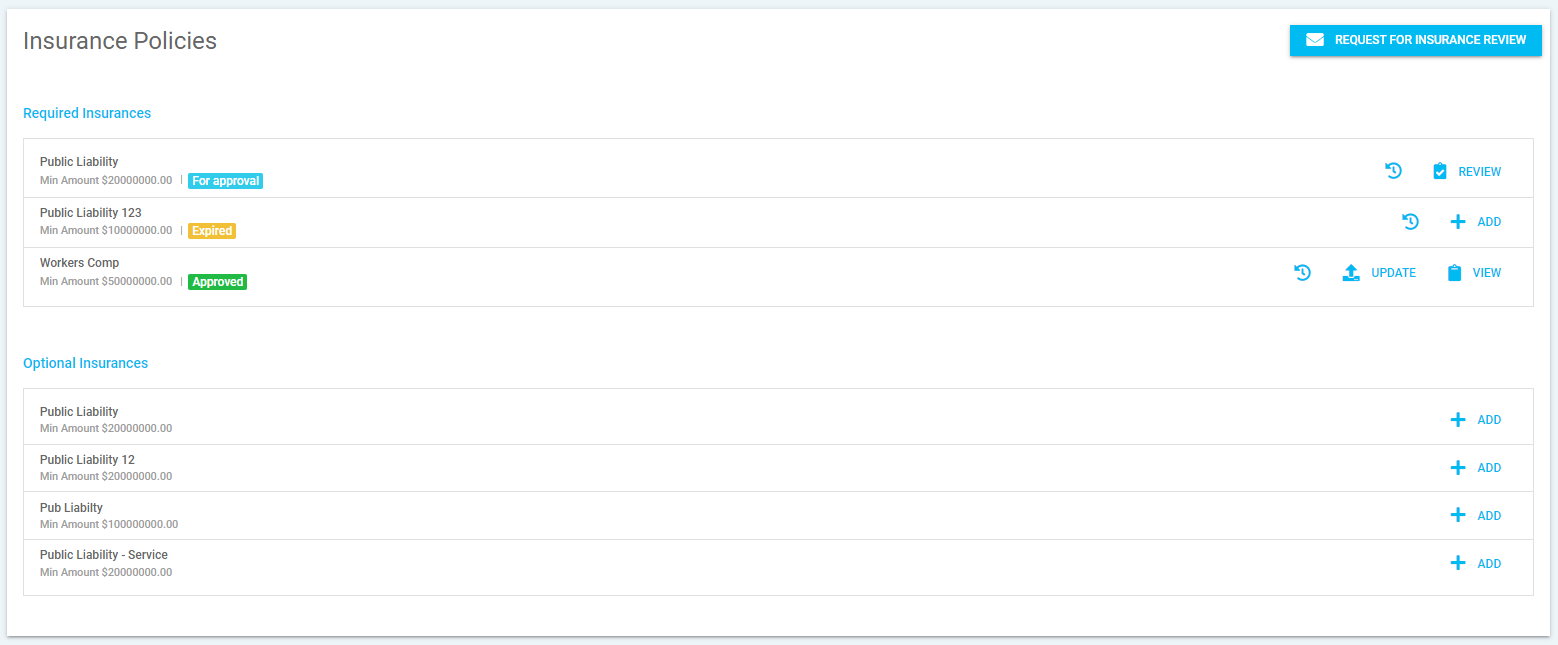
Under 'Insurance Policies' all active insurance templates created will appear. For each policy, you will have the option to action the following:-
- Request For Insurance Review - This will send an email to the contractor requesting a copy of their insurance.
- If the contractor has access to the supplier portal they are also able to upload a copy of the insurance and this will sit as pending awaiting approval.
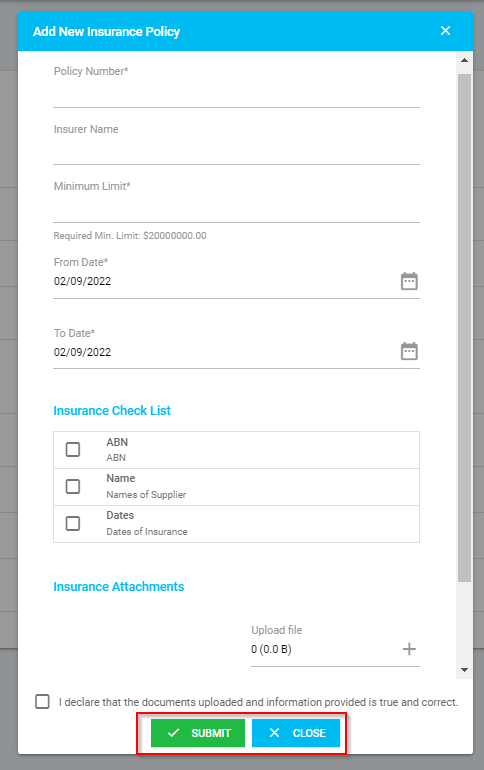
- Add - This will allow you to add a new insurance policy. When selected, a pop-up window will open and prompt you to enter the following, then click 'submit' to save or 'close' to go back:-
- * means this is a mandatory field and must be entered to create the new property contact
- Policy Number* - Enter the insurance policy number
- Insurer Name - Enter the name of the insurer
- Minimum Limit* - Enter the minimum limit for the insurance policy. The minimum limit must be equivalent or exceeds the 'Required Min Limit'
- From & To Date* - Enter the date the period the insurance policy relates to
- Insurance Check List - Check and tick off check list
- Insurance Attachments - This will allow you to add a copy of the insurance policy, by selecting the + under 'Upload file'.
- Declaration Checkbox - Tick to confirm the details are correct.
- Clock with Arrow Icon - This will allow you to view the contractor insurance history, such as expired policies
- Update - This will allow you to update and add a new insurance policy.
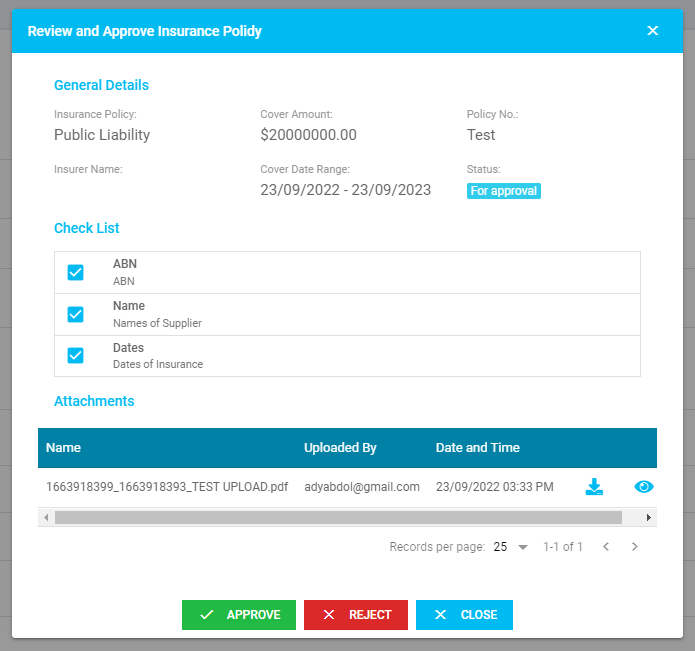
- Review - This will allow you to approve or reject the policy submitted by the contractor
- View - This allows you to view the most current policy that has been uploaded and approved
NOTE: Insurance policies are created by the administrator and more information is located in the Administration article
Transactions
This will show all the quotes and workorders that have been created for the contractor.
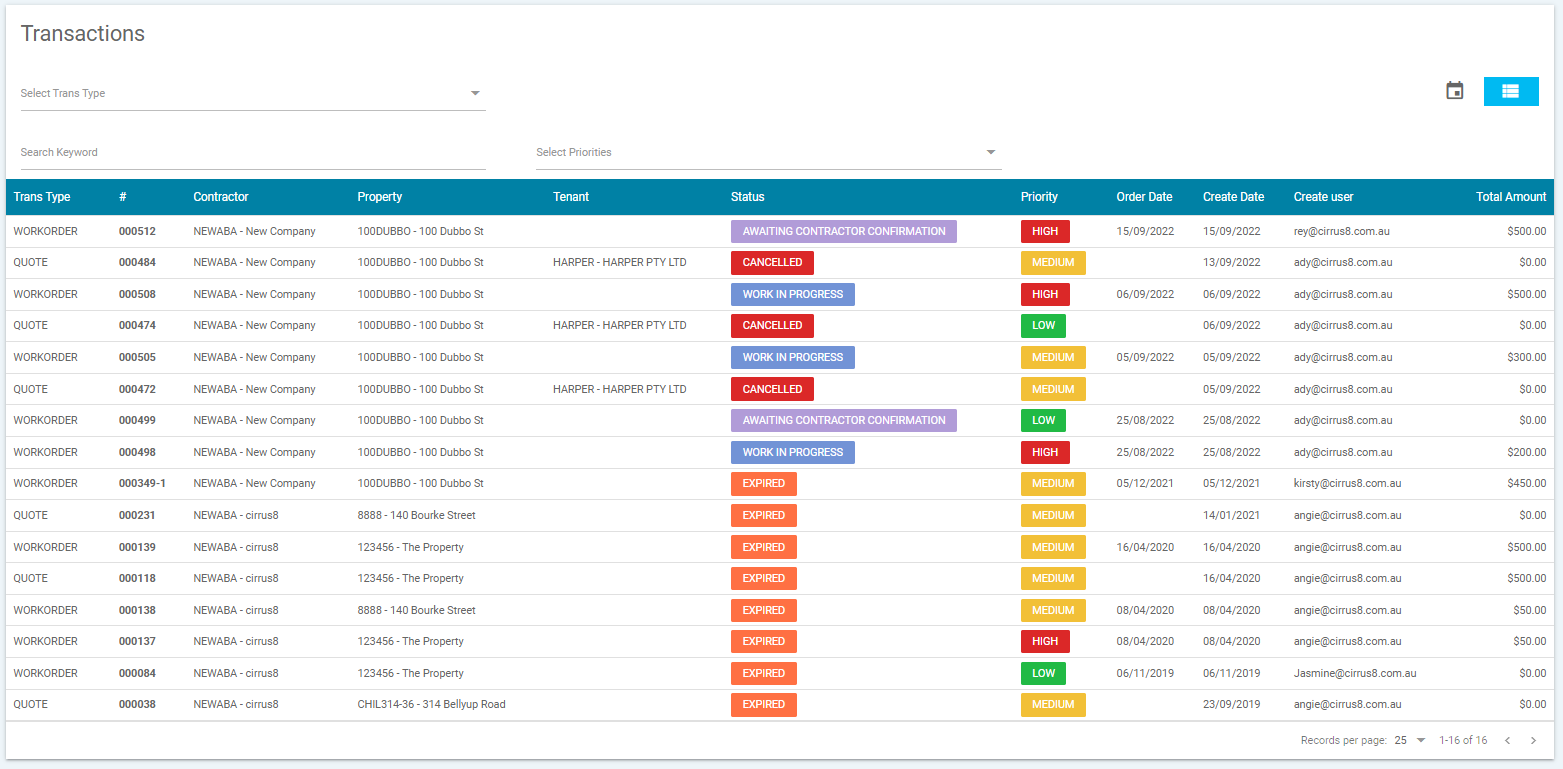
- You can filter your search by transaction type, keyword or priorities.
- By selecting a transaction it will take you through to quote, workorder or work request selected to view more information.
Repeating Workorders
This will show all the repeating workorders that created for the contractor
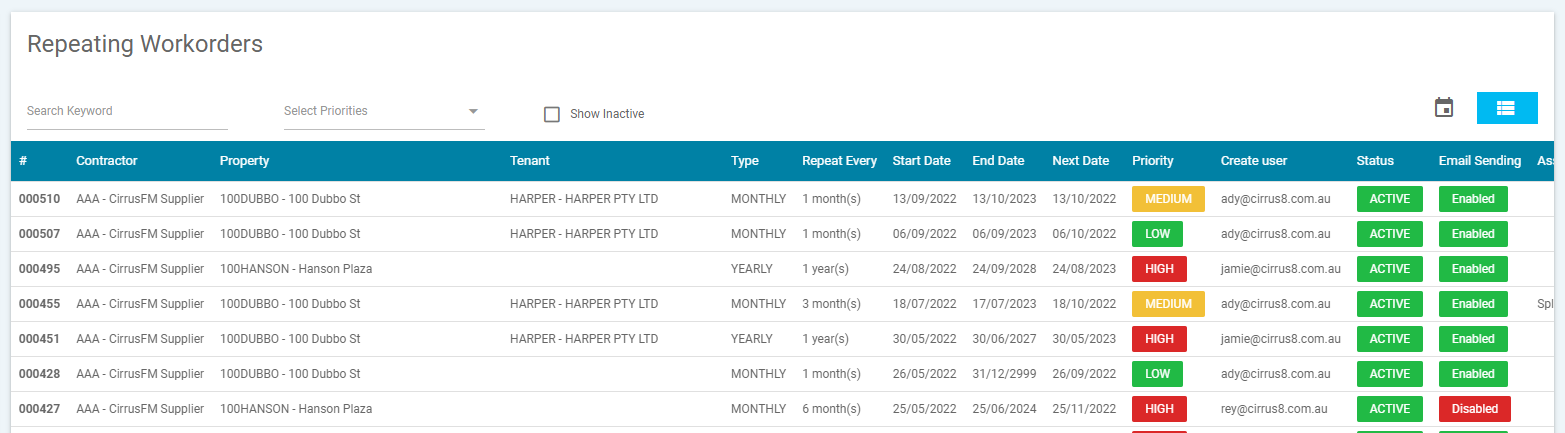
- You can filter your view of transaction by keyword or priorities
- By selecting a workorder, it will take you through to the workorder to view more information.
Documents
This section will allow you to upload documents for a contractor.

By selecting the + under 'Upload a new Document' a pop-up window will appear to select the document you wish to upload.
Once selected, a new pop-up window will open and prompt you to enter the title and description of the document, then click 'save' to save or 'cancel' to go back.
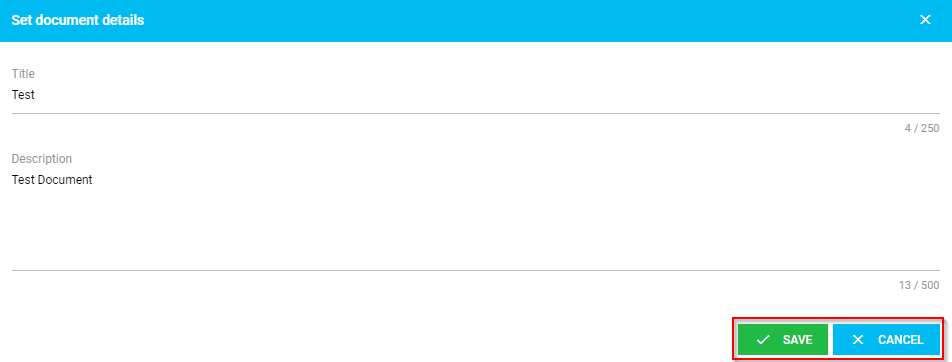
Once the document has been uploaded, you will have the option to action the following:-
- Picture Icon - This will allow you to view the document
- Download Icon - This will allow you to download the document
- Pencil Icon - This will allow you to edit the document details
- Red Eye with Line Icon - This will allow you to hide the document from contractors
- Red Cross Icon - This will allow you to delete the document
Agency Communication
This section will allow you to view Agency Communication documents added.

For a selected document, you will have the option to action the following:-
- Picture Icon - This will allow you to preview the document
- Download Icon - This will allow you to download a copy of the document
NOTE: The agency communication are upload by the administrator and more information is located in the Administration article.
Contractor Notes
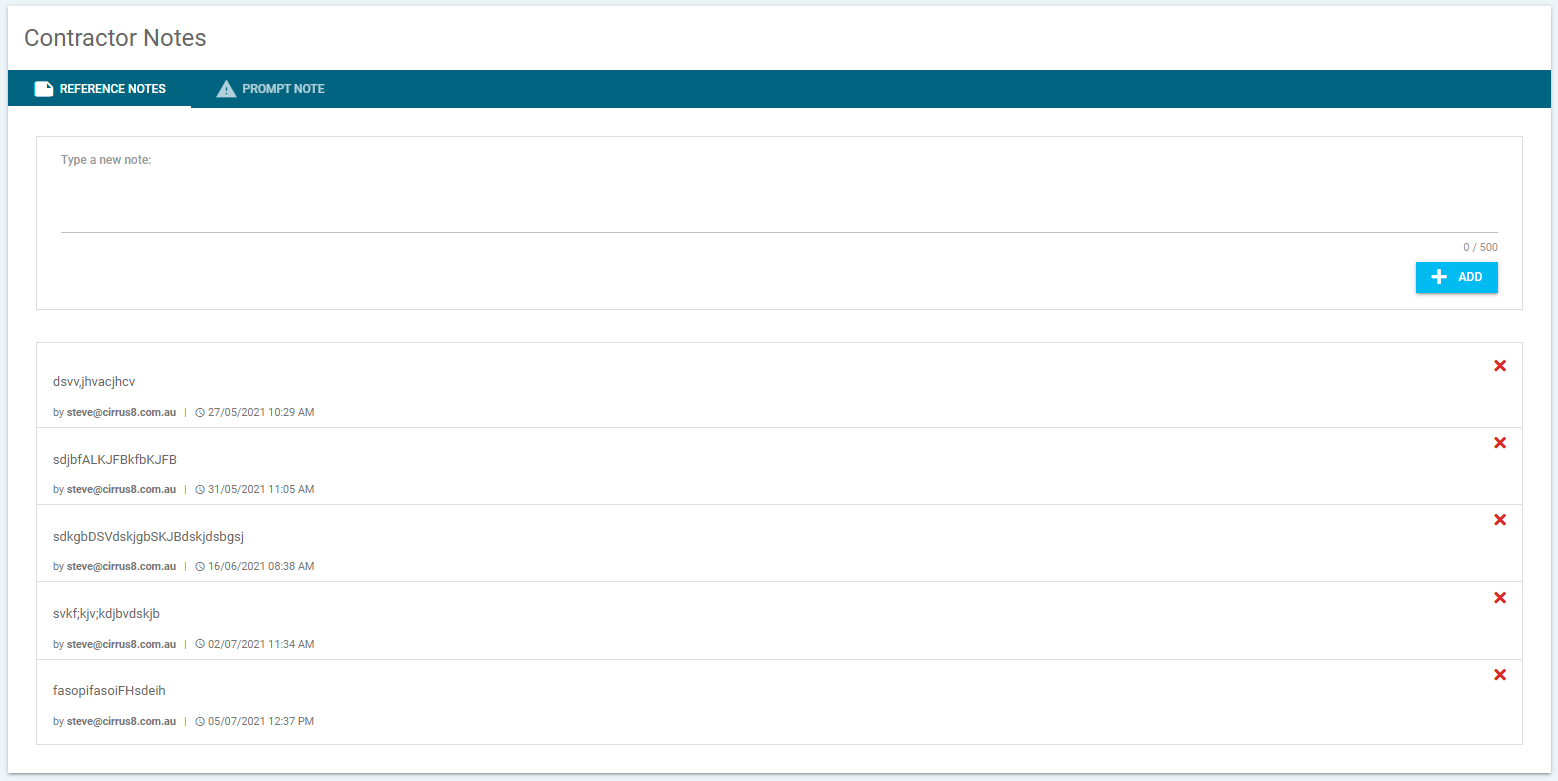
Reference Notes
Reference notes can be added for contractors. Unlike the building notes, these notes will only be a reference within the contractors tab and will not appear on quotes or workorders.
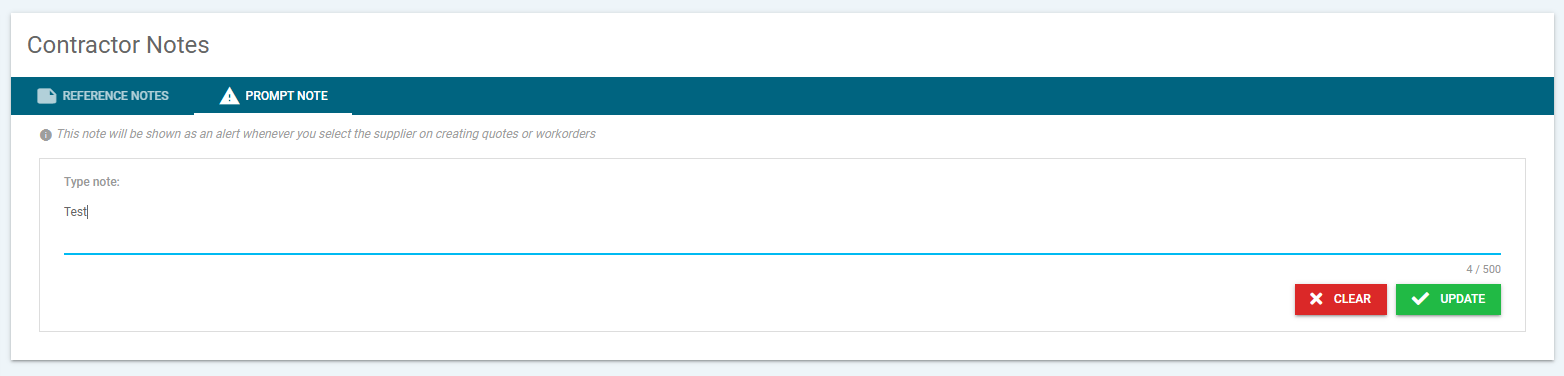
Prompt Note
A prompt note can be added to used as a reminder when the contractor is selected, which will appear as a pop-up when you go to create a new quote or workorder.
Was this article helpful?
That’s Great!
Thank you for your feedback
Sorry! We couldn't be helpful
Thank you for your feedback
Feedback sent
We appreciate your effort and will try to fix the article