Adding Maintenance to Property
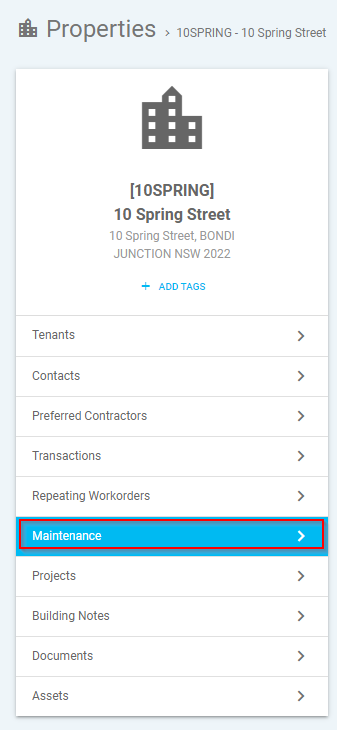
Search and select a Property from the 'Properties' tab. Once selected, go to the 'Maintenance' tab located on the left hand side of the screen.
Adding and Updating Maintenance on a Property
Part 1: Add Maintenance to a Property
Open the Properties list
Go to the Properties tab.
Find and select the property
Use search (if available), then select the correct Property from the list.
Open the Maintenance area
With the property selected, click the Maintenance tab on the left-hand side.
Part 2: Understand the Maintenance screen options
Under the Maintenance tab, you can use these buttons/options:
Back arrow
Takes you back to the previous screen.
Subscribe
Subscribes you to diary reminders for this property.
Button with gears (Update Property Settings)
Opens property settings where you can:
Update Invoice Settings
Add a Maintenance Template to the property
Create Workorder
Lets you create a work order using the property’s maintenance template.
Red document with PDF symbol
Print / Export to PDF
Green document with X
Print / Export to Excel

Updating Maintenance Template for Property
Part 3: Add a Maintenance Template (via Update Property Settings)
From the Maintenance tab, click Update Property Settings (the gears button).
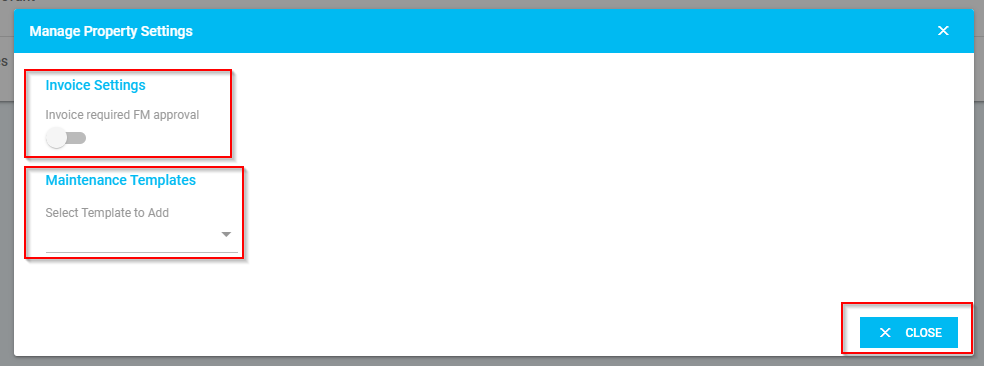
A pop-up window will appear. Complete the following fields:
Invoice Settings
Swipe the bar to indicate when an invoice requires FM approval.
Maintenance Templates
Select the correct maintenance template from the drop-down menu.
Once complete, click “x Close” to exit the pop-up window.
Updating a Property’s Maintenance Template
Part 4: Check or update maintenance dates using the status dots
In the Maintenance tab, locate the maintenance items list.
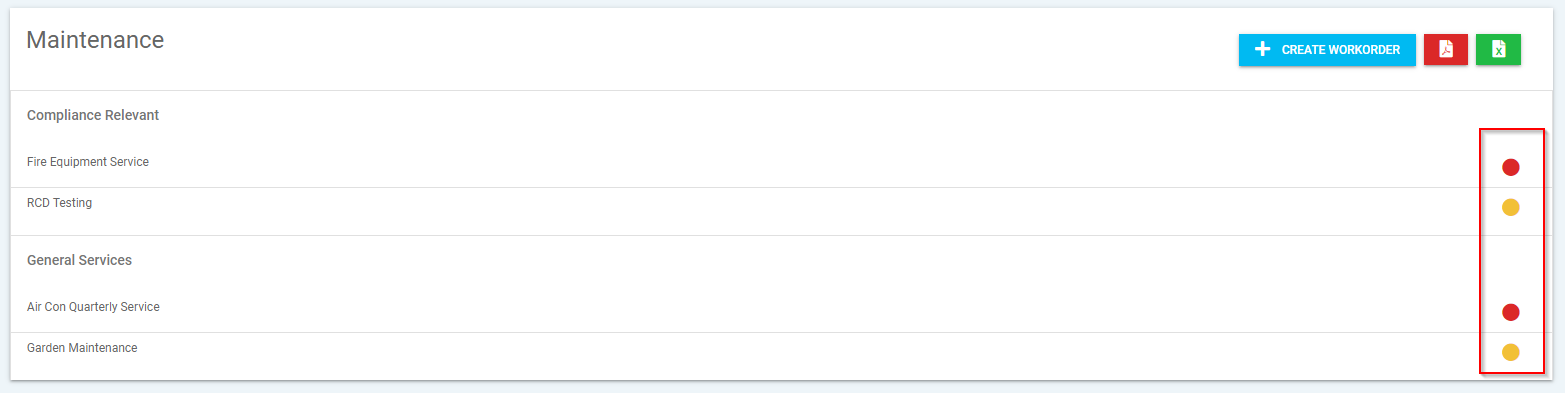
Click the coloured dot beside the relevant maintenance item to open Line Details.
Dot colour meanings
(**Note:  Red Dot – Overdue /
  Orange Dot - Due Soon /
  Green Dot – Current)
Part 5: Update the “Last Maintenance Date” in Line Details
In the Line Details pop-up, find Last Maintenance Date.
This will show the most recent service date (if one exists), or allow you to add one.
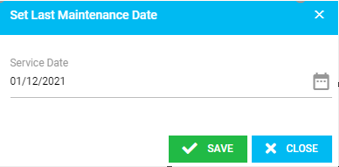
To change or add the date, click “here”.
3. Enter the last service date.
4. Click Save.
Part 6: View maintenance history (optional)
In Line Details, click View History
This displays the transaction history for that maintenance line/item.

Was this article helpful?
That’s Great!
Thank you for your feedback
Sorry! We couldn't be helpful
Thank you for your feedback
Feedback sent
We appreciate your effort and will try to fix the article