CirrusFM Services Tab: Step-by-Step Guide
Overview
The Services tab in CirrusFM allows administrators to create and manage service types and assign the correct account codes for each service.
Because each client may use different account codes, this area must be configured to suit the client’s requirements.
Important: The Services tab is only available to administrators.
1. Creating New Service Codes
Step 1: Open the Services tab
Log in to CirrusFM and navigate to the Services tab.
Step 2: Select Create New
Click the Create New button.
This opens a new window where you can enter the service details.
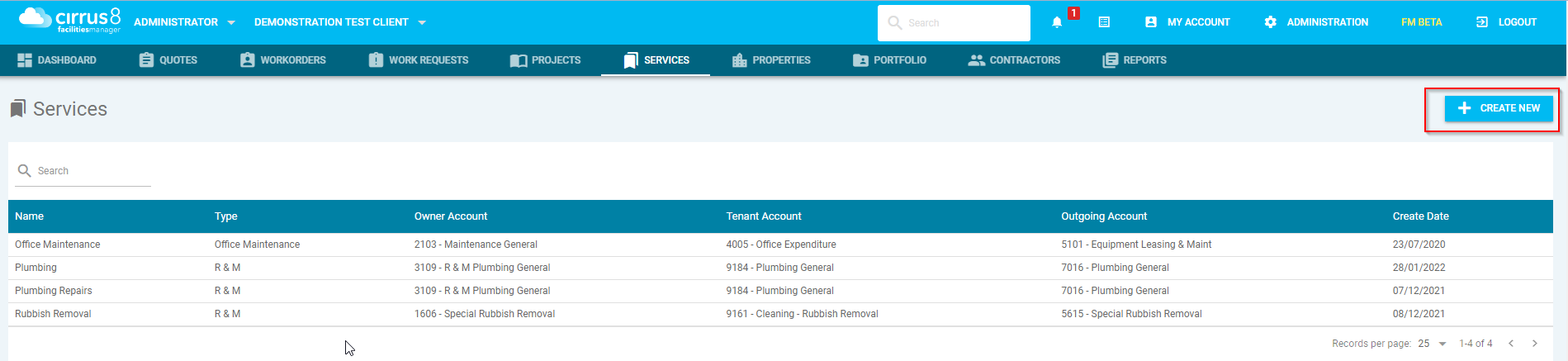
This will open a new window for you to enter the details of that service type.
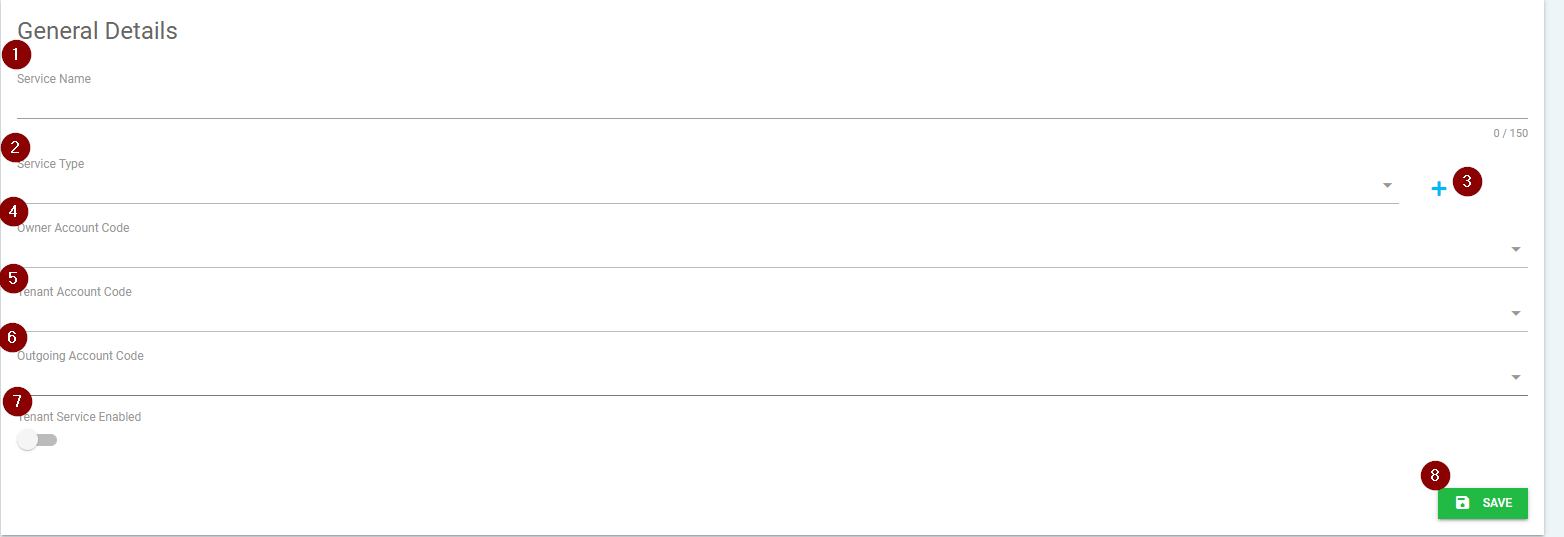
Step 3: Enter the service details
Complete the relevant fields:
Service Name
Enter a clear and descriptive name for the service.
Service Type
Select the appropriate service type for the service.
Service Type Creation
If the service type does not already exist, click the plus (+) icon to create a new service type.
Owner Account Code*
Select the relevant owner account code.
These account codes are pulled through from Cirrus8.
Tenant Account Code*
Select the relevant tenant account code for directly recoverable costs.
These codes are also pulled through from Cirrus8.
Outgoing Account Code*
Select the relevant outgoing account code for variable outgoings.
These are fed through from Cirrus8 as well.
Tenant Service Enable
Enable this option if the service should be available in the tenant portal once the portal is live.
This allows tenants to submit work requests for enabled services.
Step 4: Save the service
Click Save and Create to save the new service code.
Note
If a required account code does not exist, a Trust Accountant user can create it in Cirrus8 under:
Configuration > Manage Account Codes
2. Adding a Service to a Work Order
Step 1: Create a quote or work order
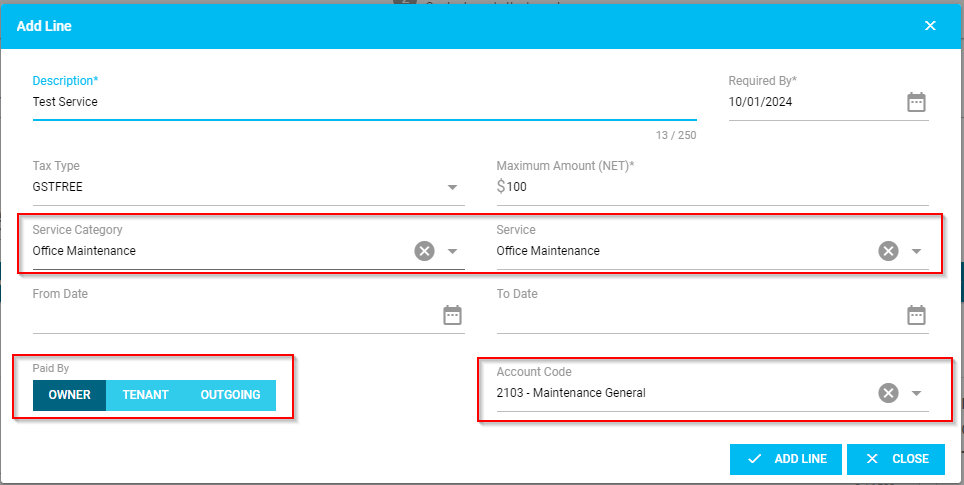
When creating a Quote or Work Order, go to the Add Line section.
Step 2: Select the service
Choose the required service from the available list.
Step 3: Select Paid By
Once the Paid By option is selected, the system will automatically prefill the account code based on the account code assigned to that service.
This helps ensure consistency and reduces manual entry errors.
3. Viewing and Editing a Service
Step 1: Open the Services tab
Navigate to the Services tab in CirrusFM.
Step 2: Select the service
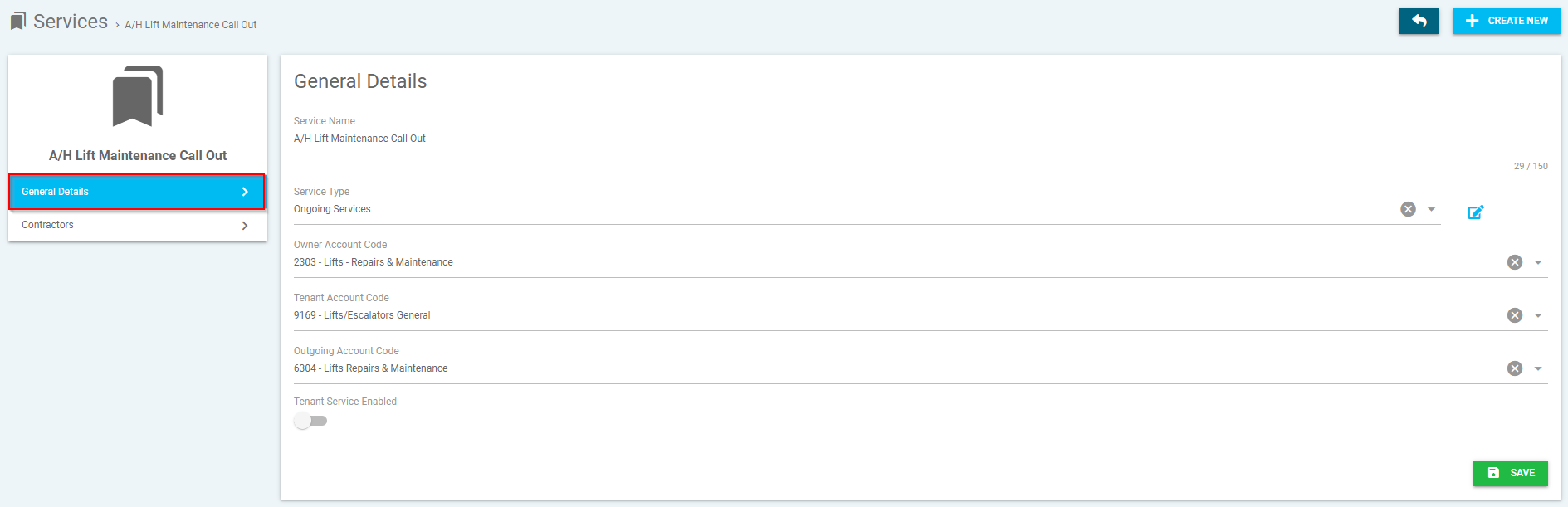
Left-click on the service you want to view or edit.
This will open the service details.
4. Updating General Details
Step 1: Open the selected service
After selecting the service, go to the General Details section.
Step 2: Review or edit service information
In this section, you can view and update the details of the selected service, such as:
Service Name
Service Type
Account Codes
Tenant Service Enable settings
Step 3: Save changes
Save any updates made to the service record.

5. Managing Contractors for a Service
Step 1: Open the selected service
From the Services tab, click on the service you want to manage.
Step 2: Go to the Contractors section
Open the Contractors section for that service.
Step 3: Assign contractors
Use Assign Contractor(s) to link specific contractors to the selected service.
Step 4: Remove contractors
Use Remove Contractor(s) to unlink contractors from the selected service when required.
Quick Reference
Services tab allows administrators to:
Create new service codes
Assign service types
Link owner, tenant, and outgoing account codes
Enable services for tenant portal use
Add services to quotes and work orders
View and edit service details
Assign or remove contractors
Was this article helpful?
That’s Great!
Thank you for your feedback
Sorry! We couldn't be helpful
Thank you for your feedback
Feedback sent
We appreciate your effort and will try to fix the article