The properties tab allows you to view information in regards to a specific property, by selecting the property you wish to view.
Tenants
The system will pull through information from Cirrus8 on the tenants within the property.
Contacts
This will show the contacts set up for the property. If you are wanting to add new contacts, it is recommended that you update this in Cirrus8 and the information will update in CirrusFM.
Preferred suppliers
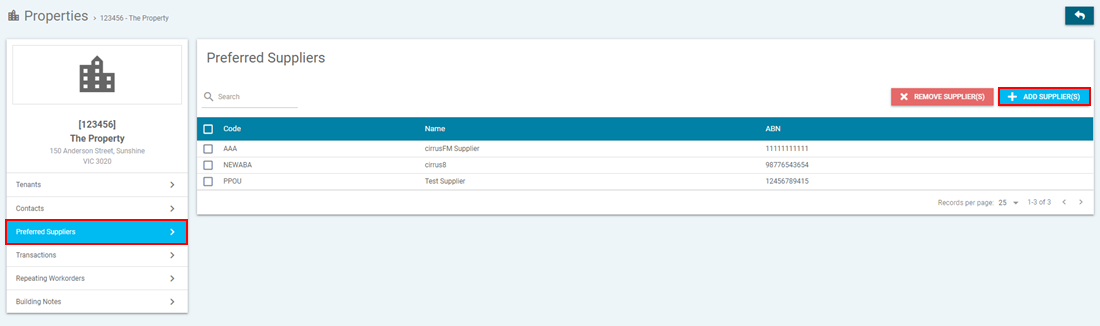
Under each property you can set up preferred suppliers, these will show when creating a quote or workorder, the system will default to show the preferred suppliers however you can un-tick this to show all suppliers.
- Select Preferred Suppliers
- Select Add Suppliers
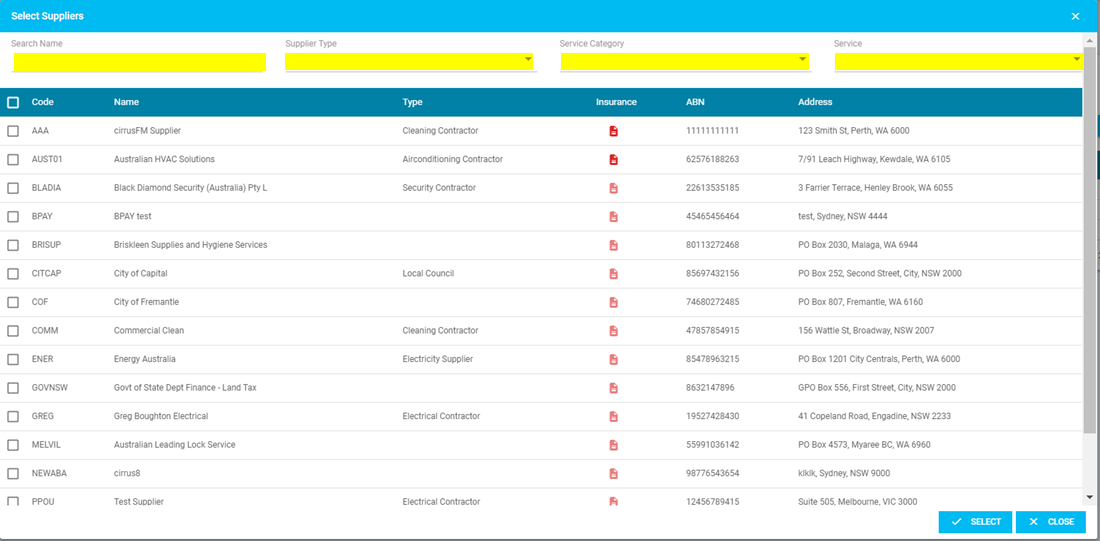
- A new pop up window will appear, you can either filter your search or you can scroll through the page.
- Tick the applicable preferred suppliers for the property and click on select.
- These will now be sitting in the preferred suppliers list.
- If the owner would no longer like to use one of the preferred suppliers, you can tick the box next to that supplier and select remove supplier.
Transactions
This will show all the quotes and workorders that have been created for the property.

- You can filter your view of transaction by the options up the top of the page, keyword, transaction type or priorities.
- By selecting a quote or workorder it will take you through to viewing more information.
Repeating Workorders
This will show all the repeating workorders that are set up for the property.

- You can filter your view of transaction by the options up the top of the page, keyword or priorities.
- By selecting a workorder it will take you through to viewing more information.
Building Notes
Reference Notes
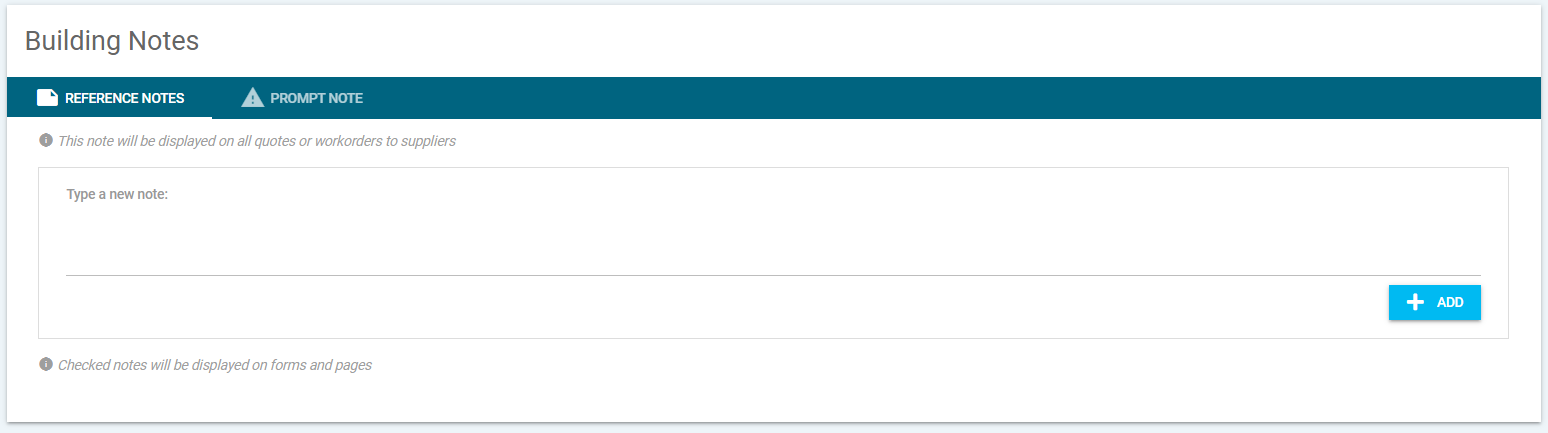
Reference notes can be added for properties, if there are items the supplier might need to be aware of to attend to work such as the location of electrical switchboard.
- Please note - any reference notes that are added for a property will appear on all quotes and workorders.
- Enter in the open field the notes and select ADD to save.
- If you entered something incorrect you can always delete the note from selecting the red X.
Prompt Note
A prompt note can be used in the properties as a reminder for that property, this will appear when you go to create a new quote or workorder for the property as a pop up. This is also set up under the building notes selecting the PROMPT NOTE tab.
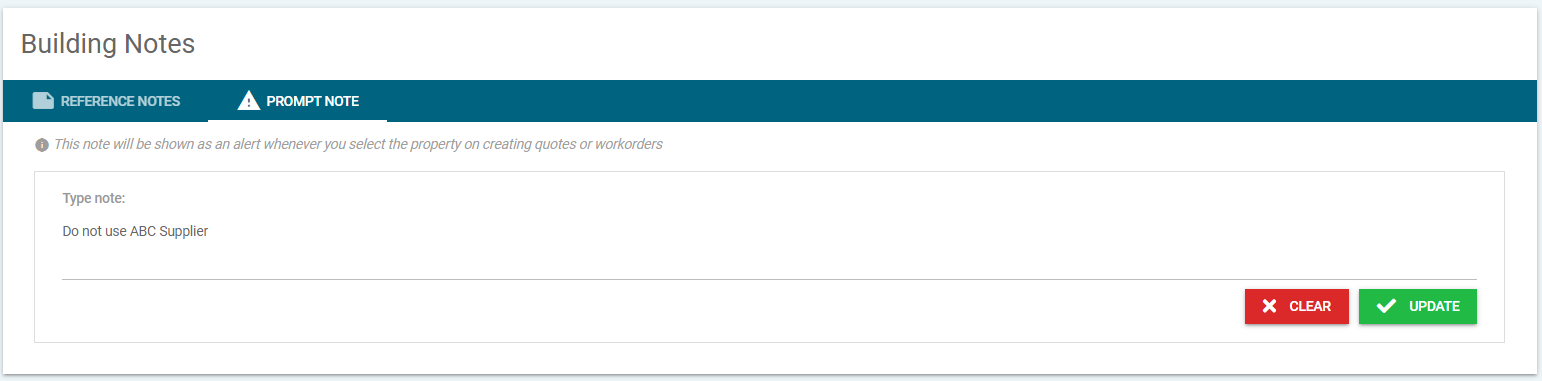
Then when you go to create a quote or workorder this will appear as a pop-up window.

Property Documents
Documents can be added to the property and these will appear on quotes and workorders for suppliers to download.
- By selecting the + under upload a new document a pop-up window will appear to select the document you wish to upload.
- Once opened a new window will appear to enter the title and description of the document.
- You are then able to download the document, hide from suppliers or delete the document.

Was this article helpful?
That’s Great!
Thank you for your feedback
Sorry! We couldn't be helpful
Thank you for your feedback
Feedback sent
We appreciate your effort and will try to fix the article