
Generating a Property Occupancy Status report

Modified on Wed, 18 Feb at 11:50 PM

The area summary report contains a summary of leases and vacant areas across an entire portfolio or at a property level. This report is located under Properties > Property Occupancy Status.
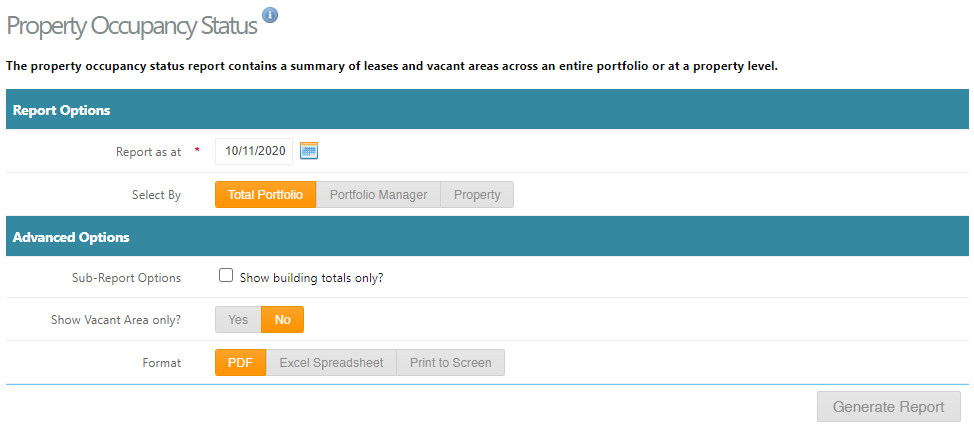
  • Step-by-Step Guide: Running the Property Occupancy Status Report

    The Property Occupancy Status report provides a summary of leased and vacant areas across either the entire portfolio or selected properties. This report can be accessed from the system menu and configured to meet your reporting requirements.

    Steps to Generate the Report

    1. Navigate to the Report

      • From the main menu, select Properties.

      • Click Property Occupancy Status to open the report screen.

    2. Enter the Reporting Date

      • In the Reporting Date field, enter the date for which you want occupancy figures to be calculated.

      • Ensure the date reflects the period you intend to review, as lease and vacancy data will be based on this selection.

    3. Select the Scope of the Report

      • Use the Search or Filter options to determine what data is included:

        • Total Portfolio – Displays occupancy across all properties.

        • Portfolio Manager – Filters results to properties managed by a specific manager.

        • Property – Displays occupancy for a single selected property.

    4. Choose Whether to Show Vacant Areas

      • In the Show Vacant Areas option, select:

        • Yes – Includes vacant units and areas in the report.

        • No – Displays only leased or occupied areas.

    5. Select the Export Format

      • Choose how you want to view or distribute the report:

        • PDF – Suitable for sharing or formal reporting.

        • Excel – Ideal for further analysis or data manipulation.

        • Print to Screen – Displays the report immediately within the system.

    6. Run or Export the Report

      • Click Run, Generate, or Export (depending on system terminology).

      • The report will be produced in the selected format.

  • Results: Each property is listed with unit, tenant and area m2. 

 

Was this article helpful?

That’s Great!

Thank you for your feedback

Sorry! We couldn't be helpful

Thank you for your feedback

Let us know how can we improve this article!

Select at least one of the reasons
CAPTCHA verification is required.

Feedback sent

We appreciate your effort and will try to fix the article
