Managing Unit History in Cirrus8 is essential for maintaining accurate records of property occupancy. This includes updating unit statuses as Vacant, Occupied, or Inactive, and ensuring the effective start and end dates of these statuses are correctly recorded.
Changes to the Unit History can be made via Property Summary under the Floors and Units tab.
Maintaining accurate unit history is critical for:
- Reporting: Ensures occupancy reports reflect the true status of each unit.
- Budgeting: Helps forecast income and expenses accurately for leases.
- Variable Outgoings Reconciliations: Prevents discrepancies in tenant charges.
- Tenancy Schedules: Keeps leasing information up to date for internal and external stakeholders.
Key Rules to Remember:
- No Overlapping Lease Dates: Lease periods must not overlap.
- One Lease per Unit at a Time: A unit cannot be occupied by more than one lease simultaneously.
How to Manage Unit History
Changing Lease Vacate Date
Use this option when a tenant has already vacated, but the vacate date needs to be updated (e.g. they left earlier or later than expected).
Steps:
- Navigate to Properties > Property Summary
- Click on the Floor(s) And Unit(s) Tab
- Click on the Edit Pencil icon to the right
- Click the down arrow icon against the relevant floor to expand the floor details and display the units within this floor
- Click on Edit History against the relevant unit
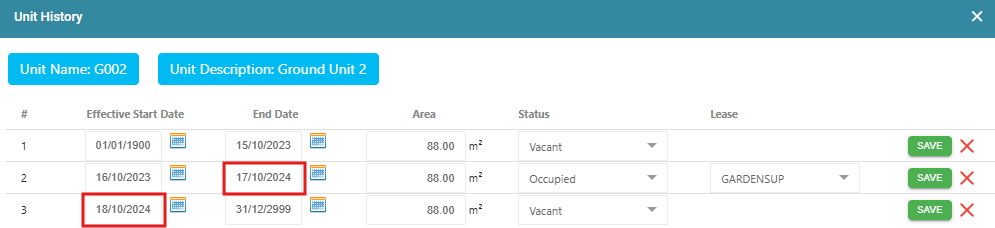
- Amend the End Date for the Occupied unit history entry to the new vacate date and click Save against this entry
- Amend the Effective Start Date for the next unit history entry directly below the Occupied entry to be one day after the new vacate date and click Save against this entry. For example, if the new vacate date is 17/10/2024, change the effective start date for the next entry to be 18/10/2024
Changing Occupancy Dates
This is used when the start or end date of a lease’s occupancy needs to be corrected.
Steps:
- Navigate to Properties > Property Summary
- Click on the Floor(s) And Unit(s) Tab
- Click on the Edit Pencil icon to the right
- Click the down arrow icon against the relevant floor to expand the floor details and display the units within this floor
- Click on Edit History against the relevant unit
- Amend the Effective Start Date and or End Dates as needed. Ensure no overlap with other leases
- Click Save against each entry when changes have been made to the entry
Changing Unit Status (Vacant, Inactive)
You can manually update a unit’s status if it is not tied to a lease (e.g. for maintenance or decommissioning).
Steps:
- Navigate to Properties > Property Summary
- Click on the Floor(s) And Unit(s) Tab
- Click on the Edit Pencil icon to the right
- Click the down arrow icon against the relevant floor to expand the floor details and display the units within this floor
- Click on Edit History against the relevant unit
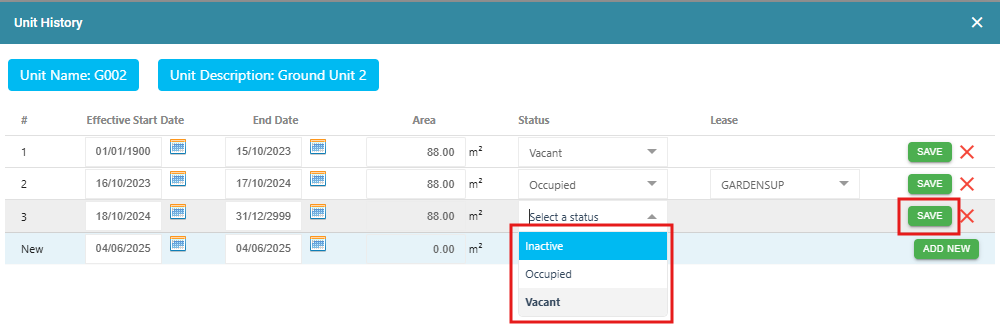
- Change the Status using the drop-down options to either Inactive or Vacant. If the Status is changed to Occupied, a Lease will need to be selected to occupy the unit
- Update any Effective Start Dates and End Dates if required
- Click Save against the relevant unit history entry
Additional Tips
- Always double-check date ranges to avoid conflicts.
- Use the Unit History Activity Log to review past changes and ensure auditability.
- Coordinate with internal teams to confirm tenant movements before making changes.
- If there are any changes to occupancy dates, review the charges and credits raised against the lease/s to ensure these align with the new occupancy dates
Was this article helpful?
That’s Great!
Thank you for your feedback
Sorry! We couldn't be helpful
Thank you for your feedback
Feedback sent
We appreciate your effort and will try to fix the article