Unit is showing as vacant when it should be occupied
This error occurs when a new Lease has been added (usually as a Trust Accountant user) and the button to attach lease has not been clicked before this Lease has been submitted and is live in the database.
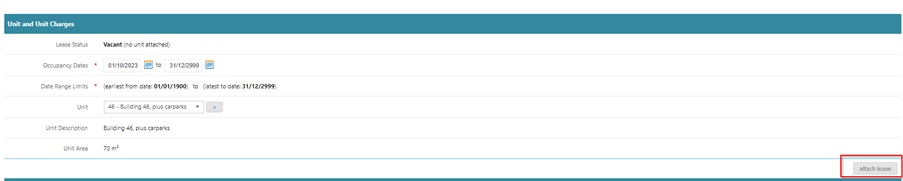
To rectify this error once your Lease is live, you will need to edit the Unit History in you Property to now attach this tenant.
Editing a Unit
To edit the Unit History in your Property:
- Go to Properties>Manage Property.
- Find your Property then click Unit for Floor.
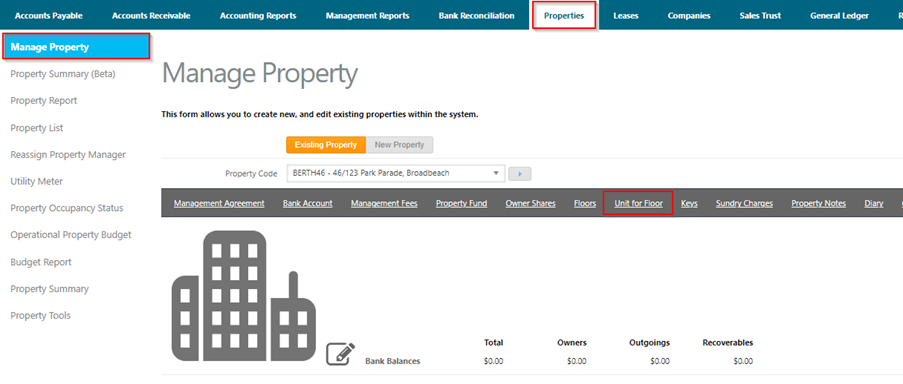
- From here click on Edit Details in the Unit History.

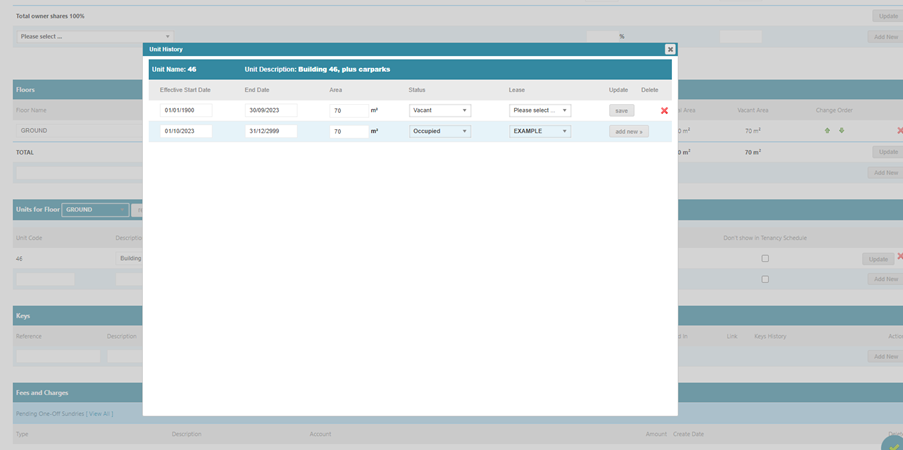
- From here you will need to edit the unit history as per the screenshot below.
- In the first line, you will need to have an Effective Start Date of 01/01/1900 and the End Date in this line will generally be one day prior to the day your tenant takes occupation of this space.
- Your Status should be Vacant in the first line and no Lease should be selected.
- Once you have made these changes, you will need to click Save before moving to the second line.
- In the second line, add the Effective Start Date (generally your lease commencement date) for the Lease and enter an End Date of 31/12/2999.
- Add the Area, change your Status to Occupied, then select the Lease and click Add New.
Once you have updated the Lease History, make sure you click the Green Tick in the bottom righthand corner of your page to save this change on the property.
Now when you go to your Lease, your tenant should be showing as occupying this unit.
Was this article helpful?
That’s Great!
Thank you for your feedback
Sorry! We couldn't be helpful
Thank you for your feedback
Feedback sent
We appreciate your effort and will try to fix the article