Step-by-Step Guide: Vacating a Tenant (With Credits or Refunds)
This procedure applies when a tenant is vacating and may have:
Charges raised beyond their vacate date
Credits remaining on their account
A refund due
Property Managers submit a Vacate Tenant Form by email.
The Trust Accountant is responsible for vacating the tenant and managing any balances.
Part 1: Vacating the Tenant
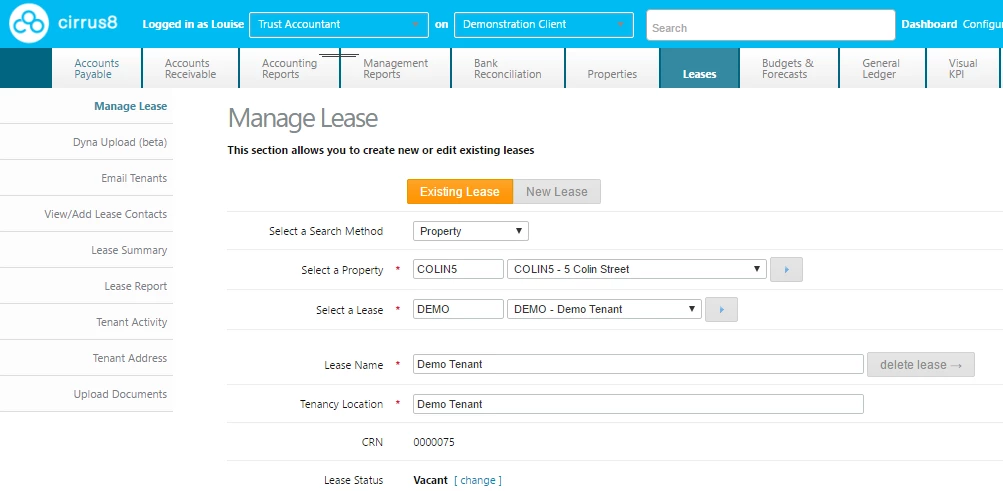
Step 1: Open the Lease
Go to Manage Lease.
Important:
Do not change the lease status here. Changing it manually will not stop charges.

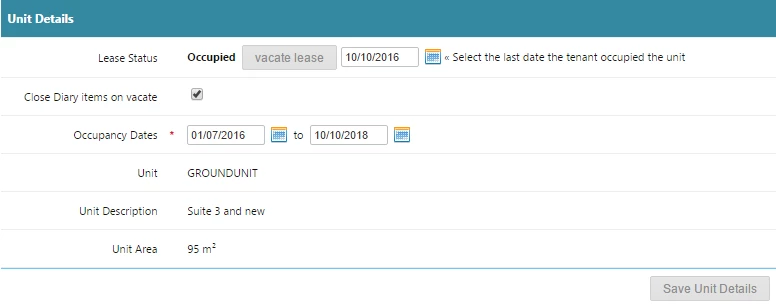
Step 2: Enter Vacate Details
Scroll to the Unit Details section.
Confirm the Lease Status is Occupied.
Enter the Tenant Vacated Date.
Click Vacate Lease.
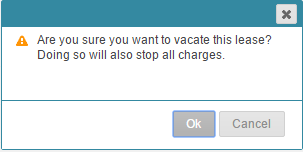
Step 3: Confirm Warning Message
A warning message will appear.
Click OK to confirm.
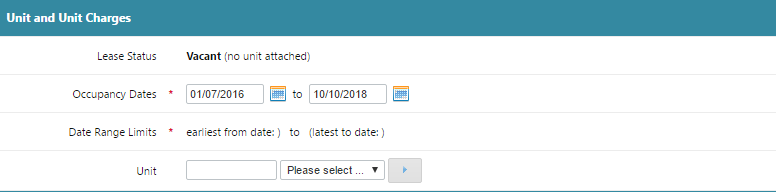
Step 4: Verify Lease Status
Confirm the Lease Status has changed to Vacant.
Confirm that lease charges stop as of the vacated date.

Part 2: Credit an Overcharge (If Required)
Use this process if charges were raised after the tenant vacated.
Step 1: Credit Incorrect Charges
Go to AR Invoice and Credit.
Credit the invoice that contains charges raised beyond the vacate date.
Step 2: Review Tenant Activity
Open Tenant Activity.
Check that:
All incorrect charges are credited.
The remaining balance is correct.

Part 3: Refund a Tenant (If Required)
Follow this process if the tenant has a credit balance that must be refunded.
Step 1: Configure Tenant as Supplier
Mark the tenant as a supplier/debtor company in Configuration.
Step 2: Enter Payment Details
Update or enter the tenant’s banking details.
Step 3: Check Available Funds
Review the property balance.
Ensure there are sufficient funds to process the refund.
Step 4: Raise Refund Invoice
Raise an AP Invoice.
Use Account Code 2430 – Refund to Tenant.
Step 5: Clear Tenant Credits
Raise an AR Invoice using a separate account code.
Process a Zero Receipt to remove the credits from the tenant’s account.
Final Check
Before closing:
Tenant status is Vacant
Charges stop on the correct date
Credits or refunds processed correctly
Tenant ledger balance is zero (if fully settled)
Was this article helpful?
That’s Great!
Thank you for your feedback
Sorry! We couldn't be helpful
Thank you for your feedback
Feedback sent
We appreciate your effort and will try to fix the article