Step 1: Update Debtor Company Details
- Navigate to Companies > Company Summary
- Locate the Debtor Company by selecting this in the drop-down menu.
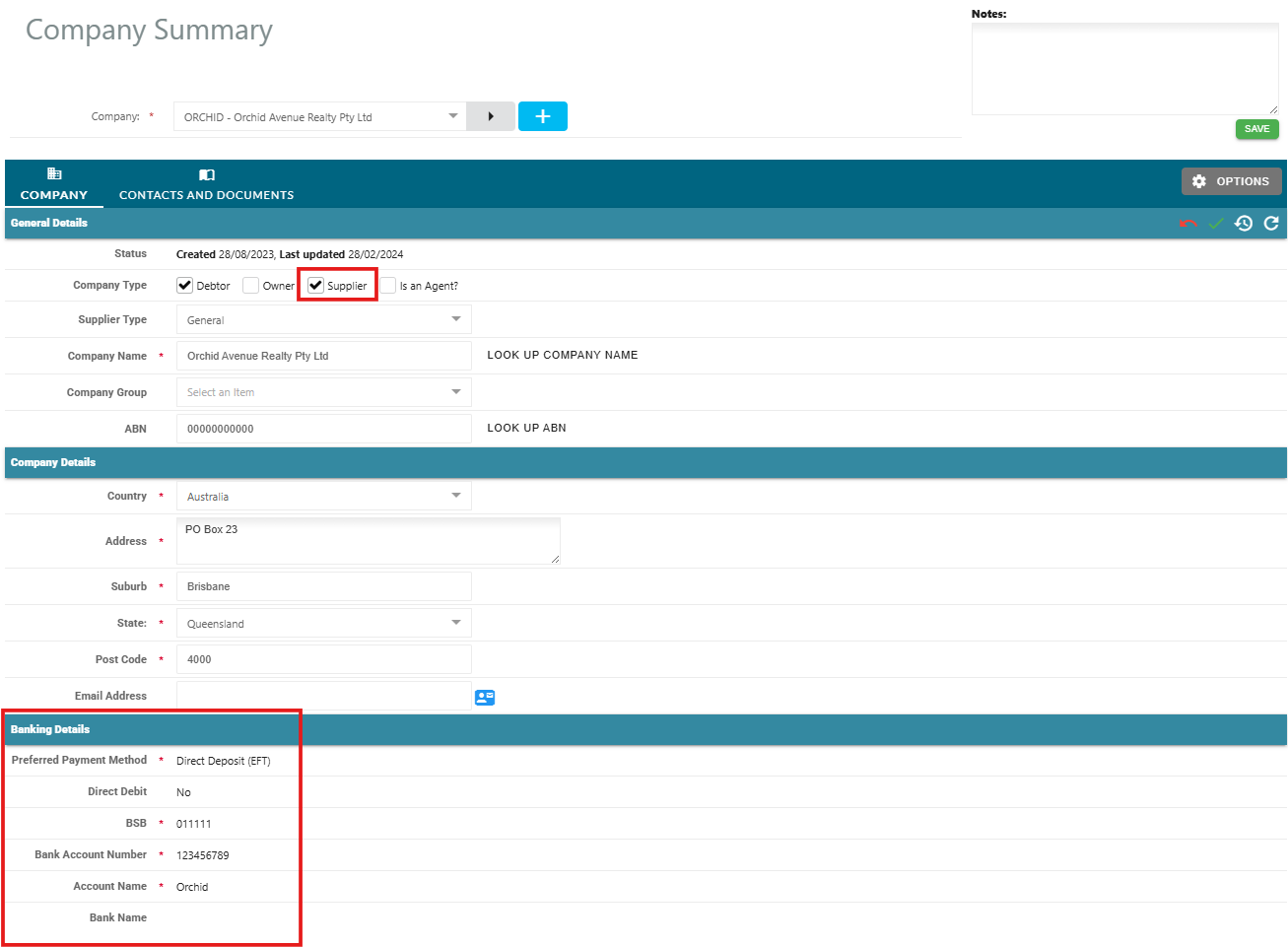
- Edit the Company by clicking on the Edit Pencil and update the Company Type to include Supplier.
- Click on the green tick icon to save the update.
- Verify the that the tenants Banking Details have been entered and are current.
- If banking details are not set up, submit a Change Company Banking Details form.
- Wait for the approval of company bank details before proceeding.
Step 2: Process the Bond Refund
Once the tenant is set up as a supplier and banking details are approved:
- Go to Accounts Receivable > Receipts.
- Select By Debtor
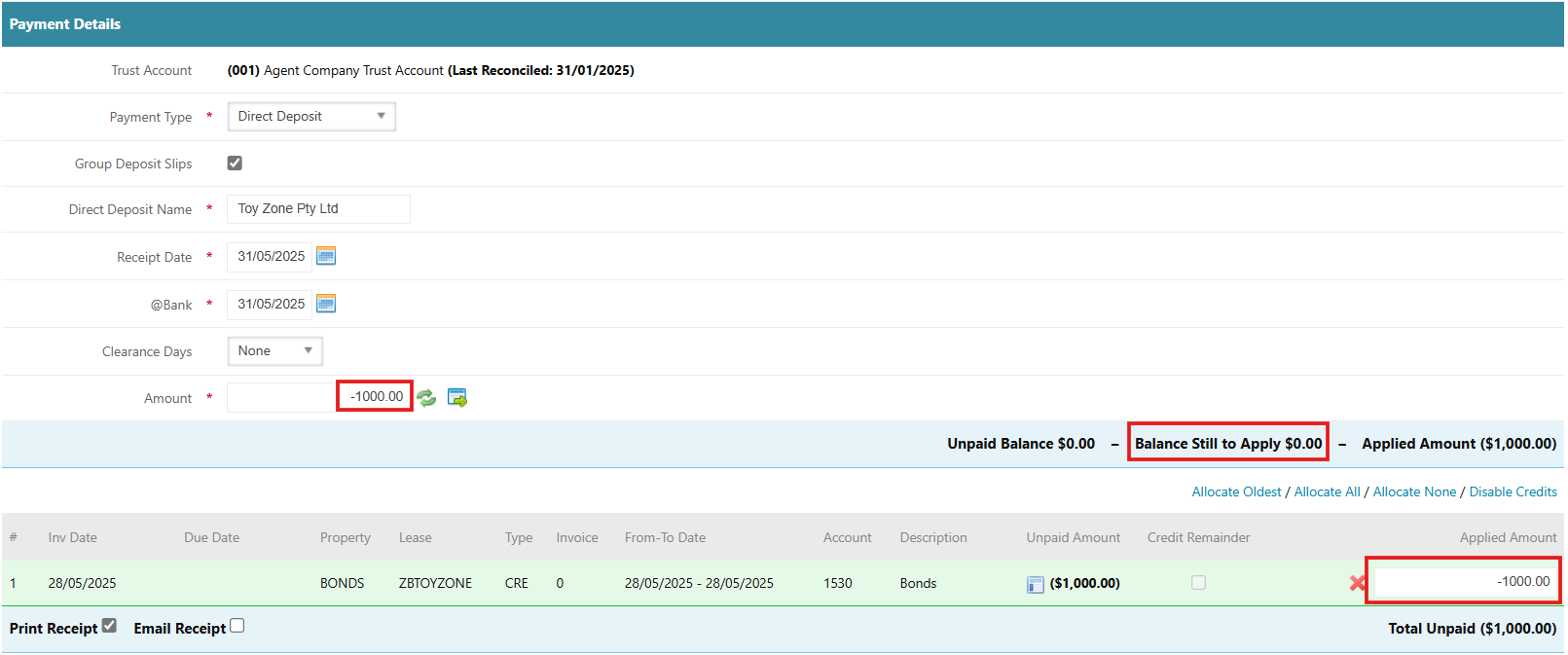
- Change the Receipt Date and @Bank Date to be today's date
- Enter the negative amount you wish to refund
- Click Enable Credits and click Yes to the warning pop up message
- Select the bond credit to refund, ensuring that this bond amount matches with the negative amount, and that the Balance Still to Apply is now $0.00.
- Click Process
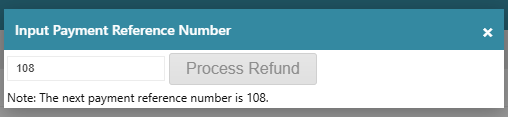
- A pop-up will appear with the next payment reference number displayed
- Enter this number in the provided field
- Click Process Refund
Step 3: Upload To Bank
- The system will generate a payment file by providing a link to download this at the top of the screen
- Click on the link to download the file
- Upload this file to your banking portal to complete the bond refund to the tenant.
Was this article helpful?
That’s Great!
Thank you for your feedback
Sorry! We couldn't be helpful
Thank you for your feedback
Feedback sent
We appreciate your effort and will try to fix the article