Creating & Receipting the Bond:
First you will need to create a sub-ledger within the sales trust.
You can do this by linking the lease to the sales trust, which will create the sub-ledger for you.
LEASE:
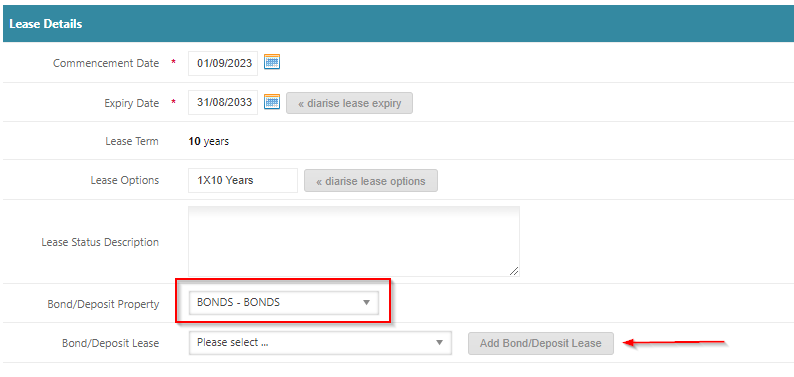
Lease > Manage Lease and in the Lease Details
- Select the relevant Bond Ledger
- Click on Add Bond Deposit Lease
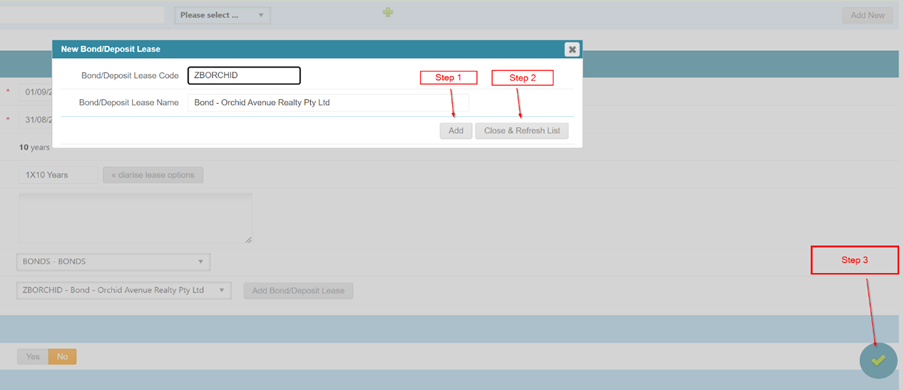
A pop-up box will appear with the Sub-Ledger information. You do not need to change any details here.
- First, click Add.
- Then click on Close & Refresh List
- Once you have done that make sure to click the green tick to save.
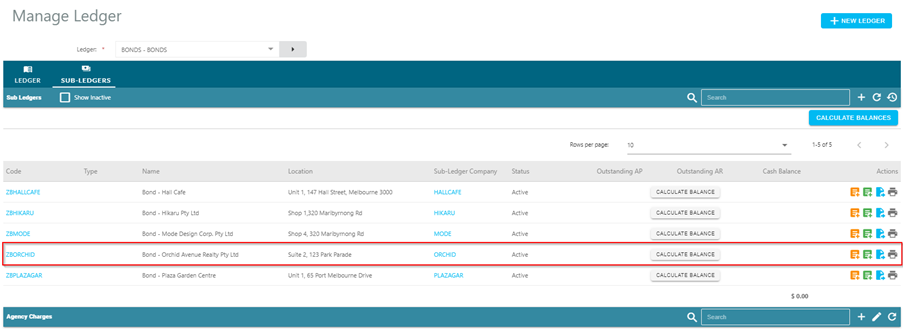
This will then create a new sub-ledger within the sales trust.
Now that the sub-ledger has been set up, you can invoice the tenant for the bond via Accounts Receivable > Invoice and Credits
Remember when invoicing the tenant do this via the main lease (not the sub-ledger) and use account code 1530 Tenant Bond.
When the funds are ready to receipt, receipt as normal via Accounts Receivable > Receipts
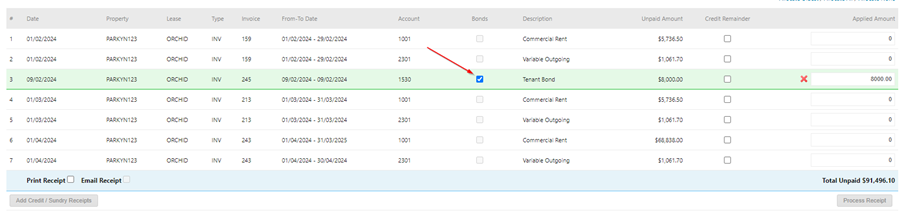
However, this time you will notice and extra tick bond – TENANT BOND
When you receipt the bond, this box will be ticked, as long as the box is ticked it will journal the funds for the bond straight into the sales trust.
Note – should this tenant bond tick box not be present it means you have not completed the linking process in the property or lease ( you will need to ensure they are linked correctly).
The bond will remain in the sales trust, it will not be able to be paid out unless an accounts payable invoice has been entered against the bond / subledger and paid via create payments.

To disburse the bond to an Owner/Supplier:
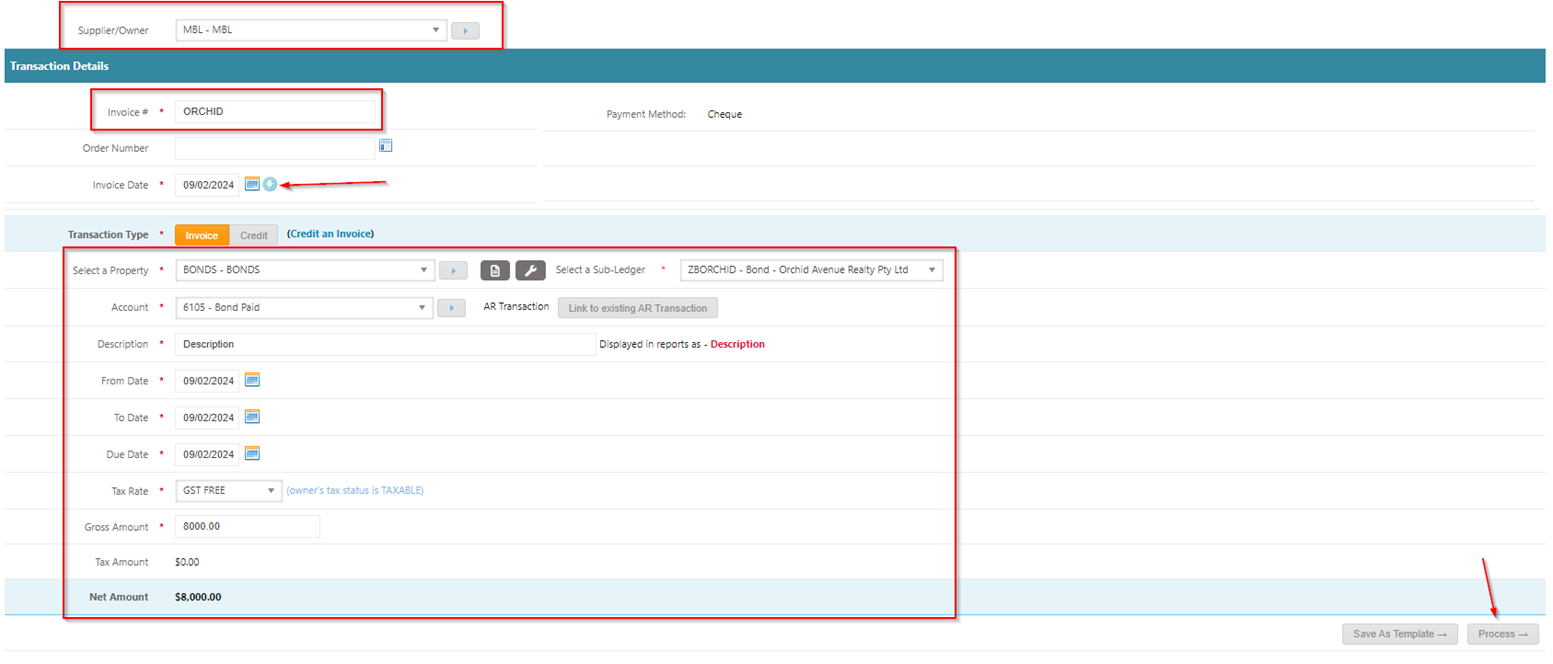
You will need to enter an Accounts Payable > Invoice & Credit
- Select your Supplier/Owner eg. MBL bonds
- Enter Invoice Number (this is often the property or lease code)
- Enter todays date and push the blue circle with arrow to push dates down the form
- Pick up the Ledger / Sub-ledger
- Select account code
- Enter Amount
- Click Process
- Click Complete

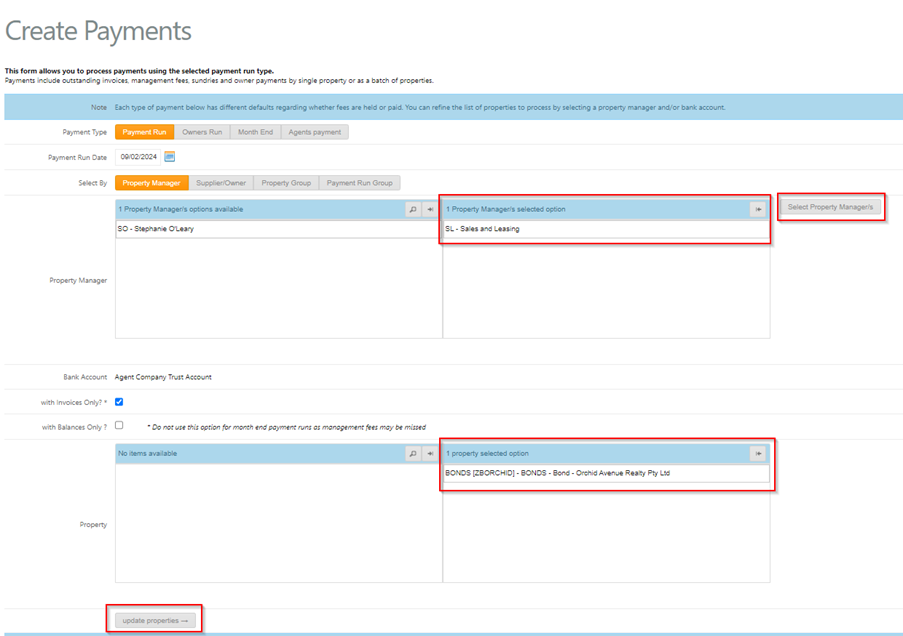
Once you are ready to pay funds to MBL go to Accounts Payable > Create Payments
- Select payment run
- Select todays date
- Select Property Manager – Sales & Leasing
- Any properties that have an invoice against them will appear
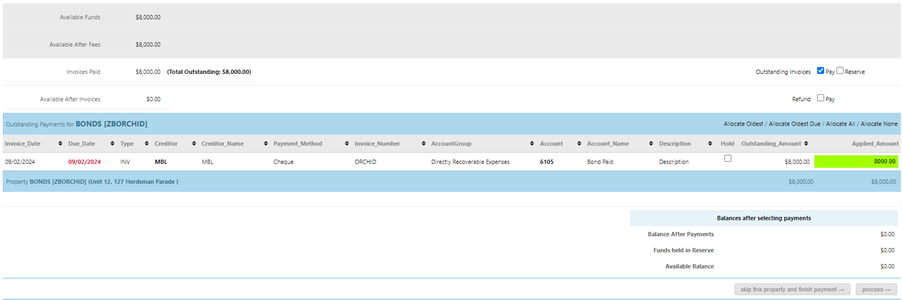
- Select MBL invoice to pay
- Process payment run as normal
ONCE THE BOND HAS BEEN RETURNED:
You will need to receipt the bond back into the ledger / subledger – make sure it shows as a credit in the ledger.
Using Bond to Pay Outstanding Invoices:
When it’s time to pay any outstanding invoices from the bond.
Go to Accounts Receivable > Receipts
- Select by Debtor
- Process a zero receipt to pick up the bond held and apply to any outstanding invoices (process receipt)
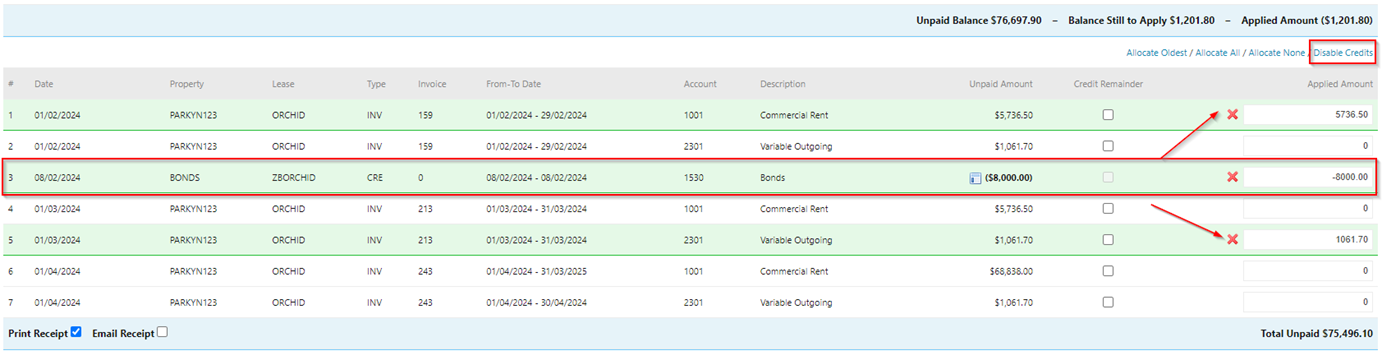
These funds can then be used to pay supplier invoices or be disbursed to the owner.
Refund Tenant:
To refund your Tenant:
- Firstly, check their Banking Details and if these have not been set up, submit a Change to Company Banking Details form.
- Once these are approved, see the following steps.
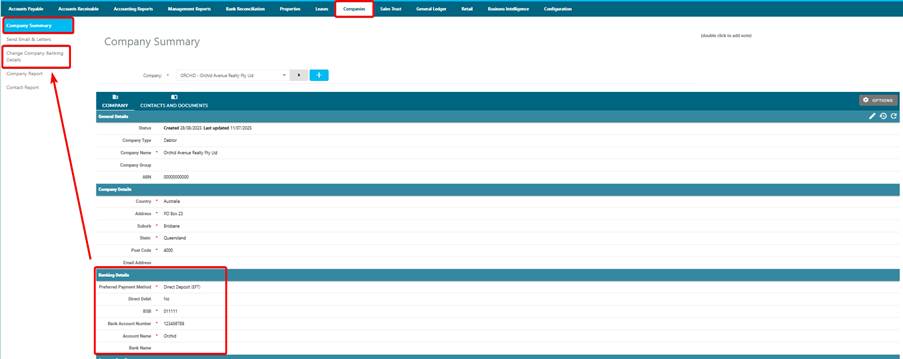
When you are ready to refund the remaining amount to the tenant go back to Accounts Receivable > Receipts
- Select by Debtor
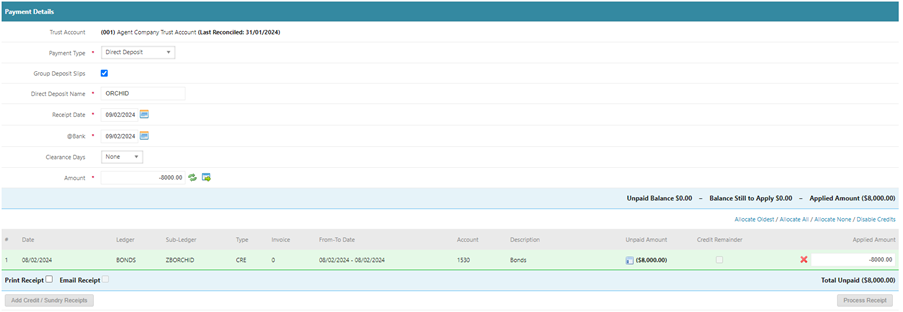
- Enter the negative amount you wish to refund
- Click on Enable credits and select the credit you wish to refund
- Click process
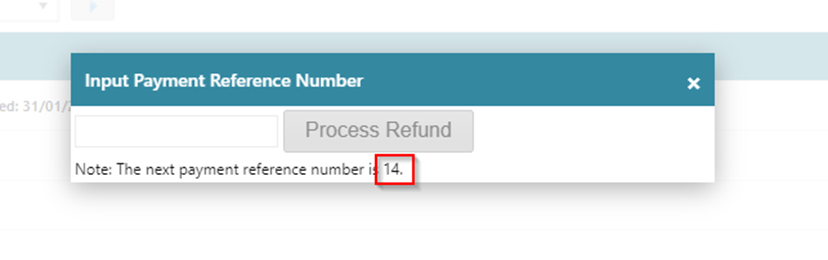
- A pop-up box will then appear with the next payment reference number (enter this number in the box)
- Click Process Refund
This will generate an ABA file to upload to the bank and refund the tenant.
Was this article helpful?
That’s Great!
Thank you for your feedback
Sorry! We couldn't be helpful
Thank you for your feedback
Feedback sent
We appreciate your effort and will try to fix the article