The Lease Summary section provides all details and information pertaining to a selected lease and is located under Leases > Lease Summary for both Trust Accountant and Property Manager users. It is broken down into 5 tab sections - Overview, Charges and Rent Reviews, Diary, Notes and Additional Details, Communication and Documents.
There is also an OPTIONS button to the right-hand side which provides shortcuts to other areas of the system and reports:

Overview Section
From the landing page, at the right-hand side, the form will show you the tenant’s total unpaid amount for this particular lease. You can click on the down arrow to expand this section to display all transactions that are outstanding.
From here, you can click on each invoice number to download a copy of that particular invoice. You can also click on SEND EMAIL or DOWNLOAD to create and/or send the tenant a statement for any transactions due before the determined date:
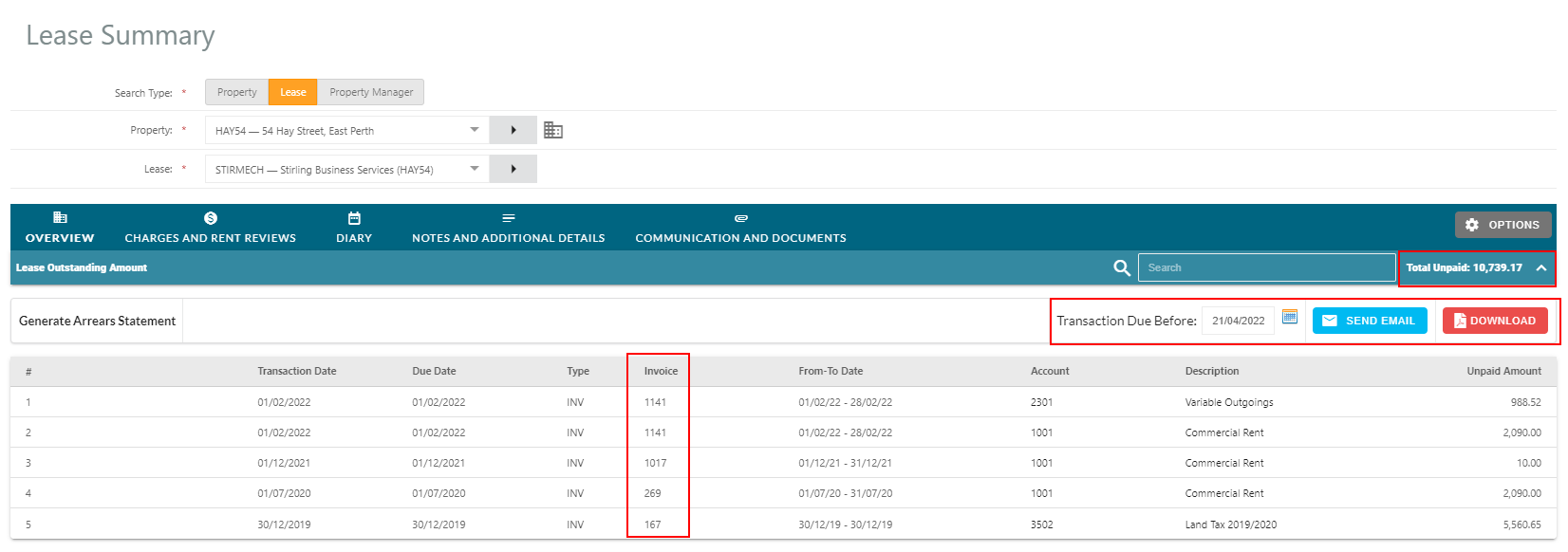 NOTE - When emailing, the system will issue this statement to the tenant using the pre-configured email template used for issuing invoices. Users can override this by creating a template to use under Manage Letter Templates, using ‘Tenant Statement Letter’ as the category.
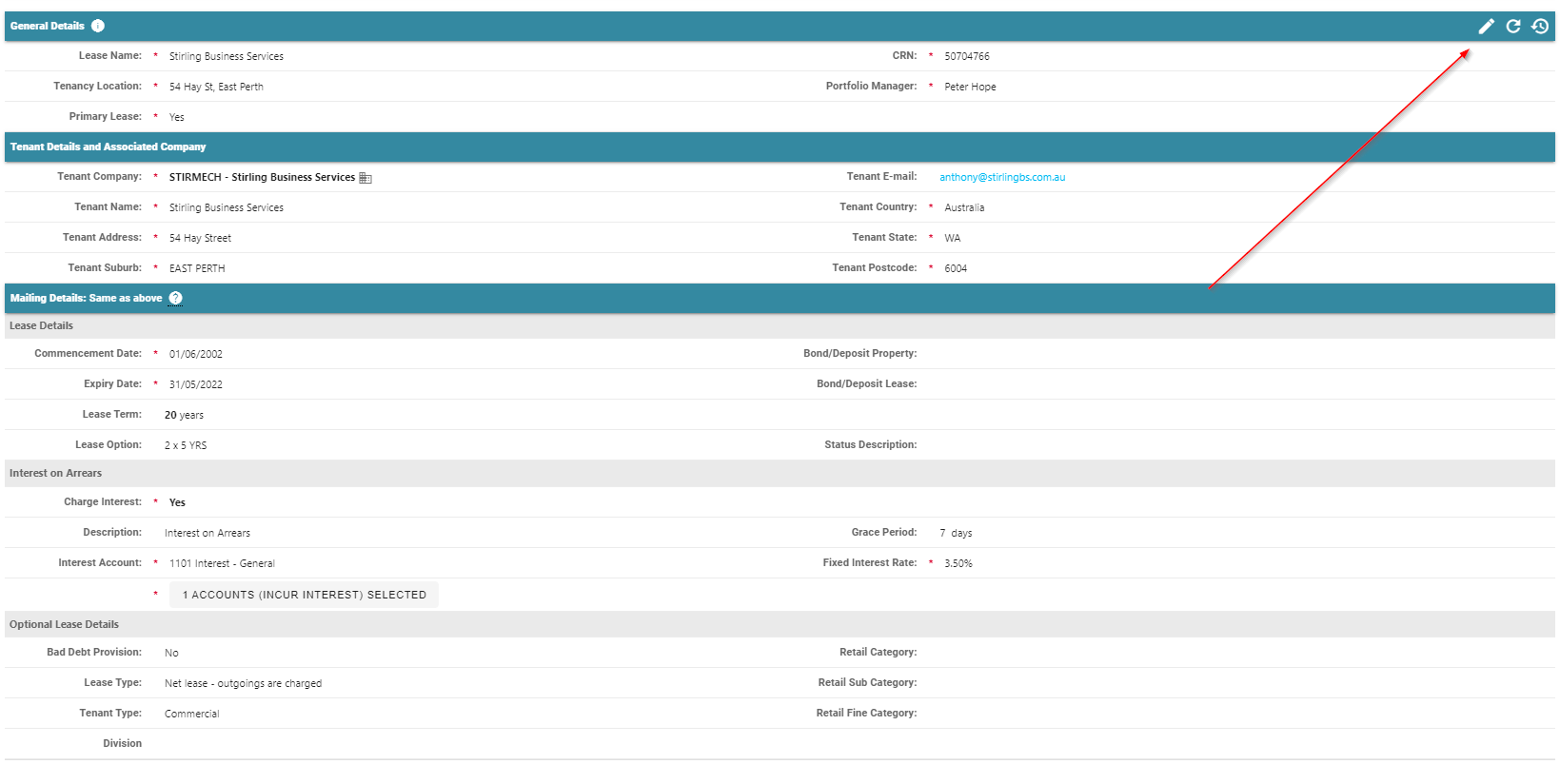
As we move through the form, any section that has a pencil icon is editable. Any section without the pencil icon is read only.
Clicking on the Edit Pencil will change all fields to become editable:
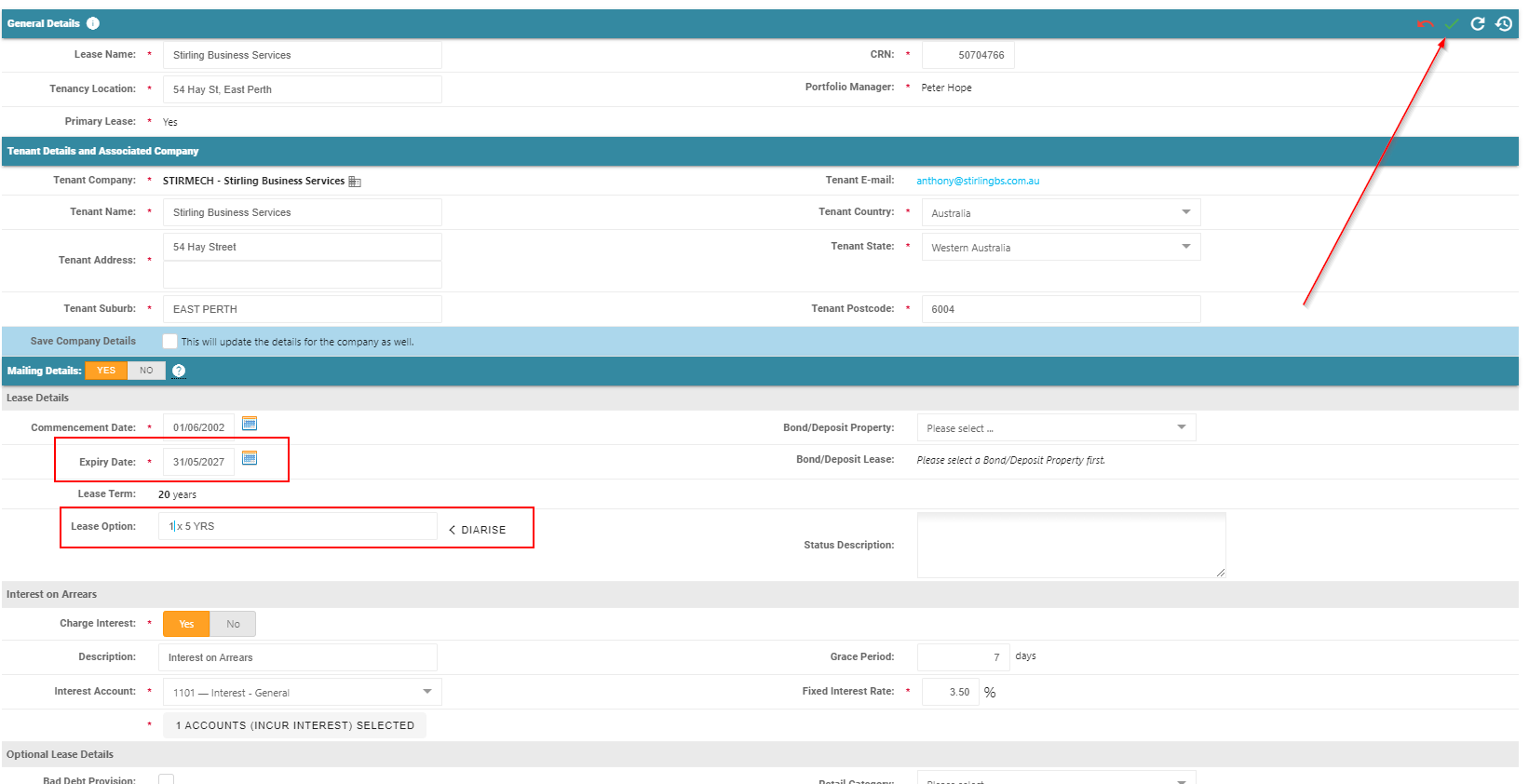
In the below example, a very basic Lease Renewal has been processed by updating the Lease Expiry Date & Lease Options diarising both new entries. You can see all other fields are editable if any other information requires updating.
Once done, click on the Green Tick icon at the top right to save changes:
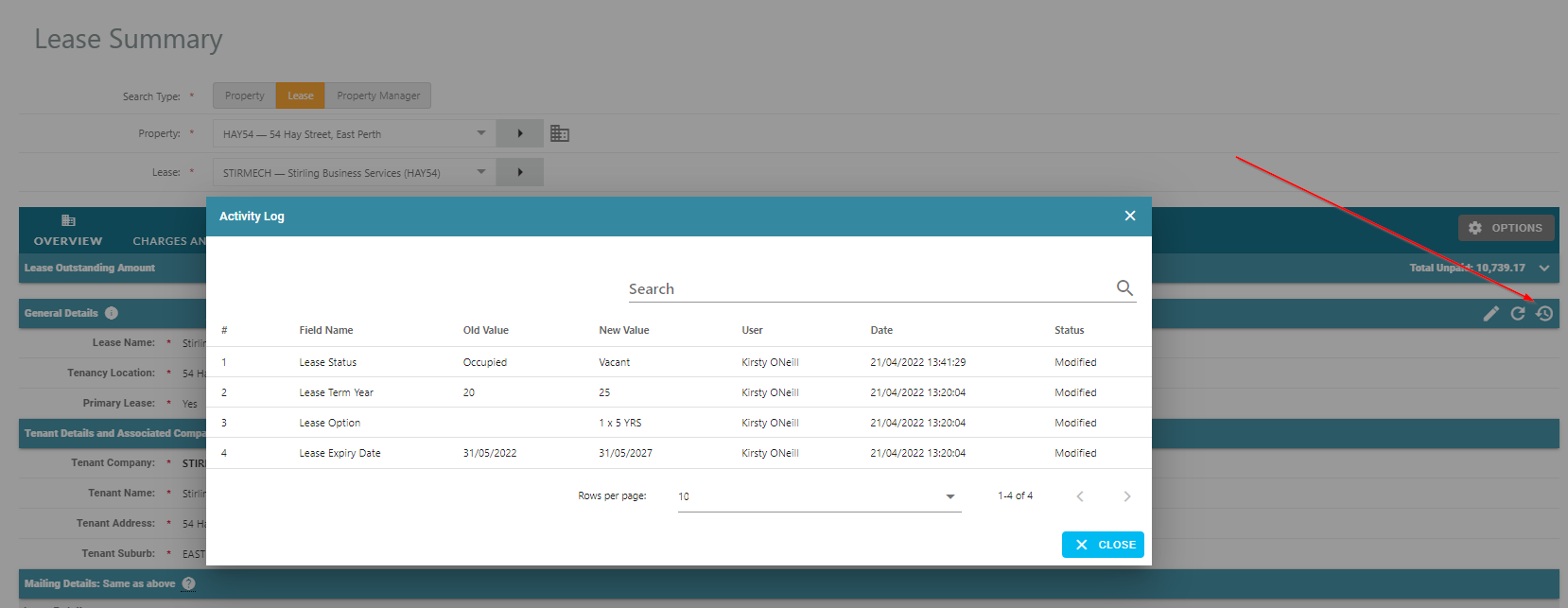
Clicking on the Activity Log button pointed out below provides a changelog and shows you what changes have been made, by whom and when:
To update the Contacts section, click on the plus icon to add a new contact or the pencil to edit existing contacts:
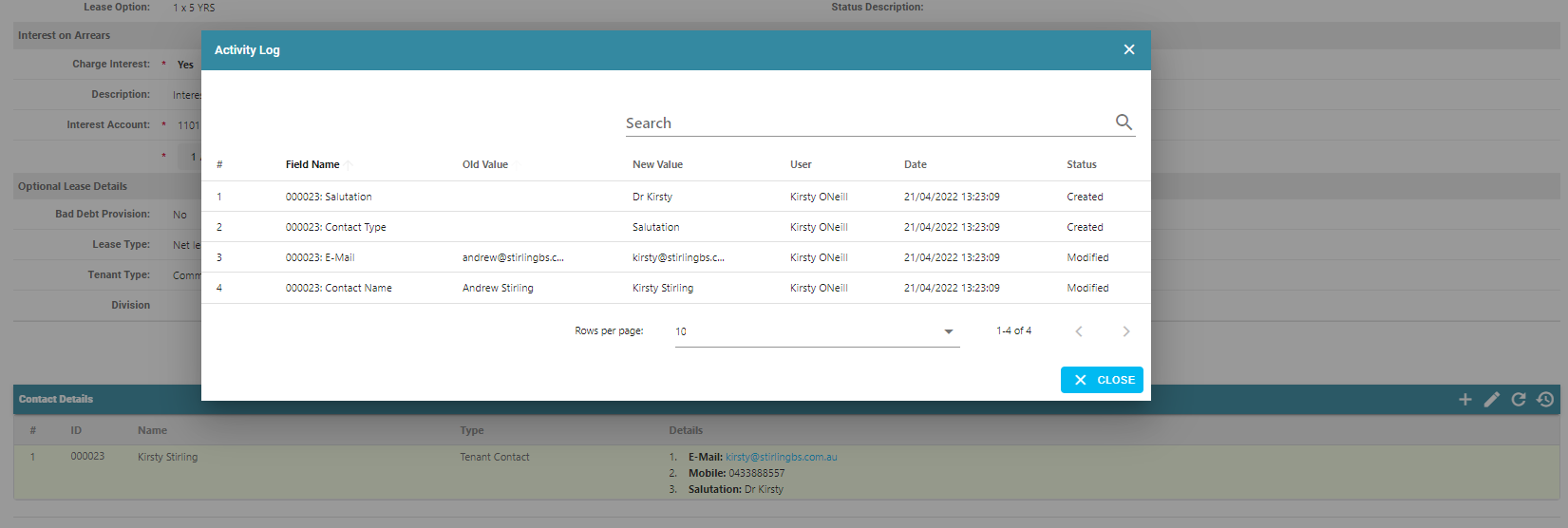
 Clicking on the Activity Log button will again provide details as to what contact changes have been made, by whom and when:
Charges and Rent Reviews Section
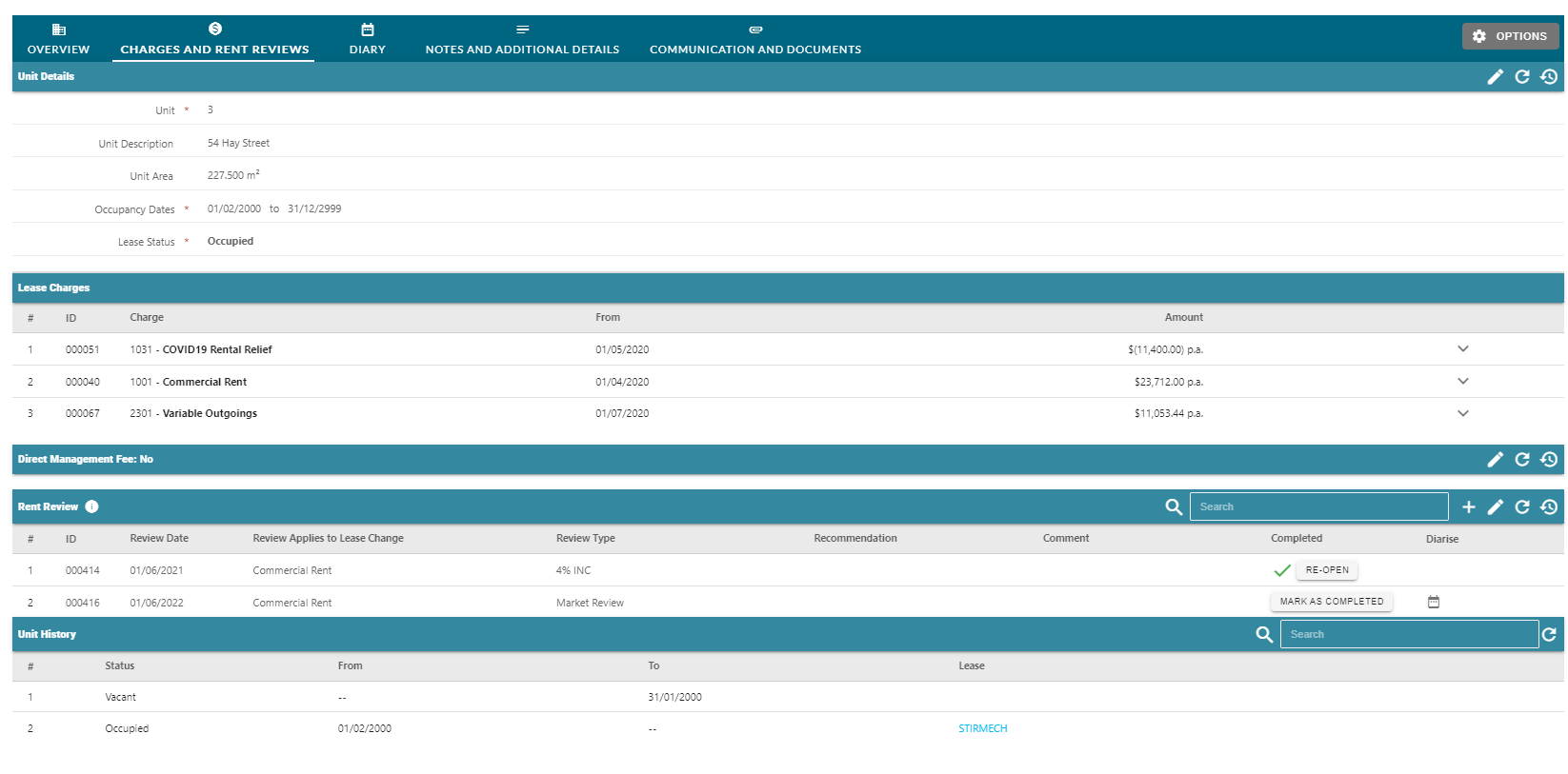
Similar to the Overview section, any section under Charges and Rent Reviews section that has a pencil button available will allow the user to edit information. Please note that by default, the Lease Charge section does not have the pencil and is therefore read only. (Please have an authorised person email support@cirrus8.com.au to update the Lease Charges section to become editable for Property Manager users).
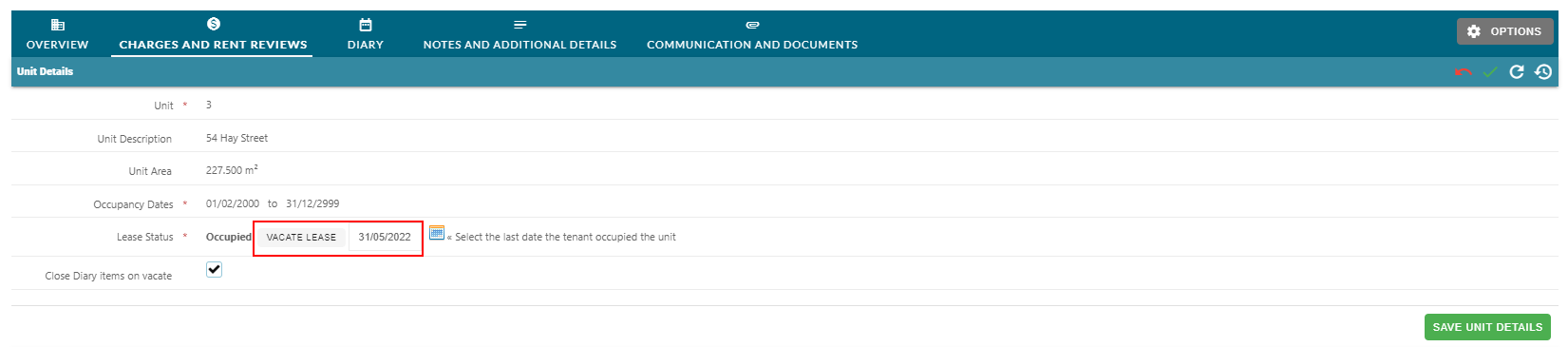
Under the Unit Details section, Property Manager users have the ability to vacate a lease by clicking on the edit pencil, entering a vacate date and clicking on the button. By default, all diary items will be closed upon vacating the tenant, with a stop charge date added to all Lease Charges too:
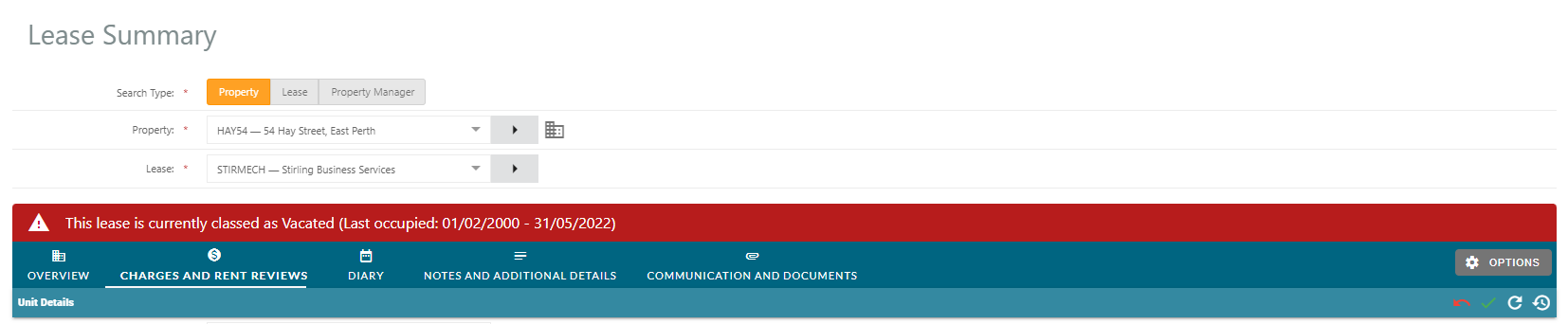
Once a tenant has been vacated, a message in red will appear at the top, detailing the dates the tenant last occupied the unit:
Under the Lease Charges section, you can expand any Lease Charge to view all details including the charge history:
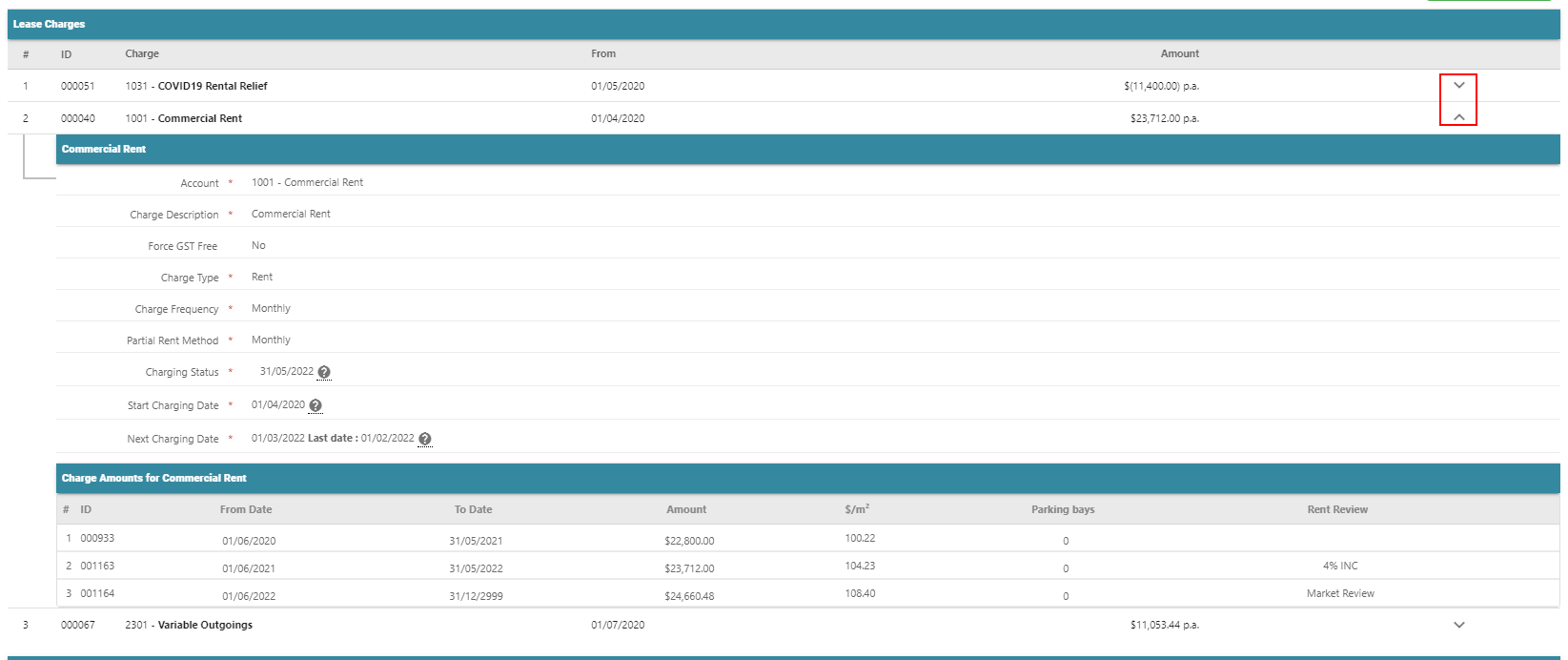
Under the Rent Review section, you are able to add future reviews by clicking the plus button or edit existing reviews by clicking the edit pencil, including diarising and reopening these if they have been closed in error.

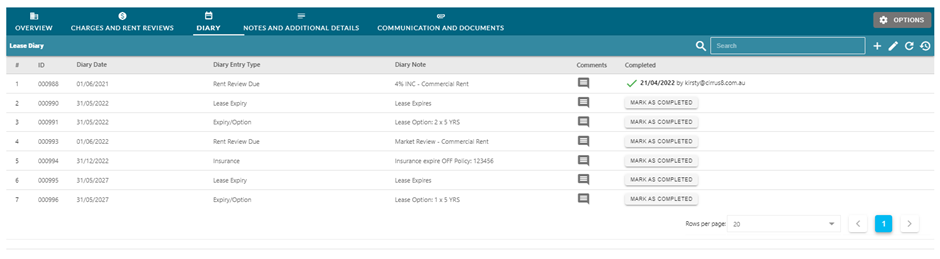
Diary Section
The Diary section allows you to add future diary items by clicking the plus button or edit existing diary items by clicking the edit pencil. Users can delete future unactioned diary items, noting the system changelog will keep a record of any changes, including deleted items.
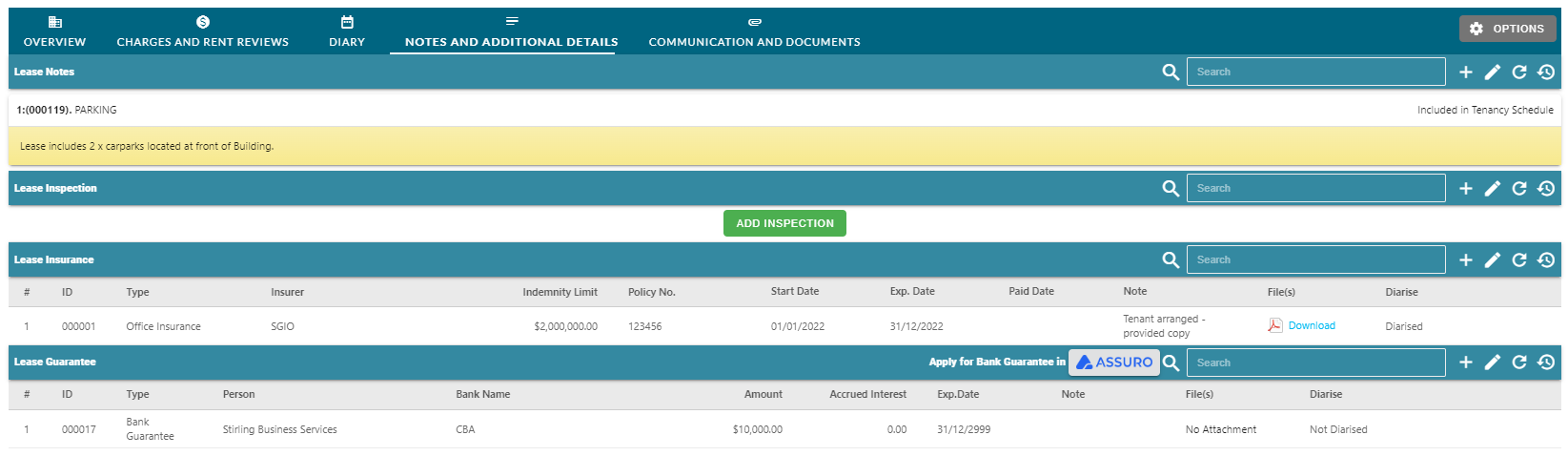
Notes and Additional Details Section
Each section within the Notes and Additional Details section is editable, allowing all users to edit or add information including:
- Lease Notes
- Lease Inspections
- Lease Insurance
- Lease Guarantees
All updates and changes are recorded in the Activity Log.
Communications and Documents Section
This section allows you to view and add documents and also view the communication history, which is a record of any communication sent from Cirrus8 to the tenant:

Was this article helpful?
That’s Great!
Thank you for your feedback
Sorry! We couldn't be helpful
Thank you for your feedback
Feedback sent
We appreciate your effort and will try to fix the article