Quick Rent Review is a new workflow in Rex Cirrus8 that lets you apply a rent review across many leases at once, instead of opening each lease and adjusting its charges one at a time. From a single screen you can set the new amounts, send a rent review letter, raise any back charge that is owed, and close the diary entries the review resolves.
What has changed
- A new Quick Rent Review screen lets you pull in every lease with a rent review falling inside a date range and submit the whole set as one batch.
- Fixed and CPI review types are supported, with Rex Cirrus8 calculating the new amount, the increase and any back charge for each lease.
- Where the rent review date is in the past, the resulting back charge is raised automatically and you can choose to generate an interim tax invoice for it.
- A rent review letter can be attached from your letter templates and emailed to the tenants on the reviewed leases, with an optional copy to yourself.
- Where your database uses Trust Accountant approval, reviews are held in a list for approval, and charges, invoices and emails are only actioned once the review is approved.
- Rent review letters can be generated with your letterhead applied, using the Include letterhead option.
- On submitting a review you can select the open Rent Review Due diary entries it resolves, and those entries close automatically when the review is processed, along with the rent review's own diary entry.
How to access it
Quick Rent Review is available to Trust Accountant and Property Manager users.
- From the dashboard, open the Forms list and find the Quick Rent Reviews row. Use the create icon to start a new review, or the view icon to see reviews already submitted. You can also reach the workflow through Leases > Charge and Rent Review.
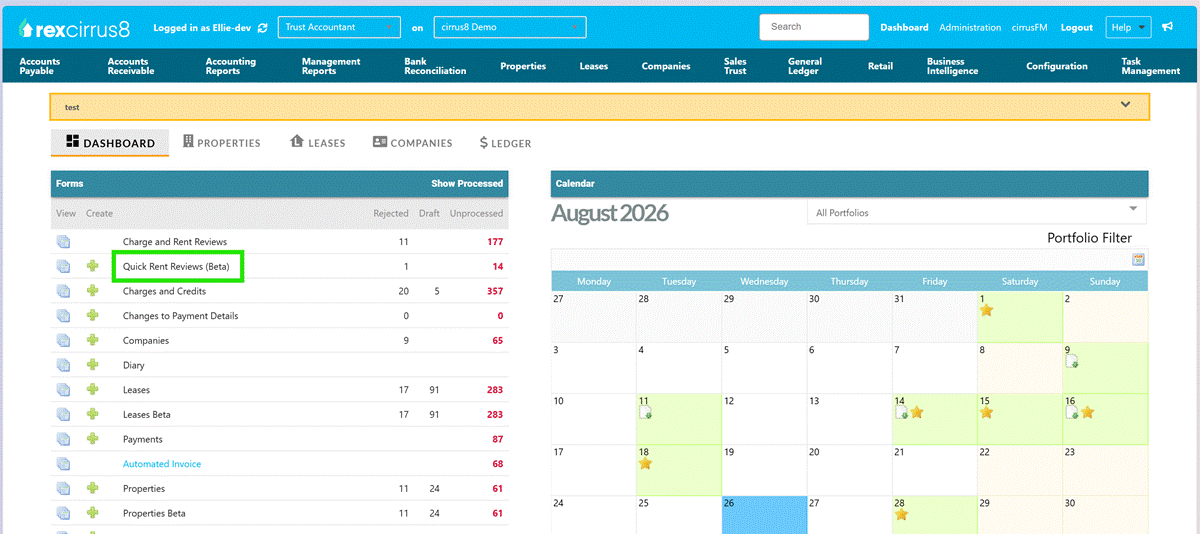
Dashboard > Forms list, showing the Quick Rent Reviews (Beta) row.
- Set the Date Range covering the rent review dates you want to action, then choose the Rent Review Type. For a CPI review, complete the index name and the old and current index values.
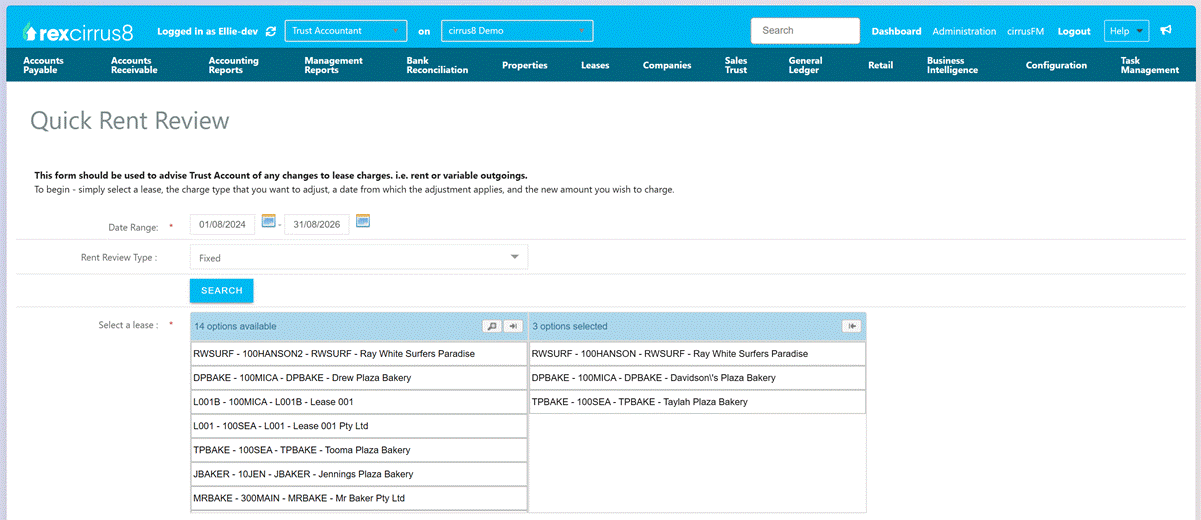
Setting the date range and rent review type, then selecting leases.
- Every matching lease loads into the Rent Reviews grid, grouped by property and lease. Set the new amounts and untick any lease you do not want to include.
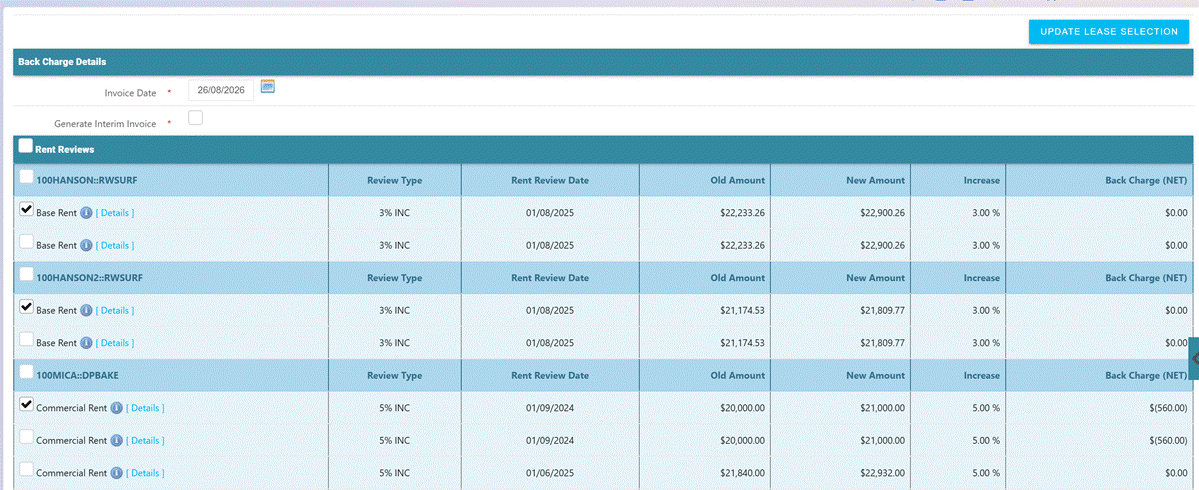
The Rent Reviews grid, grouped by property and lease.
- Choose a letter template if you want to send a rent review letter, then tick whether it should go to tenants, whether you want a copy, and whether to include your letterhead.

The Letter Template block, including the Include letterhead option.
- If the review produces a back charge, set the invoice date and choose whether to generate an interim tax invoice and send it to the tenant.

The Back Charge Details block, with the interim invoice options shown.
- Click Submit. If any included lease has open Rent Review Due diary entries, the Close Associated Diary Items window opens. Tick the entries this review resolves, or use Select All, then click Submit inside the window to complete your submission.
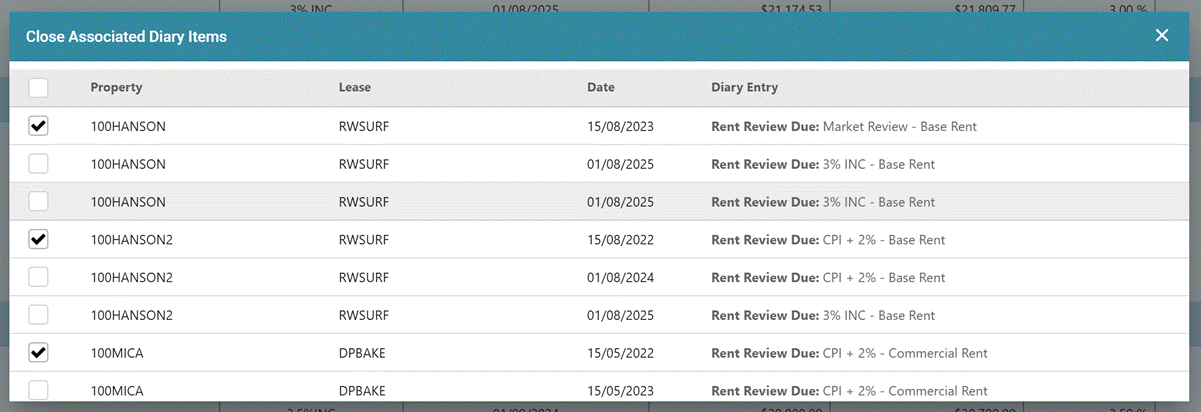
The Close Associated Diary Items window, listing the Rent Review Due entries for the selected leases.
Setting it up
Two parameters need to be set under Configuration > System Configuration > Parameters before Quick Rent Review will work:
- Quick Rent Review Process (MLCHARGES). Set this to 1 to have reviews applied as soon as they are submitted, or 0 to hold every review for Trust Accountant approval before any charge, invoice or email is actioned.
- Rent Review type (RENTREVIEW). Your rent review types need to be configured here. This is how Quick Rent Review identifies which leases to pick up, so if no types are set no leases will load into the grid.
You will also need rent review letter templates set up under the Rent Review letter category, each with a subject line, and CPI figures loaded if you intend to run CPI reviews.
Notes
- Where you generate an interim invoice for a back charge, the due date must be on or after the invoice date. An earlier due date will stop the review being submitted.
- Changing the review type or either date reloads the lease list and clears any amounts you have already entered, so set these before you start keying values.
- Diary closing is optional. Every entry starts unticked, and entries cannot be added to a review once it has been submitted.
- Only Rent Review Due diary entries are listed. Diary entries of other types are not affected and are still closed on the lease as usual.
- Closing the Close Associated Diary Items window without submitting cancels the whole submission and no rent review is created. Use the Submit button inside the window to finish.
- The rent review's own diary entry completes automatically when the review is processed. You do not need to select it.
- Selected diary entries close only once the review is processed. A review that is rejected, or left waiting for approval, leaves its diary entries open.
- Quick Rent Review is a commercial lease workflow and is not available for residential leases.
- If you cannot see Quick Rent Review in your Forms list, or you can see it but cannot submit a review, check your user role with your system administrator before contacting Support.
Was this article helpful?
That’s Great!
Thank you for your feedback
Sorry! We couldn't be helpful
Thank you for your feedback
Feedback sent
We appreciate your effort and will try to fix the article