Tenants can be given access to the Tenant Portal which will provide them access to the following:
- Lease Details - This allows the tenant to view information on their lease
- Work Request - This allows the tenant to view pending work requests
- Log Work Request - This allows the tenant to submit a work request
Tenant Portal Access
Tenants will initially need to be granted access to their Tenant Portal by a Local Admin user by registering the tenant as a user in the Admin Portal. Refer to the article Register New User for details on how to do this.
Once the tenant has been registered as a user, the tenant can then access the Tenant Portal by visiting the link: https://tenant.cirrus8.com.au/
Lease Details
Under the Lease Details tab, the tenants can view the following:
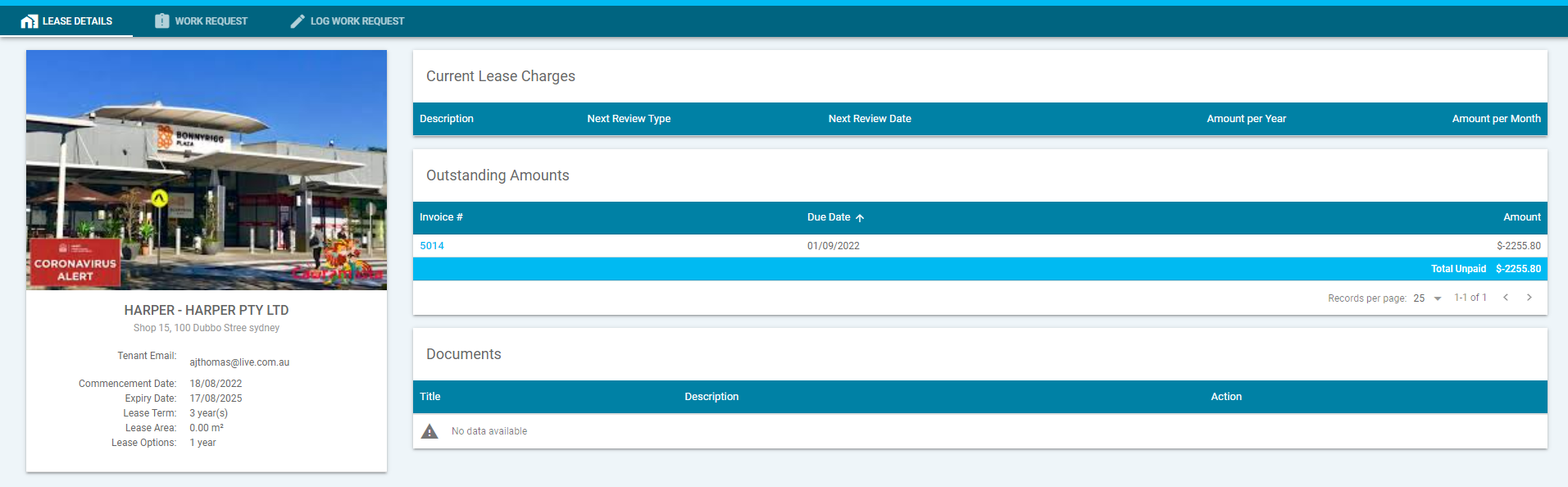
- Lease Details - Tenants can view the lease name, tenancy location, tenant email (debtor company), commencement date, expiry date, lease term and lease option
- Current Lease Charges - Tenants can view the lease charge description, next review type, next review date, amount per year and amount per month
- Outstanding Amounts - Tenants can view a copy of the invoice by clicking the invoice hyperlink, due date and amount
- Documents - Tenants can view documents published to the tenant portal
Work Requests
Under the Work Requests tab, you can select from the following options to action:

- Create Request – This will allow the tenants to create a new work request. When selected it will take you to the Log Work Request tab.
- Search Filters – Search by keyword, date and status.
- Filters - this allows to filter the list of existing requests by # (request number), subject, service, priority, status, required by, created by and create date.
Log Work Request
Under the Log Work Request tab, you will be prompted to action the following:
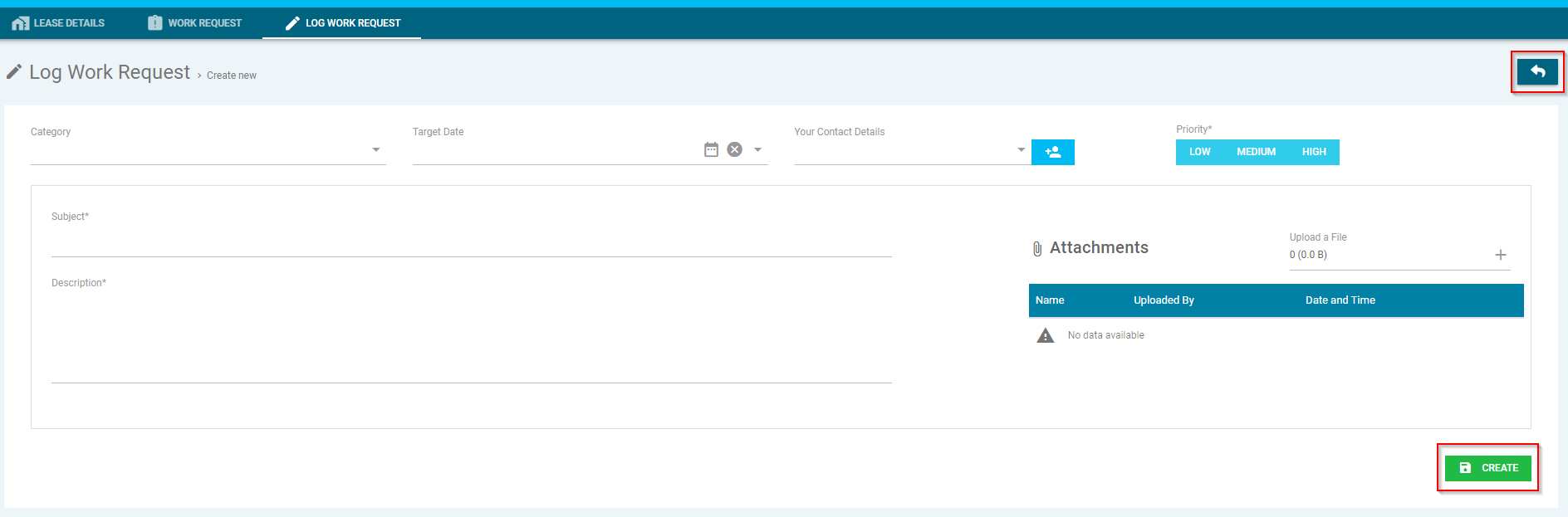
- * Indicates this is a mandatory field and must be entered to create the request
- Back Arrow - This will take the tenant back to the previous screen
- Category* - Select the category from the drop-down menu
- Target Date - Select the target date from the drop-down menu
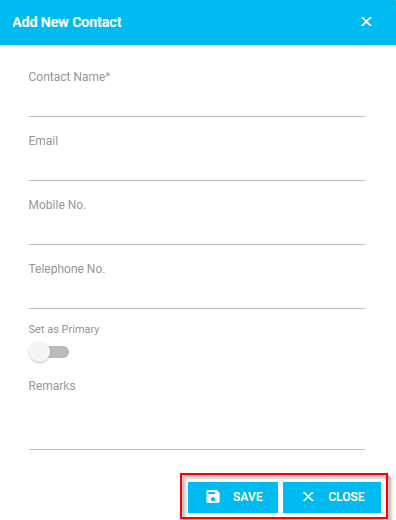
- Your Contact Details- Select the contact details from the drop-down menu or click the person with a plus icon to add new contact details. When the icon is selected, a pop-up window will appear, and you will be prompted to enter the following then click 'save' to add the contact or 'close' to go back:
- Contact Name*
- Mobile No.
- Telephone No.
- Set as Primary
- Remarks
- Priority - Select low, medium or high
- Subject* - This allows the tenant to enter the subject of the request
- Description* - This allows the tenant to enter a description of the request
- Attachments – This will add photos/document to the request by clicking the ‘+’ button or dragging a file
- Create - This will create and send the request to your property manager for review and process accordingly.
Was this article helpful?
That’s Great!
Thank you for your feedback
Sorry! We couldn't be helpful
Thank you for your feedback
Feedback sent
We appreciate your effort and will try to fix the article