The arrears report shows a line-by-line by line breakdown of the unpaid balance in the chosen tenant′s accounts as at the due date chosen.
Trust Accountant Location: Accounting Reports > Arrears Report
Property Manager Location: Accounting Reports > Arrears Report
Generate Arrears Report
To generate an arrears report, follow the below steps:
- Go to Accounting Reports > Arrears Report
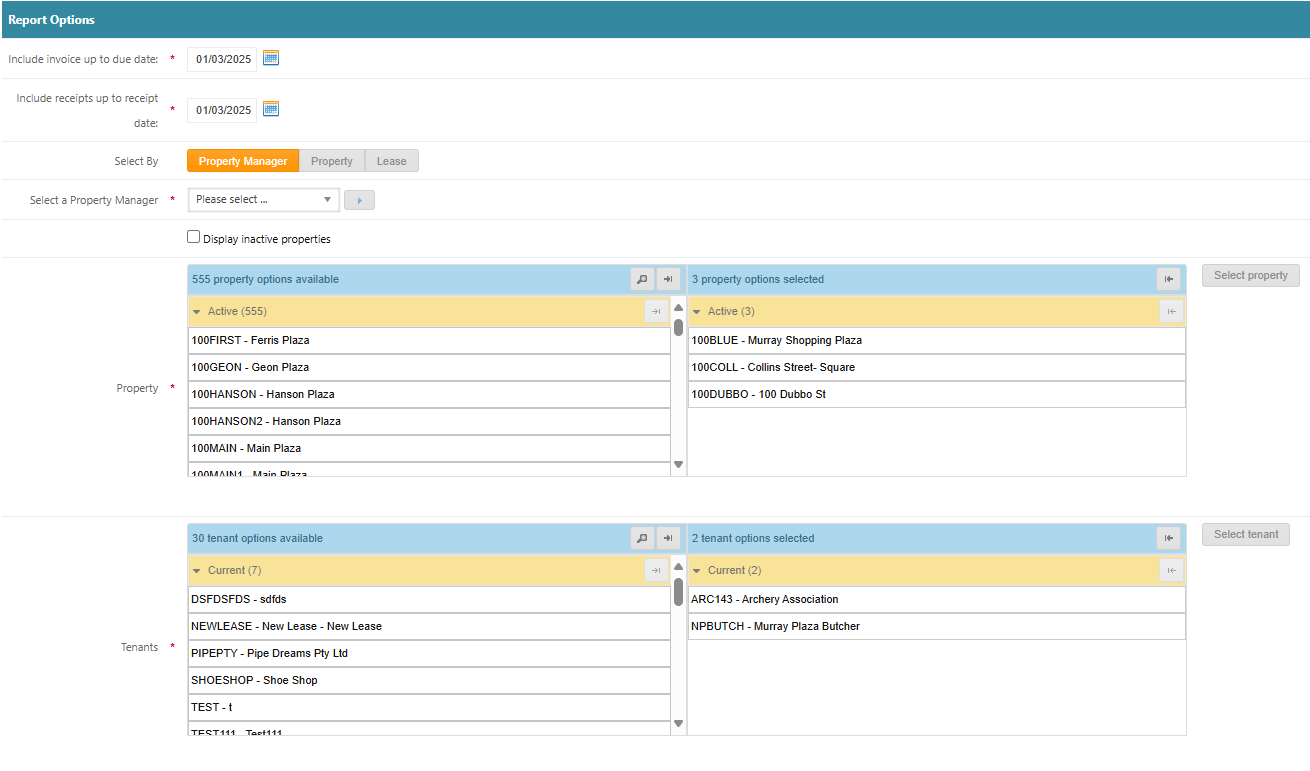
- Select the Report Options:
- Include invoice up to due date
- Include receipts up to receipt date
- Due Date and Receipting examples:
- E.g. - Due Date of 1st March and Receipt Date of 1st March. This will show all arrears as at 1st March irrespective of receipting
- E.g. - Due Date of 1st March and Receipt Date of 31st March. This will show all arrears as at 1st March that were not receipted by 31st March
- Select By: Property Manager, Property or Leases
- Select the Properties and Leases as required
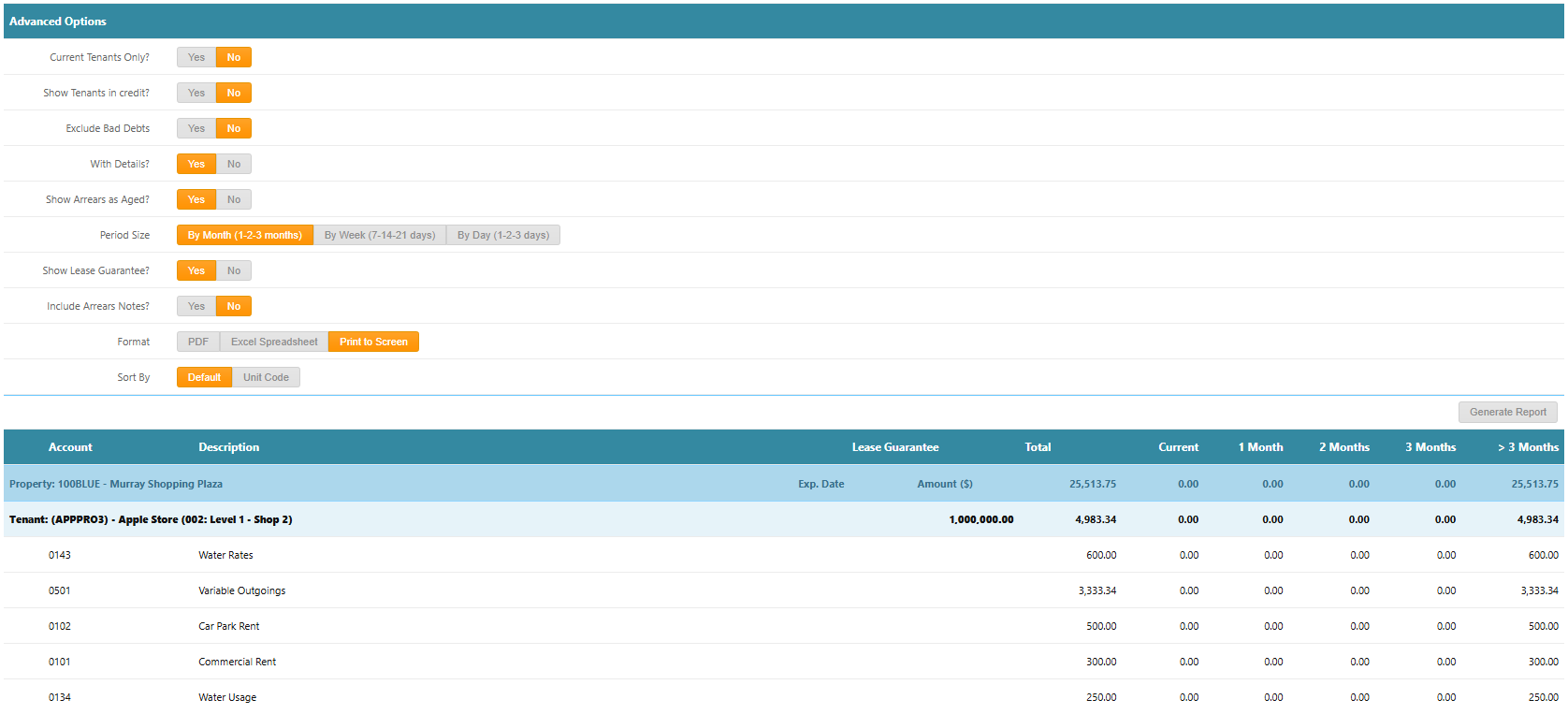
- Select the Advanced Options:
- Current Tenants Only: Select Yes or No. This will filter out vacated leases
- Show Tenants in Credit: Select Yes or No. This will display tenants in a credit position on their account
- Exclude Bad Debts: Select Yes or No. This will exclude tenants marked with a Bad Debt Provision
- Show Arrears as Aged: Select Yes or No. Selecting Yes will provide options to select the aging period e.g. By Month (1-2-3 months)
- Show Lease Guarantee: This will display any Lease Guarantee expiry date and amount information set up against the Lease
- Include Arrears Notes: Select Yes or No. Selecting Yes will display the lease notes entered against the lease using the note heading "Arrears Notes"
- Format: Select the display format of the report, e.g. PDF, Excel Spreadsheet, Print to Screen
- Sort By: Default or Unit Code
- Click Generate Report
Was this article helpful?
That’s Great!
Thank you for your feedback
Sorry! We couldn't be helpful
Thank you for your feedback
Feedback sent
We appreciate your effort and will try to fix the article