1. Complete End of Month (June)
From an accounting perspective in Cirrus8, there are no additional EOFY processes required.
Steps:
Complete the June month end using the normal process.
Follow your standard Month End procedure (same as any other month).
Once completed, the financial year is effectively closed.
(See Month End notes here: Month End)
2. Close Calendars
After June month end is completed, update the calendar so the system moves into the new financial year.
Steps:
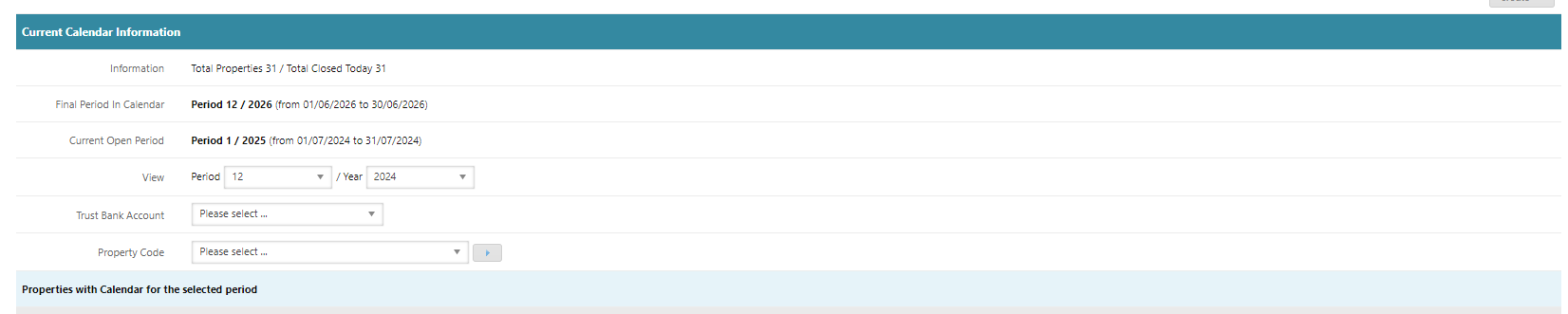
Go to Configuration → Manage Calendar.
Close the completed calendar period.
Confirm the system now shows:
Period 1 of the new financial year.
3. Generate EOFY Reports for Owners
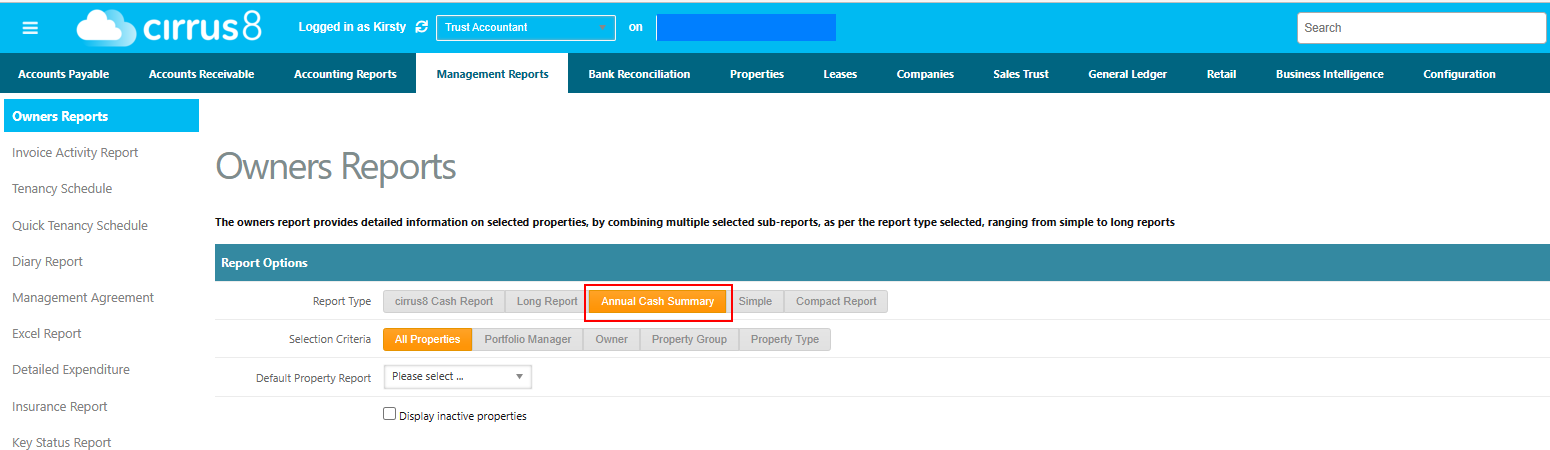
Owners can be sent an End of Financial Year Statement using the Owner Report function.
Report to use:
Annual Financial Summary
What the report includes:
Income received
Expenses paid
GST received and paid
Opening cash balance
Funds remitted to owner
Closing cash balance (monthly breakdown)
Steps:
Open Owner Reports.
Select Annual Financial Summary.
Choose the required financial year.
Select:
All properties
Include inactive properties (if required).
Run the report.
4. Handle Inactive Properties
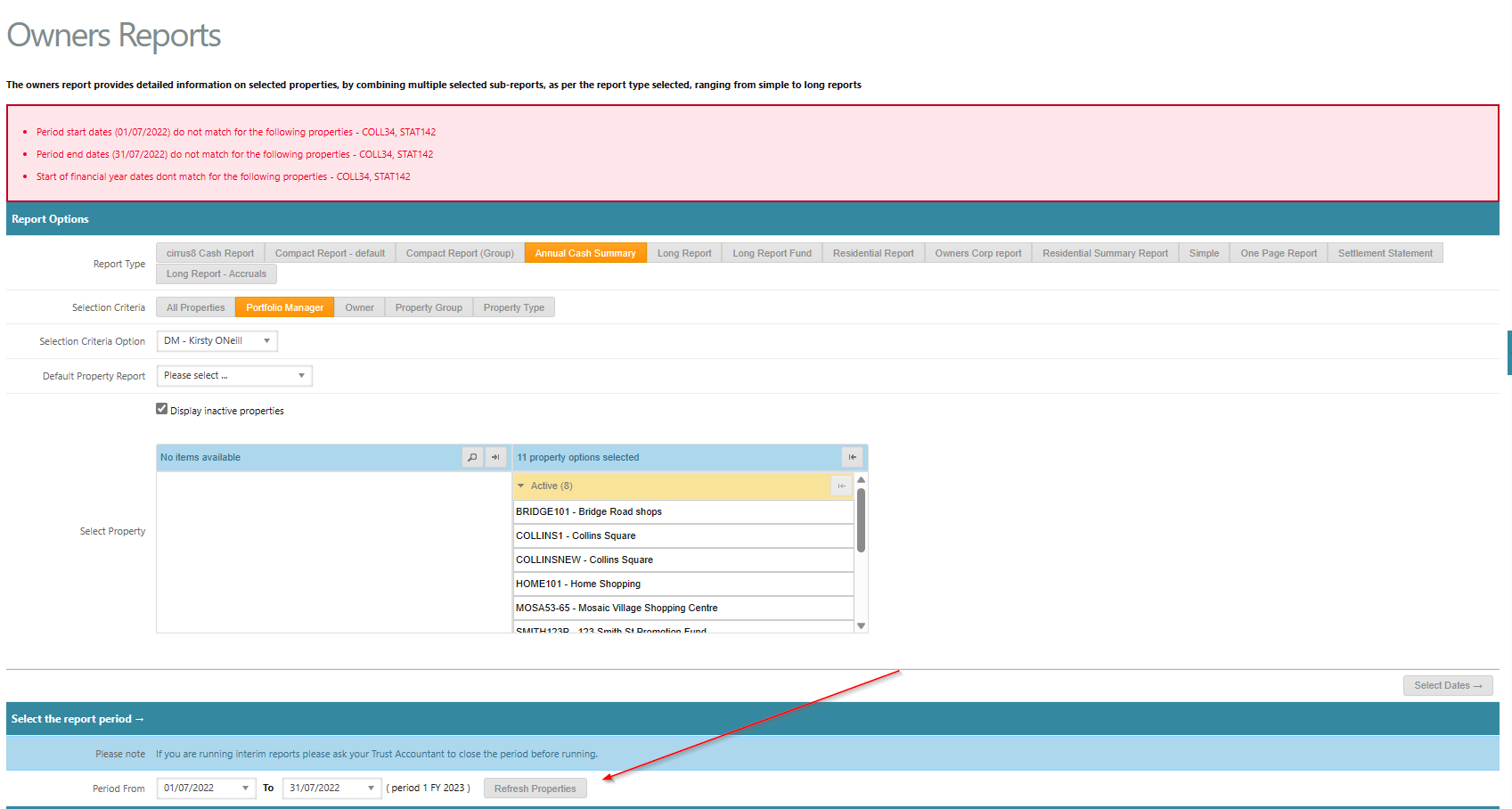
Some inactive properties may not need statements if they were made inactive before the current financial year.
Steps:
Review the red warning box listing inactive properties.
Click Refresh Properties.
The system will automatically:
Filter out properties with no transactions for the selected financial year.
Continue running reports for remaining properties.
5. Add a Cover Letter (Optional)
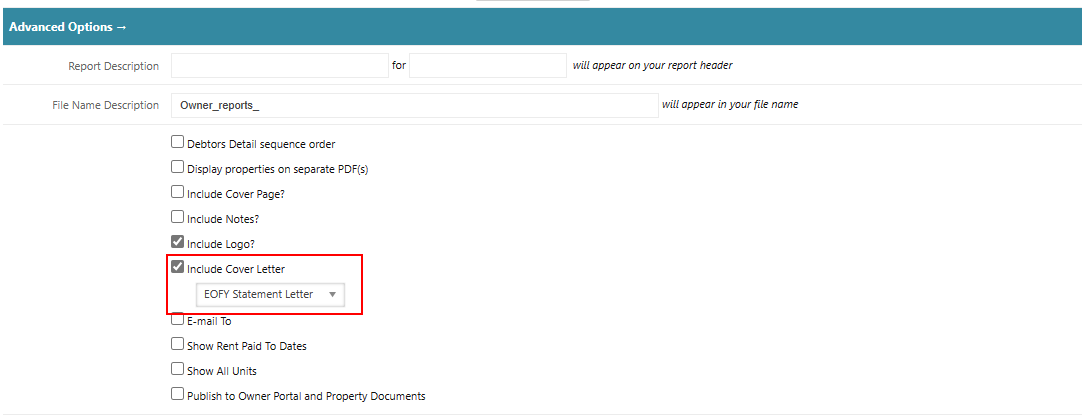
You can include a cover letter when sending EOFY statements.
Step A – Create the Cover Letter Template
Go to Manage Letter Templates.
Create a new template.
Select category:
COVER LETTER
Add:
Your custom wording
Available placeholders.
Save the template.
Note: Cirrus8 does not provide a default EOFY cover letter — this must be written by your business.
Was this article helpful?
That’s Great!
Thank you for your feedback
Sorry! We couldn't be helpful
Thank you for your feedback
Feedback sent
We appreciate your effort and will try to fix the article