The Property Budget Report provides detailed information on owner income and variable outgoing expenditure for selected properties within a specified year.
Follow the steps below to generate this report.
Step 1: Navigate to the Report
Log in to the system.
From the main menu, select Properties.
Click Property Budget Report.
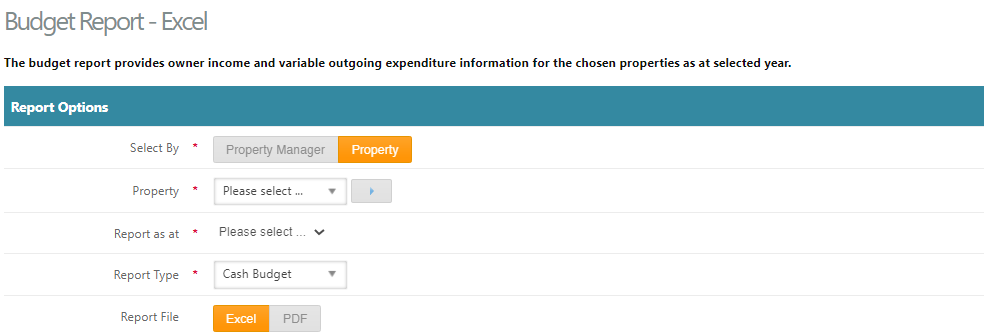
Step 2: Select a Property
Locate the Property dropdown or selection field.
Choose the property for which you want to generate the report.
Step 3: Select the Report Year
Find the Report Year field.
Select the relevant year from the available options.
Step 4: Select the Report Type
Locate the Report Type field.
Choose the required report type (if multiple types are available).
Step 5: Choose the Report Format
Find the Report File or Export Format option.
Select one of the following formats:
Excel – Recommended for further analysis or editing.
PDF – Recommended for sharing or printing.
Step 6: Generate the Report
Click Generate, Run, or Export (button name may vary).
The report will download or open, depending on your system settings.
Tip:
Ensure the correct property and year are selected before generating the report to avoid re-running it.
Use the Excel format if you need to filter, sort, or manipulate financial data.
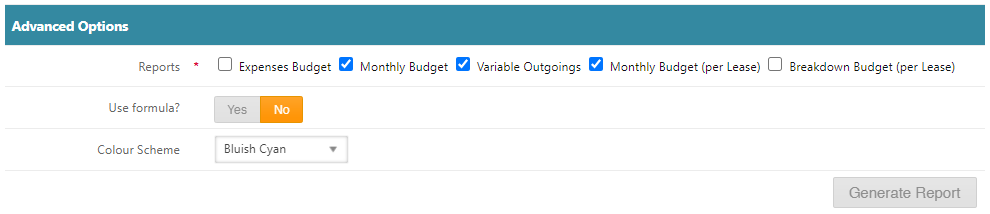
Advanced Options (only applicable if generating to excel):
- Expenses Budget - produces a breakdown of the expenses
- Monthly Budget – produces a monthly breakdown
- Variable Outgoings – produces a variable outgoing expenditure report
- Monthly Budget (per lease) - provides a breakdown for the income for each lease in the property
- Breakdown Budget (per lease) - produces a breakdown of the expenses per lease
- When all boxes are ticked, one report is created with multiple tabs.
- Use Formula:
- Yes, allows you to see formulas used in the report - click Enable Editing for formulas to calculate amounts.
- No, produces report amounts without showing formulas.
Was this article helpful?
That’s Great!
Thank you for your feedback
Sorry! We couldn't be helpful
Thank you for your feedback
Feedback sent
We appreciate your effort and will try to fix the article