Variable Outgoings expense management fees are expenses which have been included in the budget and deducted from variable outgoings funds. The associated expense is recorded against the Variable Outgoings Management Fee expense code defined in the database, which is typically account code 5671.
1. Setting Up Fixed Management Fee as a Variable Outgoings Expense
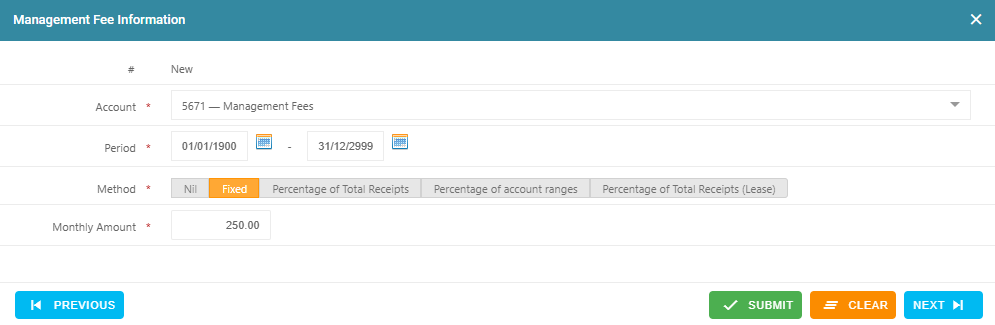
This will charge a fixed amount management fee each month as a variable outgoings expense regardless of the income received for the month. The management fee expense will be deducted from variable outgoings funds. To set this up, follow the below steps:
- Navigate to Property > Property Summary
- Click on the Management tab
- Go to the Management Fees section
- Click on the + Icon
- Select the Account 5671 - Management Fees
- Enter the From Date as the date this management fee method is to commence. If this is the first management fee set up against this property, enter the date as 01/01/1900
- Enter the To Date as 31/12/2999 to allow the management fee to be charged on an ongoing basis without an end date.
- Select Method as Fixed
- Enter the Monthly Amount as the GST exclusive monthly amount. For example, if the annual management fee to be charged is $3,000 + GST per annum ($3,300 inclusive of GST per annum), enter the Monthly Amount as $250.00.
- Click Submit
2. Setting Up Percentage of Total Receipts Management Fee as a Variable Outgoings Expense
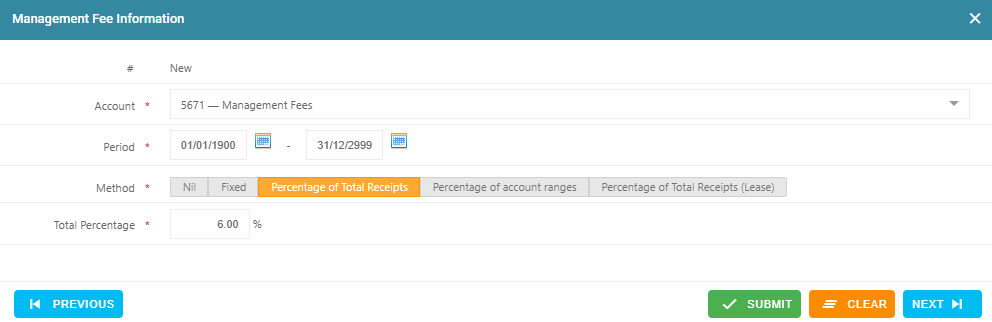
This will charge management fees on all management fee included income account codes receipted against all leases set up against the property as a percentage. The management fee expense will be deducted from variable outgoings funds. To set this up, follow the below steps:
- Navigate to Property > Property Summary
- Click on the Management tab
- Go to the Management Fees section
- Click on the + Icon
- Select the Account 5671 - Management Fees
- Enter the From Date as the date this management fee method is to commence. If this is the first management fee set up against this property, enter the date as 01/01/1900
- Enter the To Date as 31/12/2999 to allow the management fee to be charged on an ongoing basis without an end date. If this management fee method has a specific end date, enter the end date as the To Date.
- Select Method as Percentage of Total Receipts
- Enter the Total Percentage as the percentage to charge. For example, if the management fee is to be 6% of gross collections per annum plus GST, enter 6% in the Total Percentage field.
- Click Submit
3. Setting Up Percentage of Account Ranges Management Fee as a Variable Outgoings Expense
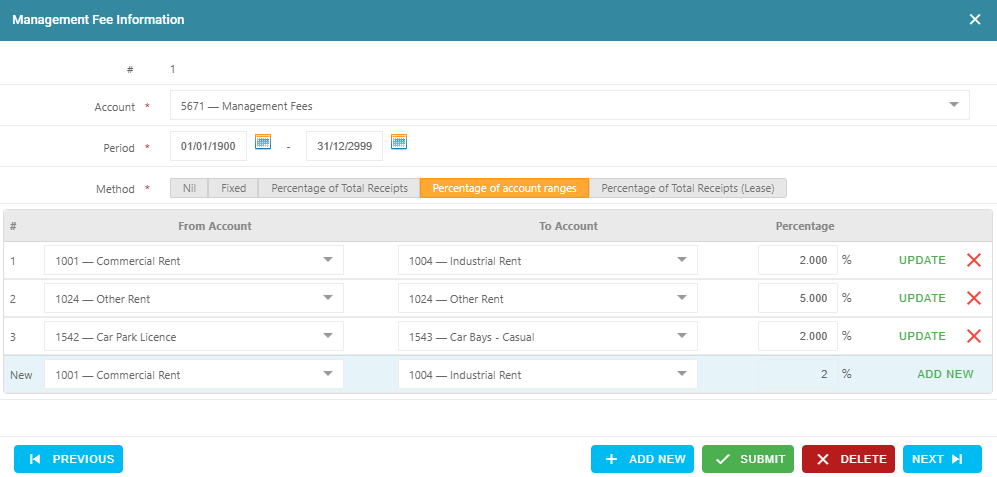
This configuration charges a management fee, calculated as a percentage, to all income account code ranges that are set up and receipted against leases associated with the property. The management fee expense will be deducted from variable outgoings funds. To set this up, follow the below steps:
- Navigate to Property > Property Summary
- Click on the Management tab
- Go to the Management Fees section
- Click on the + Icon
- Select the Account 5671 - Management Fees
- Enter the From Date as the date this management fee method is to commence. If this is the first management fee set up against this property, enter the date as 01/01/1900
- Enter the To Date as 31/12/2999 to allow the management fee to be charged on an ongoing basis without an end date. If this management fee method has a specific end date, enter the end date as the To Date.
- Select Method as Percentage of account ranges
- Select the From Account and the To Account to form your account range
- Enter the Percentage amount to be charged on this account range
- Click Add New
- Add any additional account ranges and percentages if required
- Click Submit
4. Setting Up Percentage of Total Receipts (Lease) Management Fee as a Variable Outgoings Expense
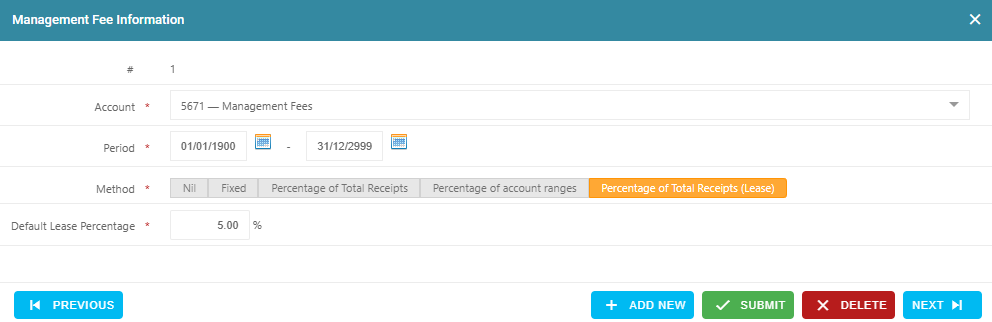
This will charge Variable outgoings expense management fees on all management fee included income account codes receipted against all leases as a percentage, but allow different leases within the same property to have different management fee percentage rates.
Example Scenario: A property has 3 leases. Two of those leases total receipts are to be charged management fees at 5% as an variable outgoings expense. One of the leases is to be charged management fees at 2% of total receipts as an variable outgoings expense.
Both the property and leases attached to the property will need to be set up to use this management fee calculation method.
Property Setup Steps:
- Navigate to Property > Property Summary
- Click on the Management tab
- Go to the Management Fees section
- Click on the + Icon
- Select the Account 5671 - Management Fees
- Enter the From Date as the date this management fee method is to commence. If this is the first management fee set up against this property, enter the date as 01/01/1900
- Enter the To Date as 31/12/2999 to allow the management fee to be charged on an ongoing basis without an end date. If this management fee method has a specific end date, enter the end date as the To Date.
- Select Method as Percentage of Total Receipts (Lease)
- Enter the Default Lease Percentage as the majority percentage to be charged for the property as a whole. Taking our example scenario, the percentage to enter is 5%
- Click Submit
Lease Setup Steps:
The below steps will need to be repeated for each individual lease that is currently attached to the property.
For the Leases which are to be charged at 5% of total receipts, set up the Leases as follows:
- Navigate to Leases > Lease Summary
- Select the relevant Lease from the drop-down menu
- Click on the Charges and Rent Reviews tab
- Go to Direct Management Fee section and click on the Edit Pencil for this section
- In the Management Percentage field, enter 5
- Click Save Management Fees Details

For the Lease which is to be charged at 2% of total receipts, set up the Lease as follows:
- Navigate to Leases > Lease Summary
- Select the relevant Lease from the drop-down menu
- Click on the Charges and Rent Reviews tab
- Go to Direct Management Fee section and click on the Edit Pencil for this section
- In the Management Percentage field, enter 2
- Click Save Management Fees Details

Was this article helpful?
That’s Great!
Thank you for your feedback
Sorry! We couldn't be helpful
Thank you for your feedback
Feedback sent
We appreciate your effort and will try to fix the article