A journal is a transaction consisting of at least one debit and one credit entered from a journal feature 'Journal Entry' as opposed to transactions entered from accounts payable or accounts receivable ledgers. Normally used for doing adjustments or opening balances. Each journal is recorded against a property and updates the trial balance.
Journal Entry
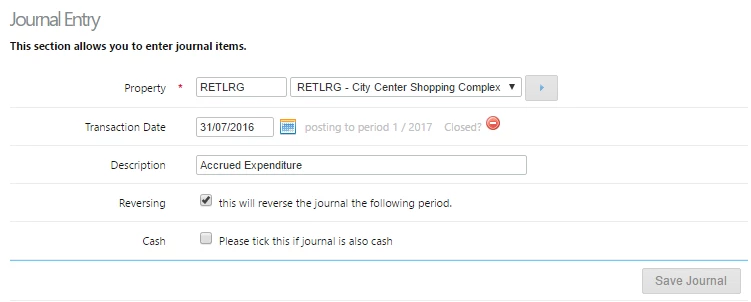
- Select a property from the drop down
- Transaction date – must fall within the period you want the transaction reported on.
NB. All properties have 3 calendars. The normal calendar, the retail calendar and the GL calendar. The GL calendar is sometimes kept open longer than the normal calendar thus allowing journal entries to still be entered after you have closed the property for AP and AR transactions. - Description – For the entire journal which could consist of a number of different lines.
Reversing – When clicked cirrus8 creates an original journal as entered on the screen and a reversing journal; the exact opposite fo the original journal on the 1st of the following month.
NB.This is useful for accrued expenses or income in which you would like the journal to reverse as you are likely to receive the invoice for which the accrual relates which should offset the reversing entry.
- Cash Journal – When clicked the journal entry is reflected in the cash general ledger.
- Save journal – Will save the header and open up the detailed journal screen.
 New Journal Entry Details opens below;
- Enter each debit and credit on individual lines.
- Enter credits as negative
- Company is a compulsory field – if the entry does not relate to a specific company or is unknown you can enter the real estate agent’s code.
- GST is calculated and the balancing entry put to the relevant control account
- Click Create (or add new).

Draft status
- Up to this point the journal is in draft status and has not been posted to the general ledger tables.
- Incorrectly entered lines can be deleted by clicking on the adjacent red cross. removing the entry from the GL and restates the trail balance.

Posted status
- Click 'Commit' to post the journal.
- If there is an error you will get the following error message.

Viewing Journals
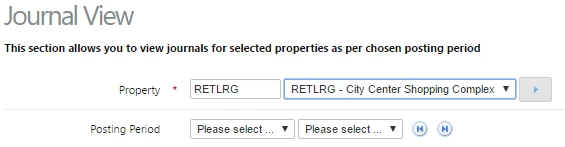
- Draft and posted journals can be viewed in Journal View.
- Property: Select a property to view.
- Posting Period: Select to refine search by posting year and period.
- Every journal is allocated a sequential number.
- Click view to review journal detail
- Status, posted journals:
 and drafts journals:
Deleting a journal
- Removes the general ledger transaction and restates the trial balance.
Viewing transactions in GL after posting
Once a journal is posted you can view the actual transactions created using the GL transactions report which shows the source of the transaction as JNL
Was this article helpful?
That’s Great!
Thank you for your feedback
Sorry! We couldn't be helpful
Thank you for your feedback
Feedback sent
We appreciate your effort and will try to fix the article