This article provides steps on how to link supporting documents such as supplier invoices or service reports to Accounts Receivable invoices or credits.
Steps to follow to attach supplier invoices to Tenant Tax Invoices:
- Locate the AR Invoice or Credit transaction to attach to
- For Property Manager users, go to: Leases > View Tax Invoices. For Trust Accountant Users, go to: Accounts Receivable > View Tax Invoices
- Select a Property and Lease
- Enter Invoice Number (optional)
- Select a date range for Due Date
- Click Search
- On the chosen Invoice click Upload
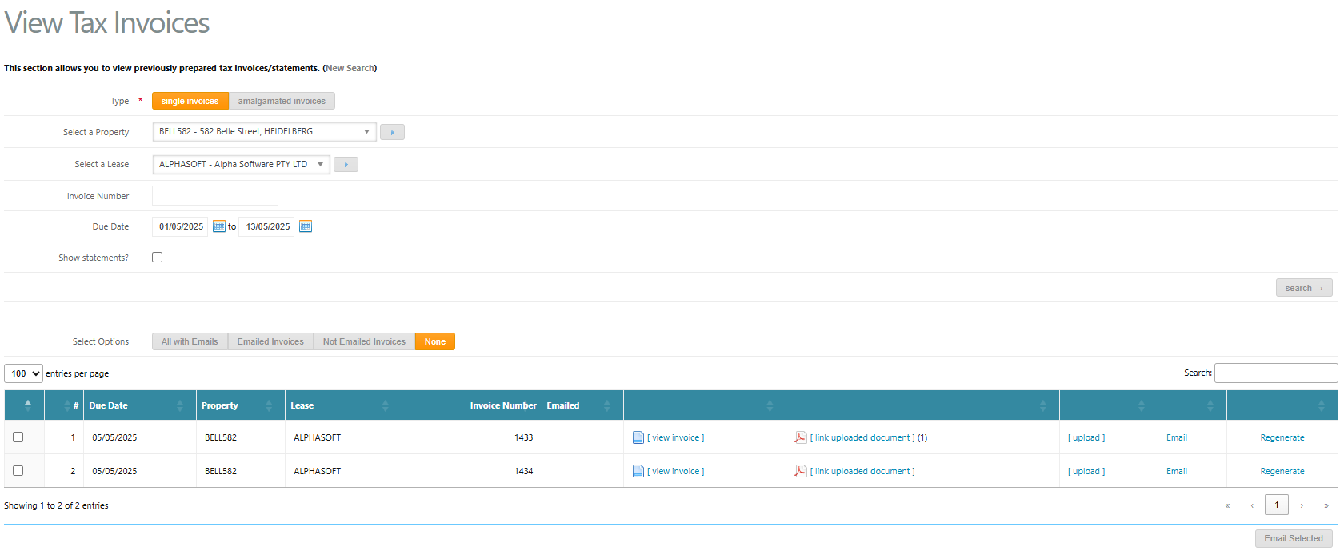
- Upload the supporting document
- In the 'Upload Documents' screen select the Supplier and Property
Enter a Document Title and Document Description
Attach a document from your desktop
Click upload
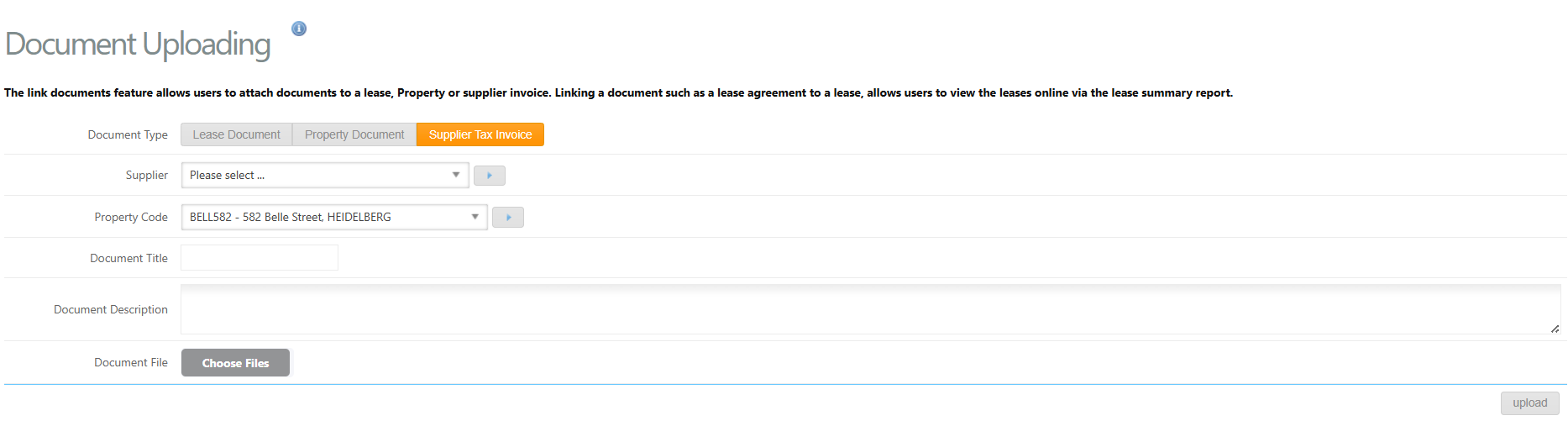
Link the supporting document to the AR transaction
Navigate back to View Tax Invoices follow step 1 to find the relevant AR Invoice
Click Link uploaded document - this will provide a list of all uploaded invoices with latest on top
A popup dialog box will appear, select the correct document(s) to link
Click Select
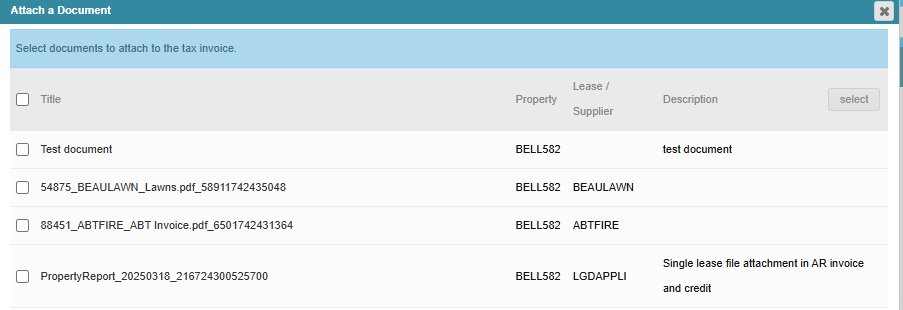

The number of invoices will then appear next to the 'link uploaded document' e/g (1)
Email the AR Invoice and supporting documents
Click Email
Providing the tenants email address has been entered into Cirrus8 previously, the tenant will receive an email with two attachments, one tenant tax invoice and one supporting document attachment.
Was this article helpful?
That’s Great!
Thank you for your feedback
Sorry! We couldn't be helpful
Thank you for your feedback
Feedback sent
We appreciate your effort and will try to fix the article