This section allows you to view previously generated lease tax invoices and statements, link supporting supplier documents, and review invoice email status.
Navigation
Trust Accountant: Accounts Receivable > View Tax Invoices
Property Manager: Leases > View Tax Invoices
How to View Tax Invoices or Statements
Navigate to View Tax Invoices.
Select a Property and Lease, or enter a specific Invoice Number (if known).
Select a Due Date range.
Tick Show Statements if required.
Click Search.
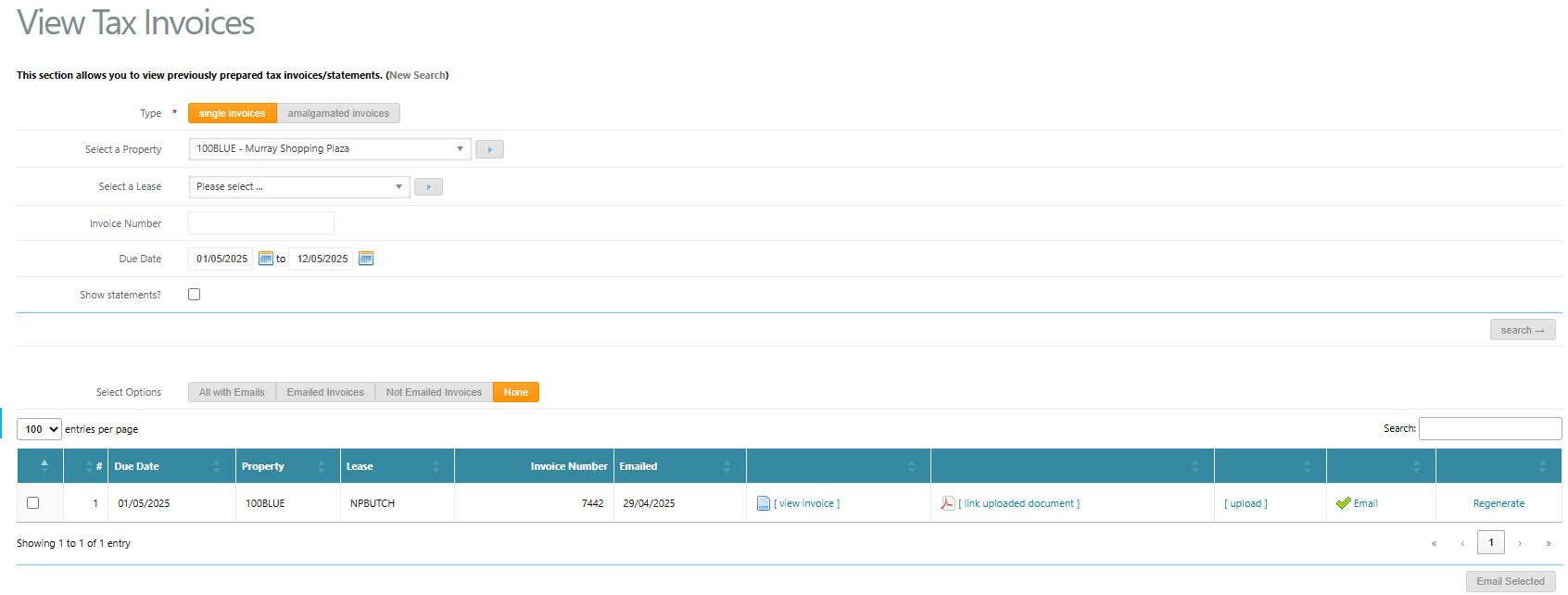
A list of tax invoices will display with the following actions available:
Emailed – Displays the date the invoice was last emailed. Hover to view the recipient email address.
View Invoice – Opens the tax invoice as sent to the tenant.
Link Uploaded Document – Links additional documents to the invoice; these will be sent with the invoice email.
Upload – Allows you to attach an existing uploaded document (see Link Supporting Documents to Accounts Receivable Invoices).
Email – A green tick indicates the invoice has been emailed. Click to resend if required. Hover to see how many times it has been sent. If no email exists for the tenant, this will display as “--”.
Regenerate – Regenerates the tax invoice PDF to reflect any changes made in Invoice & Credit Adjustments.
Note: Supporting supplier invoices will automatically link where the Accounts Receivable transaction is linked to Accounts Payable and the option to transfer supplier documents is enabled.
Was this article helpful?
That’s Great!
Thank you for your feedback
Sorry! We couldn't be helpful
Thank you for your feedback
Feedback sent
We appreciate your effort and will try to fix the article