This process is used to move income to the correct place in Accounts Receivable.
No money moves in or out of the bank — you are simply fixing where the income has been recorded.
Use this when:
Income was posted to the wrong lease
Income was posted to the wrong account code
Income needs to be moved between leases or properties
Where to find this
As a Trust Accountant user, go to:
Accounts Receivable > Transfer Journal
(This screen is used to reallocate income)
Step 1: Transaction Date
Enter a date in the current accounting period
Transfers cannot be backdated to closed periods and will appear in the current owner report
Step 2: Remove the income from the wrong place
(This is where the income is coming from)
Enter the following details:
Property – The property the income was originally recorded against
Lease – The lease the income is being moved from
Account – The same account code as the original income
Description – e.g. Reallocating income to correct lease
From / To Dates – Relevant date range
Gross Amount – The amount being moved
GST and Net amounts will auto-calculate
Check these match the original transaction
This step reduces the income in the incorrect location.
Step 3: Add the income to the correct place
(This is where the income is going to)
Enter the following details:
Property – The property the income should belong to
Lease – The lease the income is being moved to
Account – The correct account code
Description – e.g. Reallocating income to correct lease
From / To Dates – Relevant date range
Gross Amount – Enter the same amount as above
GST and Net amounts will auto-calculate
Check they are correct
This step adds the income to the correct location.
Important things to remember
The amount removed and added must be the same
This does not affect the bank balance
This is for corrections only, not receipts or refunds
Always double-check the property, lease, and account codes before processing
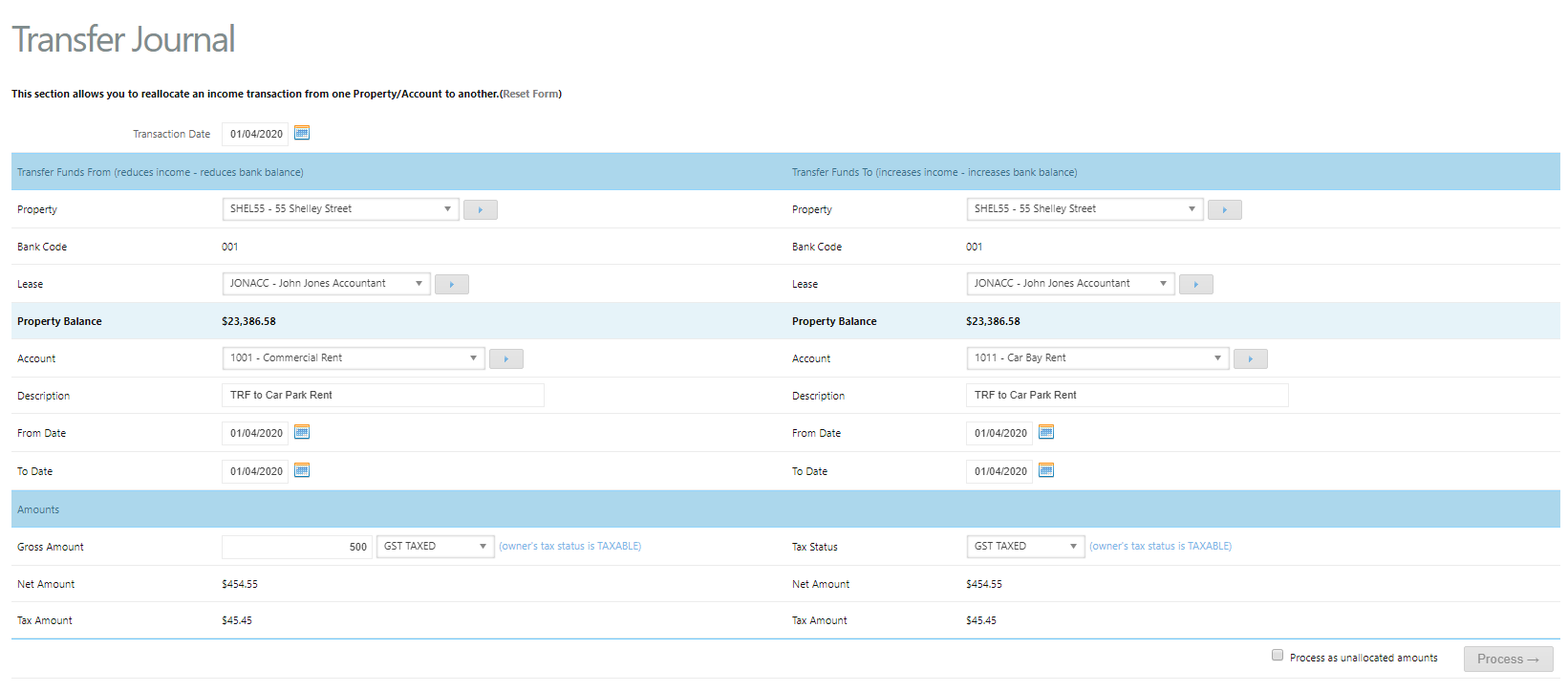
- Select 'Process as unallocated amounts' if you wish to transfer funds as unallocated. Using this option allows you to zero receipt against other transactions once the transfer has occurred.
- Click Process
Tip - It's easy to transfer funds between accounts of the same property. However, if you're transferring between different properties, make sure the property you are transferring from has sufficient funds to cover it.
Was this article helpful?
That’s Great!
Thank you for your feedback
Sorry! We couldn't be helpful
Thank you for your feedback
Feedback sent
We appreciate your effort and will try to fix the article