Sale Property
- Create a Sale Property
- Add Seller Sub-Ledger Account
- Invoice a Purchaser for a Sale Deposit
- Receipt a Sale Deposit
- Invoice Sale Commission
- Pay Sale Commission
- Deposit Release on Settlement
1) Set up the Sales Trust bank account
Go to Configuration → Manage Bank Accounts
Select Add Bank Account
Add the Sales Trust Account
Confirm it appears in the Agency Bank Accounts List
Add the Sales Trust Account to the Agency Bank Accounts List
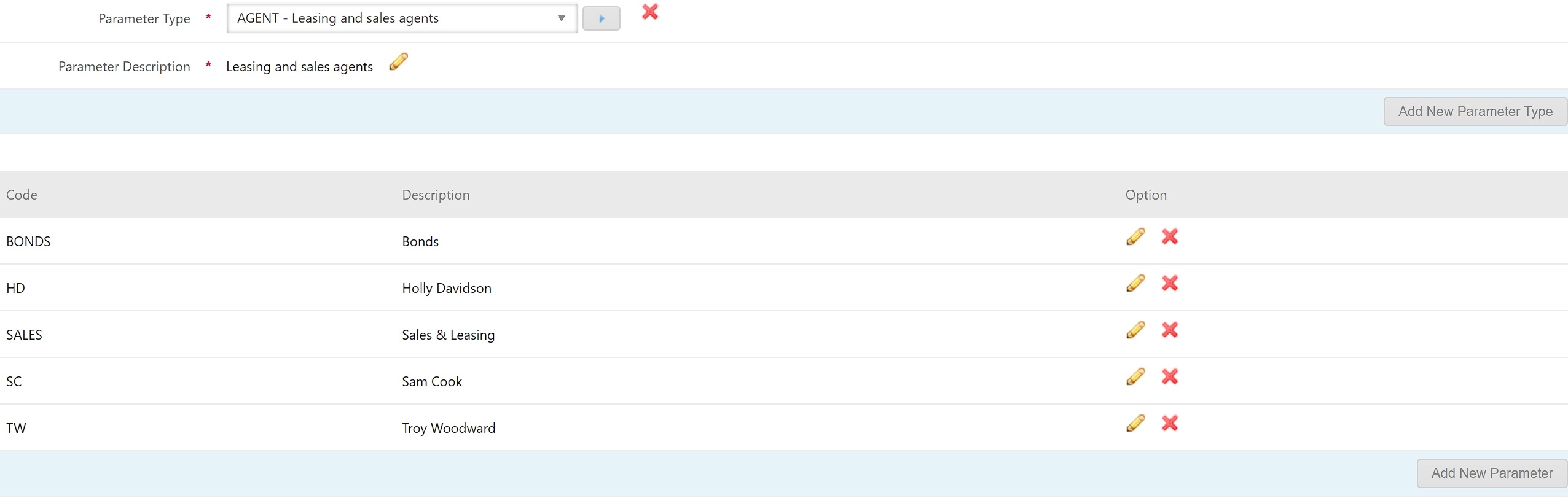
2) Add Sales Agents (parameters)
Go to Configuration → System Configuration
Set Parameter Type to: AGENT – Leasing and Sales Agents
Select Add New Parameter
Add each Sales / Leasing Agent you need
Save
3) Add Sales Trust ledger categories (parameters)
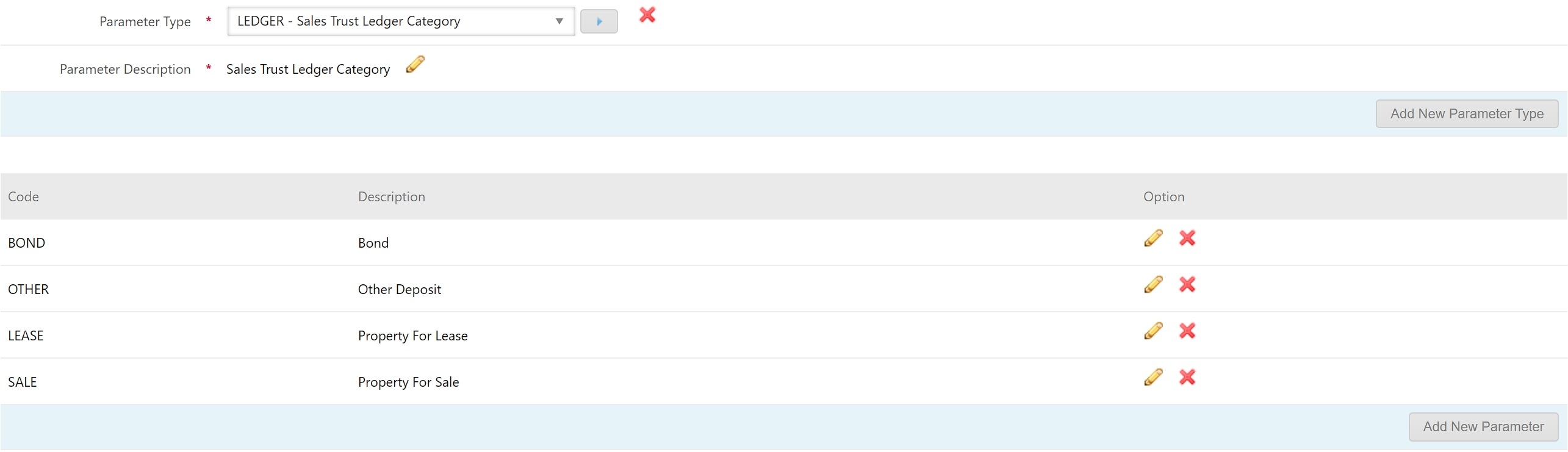
Go to Configuration → System Configuration
Set Parameter Type to: LEDGER – Sales Trust Ledger Category
Select Add New Parameter
Add the required Sales Trust Ledger Category options
Save
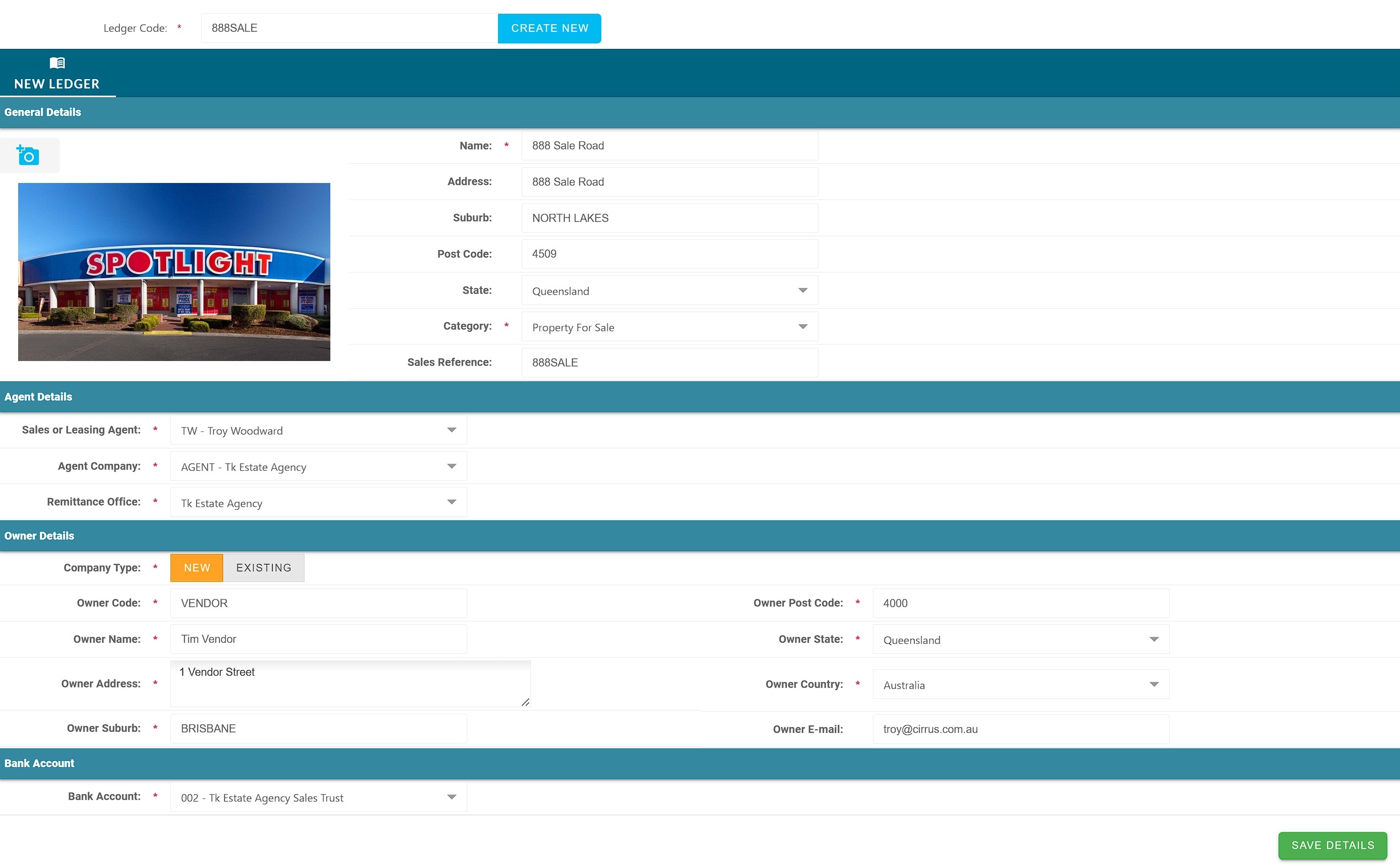
4) Create the Sale Property ledger (the “sale matter”)
Go to Sales Trust → New Ledger
Select New Ledger

3. Create a unique code for the Sale Property Ledger
Use a consistent convention (example:
SALE-<street>-<year>orSP-000123)

5. Enter/select the Owner (Vendor/Seller)
6. Save
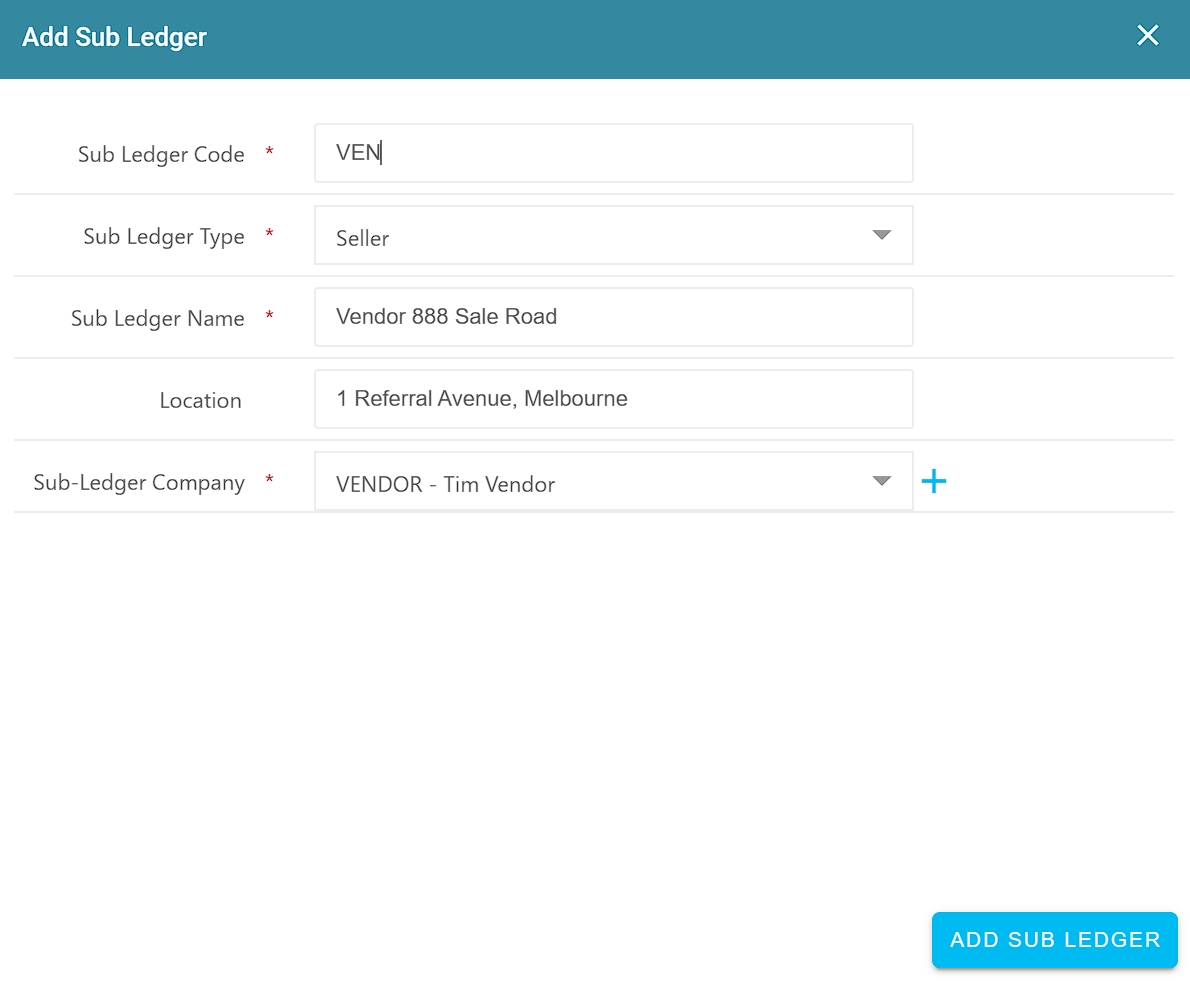
5) Add the Seller sub-ledger (for marketing + settlement movement)
Go to Sales Trust → Manage Ledger → Sub-Ledgers
Select Add Sub-Ledger
Create the Seller (Vendor) Sub-Ledger
Use this sub-ledger for:
Marketing costs
Settlement transfers
Save

6) Configure and invoice Sale Commission
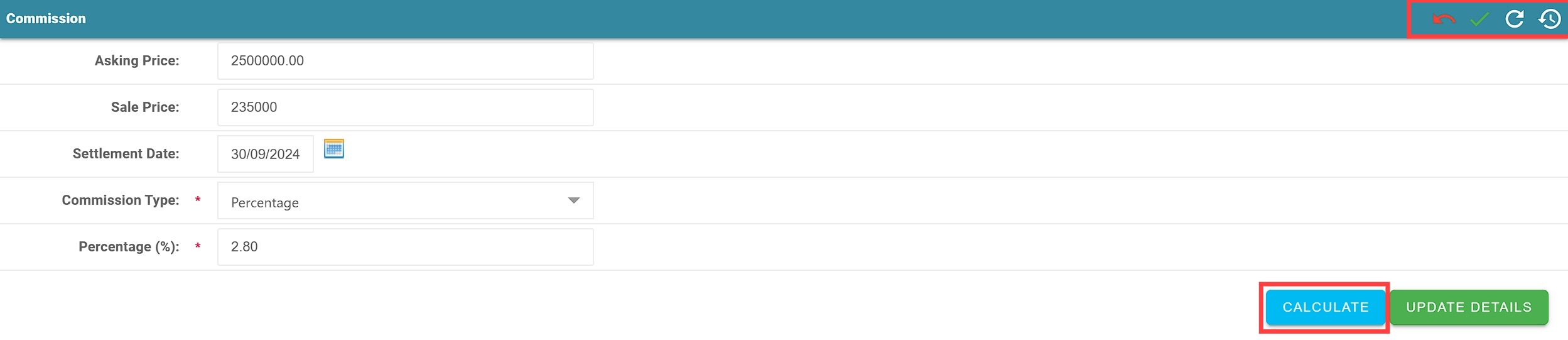
Go to Sales Trust → Manage Ledger → Commission
Select Edit Commission on the Sale Property Ledger screen
Enter commission calculation details (rate/amount and any required inputs)
Select Invoice / Generate Commission
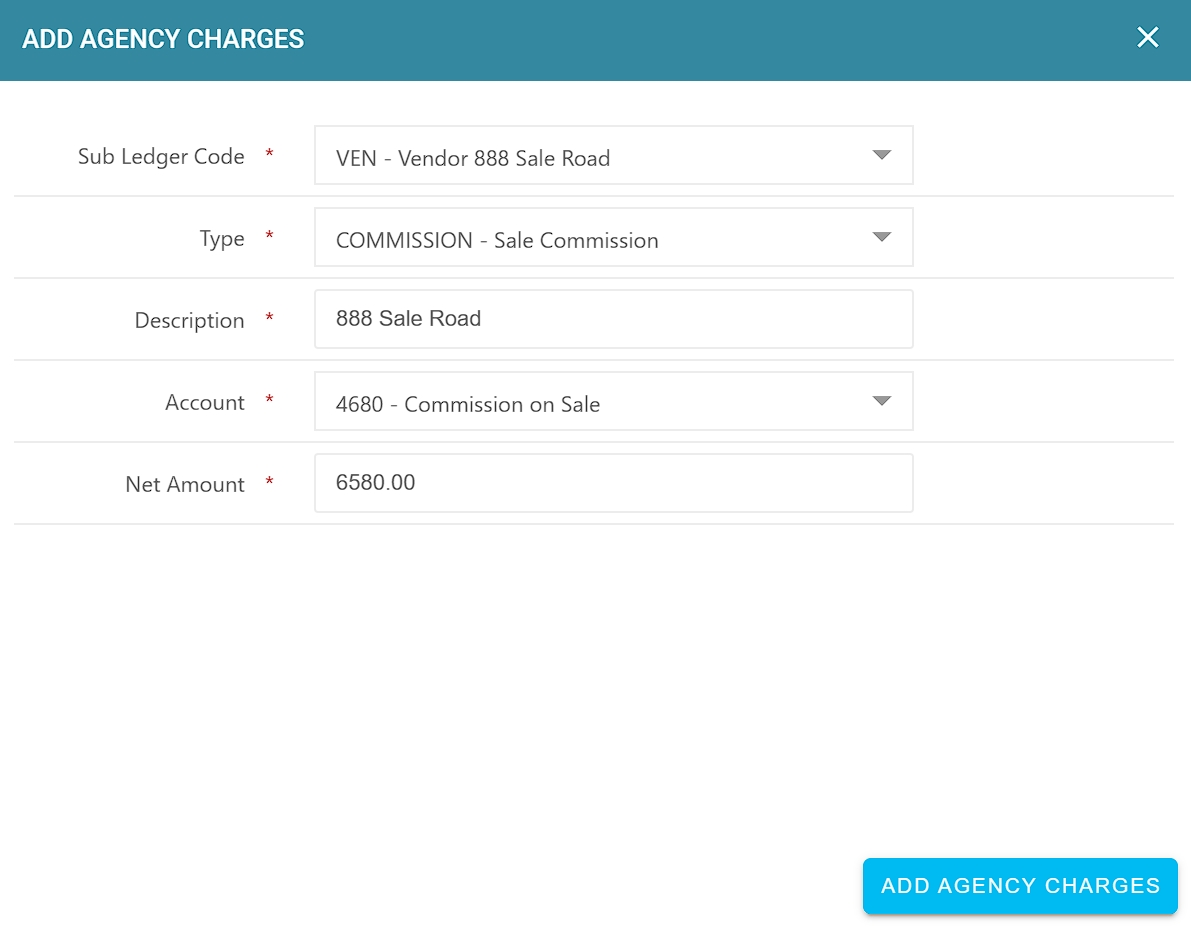
5. Under Agency Charges, add charges so the Sale Commission payable is recorded
6. Save / Complete
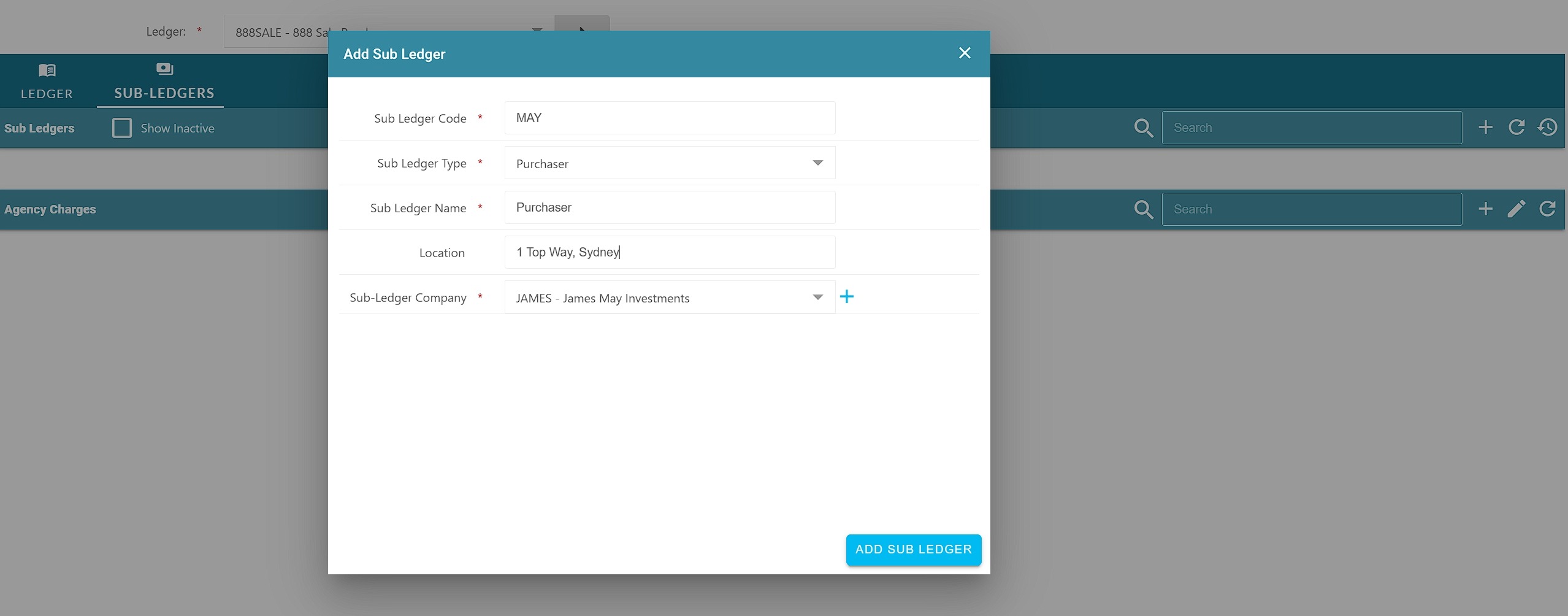
7) Add Property Purchaser as a sub-ledger
Go to Sales Trust → Manage Ledger → Sub-Ledgers
Select Add Sub-Ledger
Create a sub-ledger for the Purchaser
This is the sub-ledger you will invoice and receipt against
Enter purchaser details
Save

Add the Purchaser
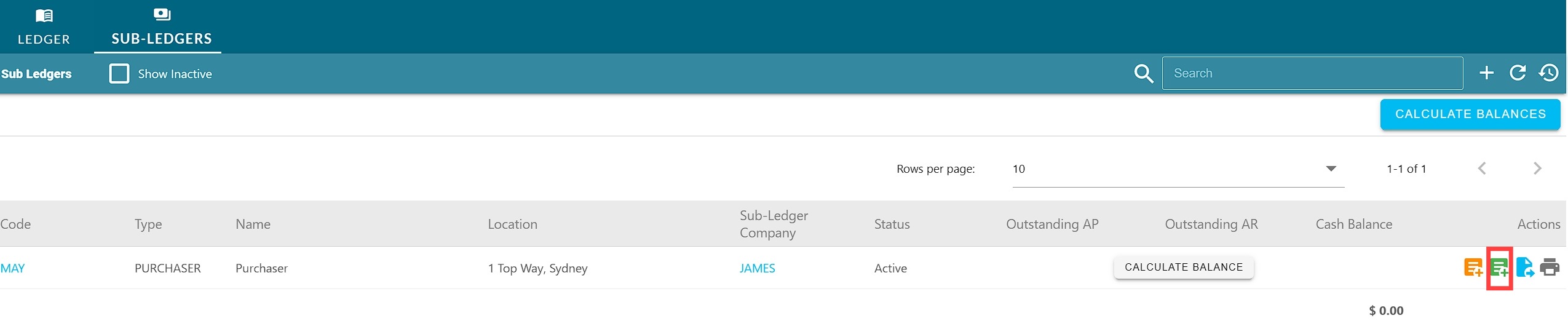
8) Invoice the Purchaser for the Sale Deposit
Go to Sales Trust → Manage Ledger → Sub-Ledgers → AR Invoice
Create an Accounts Receivable Invoice for the Sale Deposit
3. Use account code: 1531 – Deposit – Sales/Leasing
4. Select Process
5. Select Complete to generate the invoice
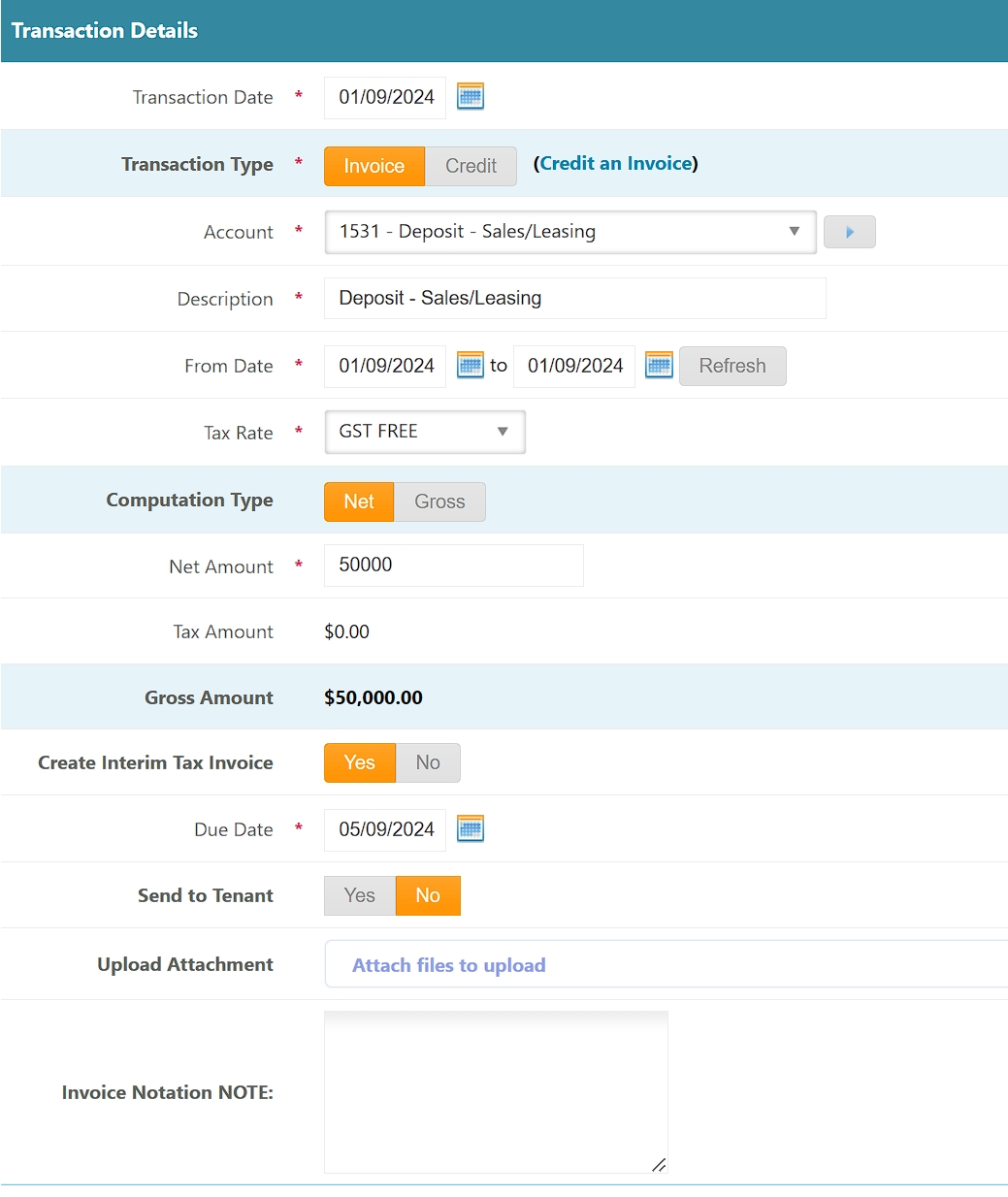
Select Process then Complete to generate the Sale Deposit Invoice

9) Receipt the Sale Deposit
Go to Accounts Receivable → Receipts
Receipt purchaser funds against the Sale Deposit Invoice
Confirm the receipt is allocated correctly to the invoice
Save / Complete
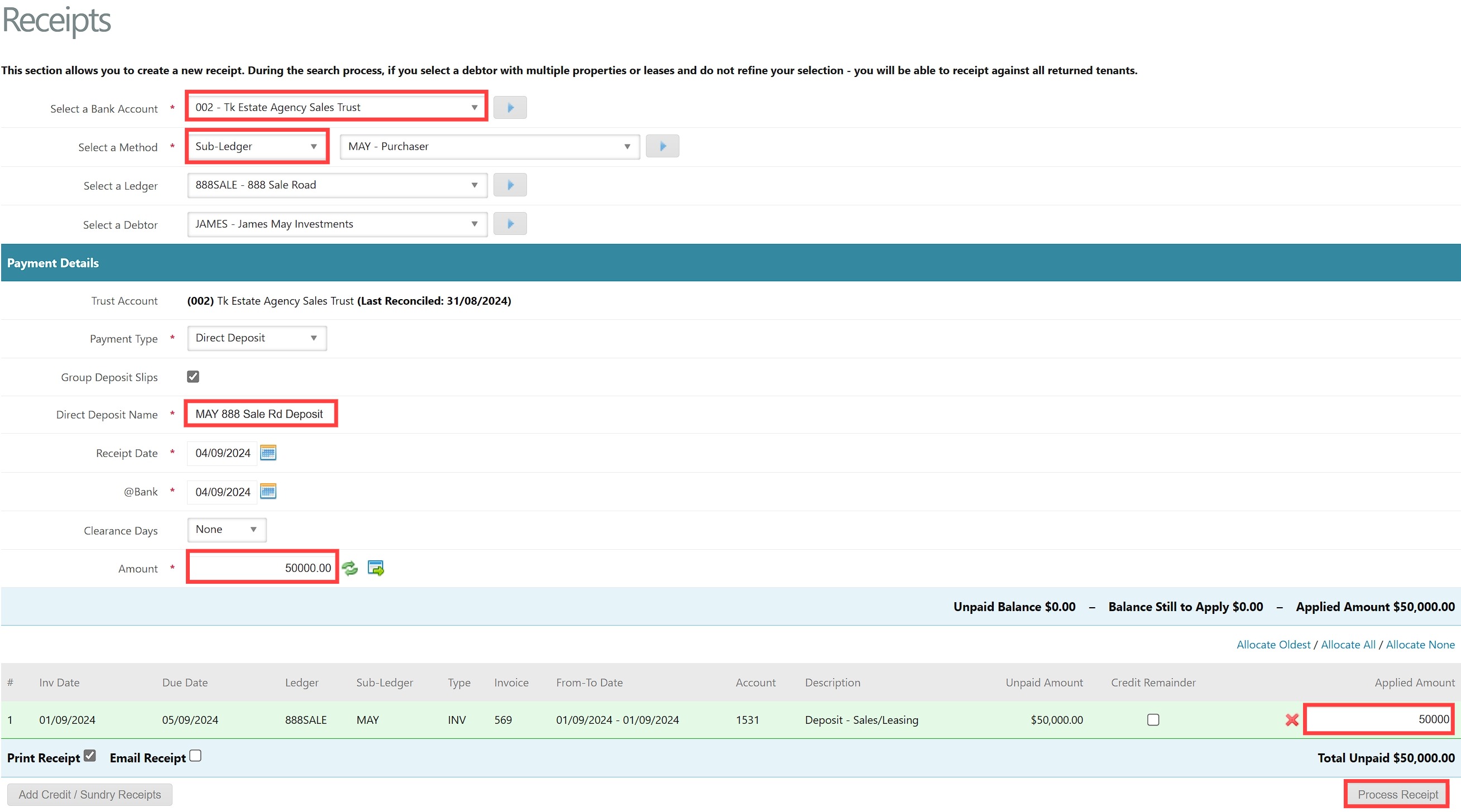
10) Sale Settlement: transfer the deposit to the Vendor sub-ledger
Go to Accounts Receivable → Transfer Journal
Transfer the Property Sale Deposit from:
Purchaser sub-ledger / deposit holding
to:Vendor (Seller) Sub-Ledger
Check ledger balances after transfer
Save / Complete
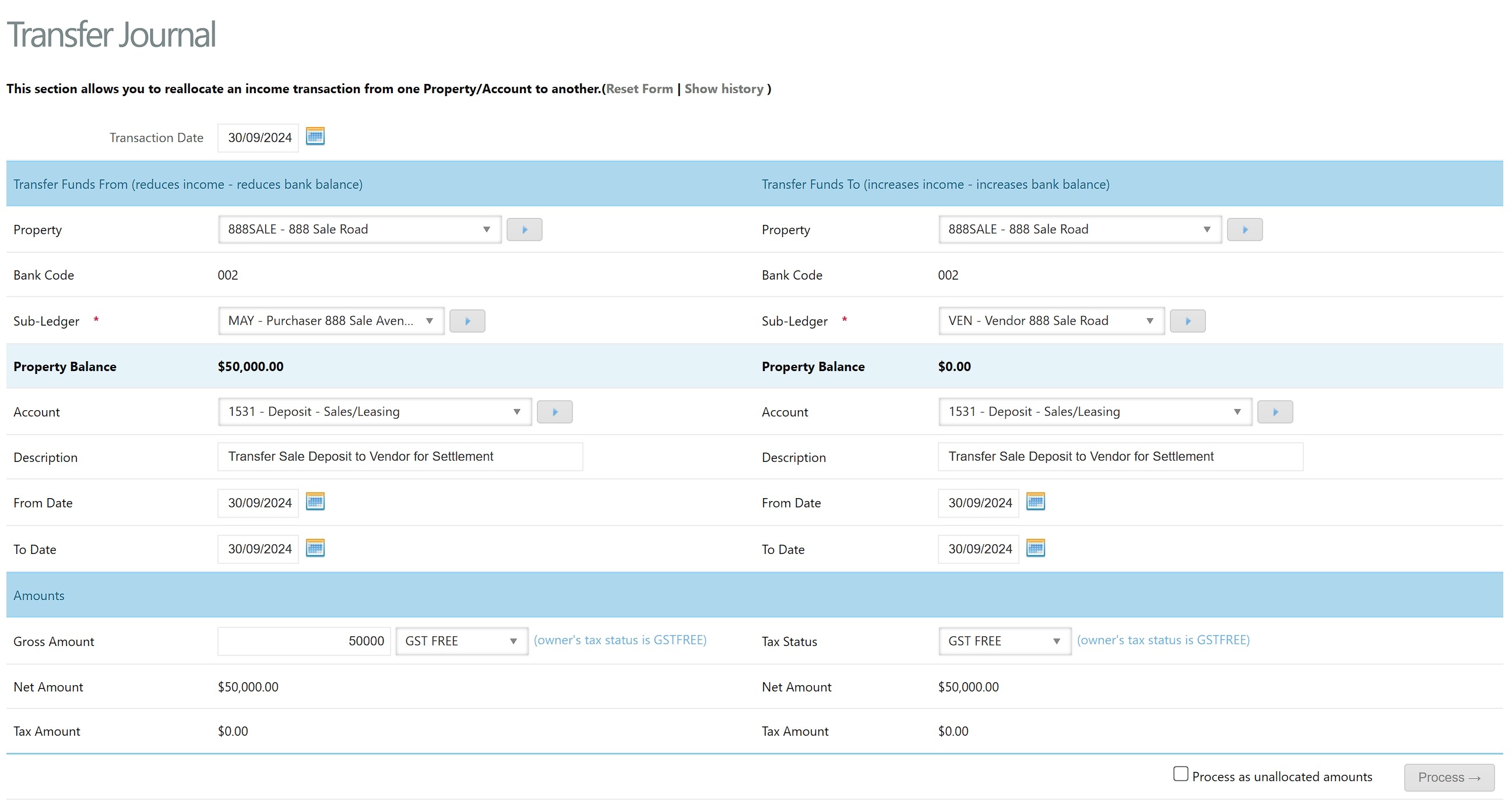
11) Pay Sale Commission (and release deposit as required)
Go to Accounts Payable → Create Payments
Create a new payment to the Vendor (as per your process)
Apply payment lines to cover:
Sale Commission payable (from Agency Charges / Commission process)
Any deposit release amounts as required on settlement
Save / Complete payment
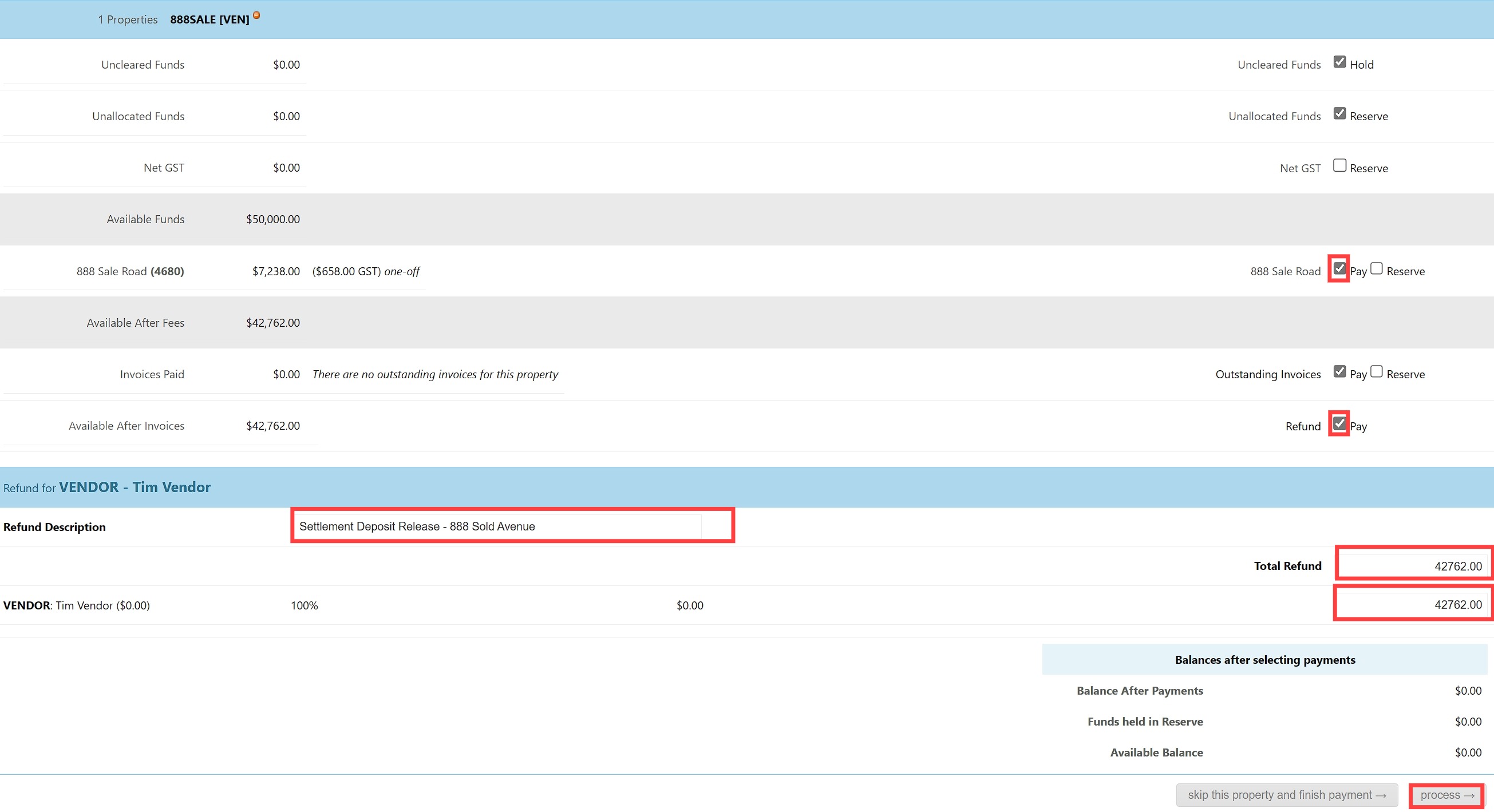
Quick checklist (end-to-end)
Sales Trust bank account exists ✅
Agents + ledger categories set ✅
Sale Property ledger created ✅
Seller sub-ledger created ✅
Purchaser sub-ledger created ✅
Deposit invoice raised (1531) ✅
Deposit receipted ✅
Deposit transferred to vendor sub-ledger ✅
Commission invoiced + payable recorded ✅
Commission paid + deposit released ✅
Known problems and practical notes
Problem 1: No GST on Sale Commission Agency Charges
If GST should apply, check the tax/GST configuration on the Agency Charges item used for commission:
the charge type may be set to GST Free / No Tax
or the commission template might not be using a taxable code
Practical workaround (until fixed):
add a separate GST line (if your system supports it)
or use an alternative charge code configured as taxable
Was this article helpful?
That’s Great!
Thank you for your feedback
Sorry! We couldn't be helpful
Thank you for your feedback
Feedback sent
We appreciate your effort and will try to fix the article