Projects
Under the 'Projects' tab you are able to action a few different items from here:
- Create New Project - You are able to create a new project
- Search Filters - Search by keywords, property, status or priorities. To view closed projects ensure you check 'Show Closed'
- Viewing a Project - By selecting a Project this will take you through to more information.

Creating a Project
Projects can be created from the 'Projects' tab by selecting 'Create New Project'. There are also a few option you can action:-
- Back arrow - This will take you back to the previous screen.
- Save as Draft - You can save as a Draft and revisit/complete at a later date

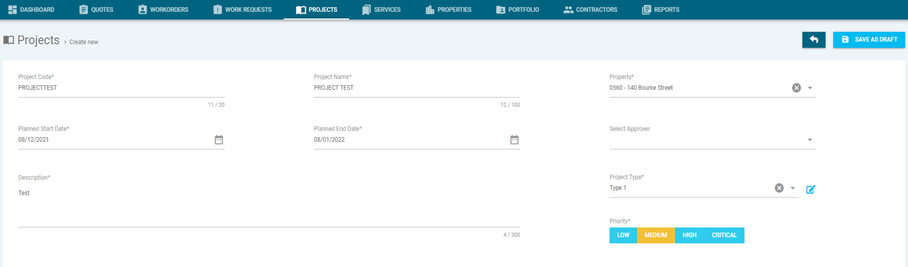
When creating a new project, please enter the following:
- * means this is a mandatory field and must be entered to create the project
- Project Code* - Enter the Project code, e.g. HVAC2021. Only use letters and numbers, no special characters.
- Project Name* - Enter the Project name, e.g. HVAC Upgrade
- Property* - Select the Property from the drop down menu.
- Planned Start Date* - Enter the planned start date for the project
- Planned End Date* - Enter the planned end date for the project
- Project Type* - Select the Type from the drop down menu.
- Select Approver - Select the Approver from the drop down menu
- Description* - Enter brief description of Project
- Priority* - Select the priority of the work.
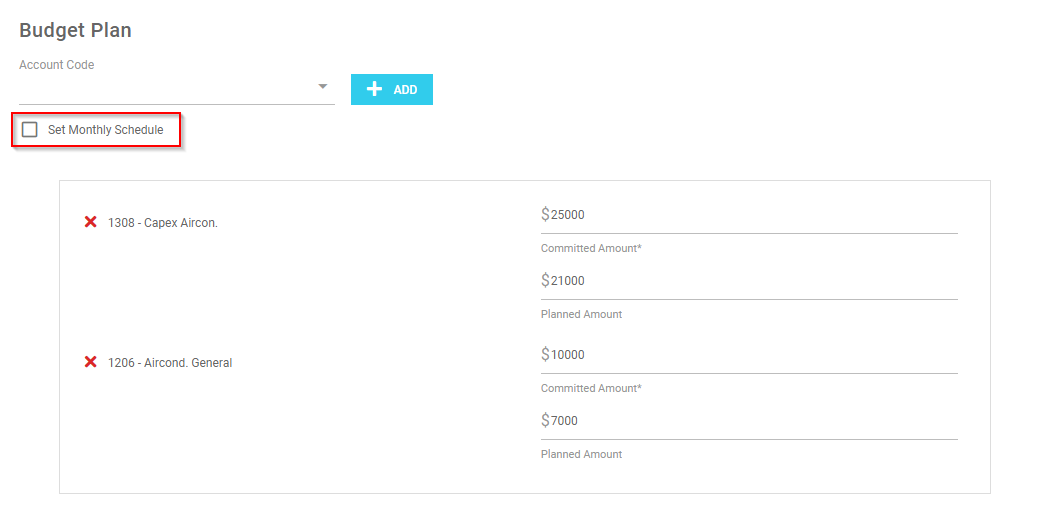
- Budget Plan - Select an 'Account Code' from the drop down menu and click the '+Add' button. Then enter the 'Commitment Amount' (budgeted amount) and 'Planned Amount' (expected amount) for each code (see below). There is also an option to 'Set Monthly Schedule' by checking the box, as shown below.
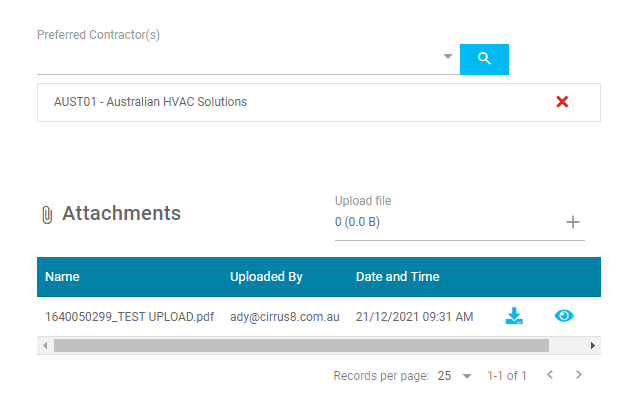
- Preferred Contractor(s) - Select the Contractor(s) from the drop down menu that are involved in the Project
- Attachments - Add photos/documents by clicking the '+' button or dragging into the box
Once the details of the Projected has been entered, click the 'Create' button and await approval from 'Approver'. Alternatively you can 'Save as Draft'.
Viewing a Project
Once you have selected an approved Project to view, you can monitor the progress of the project. There are also a few option you can action:-
- Back arrow - This will take you back to the previous screen.
- Create New Project - You can create a new project
- Create Quote - This will allow you to create a quote for the selected project
- Create Workorder - This will allow you to create a workorder for the selected project
- Update status - Change status of project to Completed, Inactive-Deferred or Inactive-Cancelled from the drop down menu

- Transactions - This will allow you to view the transactions
- Variations - This will allow you to view or add a Variation
- Comments - This will allow you to view or add a comment or upload a file
- Attachments - This will allow you to upload new photos/documents
- Activity Logs - This will allow you to check the status and actions completed

Variations to Project
Select the 'Variations' tab and click 'Add a Variation', see below.

This will allow you to create a Variation to the existing project using the same steps as 'Creating a Project'.
Was this article helpful?
That’s Great!
Thank you for your feedback
Sorry! We couldn't be helpful
Thank you for your feedback
Feedback sent
We appreciate your effort and will try to fix the article