This section allows you to cancel a receipt.
Trust Accountant Location: Accounts Receivable > Cancel Receipts
Tip - Prior to cancelling a receipt, ensure there are sufficient funds available in the property to facilitate the cancellation. It is also recommended to obtain lease name, the date of the receipt and the receipt number beforehand.
Cancel a Receipt
To cancel a receipt as a Trust Accountant user, go to:
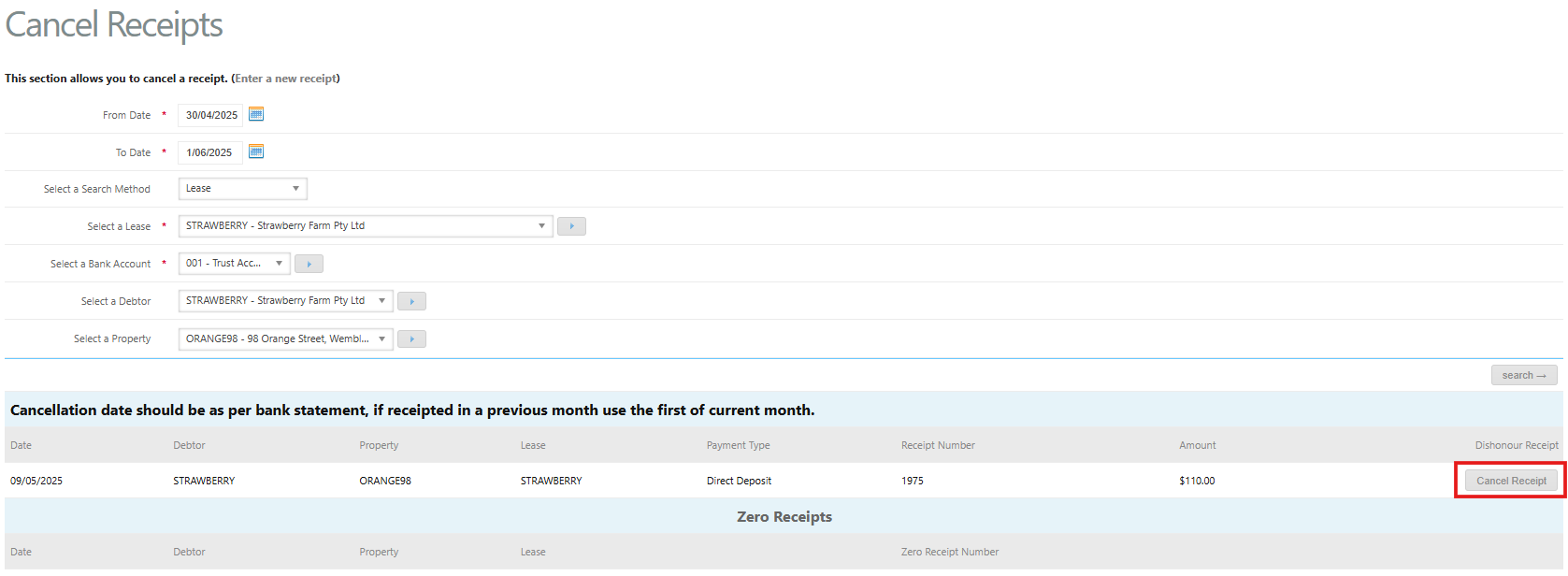
- Accounts Receivable > Cancel Receipts
- Enter a From Date and To Date
- Select a search method e.g. Lease
- Click Search
- Locate the relevant receipt transaction line
- Click Cancel Receipt against the receipt requiring cancellation
- A popup dialog box will appear
- Enter the Cancellation Date - ensure the cancellation date is the same as the original receipt date. However, if the original receipt date is in a closed period, enter the cancellation date as at the 1st of the current period.
- Enter a Reason for Cancellation
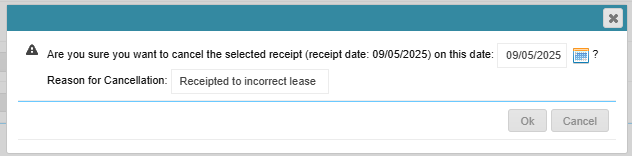
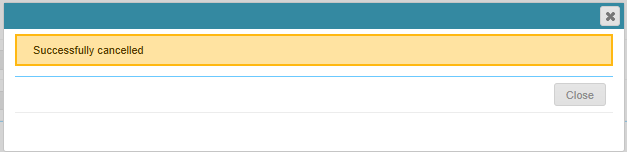
- Click Ok. A success message will appear once cancelled
Tip - If an invoice has been receipted to, cancelling the receipt will not enable the invoice to be deleted. Instead raise a corresponding credit to the invoice.
Was this article helpful?
That’s Great!
Thank you for your feedback
Sorry! We couldn't be helpful
Thank you for your feedback
Feedback sent
We appreciate your effort and will try to fix the article