Overview
You may need to cancel a receipt when, for example:
A receipt has been allocated incorrectly
A receipt has been applied to the wrong lease
Incorrect receipting has occurred
When cancelling a receipt, Cirrus8 automatically checks that sufficient cleared funds exist in the property to prevent the trust ledger from being overdrawn.
Step 1 — Confirm Available Funds
Before cancelling a receipt, confirm the property has sufficient cleared funds.
1. Check Property Bank Balance
Go to Accounting Reports
Select Bank Balance
Confirm the Cleared Funds Balance
(Example: $5,728.45)
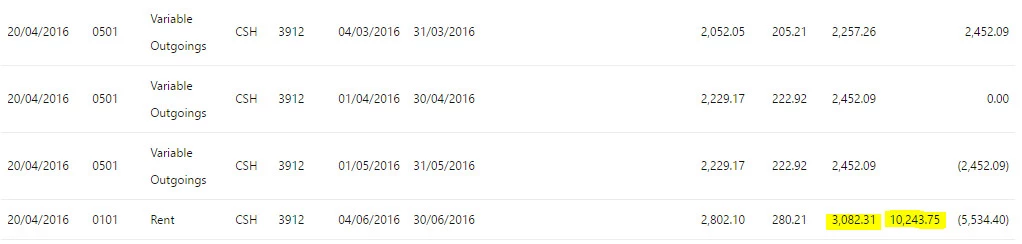
2. Check Tenant Activity
Go to Leases
Open Tenant Activity
Review total receipted amount and date
(Example: $10,243.75)

Choose a Cancellation Method
If there are not enough funds available, choose one of the following options.
Option 1 — Use an Unallocated Receipt (Recommended)
This is the safer, standard method.
Step 1: Create an Unallocated Receipt
Go to AR Receipts
Add a new receipt for the full incorrectly receipted amount
Mark it as Unallocated
Process the receipt
Step 2: Cancel the Original Receipt
Go to AR Cancel Receipts
Ensure the cancellation date matches the original receipt date
Locate the incorrect receipt
Click Cancel Receipt
Step 3: Allocate the Receipt Correctly
Go to AR Receipts
Allocate the unallocated amount to the correct invoice(s)
Process as a zero receipt
Option 2 — Temporarily Remove Debit Barred (Controlled Process)
⚠️ Warning:
This method must be controlled strictly by the Trust Accountant. Leaving this setting disabled can risk overdrawing the trust account.
Step 1: Disable Debit Barred
Go to Configuration → Bank Accounts
Edit the relevant account
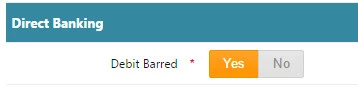
Open Direct Banking
Change Debit Barred from Yes → No
Step 2: Cancel the Receipt
Go to AR Cancel Receipts
Ensure cancellation date matches the receipt date
Locate the receipt
Click Cancel Receipt
Step 3: Receipt Again Correctly
Go to AR Receipts
Enter the receipt again
Allocate to the correct invoice(s)
Step 4: Re-enable Debit Barred
Return to Configuration → Bank Accounts
Edit the account
Change Debit Barred back to Yes
Best Practice Notes
Always check cleared funds before cancelling receipts.
Option 1 is generally preferred as it avoids trust risk.
Option 2 should only be used when authorised and monitored.
Always ensure cancellation dates match original receipt dates for audit accuracy.
Was this article helpful?
That’s Great!
Thank you for your feedback
Sorry! We couldn't be helpful
Thank you for your feedback
Feedback sent
We appreciate your effort and will try to fix the article