Property Manager users may enter receipts for funds received as cash or cheque. The form located under Leases -> Receipts used to advise the Trust Accountant of these cash or cheque receipts. Once the form has been submitted, the Trust Accountant can then approve or reject the receipt. This article will cover the steps involved in this process.
Create Cash or Cheque Receipt as a Property Manager User
To process a new receipt as a Property Manager user, go to Leases -> Receipts and follow the below steps:
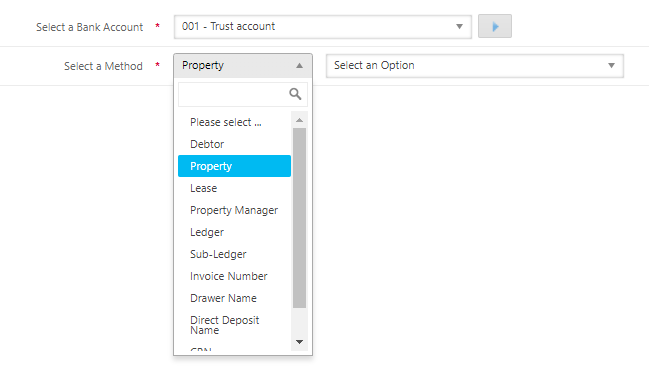
- Select a Bank Account - Select the relevant Trust Account in the drop-down menu if there are more than one bank accounts set up in your database
- Select a Method - Select a search method from the drop-down menu e.g. Lease. If you select a debtor with multiple properties or leases and do not refine your selection - you will be able to receipt against all returned tenant results that share the same debtor company)
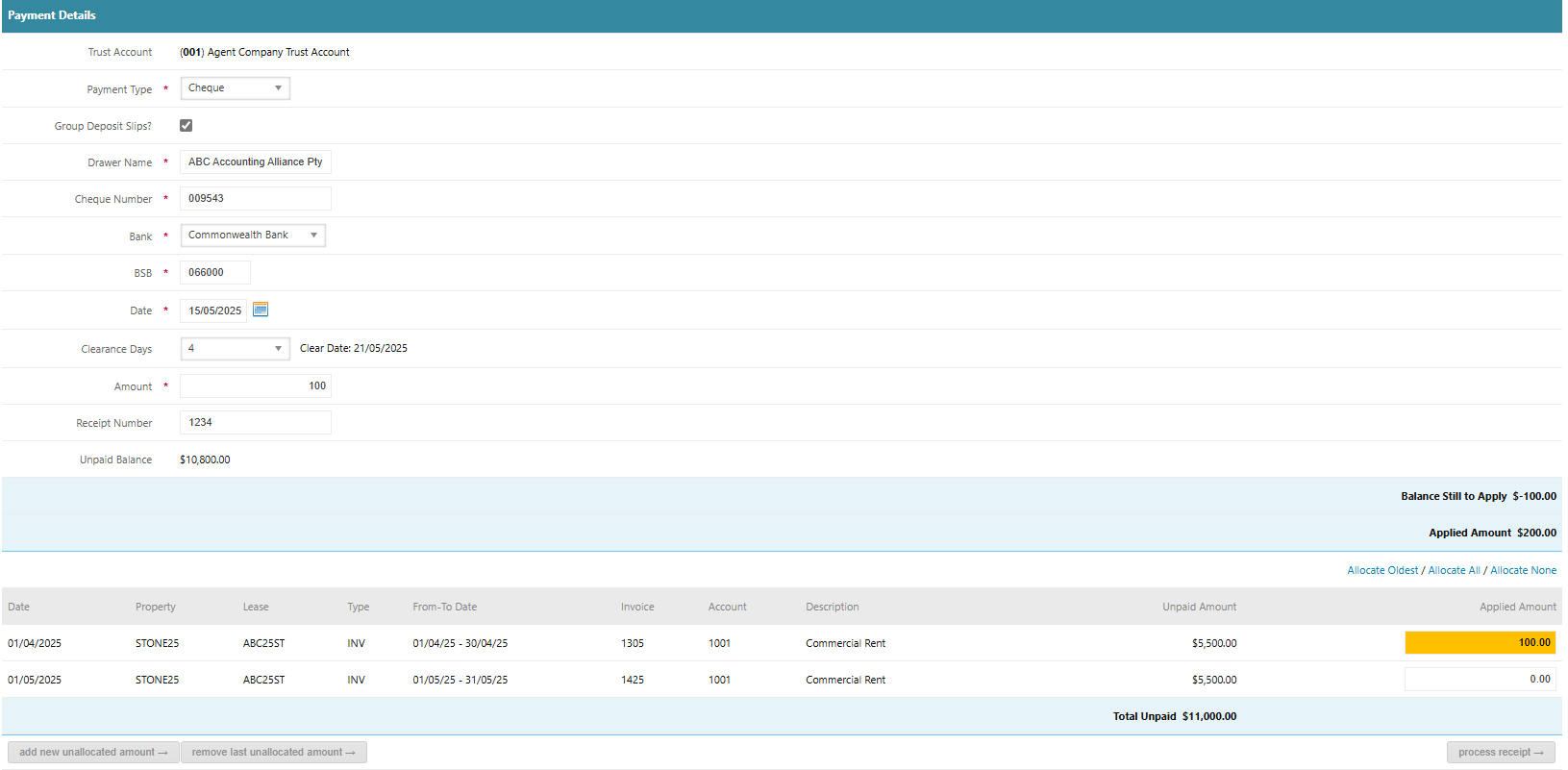
3. Complete the Payment Details section by referring to the below table based on the receipt payment method:
| Payment Details | Cheque | Cash |
| Payer Details | Optional | Optional |
| Group Deposit Slips | Optional | Optional |
| Direct Deposit Name/Drawer | As Per Cheque | N/A |
| Cheque Number, Bank and BSB | As Per Cheque | N/A |
| Receipt Date | Date Deposited (4 days to clear) | Date Deposited |
| @Bank | Date Deposited (4 days to clear) | Date Deposited |
| Amount | As Per Cheque | Amount Deposited |
| Receipt Number | Optional | Optional |
4. Allocate the receipt amount to the relevant tenant invoices using the following allocation methods:
- Double click the Applied Amount box next to the relevant invoice to allocate funds to the invoice in full.
- Manually type in the amount in the Applied Amount column to the relevant invoice. This amount can either be the full amount due or a part payment.
- Click Allocate All - Clicking this will select all outstanding invoices.
- Click Allocate Oldest - Clicking this will allocate the total receipt amount against the oldest outstanding invoices.
5. Click Process Receipt
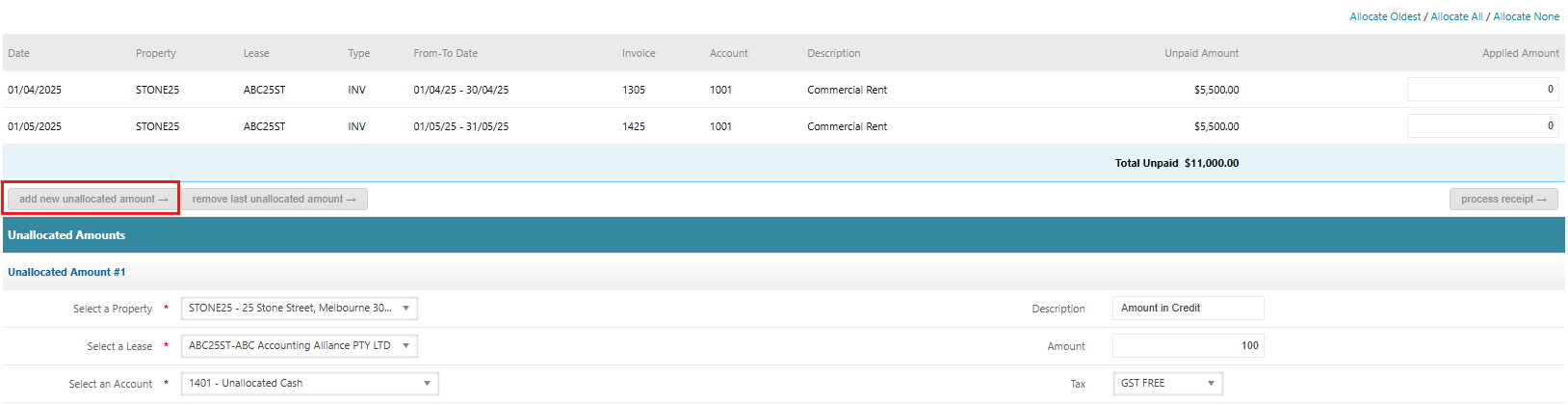
To receipt the cash or cheque as an unallocated amount, follow steps 1 to 3 above first, then follow the below steps:
- Click add new unallocated amount, this will create a new Unallocated Amounts line for entry.
- Select the Property and Lease
- Select the Account that has been configured in your database as the Unallocated Cash account e.g. 1401 Unallocated Cash
- Enter a Description e.g. Amount In Credit
- Enter the amount
- Leave the Tax rate as GST Free
- Click Process Receipt
Approve or Reject the Receipt as a Trust Accountant User
Follow the below steps to approve or reject the cash/cheque receipt submitted by the Property Manager user:
- Go to Trust Accountant Dashboard > Receipts Form


- Click Generate Bank Deposit Slip to download a .pdf copy of the Bank Deposit Slip
- Click View
- Review the submitted receipt form. Here you can make changes to the receipt date, clearance days or the description of the Unallocated Amounts transaction
- If the receipt form is to be rejected, first enter a comment in the comment field which will be included in the email notification to the Property Manager user, then click Reject.
- Or, click Approve to process the receipt.
Was this article helpful?
That’s Great!
Thank you for your feedback
Sorry! We couldn't be helpful
Thank you for your feedback
Feedback sent
We appreciate your effort and will try to fix the article