Before a new user can be assigned properties in Cirrus8, their login must first be created by Cirrus8 Support, and then their details must be added into the system configuration.
Before You Start
Email support@cirrus8.com.au and request a login for the new user.
Include the following details in your request:
Full name
Email address
Access level — either:
Trust Accountant, or
Property Manager
Why this is required:
Support must create the user’s login before you can complete the setup inside Cirrus8.
Step 1: Add the User’s Name
Log in to Cirrus8 as a TA user.
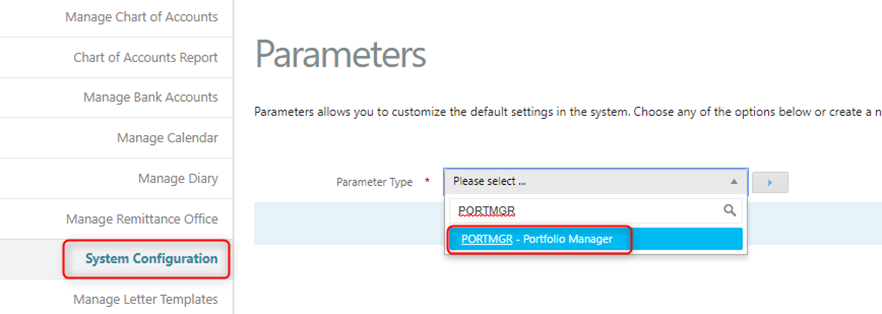
Go to Configuration > System Configuration.
In the Parameter Type drop-down, select PORTMGR.

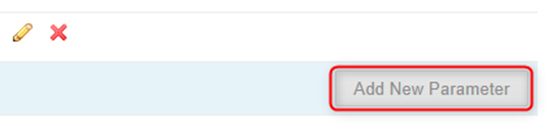
4. In the bottom-right corner, click Add New Parameter.
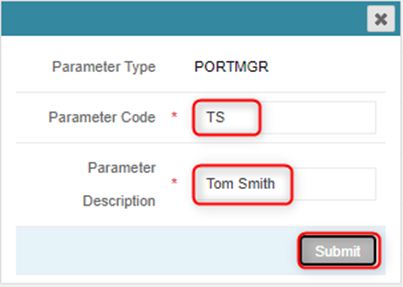
- Enter the following:
5. Parameter Code: the new user’s initials
This must be unique
Parameter Description: the user’s full name
Click Submit.
Step 2: Add the User’s Email Address
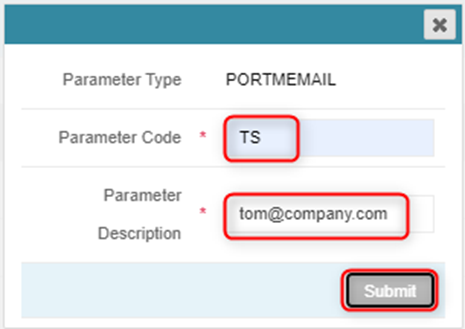
- Change the Parameter Type drop-down to PORTMEMAIL.
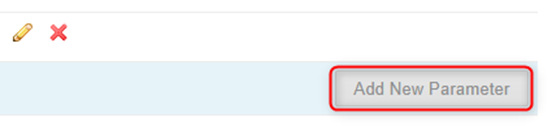
 2. Click Add New Parameter.
3. Enter the following:
Parameter Code: the same initials entered in Step 1
Parameter Description: the user’s email address
Step 3: Add the User’s Job Title
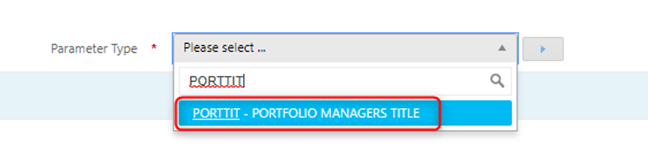
Change the Parameter Type drop-down to PORTTIT.
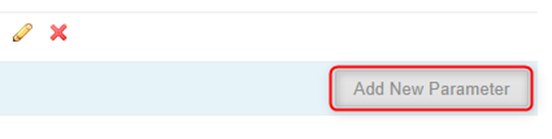
2. Click Add New Parameter.
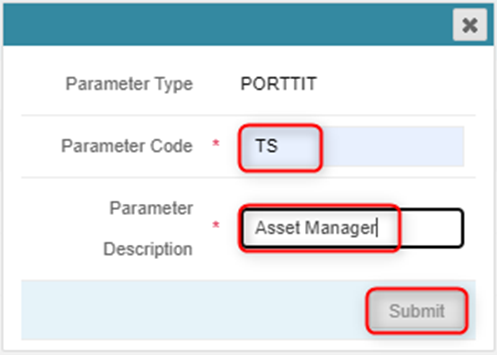
 3. Enter the following:
Parameter Code: the same initials entered in Step 1
Parameter Description: the user’s job title

Completion
Once all three steps are complete, the new user will be available to assign properties to in Cirrus8.
Tips to Avoid Errors
Use unique initials for each user.
Make sure the same initials are used in all three steps.
Double-check spelling of the user’s name, email, and job title before submitting.
Need Help?
If you have any questions or run into issues, contact support@cirrus8.com.au.
Was this article helpful?
That’s Great!
Thank you for your feedback
Sorry! We couldn't be helpful
Thank you for your feedback
Feedback sent
We appreciate your effort and will try to fix the article